
To configure Instagram Feed on your Gutenberg website, you have to generate Instagram access token and it needs to be integrated with Essential Blocks. Follow this step-by-step guide below to get started.
Step 1: Add A New App On Facebook For Developers #
To get your access token from Instagram, you need to create an app on Facebook Developers. First, log in to your Facebook profile and go to your Facebook Developers Account. Once you are logged in, you need to add a new app and click on the ‘Create App’ button, as shown below.

Next, enter your ‘App Name’ and ‘App Contact Email’ in the respective fields. After that, click on the ‘Next’ button.

You can tick on your app’s use case from the available options, such as: ‘Run ads to promote your app,’ ‘Access the Threads API,’ ‘Launch a game on Facebook,’ or ‘Other.’ Choose the ‘Other’ option. Then click on the ‘Next’ button. Select ‘Business’ as the app type and hit the ‘Next’ button.
Review your app details carefully and make any necessary adjustments. Then click on the ‘Create App’ button to proceed next.

Step 2: Configure Instagram Basic Display #
After successfully creating a new app, you will be redirected to a new page where you can configure API with an Instagram business account. Locate the ‘Instagram’ app and click on the ‘Set Up’ button. Then, click on ‘Generate Access Tokens’ → ‘Add Account’ to link an Instagram account and click on the ‘Continue’ button.
Step 3: Add Instagram Account As A Tester #
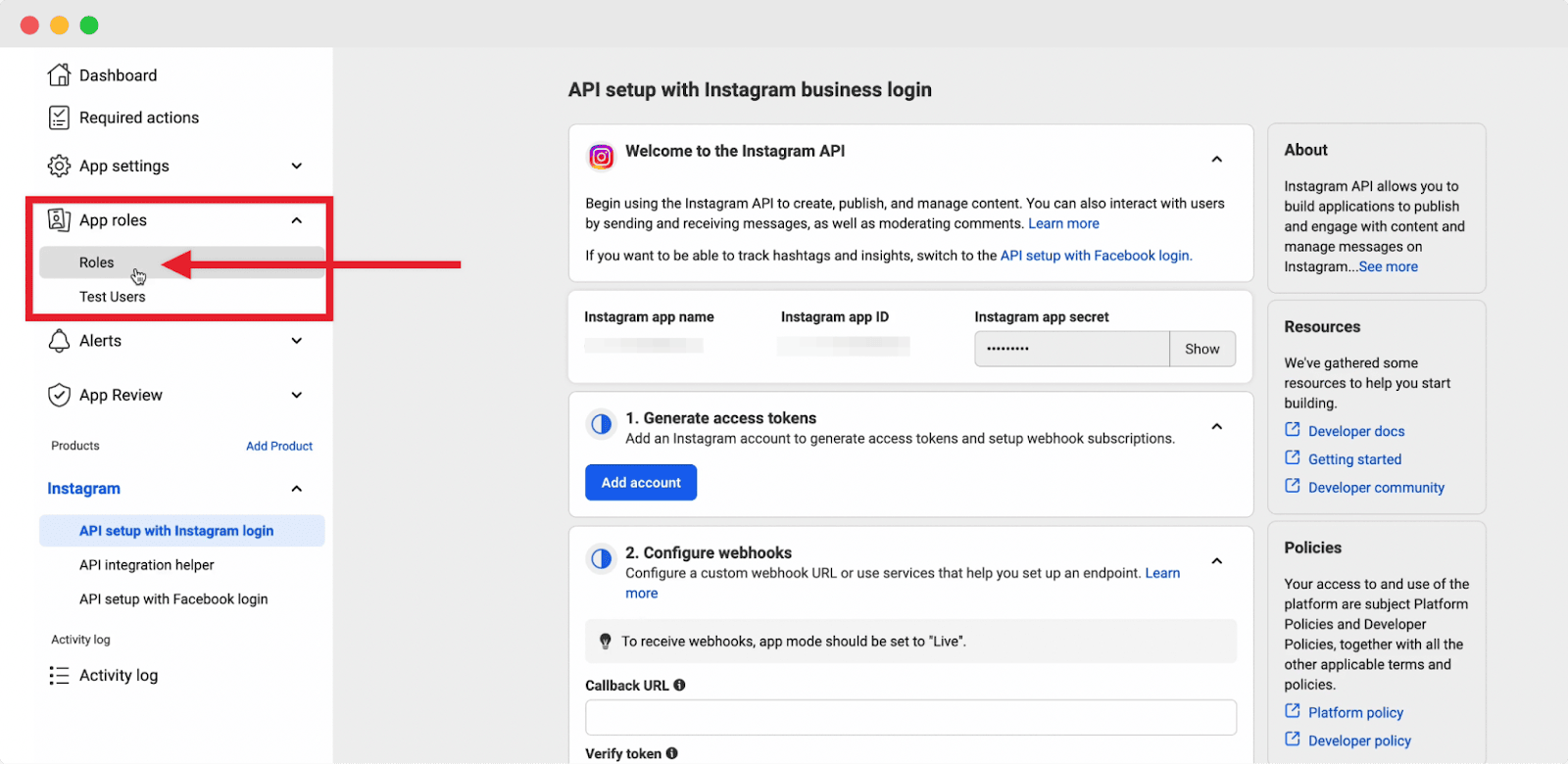
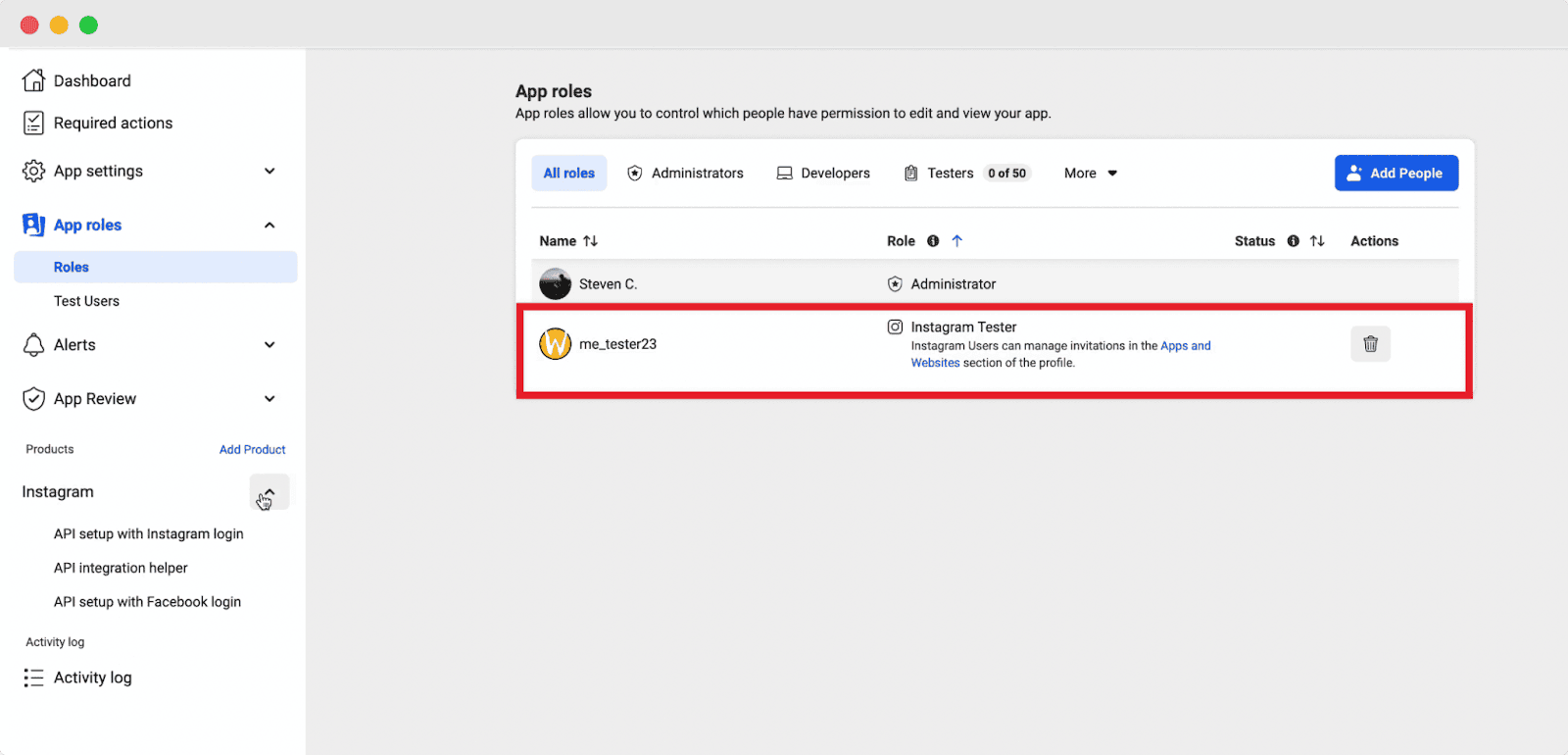
You need to add your Instagram account to App Roles. To do so, click on the ‘Roles’ tab in the ‘App Role’ section.
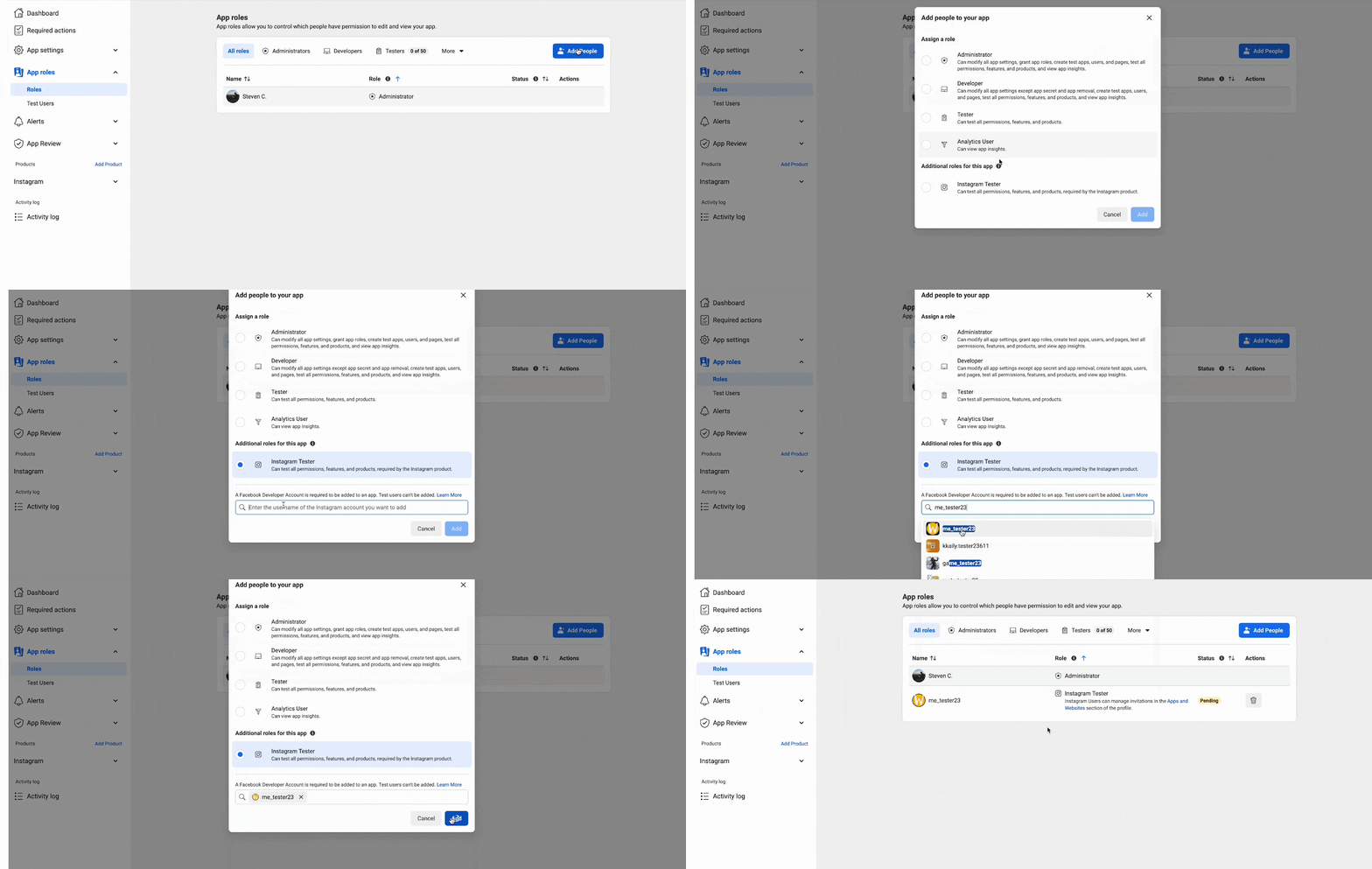
Now, click on the ‘Add People’ button and a popup will appear. From the popup, select on the ‘Instagram Tester’ and enter the username of the Instagram account you want to add. Now, click on the ‘Add’ button.
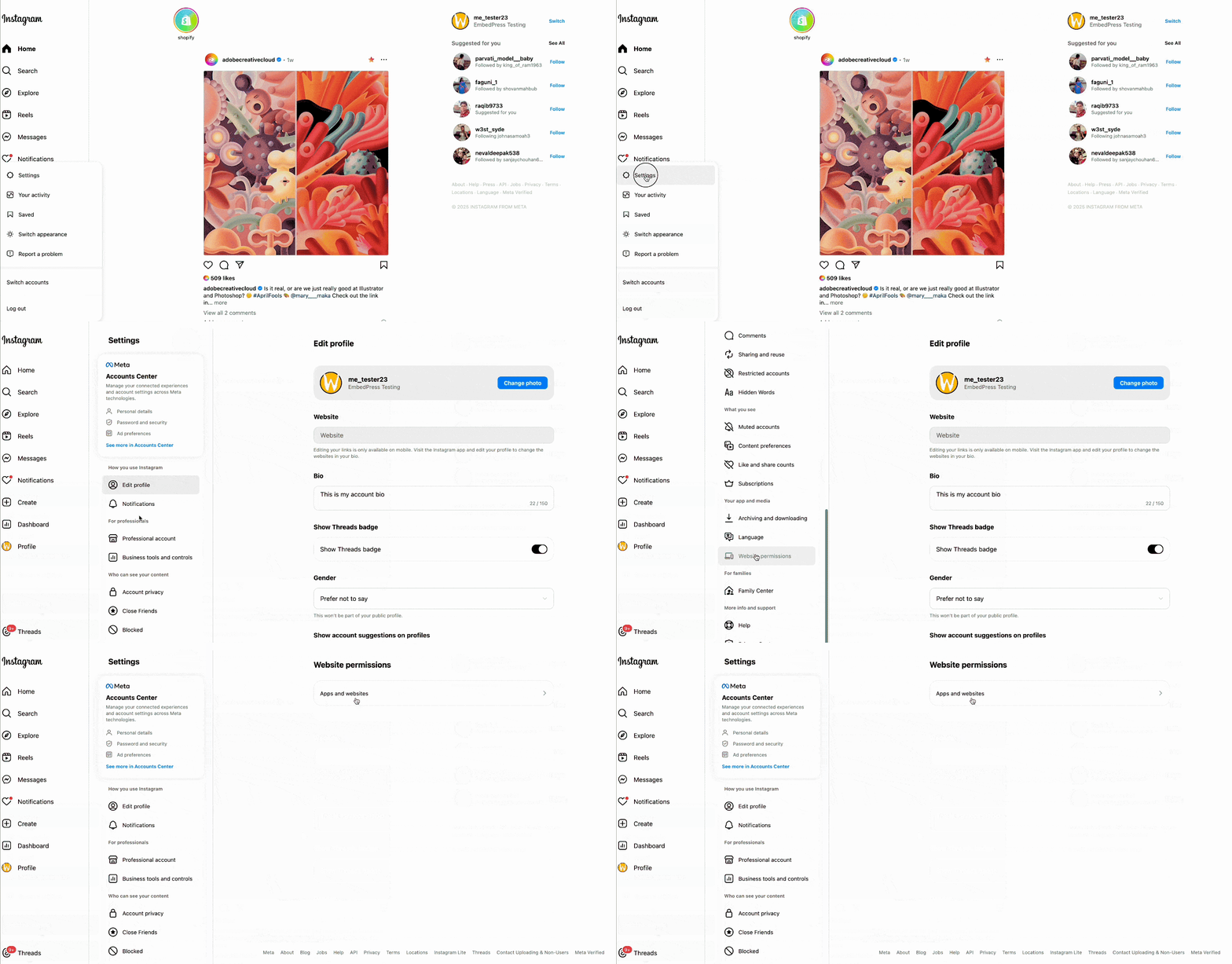
Now you need to approve the request from Instagram. Go to your Instagram account and click on ‘Settings’. Now, click on ‘Website Permissions’ and then click on ‘Apps and websites’.
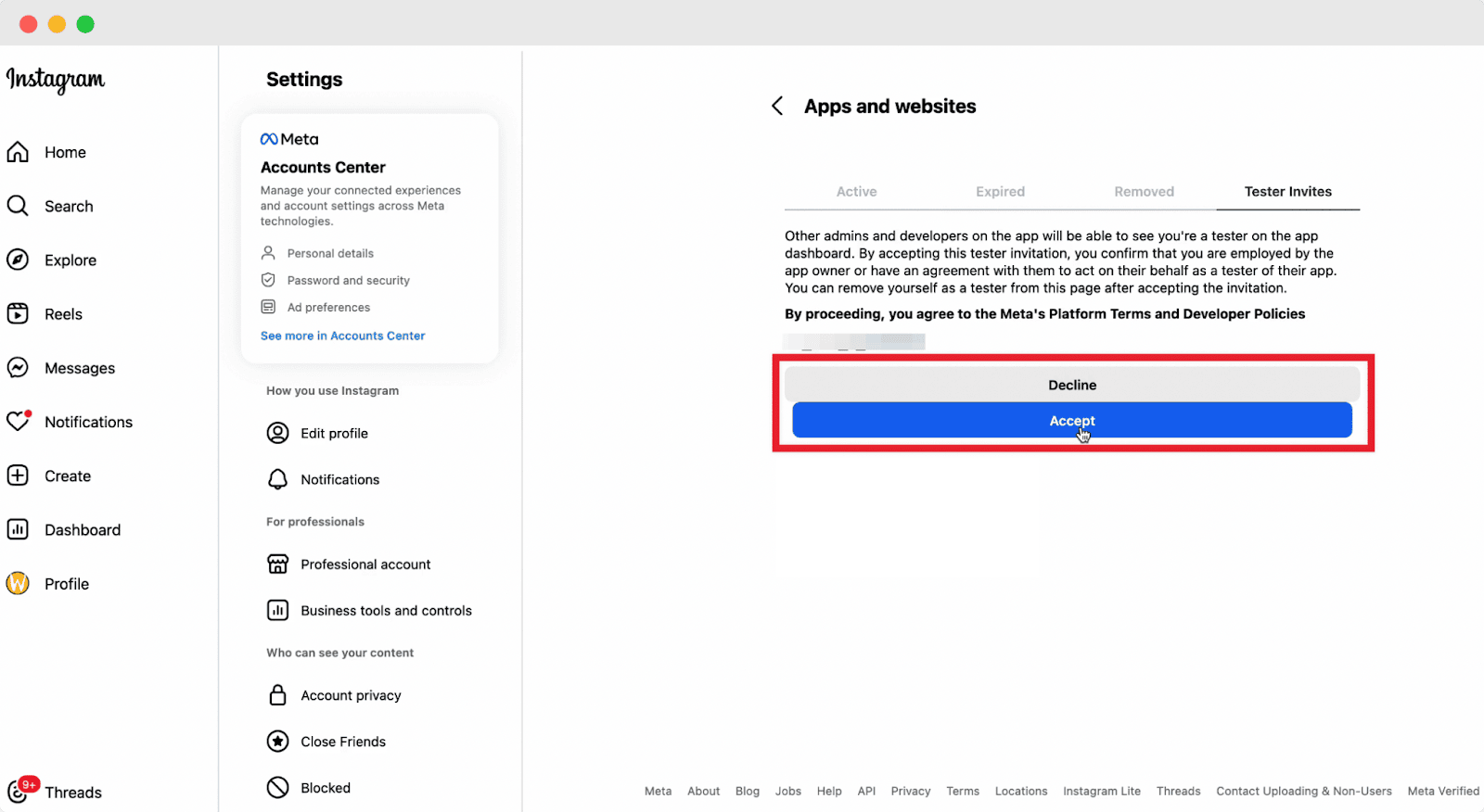
Here, you will find the request sent from Meta. Click on the ‘Accept’ button.
Once done, you can see your Instagram account on the App Role in the Meta dashboard.
Step 4: Generate Access Token #
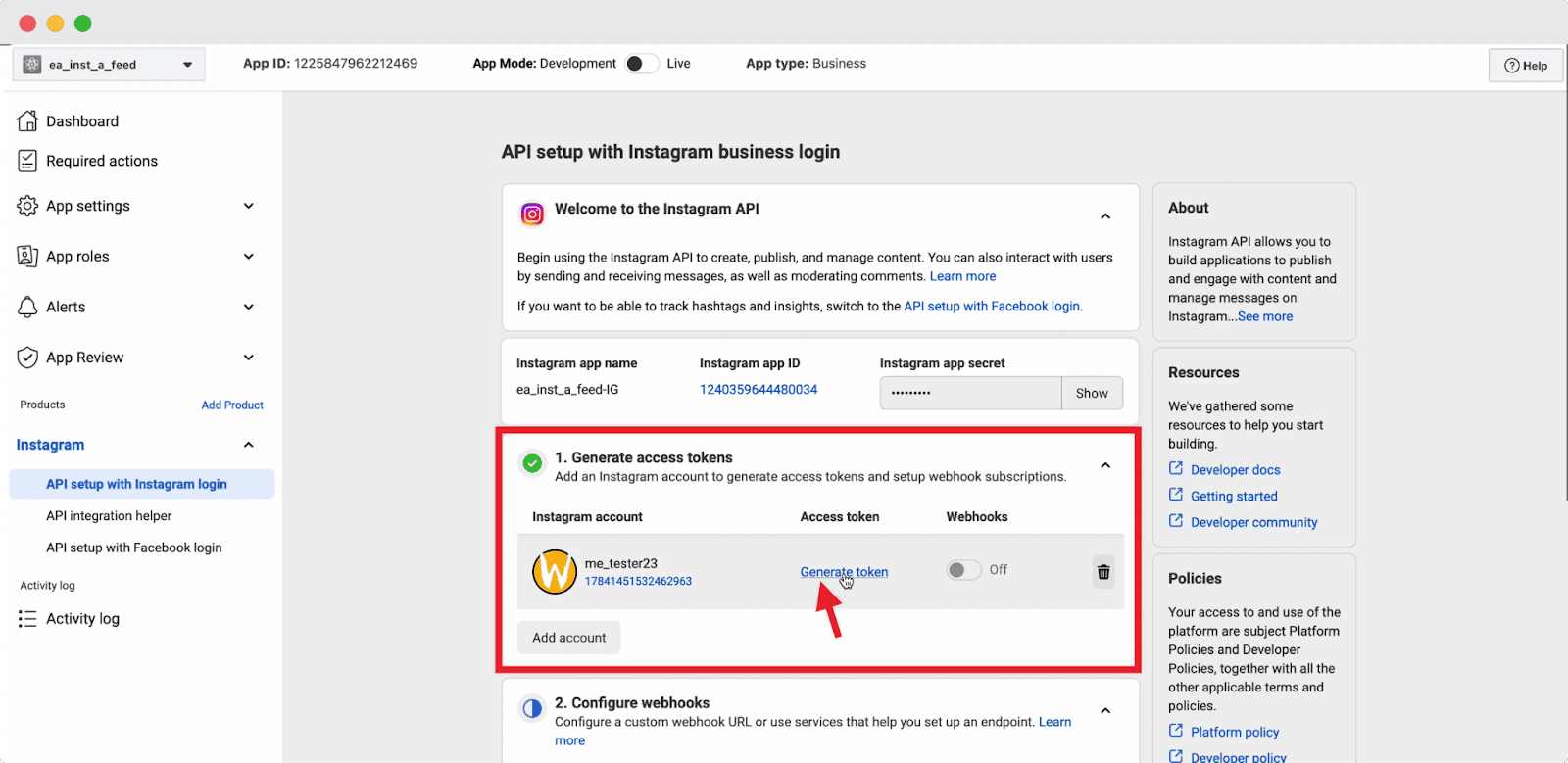
Now, click on the ‘API Setup with Instagram Login’ under the ‘Instagram’ dropdown. From the ‘Generate access tokens’ section, click on the ‘Generate Token’ to create an access token for your Instagram account.
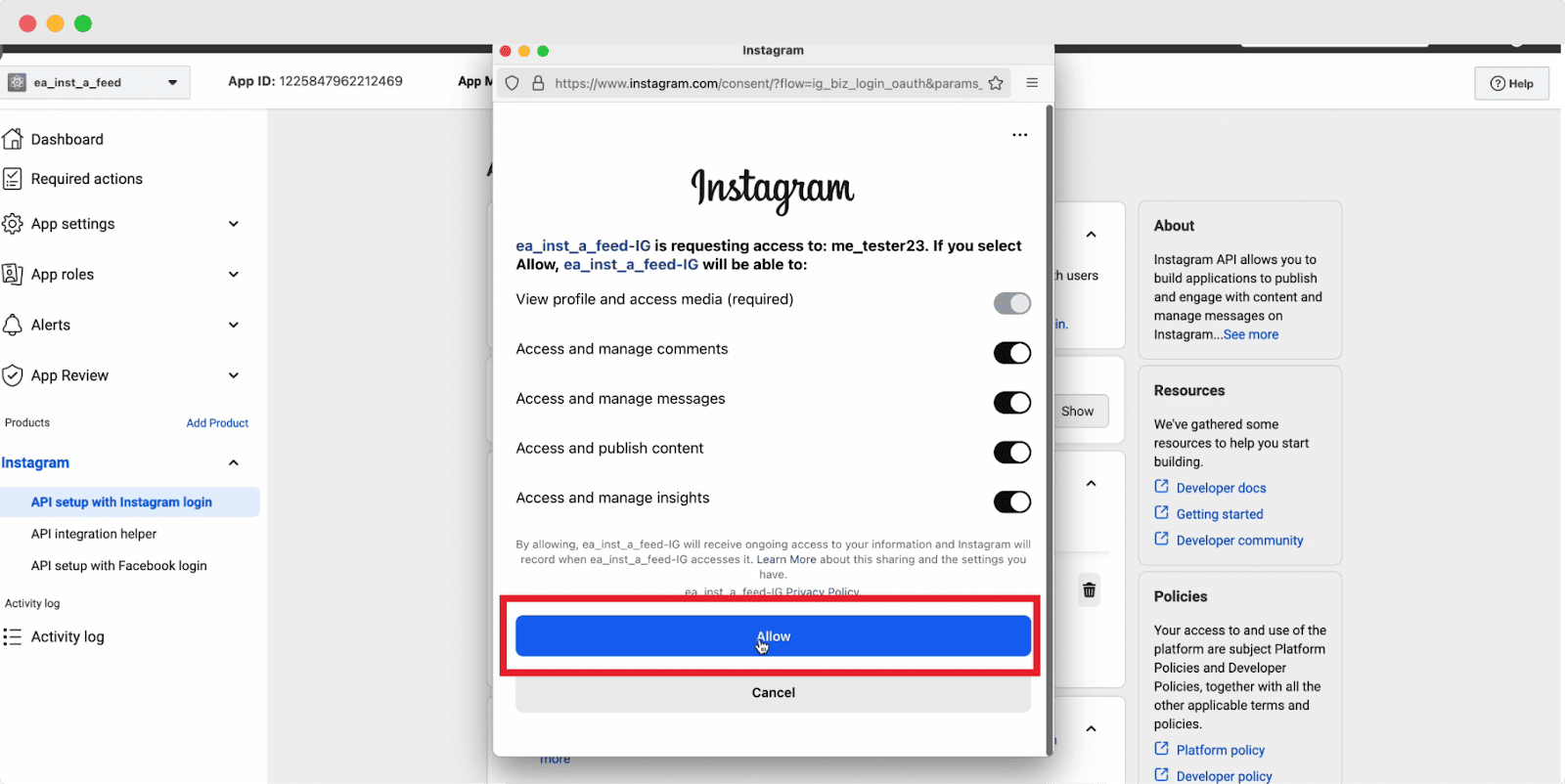
Afterward, a popup will appear to login you to your Instagram account. Log in and click on the ‘Allow’ button.
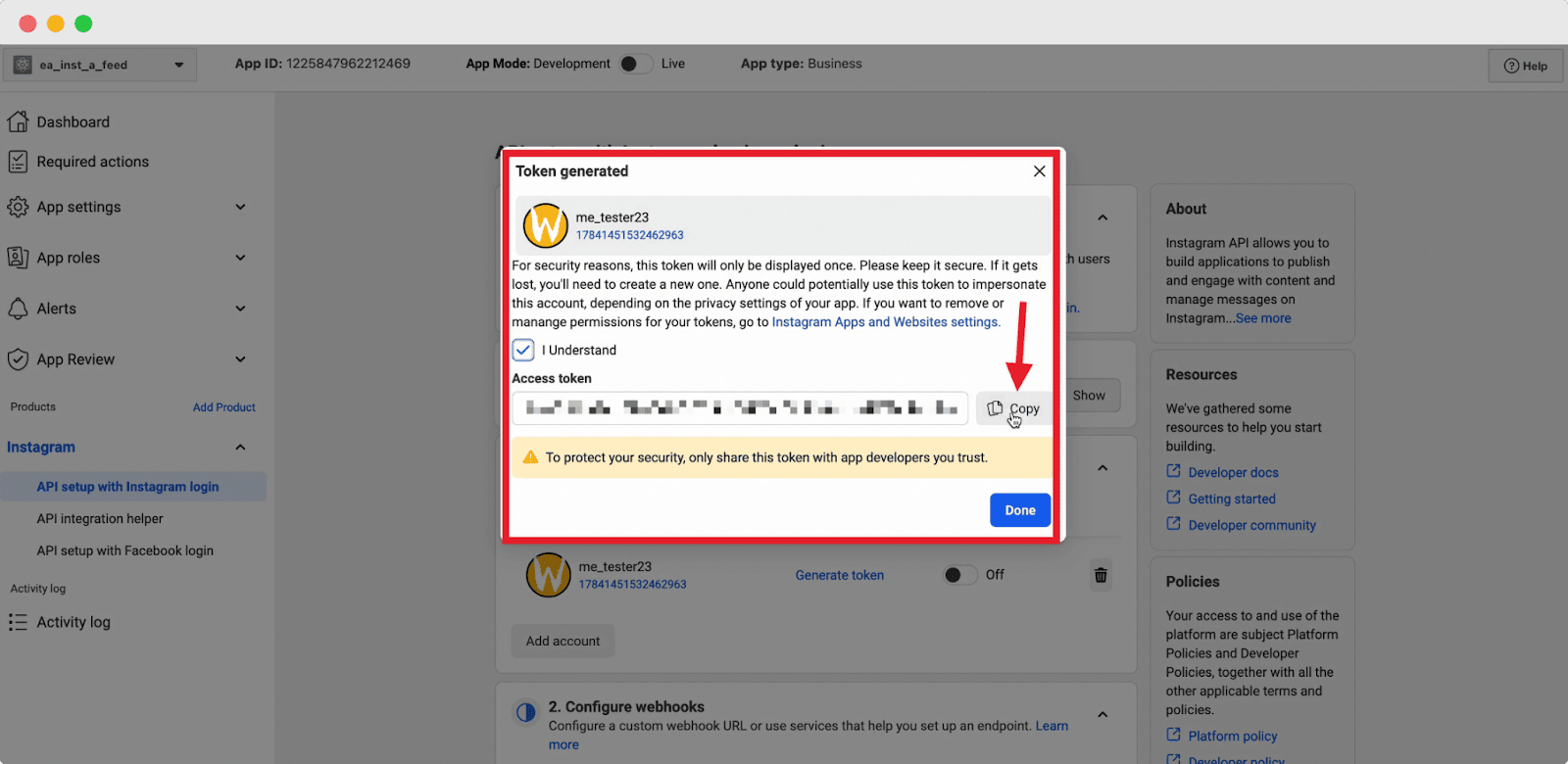
After completing the setup process, an ‘Access Token’ will be generated. Copy your access token to the clipboard. With this access token, you can now display your Instagram feed on your website.
Step 5: Integrate The Access Token With Essential Blocks #
Go to your WordPress dashboard. From there, navigate to Essential Block dashboard and click on the Settings tab to find API Integration section.
Now, go to ‘Instagram’ and click on the pencil icon to edit. Paste your Instagram Access Token there and hit the ‘Save Change’ button.
That is it. This is how you can get an Instagram Access Token and integrate with Essential Blocks easily.
What’s Next? #
- Configure the Instagram feed block following this documentation here.
- If your Instagram access token expires or you lose it, follow this documentation to re-generate it.
Are you getting stuck? Feel free to Contact Our Support for further assistance.


