
EB Liquid Glass Effect extension helps you design glassmorphism effects right inside your Gutenberg editor. This extension lets you apply stunning Liquid Glass Effects that respond to infoboxes, buttons and more, making your web pages feel dynamic and interactive while captivating your visitors’ attention.
How to Find the EB Liquid Glass Effect? #
First, add a wrapper to add the background for the liquid glass effects. Then, inside the wrapper, add the block of Essential Blocks in which you want to add this effect. For tutorial purposes, we are using the Infobox block. Click on the block and move to the ‘Advanced’ tab of the block’s settings panel to configure liquid glass effects. In the ‘Advanced’ tab, scroll to the ‘Liquid Glass Effect’ dropdown and toggle it on to enable the effect for this block.
Once you have enabled the ‘Liquid Glass Effect’ extension, you can see all the configuration options under this dropdown. This extension offers different presets and effects along with customization options to add visually appealing effects to your website page.
How to Configure the ‘Liquid Glass Effect’? #
In the ‘Liquid Glass Effect’, there are five different presets available: Heavy Frost, Soft Mist, Light Frost, Grain Frost and Fine Frost. Each of these presets shows different types of glass effects on the block.
Note: Some of these presets are premium. To use those presets, make sure you have installed & activated the Essential Blocks Pro plugin.
With presets here, there are different options available to customize the background color or adjust the backdrop filter for the effects.
Add And Customize Shadow Effects #
You can also add different shadow effects to the liquid glass. There are 4 different shadow effects available. For every effect, you can choose a different border style, color, radius and shadow.
Configure Liquid Glass Effect on the Button #
Liquid Glass Effects is also available on the button. To configure that, go to the ‘General’ tab and from there click on the dropdown of the ‘Button’ option. There, you will find the ‘Liquid Glass Effect’ option. Toggle the button to enable it and the effect will be implemented.
To style the effects on the button, go to the ‘Style’ tab and then scroll down to ‘Button Liquid Glass’. Click on the dropdown and there you will find all the options to customize the Liquid Glass Effect.
Now, here you can find all the options to add presets and effects. You can also customize the button presets and effects available for the button on your infobox.
Final Outcome #
This is how you can show your website content beautifully with EB Liquid Glass Effect. This effect lets you style and add glass effects in Gutenberg the way you prefer.
By following these steps, you can easily add a glass-like effect to your website using EB Liquid Glass Effect.
How to Add Liquid Glass Effects in Different Blocks #
Liquid Glass Effects are also available in the following blocks:
- Dual Button
- Button
- Toggle Content
- Feature List
Let us have a look at how it will work.
Liquid Glass Effect in Dual Button #
First, after adding the ‘Dual Button’, then from the right sidebar, select ‘Liquid Glass’ or ‘Crystalmorphism’ from the ‘Effects Style’. This way, your Dual Button will have a Glassmorphism effect.
Liquid Glass Effect in Featured Items #
Now, for featured items, you can add the Glassmorphism effect in the icons. Select the featured items and from the ‘General’ tab, go down to the ‘Icon Liquid Glass Effect’ and toggle the button to enable it. This way, the icons will have a glass-like effect.
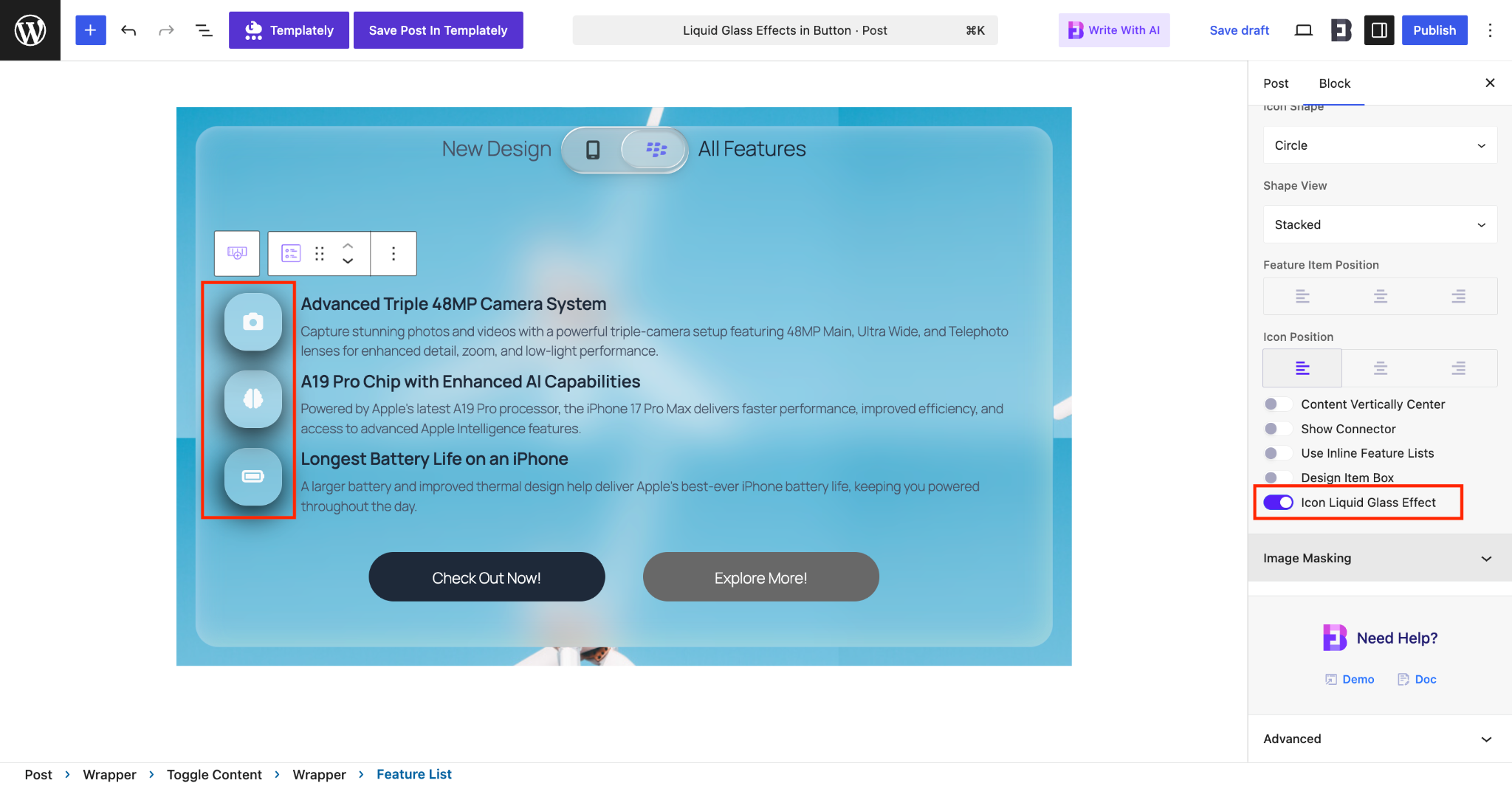
Next, move on to the ‘Style’ tab. From there, select the ‘Icon Liquid Glass’ dropdown. There you will find 5 different presets for the icon –
- Heavy Frost
- Soft Mist
- Light Frost (PRO)
- Grain Frost (PRO)
- Fine Frost (PRO)
By setting different ‘Shadow Effects’, you can customize the icons more beautifully.
Liquid Glass Effect in Dual Button #
To add the Glassmorphism effect in ‘Dual Button’, select the block and from the ‘General’ tab, select which button you want to add the effect. Go to ‘Button 1,’ and toggle the ‘Enable Liquid Glass Effect’ to enable the glass-like effect.
Similarly, if you want to showcase the same effect for Button 2, follow the same process.
To style it more, go to the ‘Style’ tab and from there go to the ‘Button Liquid Glass’. Select your preferred preset and add different Shadow Effects to make it more stylish on your site.
Final Outcome #
Now, let’s have a look at what Liquid Glass Effects look like in different blocks from Essential Blocks. That is how you can create a stunning Glassmorphism effect in your Gutenberg website.
Getting stuck? Feel free to Contact Our Support for further assistance.


