
EB Facebook Feed allows you to display your Facebook posts amazingly on your WordPress site. It gives you the complete freedom to personalize the Facebook Feed any way you want and make it appealing to your website visitors.
How to Create / Retrieve Facebook Page ID & Access Token #
Before you begin, make sure that you have already created a Facebook page on your account and that some posts have been published on that page. Afterward, follow the guidelines below to retrieve the Facebook Page ID & Access Token:
Step 1: Create a New App ID #
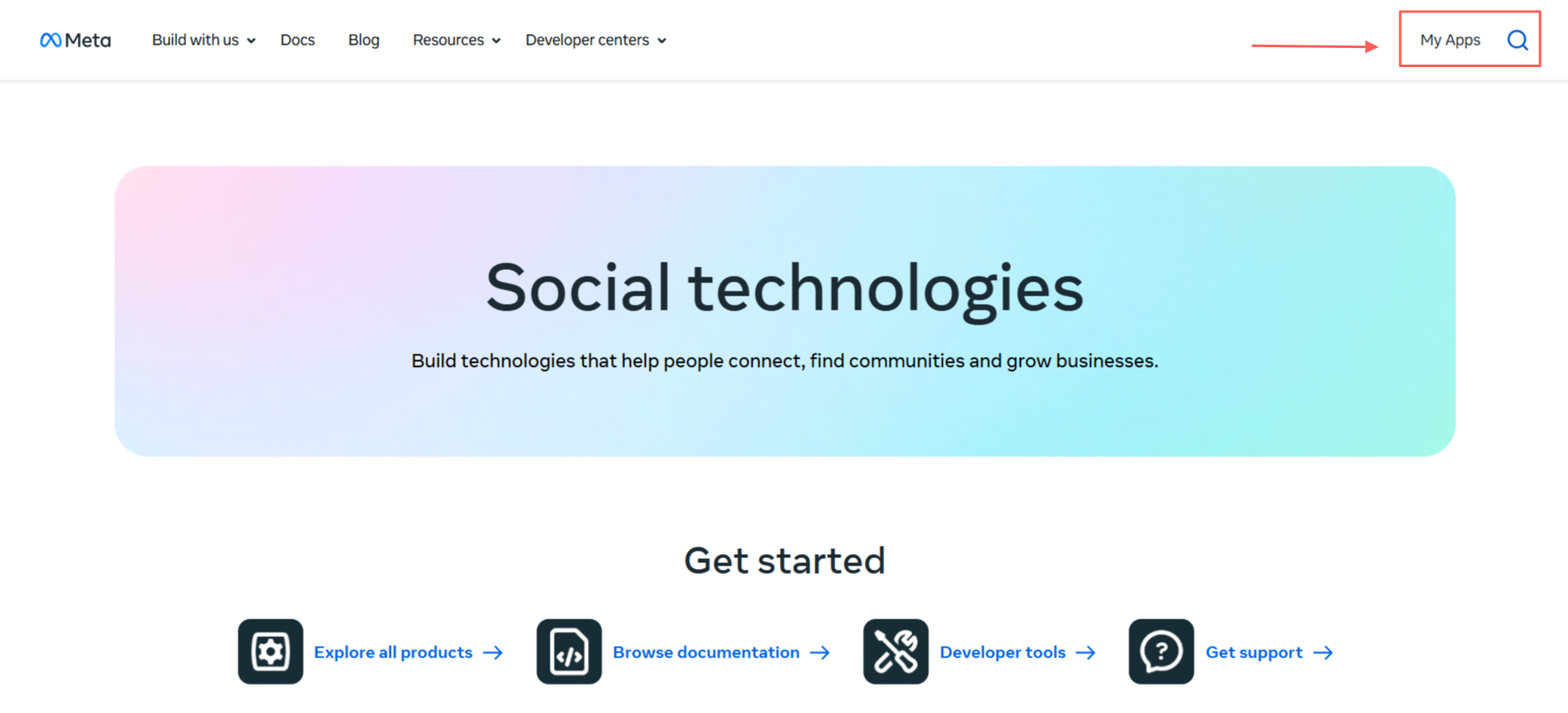
First, log in to your Facebook profile and go to your Meta For Developers Account. Afterward, click on the ‘My Apps’ option, as shown below:
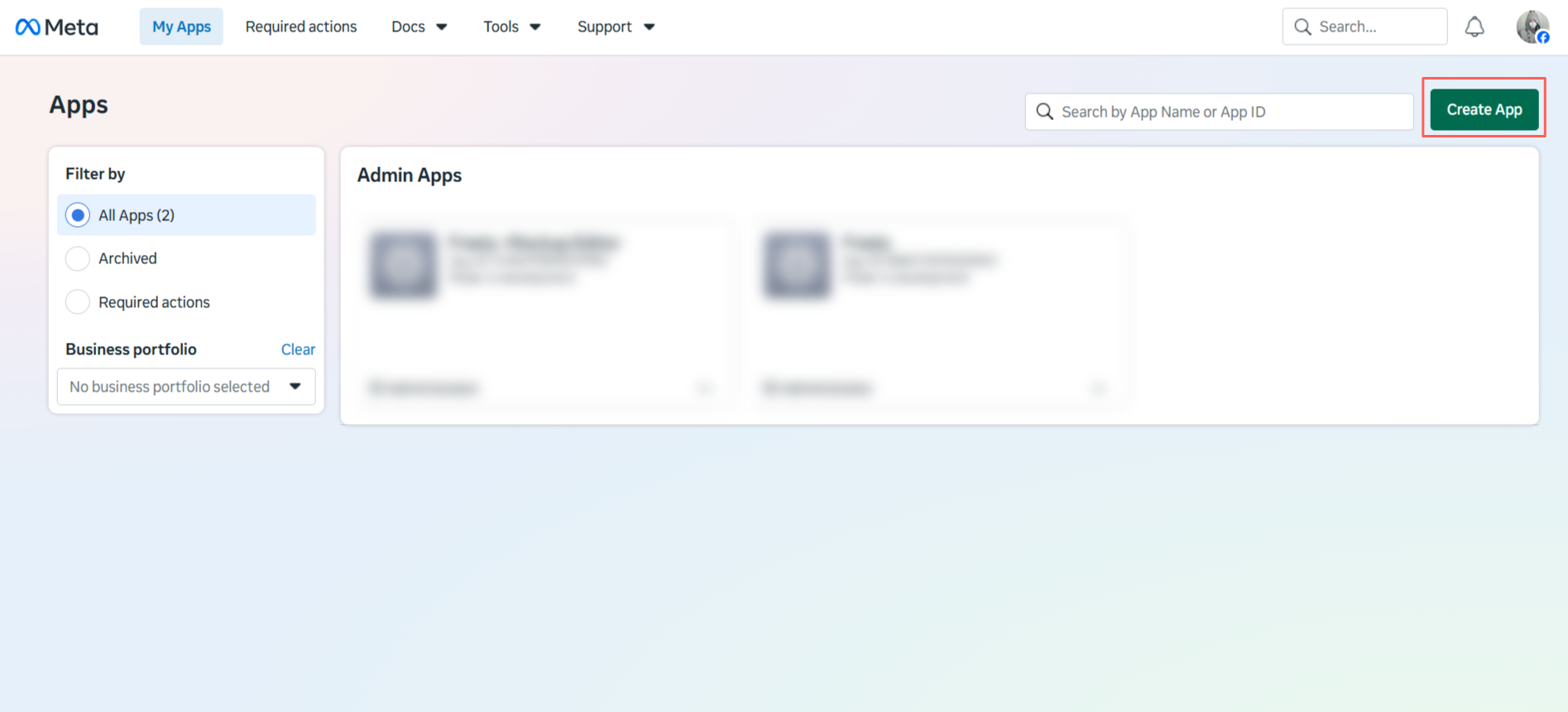
This will redirect you to a new page. Here, click on the ‘Create App’ button to create a new app in Meta Developers.
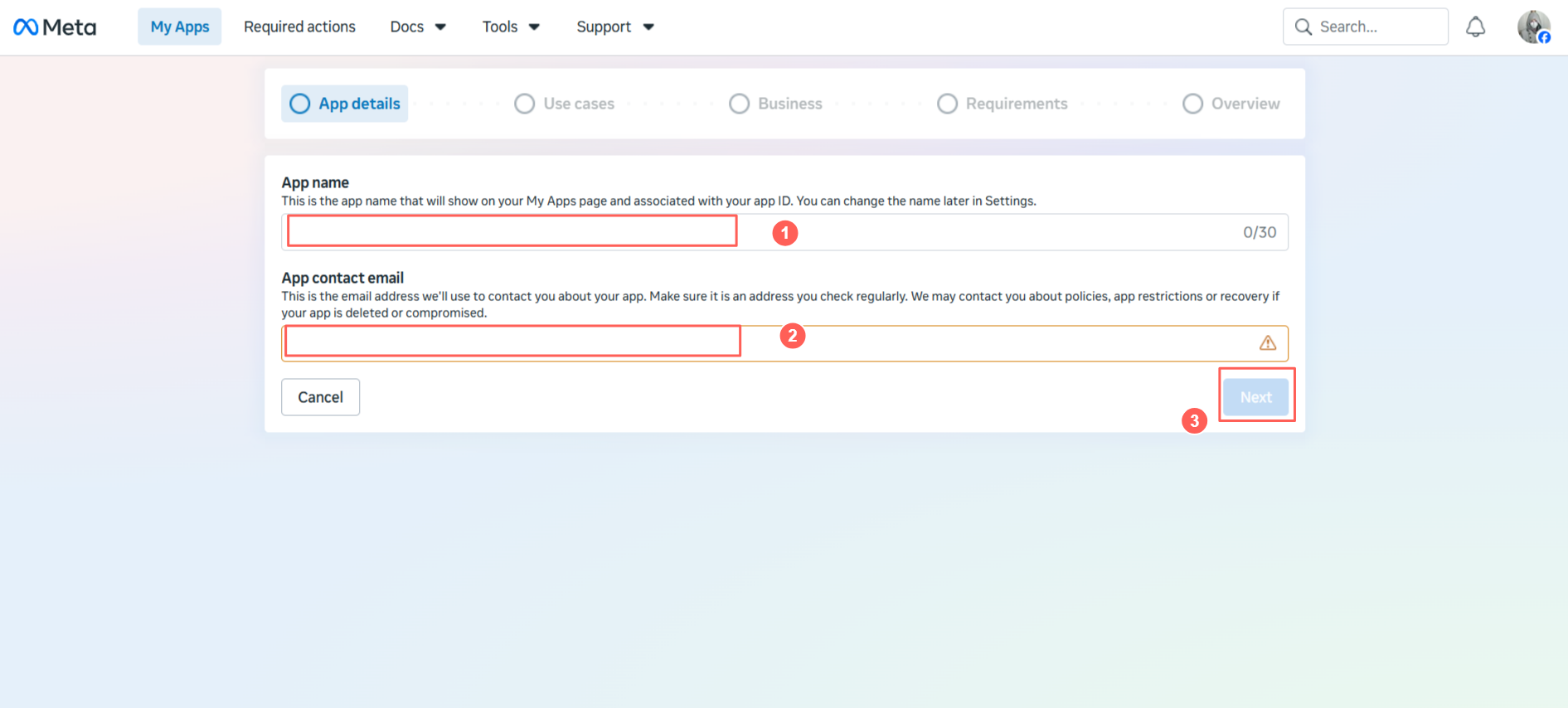
A popup will appear where you want to create an ‘App Name’ and add your contact email. Then click on the ‘Next’ button.
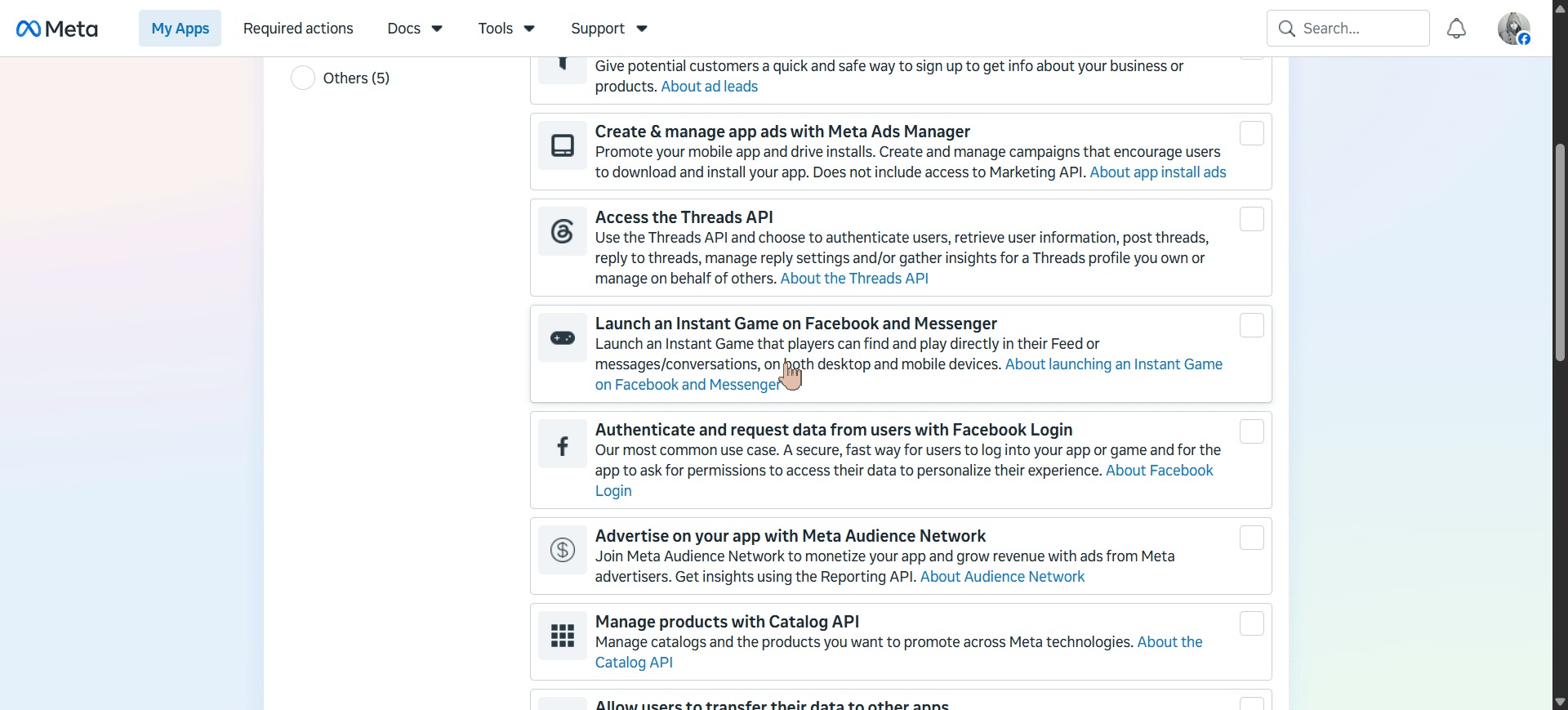
Next, you’ll be asked to specify your app’s use cases. Go to the ‘All’ section and select the ‘Manage everything on your page’ option. Then, click the ‘Next’ button.
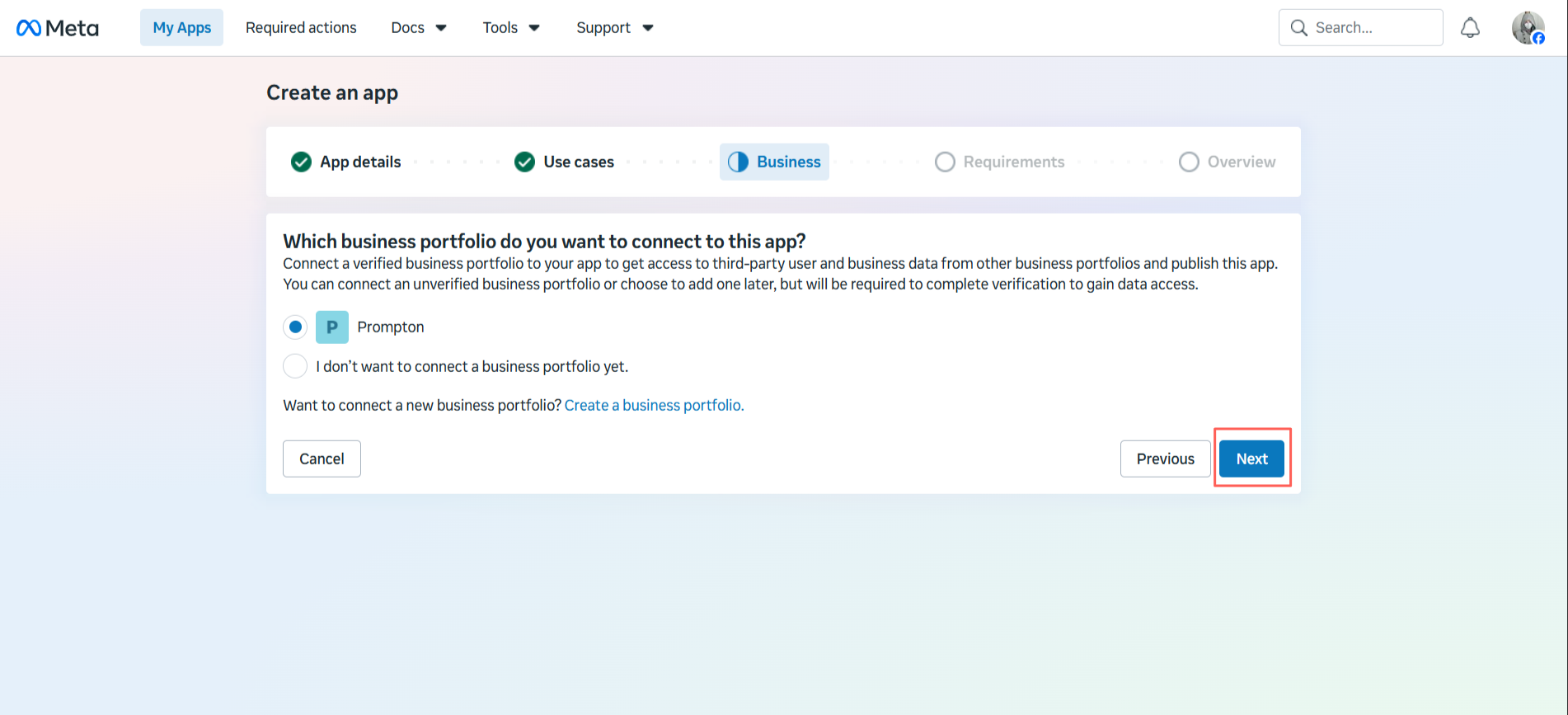
In the next step, you need to choose which business portfolio you want to connect to this app. Here, select the business portfolio you want and then click on ‘Next’.
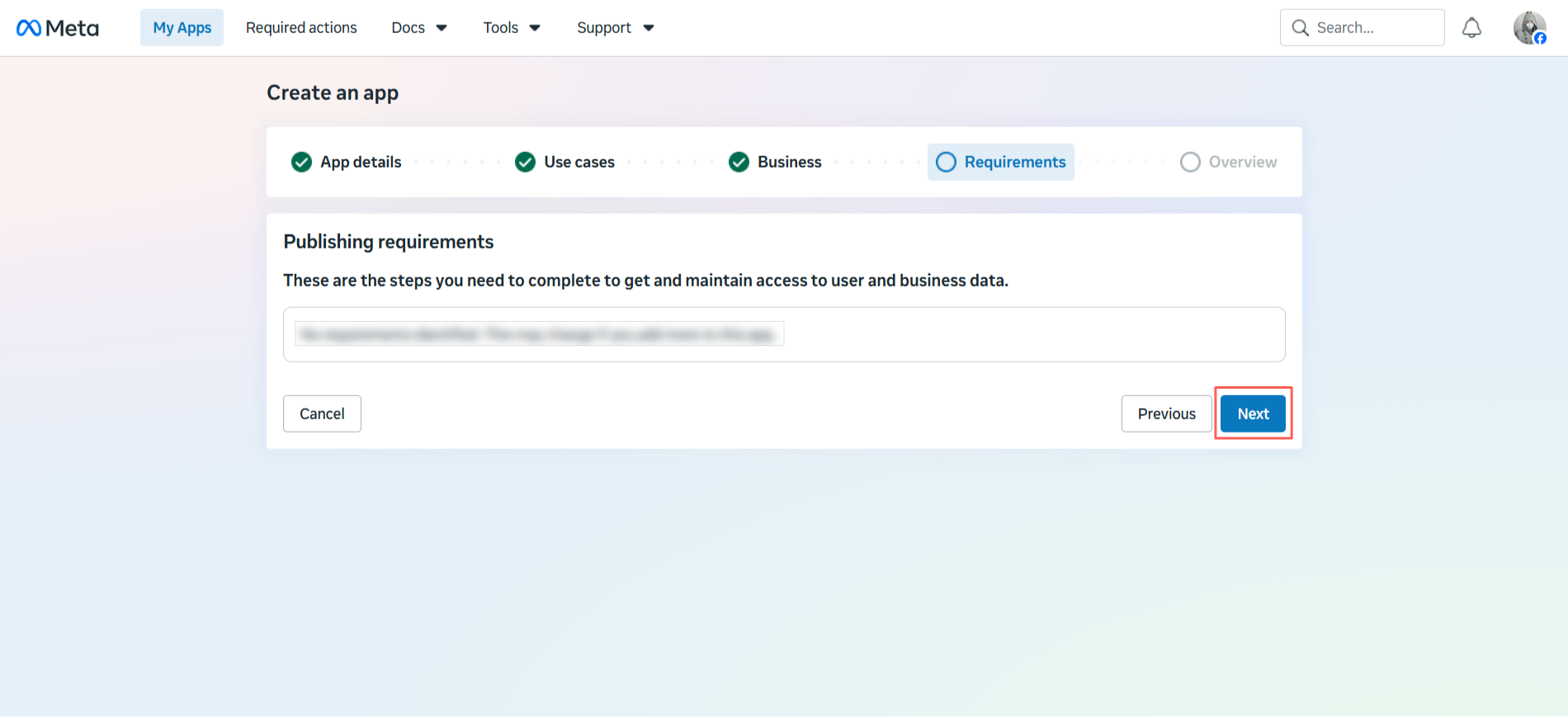
It will redirect you to the Requirements tab.
The Requirements tab displays the Publishing requirements that are needed to launch your app and keep it compliant. Click ‘Next’ in the Publishing Requirements tab to view the App Overview.
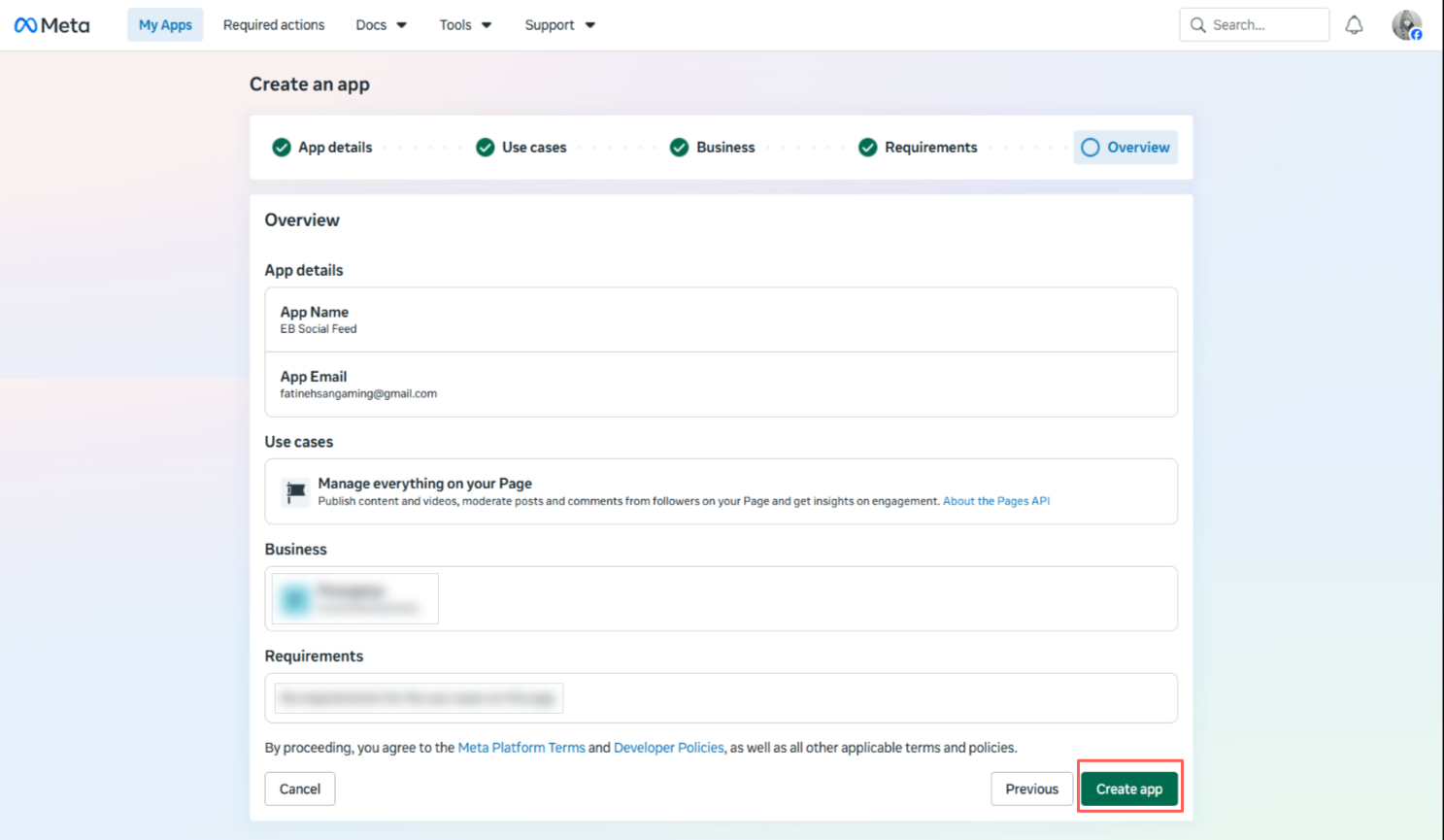
Once you have reviewed all the details in the Overview step, including your app information, selected use cases, business details and publishing requirements. Then click ‘Create app’ to finalize setup.
If everything looks correct and aligns with your needs, you will be directed to the App Dashboard, where you can begin managing and configuring your app.
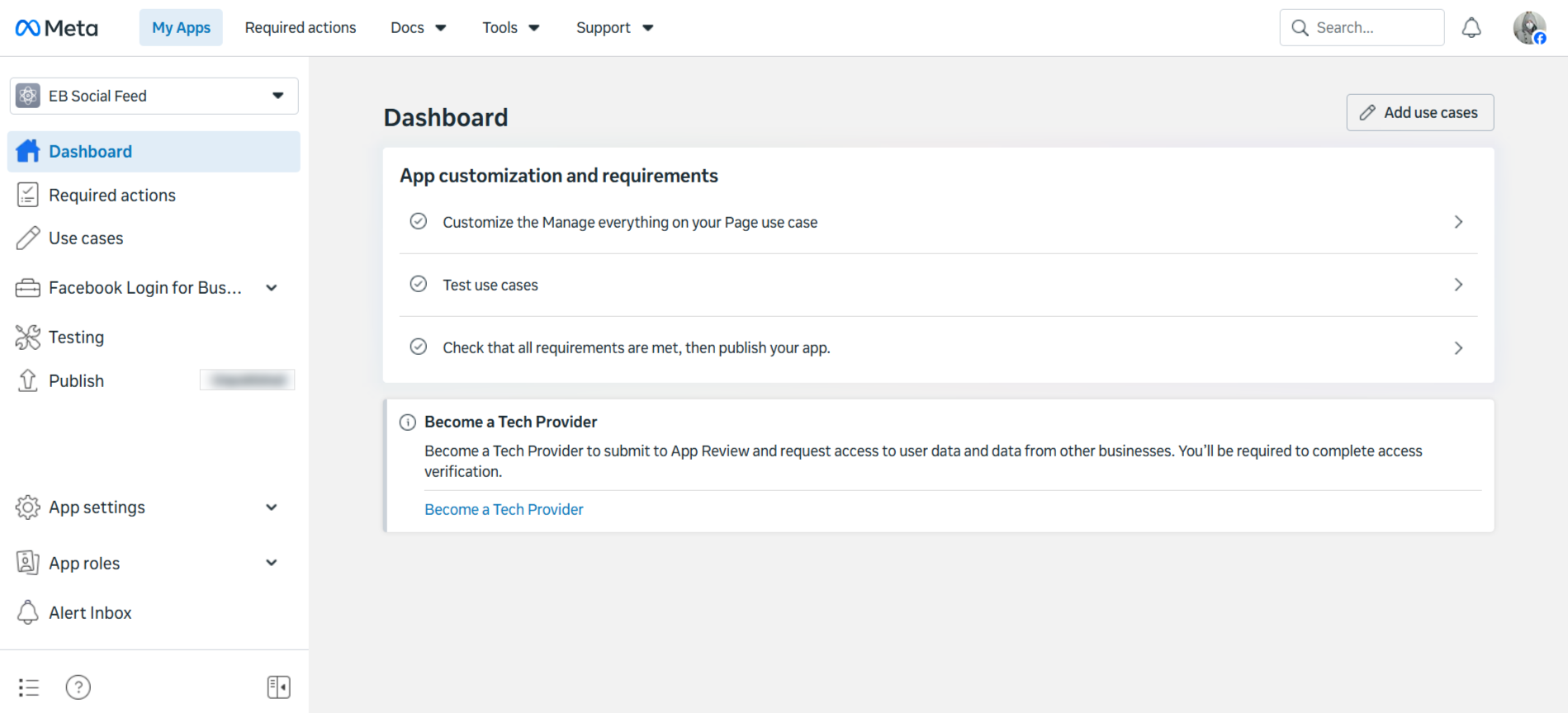
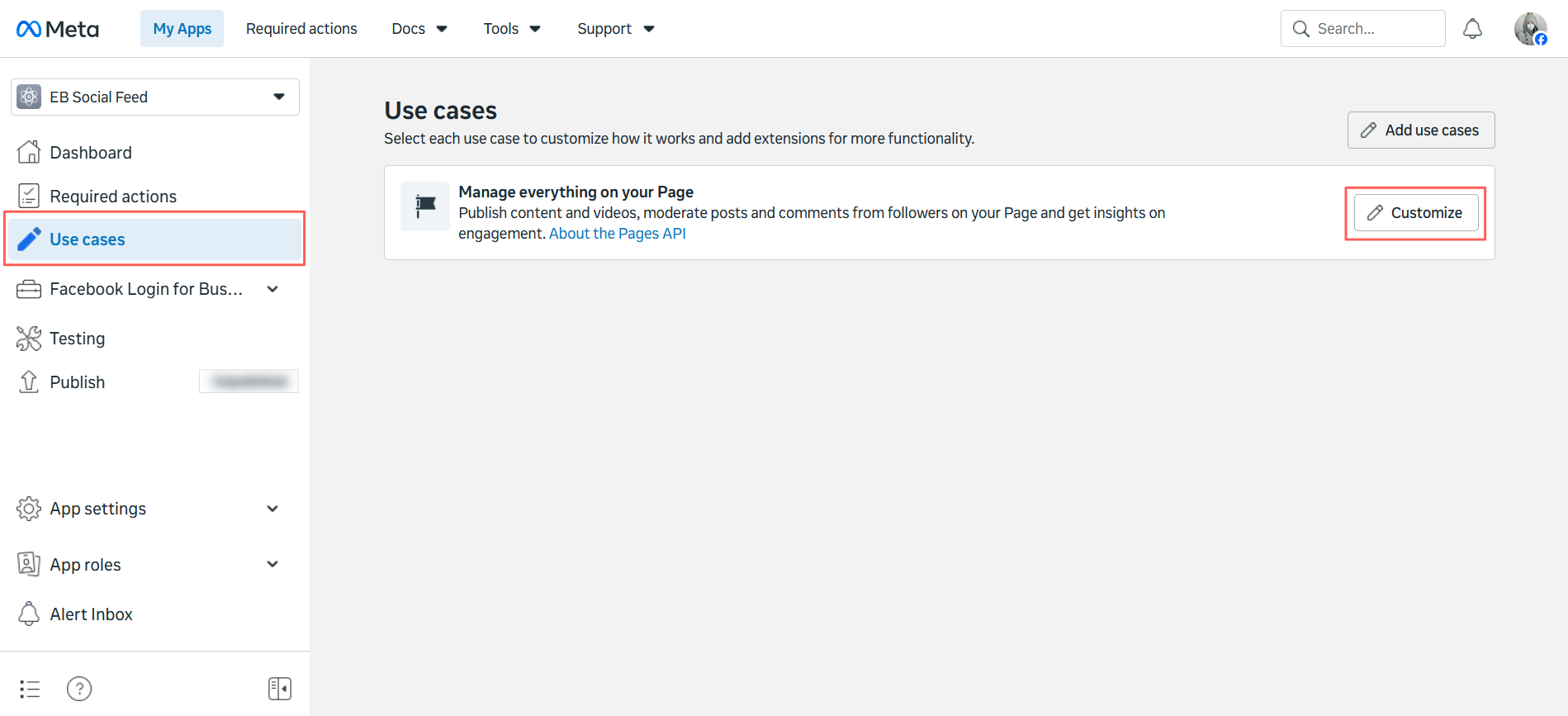
Next, go to the ‘Use Cases’ from the left sidebar and click ‘Customize’.
In the‘Permissions and features’ section, select the following permissions required to connect your Facebook account:
- pages_show_list
- business_management
- pages_read_engagement
- pages_manage_metadata
- pages_read_user_content
- pages_manage_posts
- pages_manage_engagement
Find the required permissions under ‘Permissions and features’ and click ‘+ Add’ to include them.
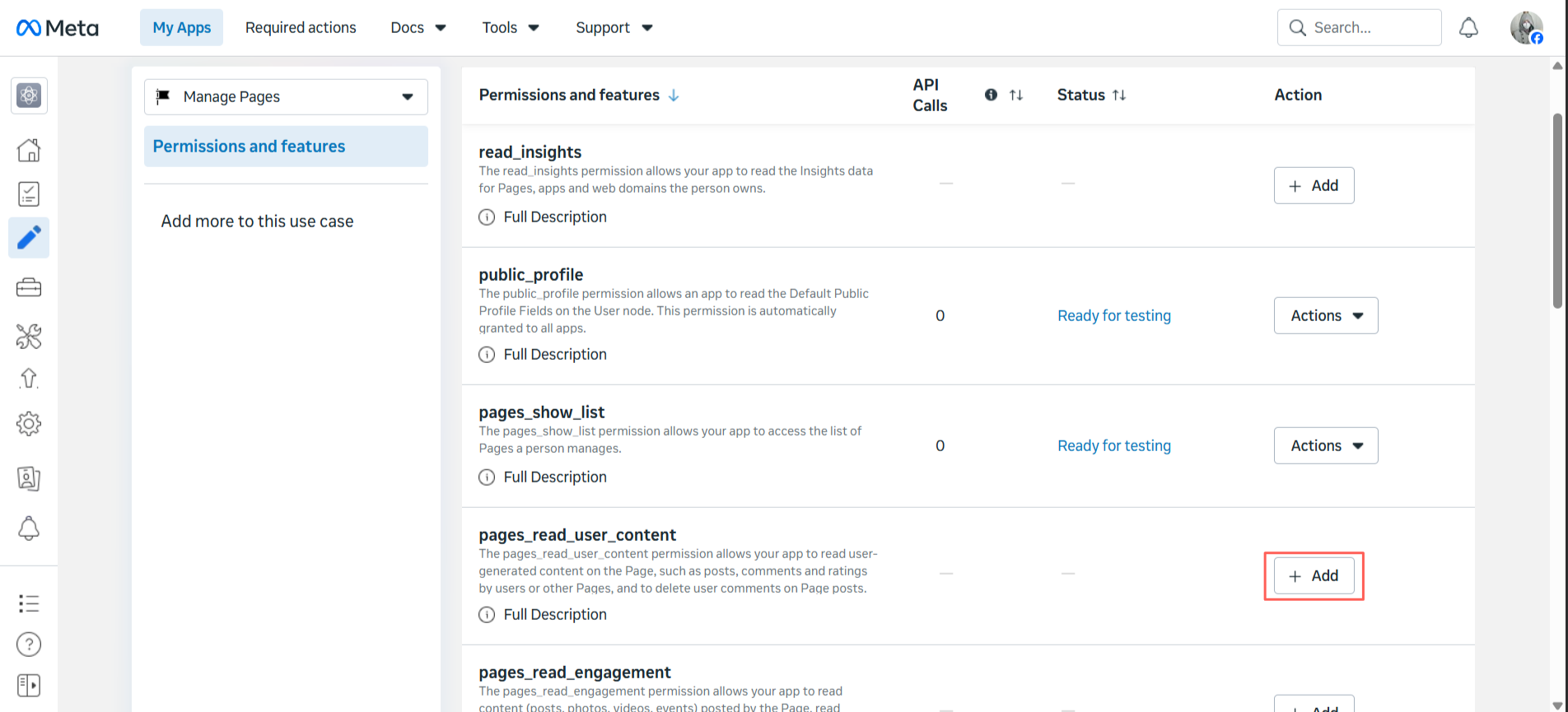
Once the permissions are added, a dropdown action button will appear for further configuration.
Note: You must add all the permissions and features listed above to ensure the app functions properly.
Step 2: Generate Page Access Token #
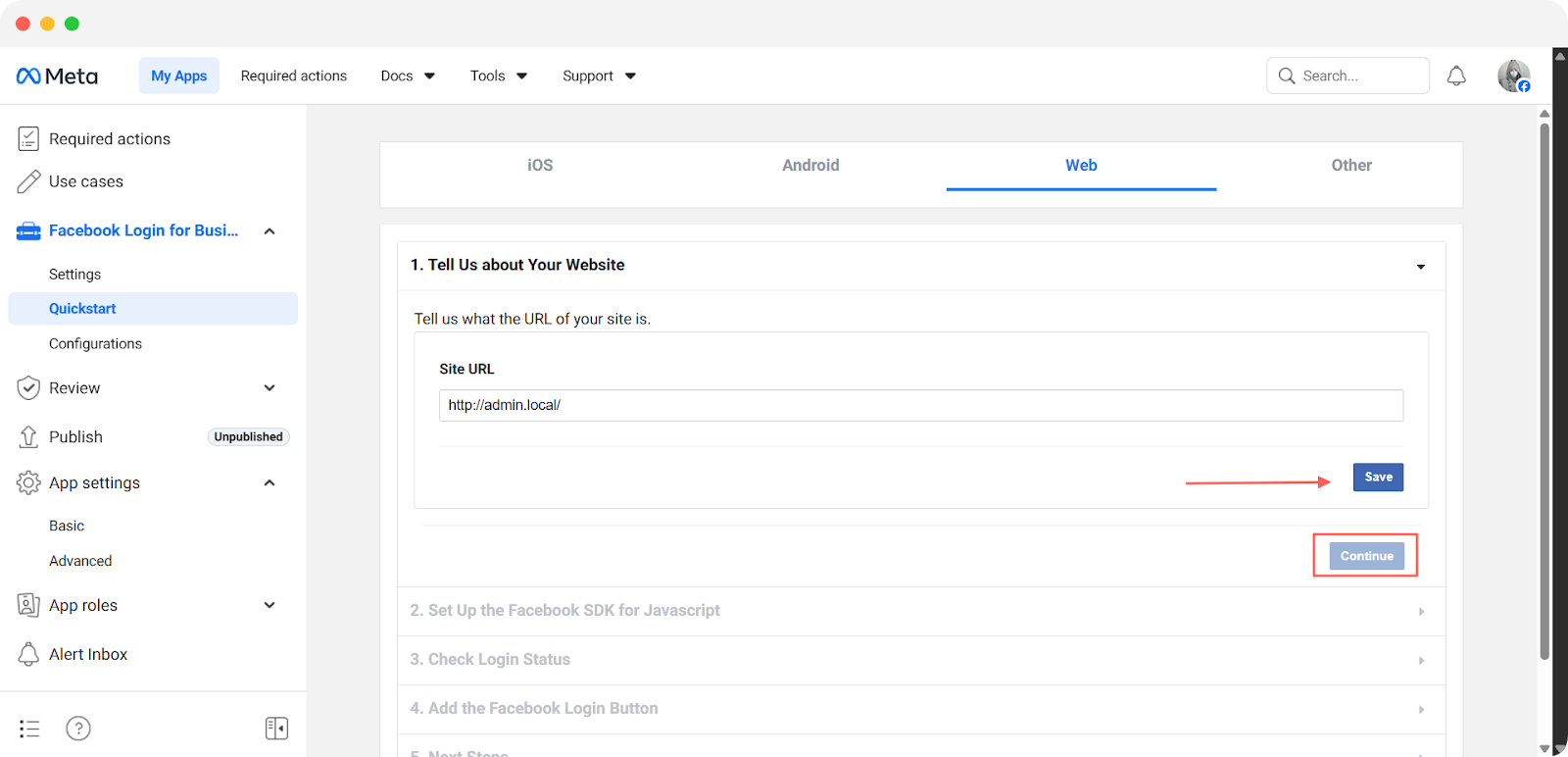
From the dashboard page, click on the ‘Facebook Login for Business’ dropdown. There you will see the ‘Quickstart’ option. Click on it and then select ‘Web’ afterward.
Now enter your Site URL and click on the ‘Save’ button.
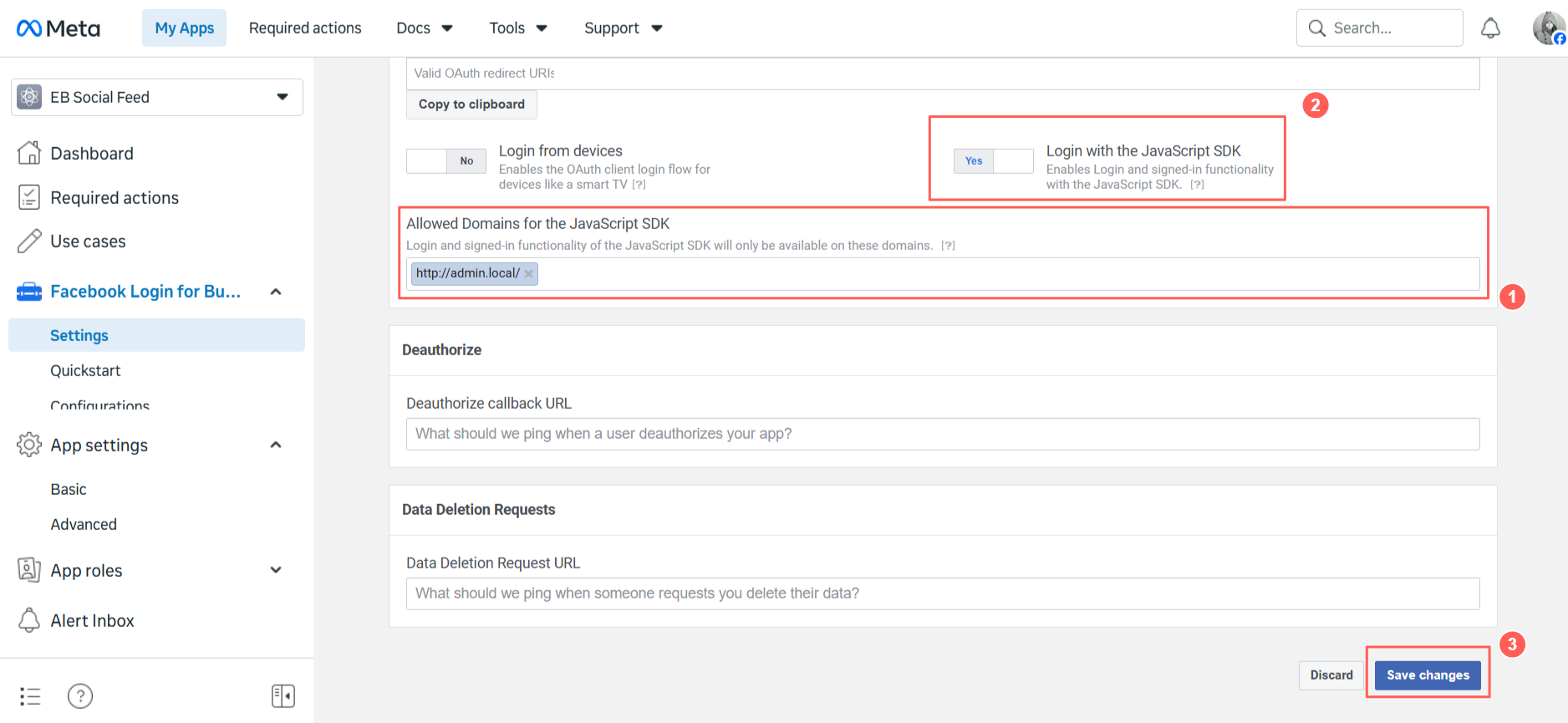
Now, go to the ‘Facebook Login for Business’ tab. Then go to settings and paste your site URL in the ‘Allowed Domains For The JavaScript SDK’ field.
Then, toggle the ‘Login with the JavaScript SDK’ button to enable it. Then click ‘Save changes’.
How to Get the Access Token? #
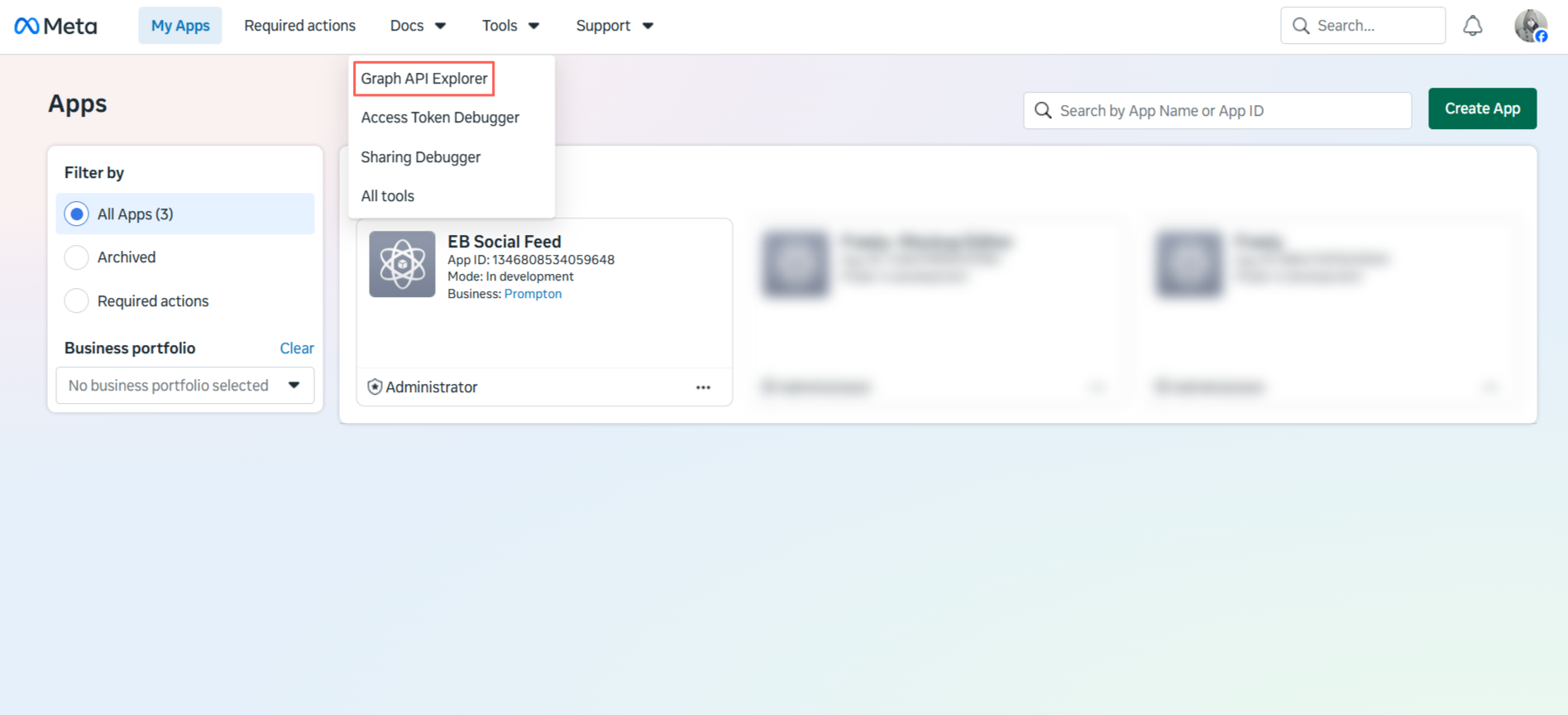
Now, navigate to ‘Tools’ → ‘Graph API Explorer’
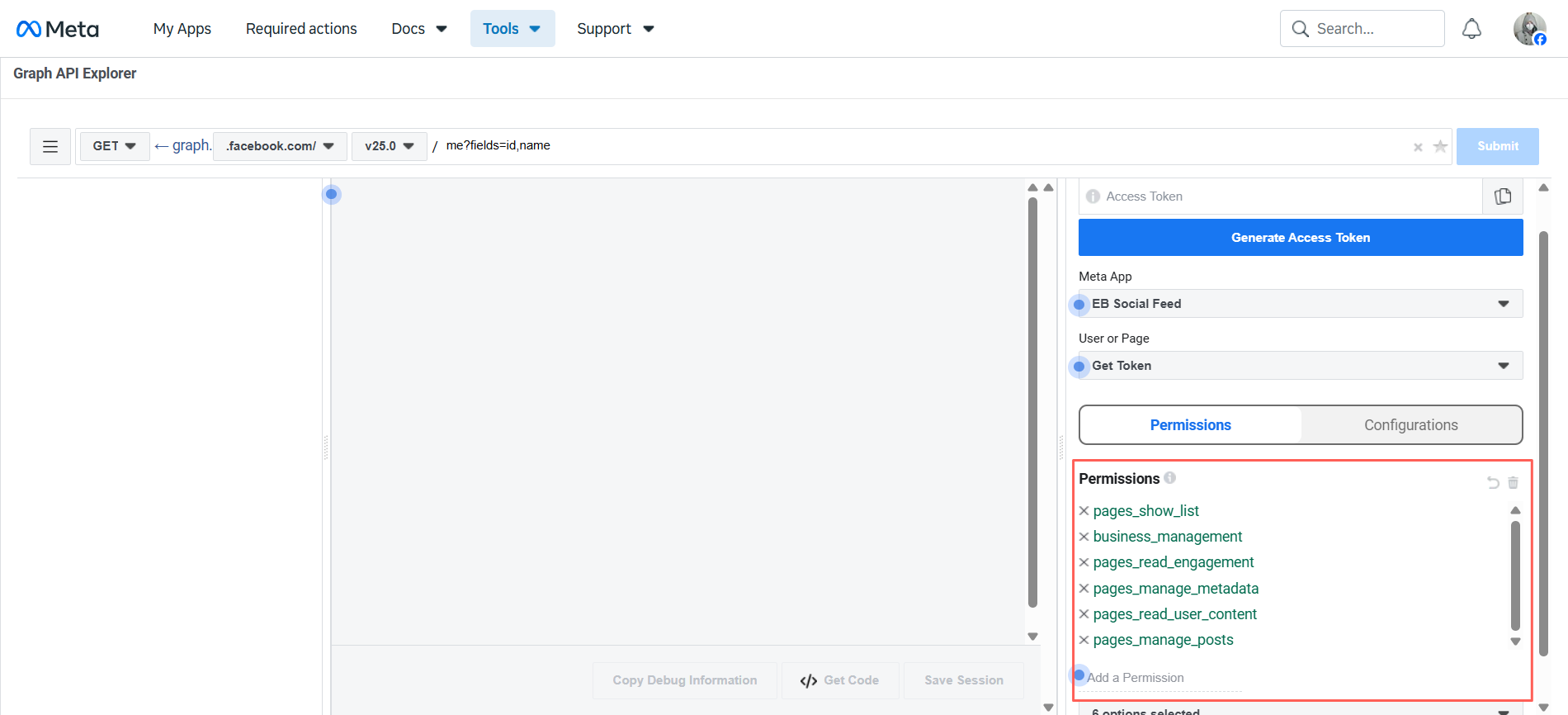
Then, add the following permissions in the permissions field:
- pages_show_list
- business_management
- pages_read_engagement
- pages_manage_metadata
- pages_read_user_content
- Pages_manage_posts
Now, click on the ‘Generate Access Token’ button. Copy the access token from there.
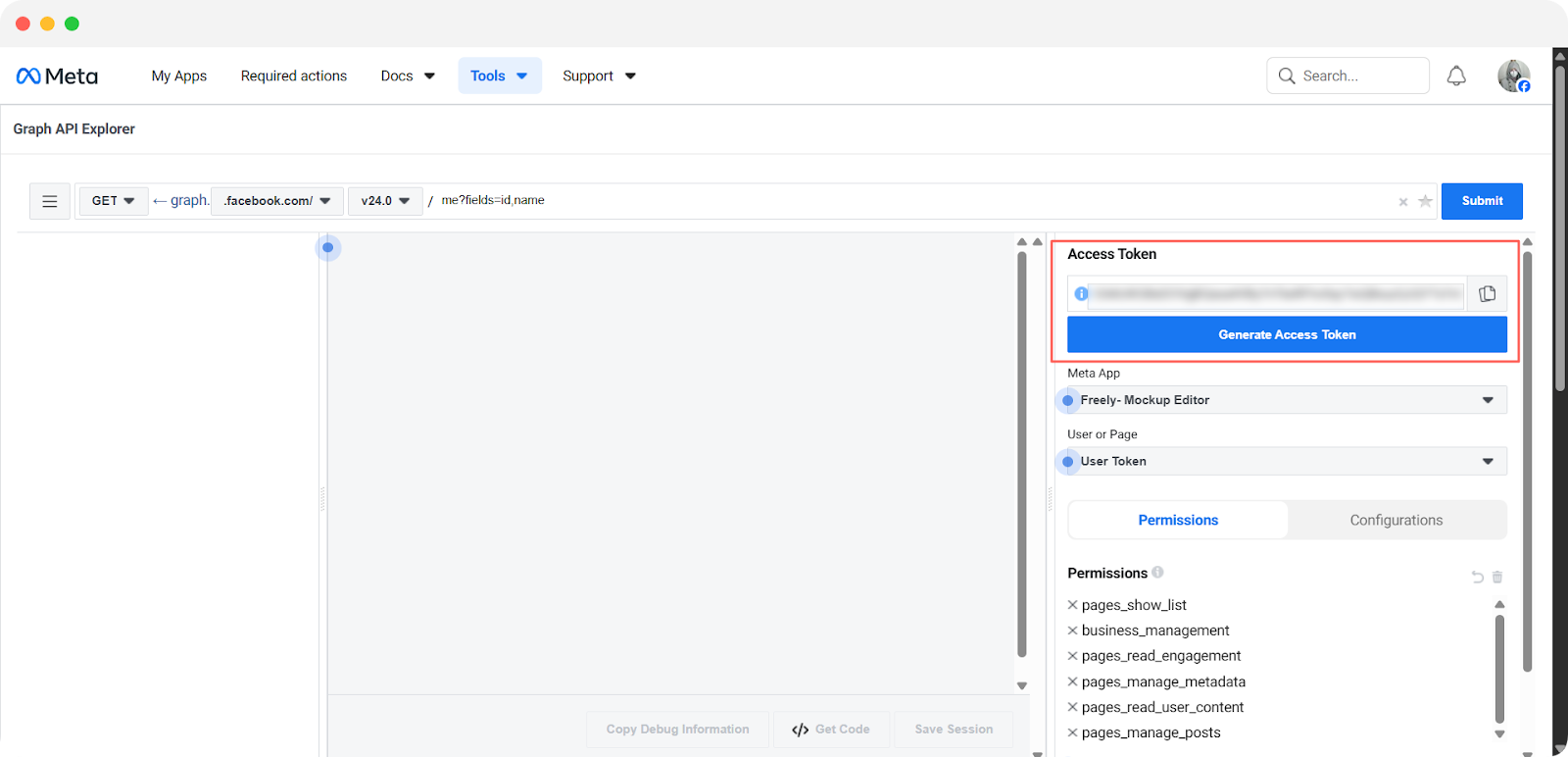
Note: When you click the ‘Generate Access Token’ button, multiple pop‑ups will appear. You must select the appropriate Page and Business profile and carefully review the permissions before obtaining the access token. Make sure to choose them correctly to avoid issues later.
Step 3: How to Add the EB Facebook Feed? #
Follow these steps to enable the Essential Blocks ‘Facebook Feed’ block and configure it from your dashboard:
Enable Facebook Feed Block #
Navigate to your WordPress website dashboard, then from the left menu bar, click ‘Essential Blocks.’ In the Essential Blocks dashboard, open the ‘Blocks’ tab.
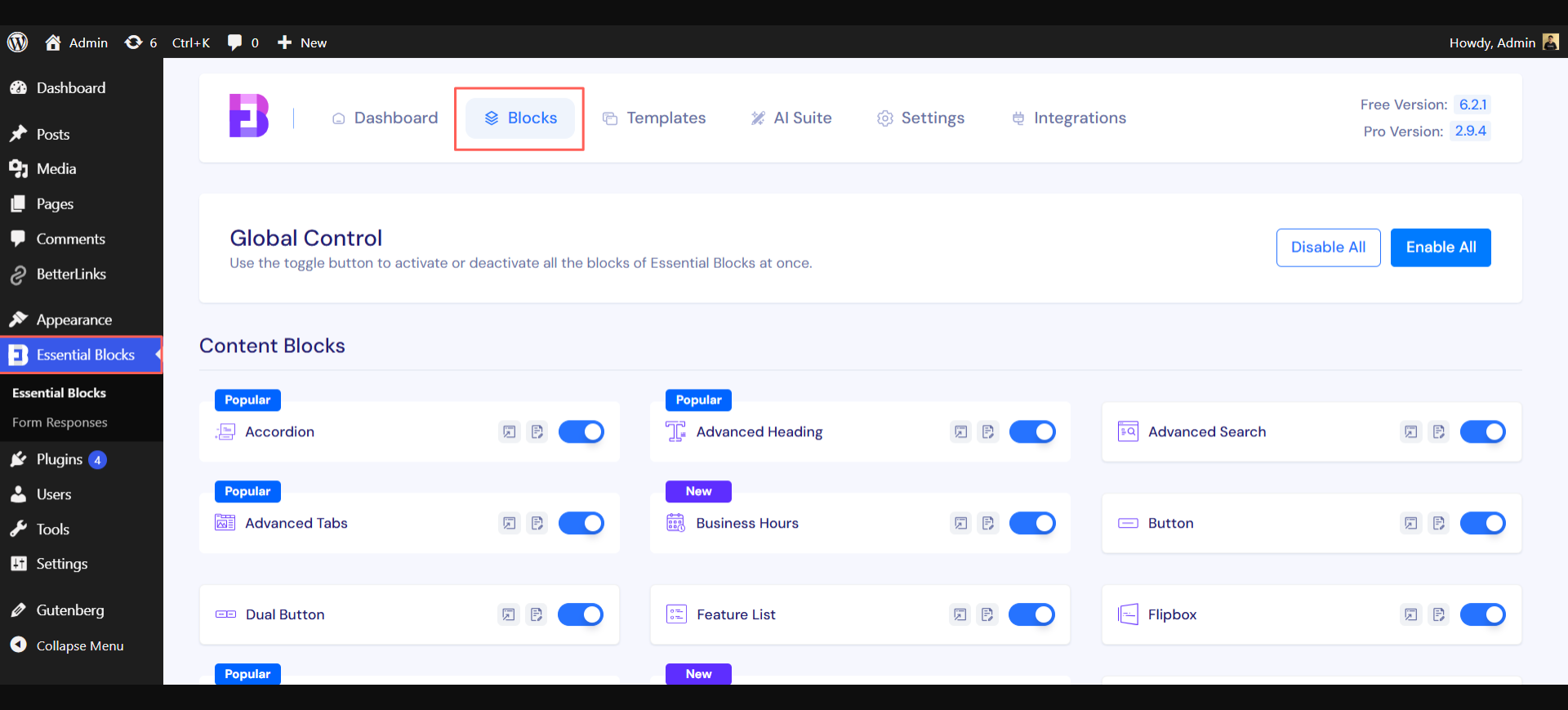
Scroll down to the Social Blocks section and enable ‘Facebook Feed.’
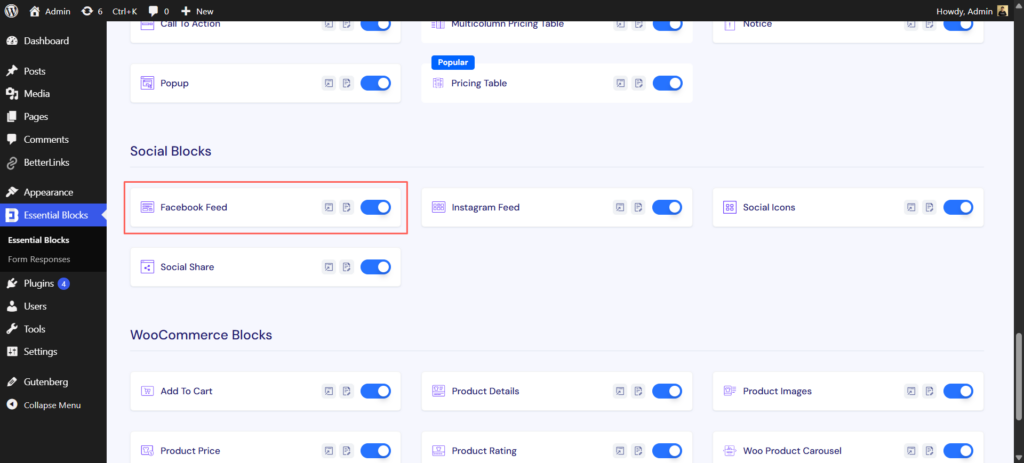
Navigation Path: WordPress Dashboard → Essential Blocks → Blocks → Social Blocks → Facebook Feed
API Integrations #
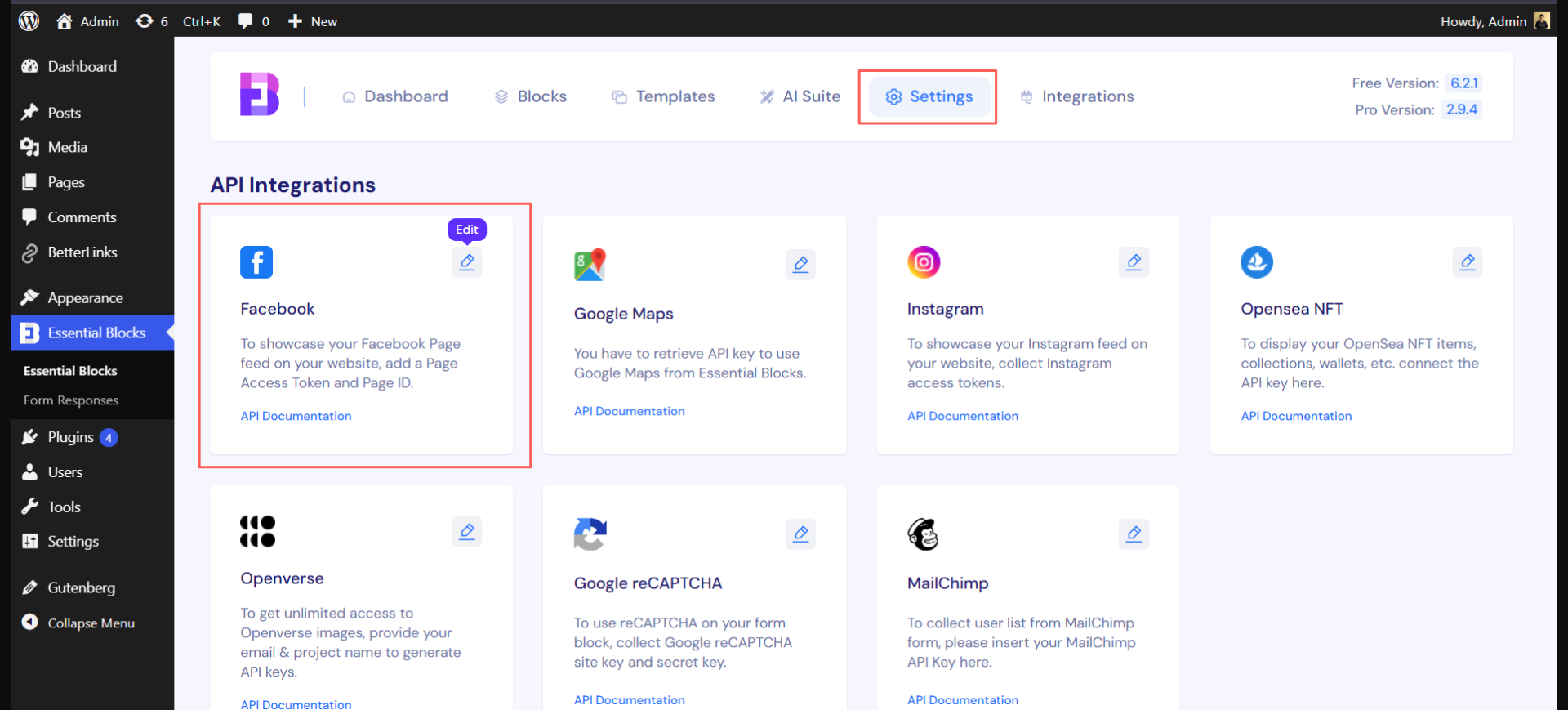
After enabling the Facebook Feed, go to the ‘Settings’ tab. There you will find the API Integration section. Click the ‘Edit’ button for Facebook, as shown, to integrate the access token and connect your Facebook Page with Essential Blocks.
After clicking the Edit button, a pop‑up will appear. In this window, you need to enter your Page Access Token (see the ‘How to Get the Access Token?’ section) and Page ID.
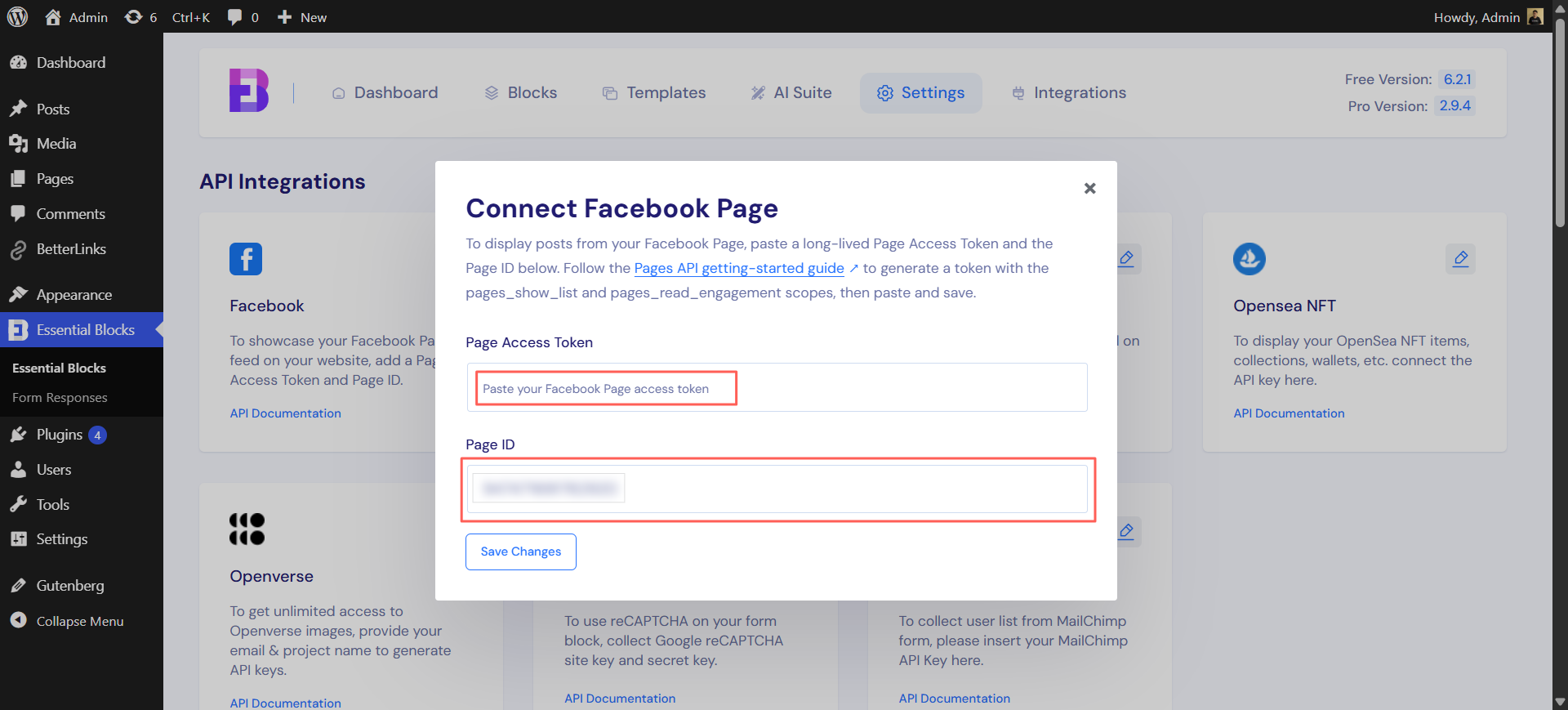
To find your Page ID, open Meta Business Suite and navigate to Settings → Profile
Feed Settings #
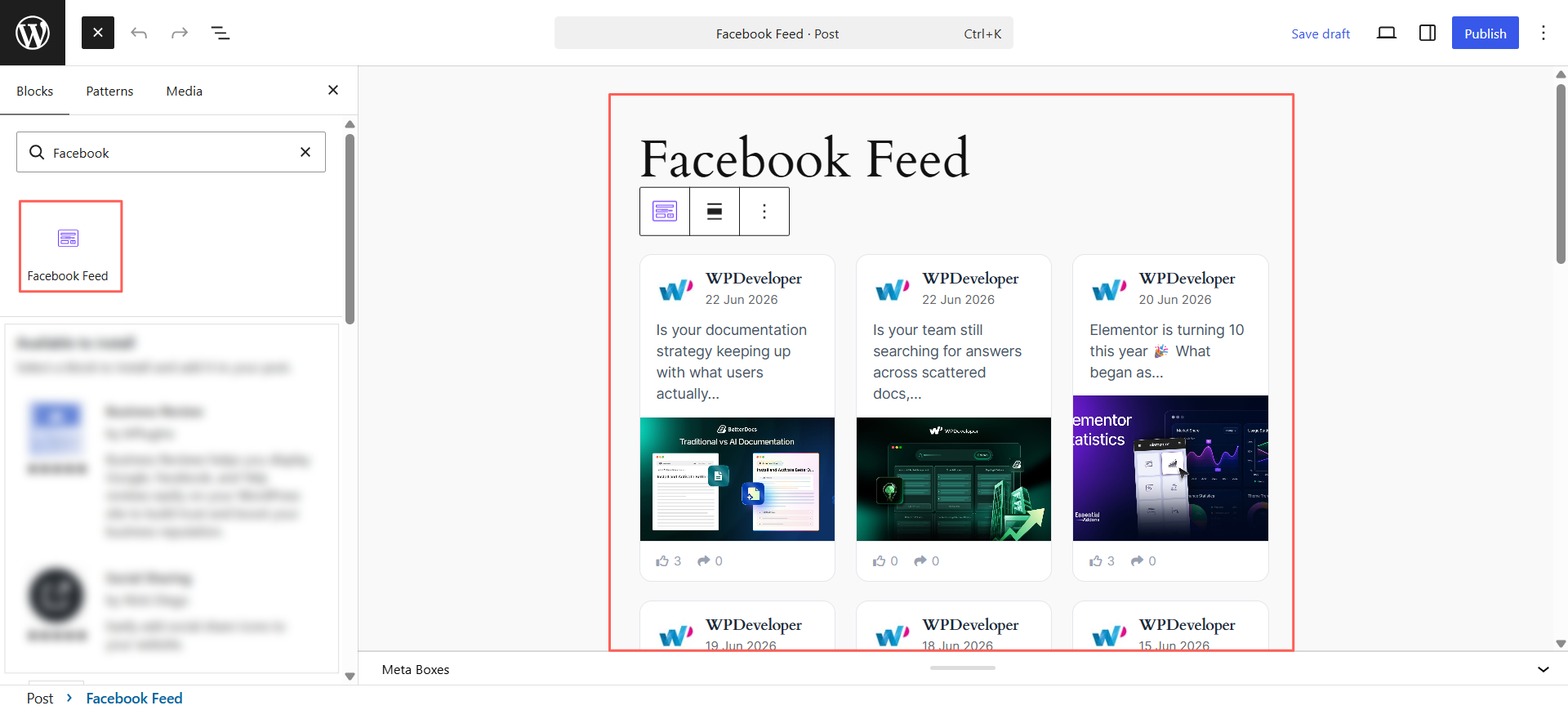
To showcase your Facebook Feed on a WordPress site, you need to insert the block into a post or page. Follow these steps to get started:
- Open a Post or Page: Navigate to the WordPress dashboard and open the post or page where you want to display your Facebook Feed.
- Access Block Options: From the left sidebar in the editor, browse the available blocks provided by Essential Blocks.
- Select Facebook Feed Block: Scroll to the Social Blocks section or search for ‘Facebook Feed’ to add it to your content area.
- Insert and Configure Block: Place the block in your desired location on the page and adjust its settings to match your layout and design preferences.
Customize Facebook Feed #
After selecting your Facebook Feed block, you can customize it using the settings in the right sidebar. You will find three dropdown menus →
- Sources,
- Layout and
- Content Display
Each option provides different customization features, allowing you to adjust and refine the feed’s appearance and behavior according to your preferences.
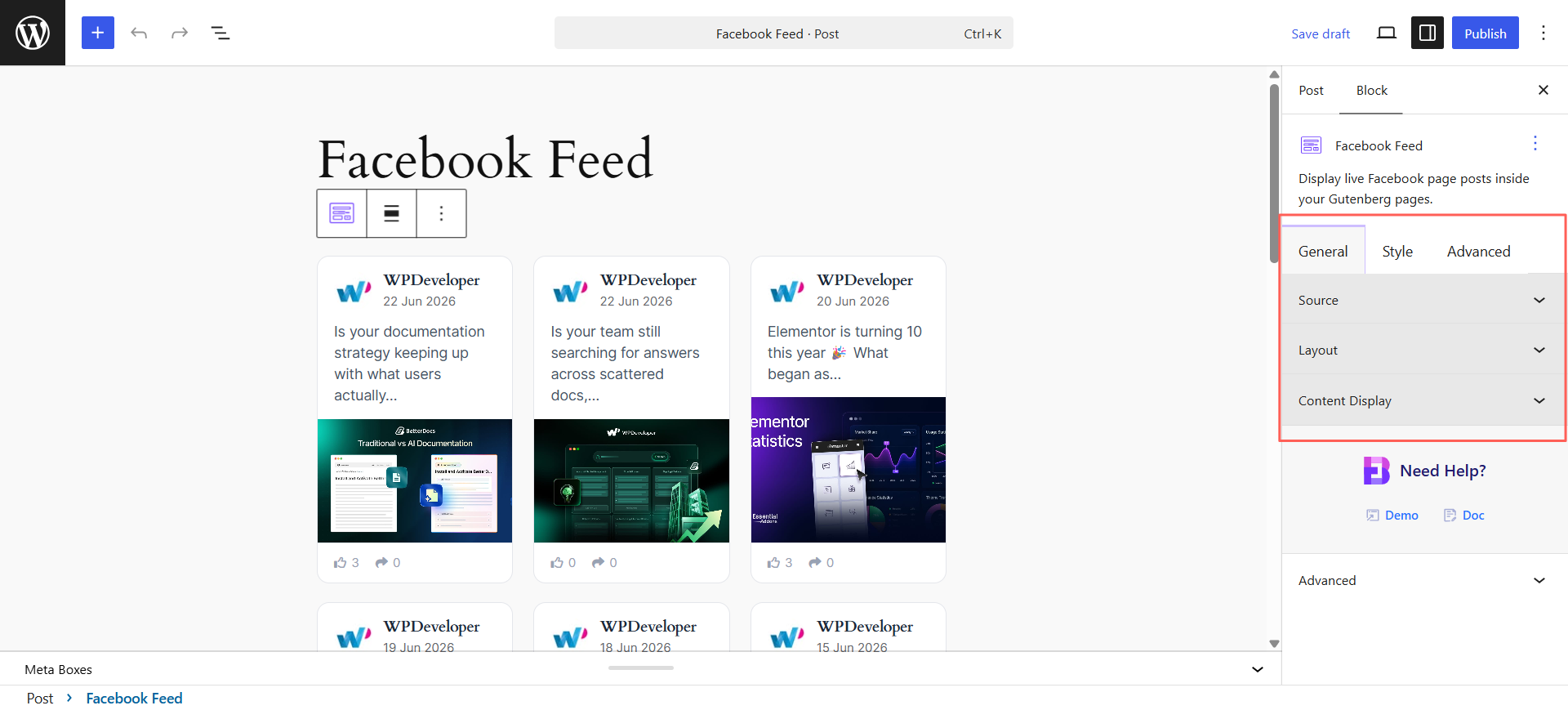
You can customize the Facebook Feed block with the following options:
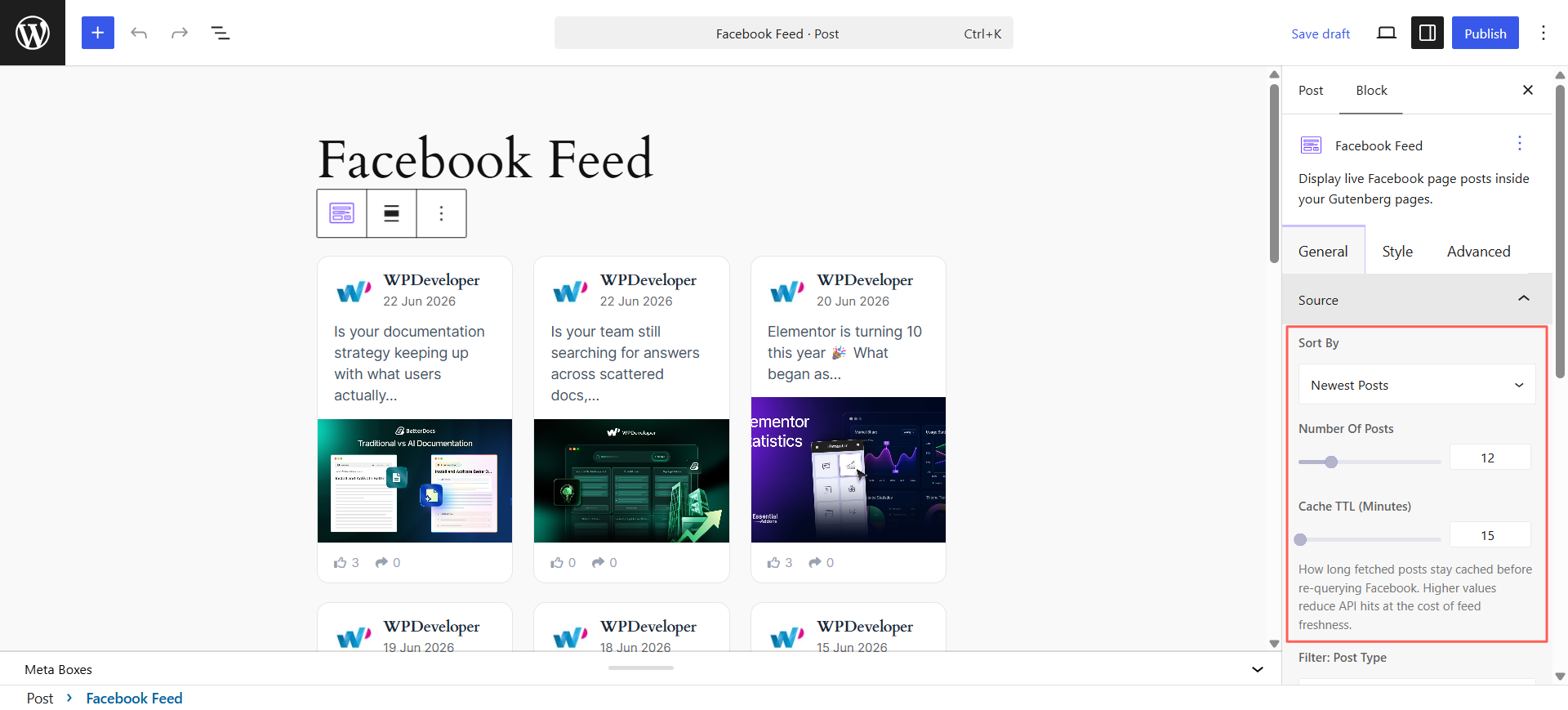
Sources #
- Sort posts by criteria
- Set the number of posts to display
- Define cache duration (minutes)
- Apply filters by post type, keyword, or hashtag
Layout #
- Choose a layout style (Grid, List, Masonry, Carousel)
- Adjust the number of columns
- Control spacing between items
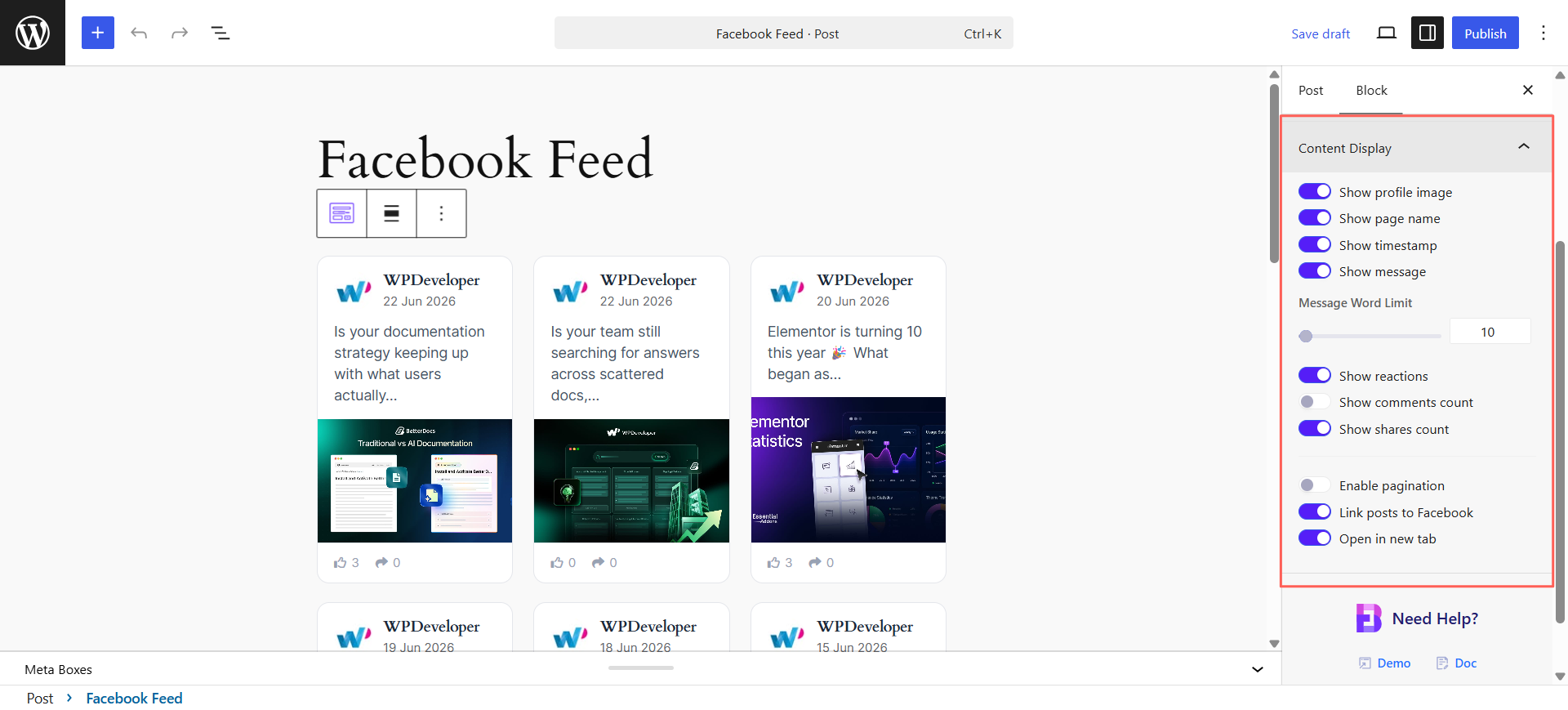
Content Display #
- Show or Hide the Profile Image: Control whether the Facebook page’s profile image appears with each post.
- Show or Hide the Page Name: Choose to display or hide the Facebook page name above the post content.
- Show or Hide the Timestamp: Display or remove the post’s publication date and time.
- Display the Post Message with a Word Limit Option: Show the post caption and limit the number of visible words for a cleaner layout.
- Show Reactions: Display the total number of reactions received on each Facebook post.
- Show Comments Count: Show how many comments a post has received.
- Show Shares Count: Display the total number of times a post has been shared.
- Enable Pagination: Allow visitors to browse through multiple posts using pagination controls.
- Link Posts Directly to Facebook: Make posts clickable so users can view them on Facebook.
- Open Links in a New Tab: Open Facebook post links in a new browser tab while keeping visitors on your website.
Final Outcome #
By following the basic steps and making a few adjustments, you can style your Facebook Feed to match your preferences.
That is it. With the EB Facebook Feed block, you can easily pull posts from your Facebook Page and display them beautifully on your WordPress website.
Getting stuck? Feel free to Contact Our Support for further assistance.


