
EB Image Masking and Morphing is a powerful design feature available inside the Image blocks of Essential Blocks. It helps you reshape your images into creative forms, apply organic SVG masks and even animate one shape into another, all directly inside the Gutenberg editor and without writing a single line of code.
Note: Install and activate Essential Blocks and Essential Blocks PRO to use Image Masking and Morphing.
In this document, you will learn how to configure every available setting step by step.
How to Use EB Image Masking And Morphing in Essential Blocks for Gutenberg #
Follow the steps below to apply masking and morphing to your images.
Step 1: Add The Advanced Image Block And Open Its Settings #
Create or edit a post or page, then add the Essential Blocks Image block to your content. With the block selected, open the block settings panel on the right side of the editor.
Scroll down until you reach the Image Masking section, then turn on the ‘Enable Image Masking’ toggle to unlock the masking and morphing options.
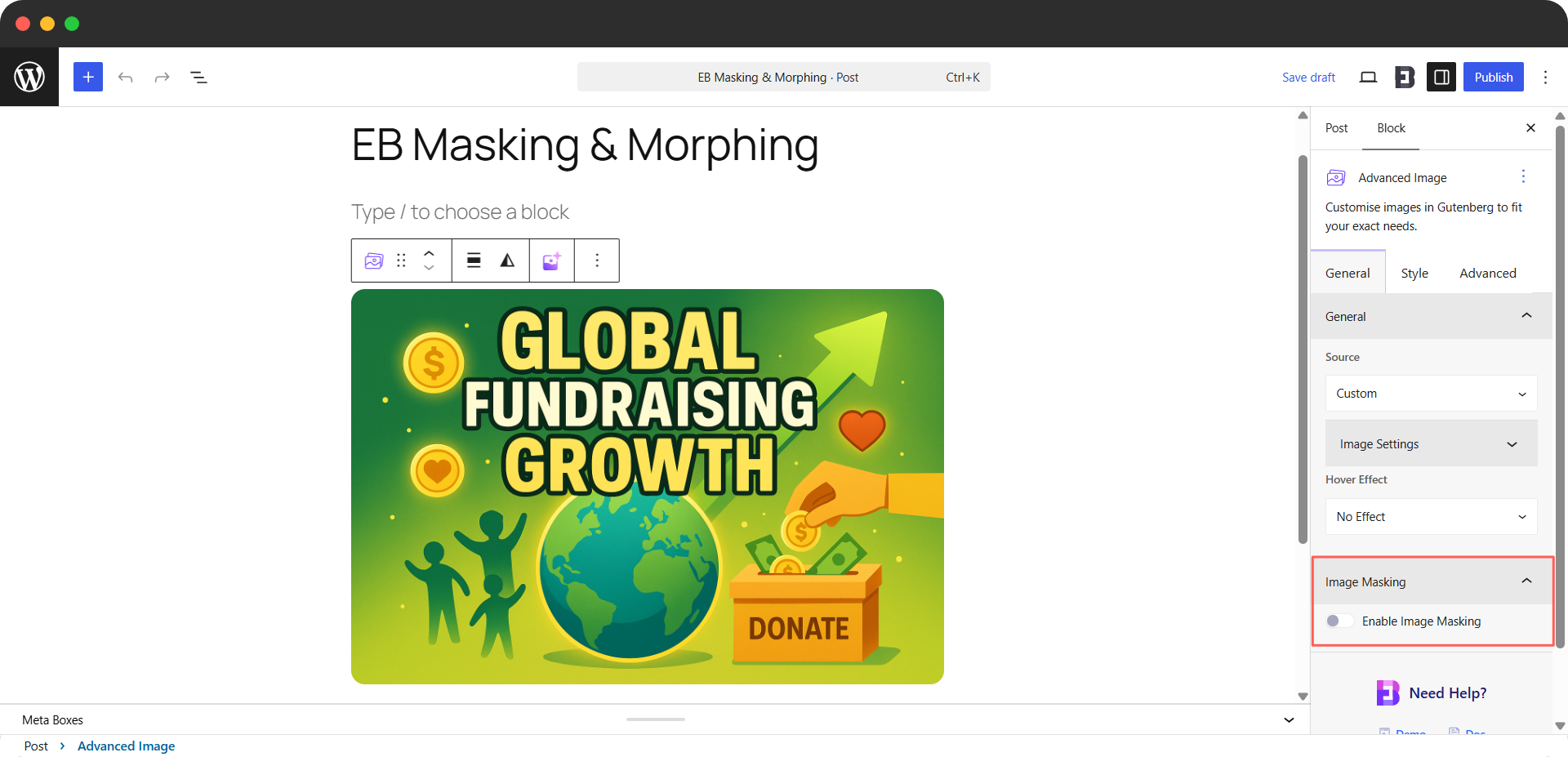
Step 2: Choose A Mask Type #
Once masking is enabled, a Mask Type selector appears with three options, each represented by an icon:
- Clip Path: For geometric shapes.
- SVG Mask: For organic and freeform shapes.
- Image Morphing: For animated shape transitions.
Select the icon that matches the style you want, then configure the options below it.
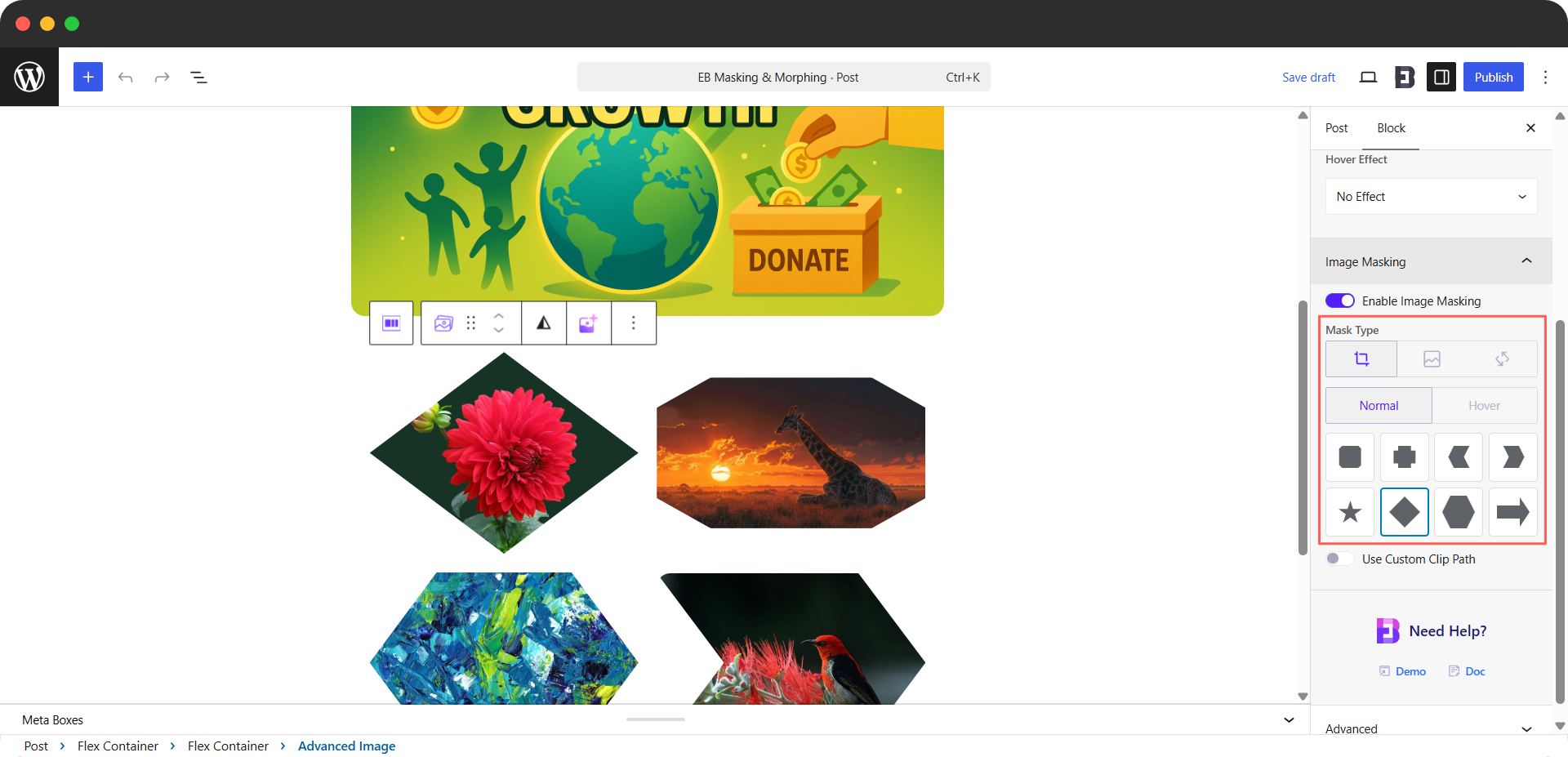
Step 3: Apply A Clip Path Mask #
Select the Clip Path icon to crop your image into a clean geometric shape.
Under Clip Path, you will see two options, ‘Normal’ and ‘Hover’, followed by a grid of ready-made shapes. The available shapes include a square, cross, chevrons, star, diamond, hexagon and arrow. Click any shape to instantly apply it to your image.
If you want a shape that is not in the grid, turn on the Use Custom Clip Path toggle to define your own clip path.
Note: You can copy and paste your image mask using a custom clip path.
Step 4: Apply SVG Mask #
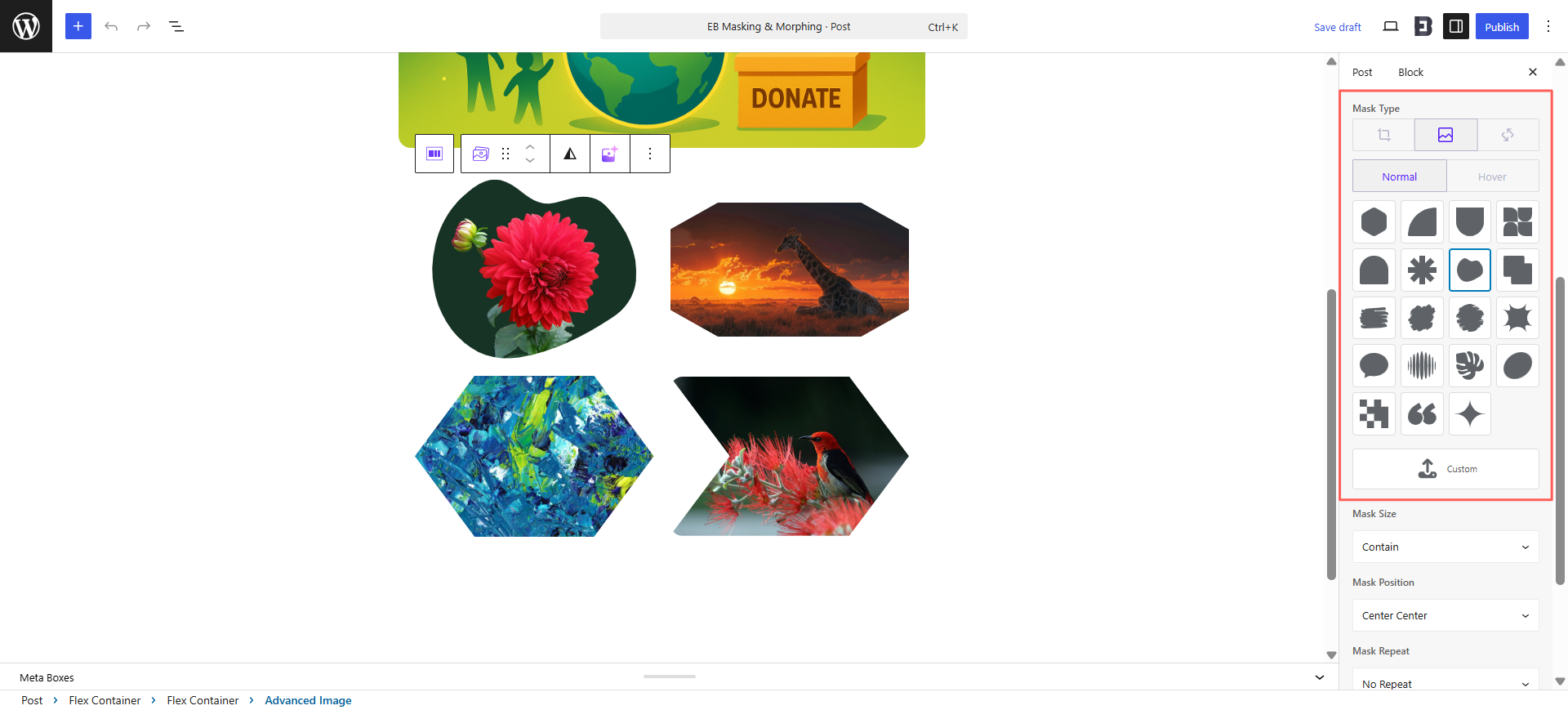
Select the SVG Mask icon to apply softer, more organic shapes such as blobs, brush strokes, splatters, leaves, and speech bubbles.
Like Clip Path, the SVG Mask offers ‘Normal’ and ‘Hover’ states along with a grid of preset shapes. Click any shape to apply it.
To use your own design, click the ‘Custom‘ button and upload your own SVG file. This lets you mask images with any shape you create.
Step 5: Adjust Mask Size, Position & Repeat #
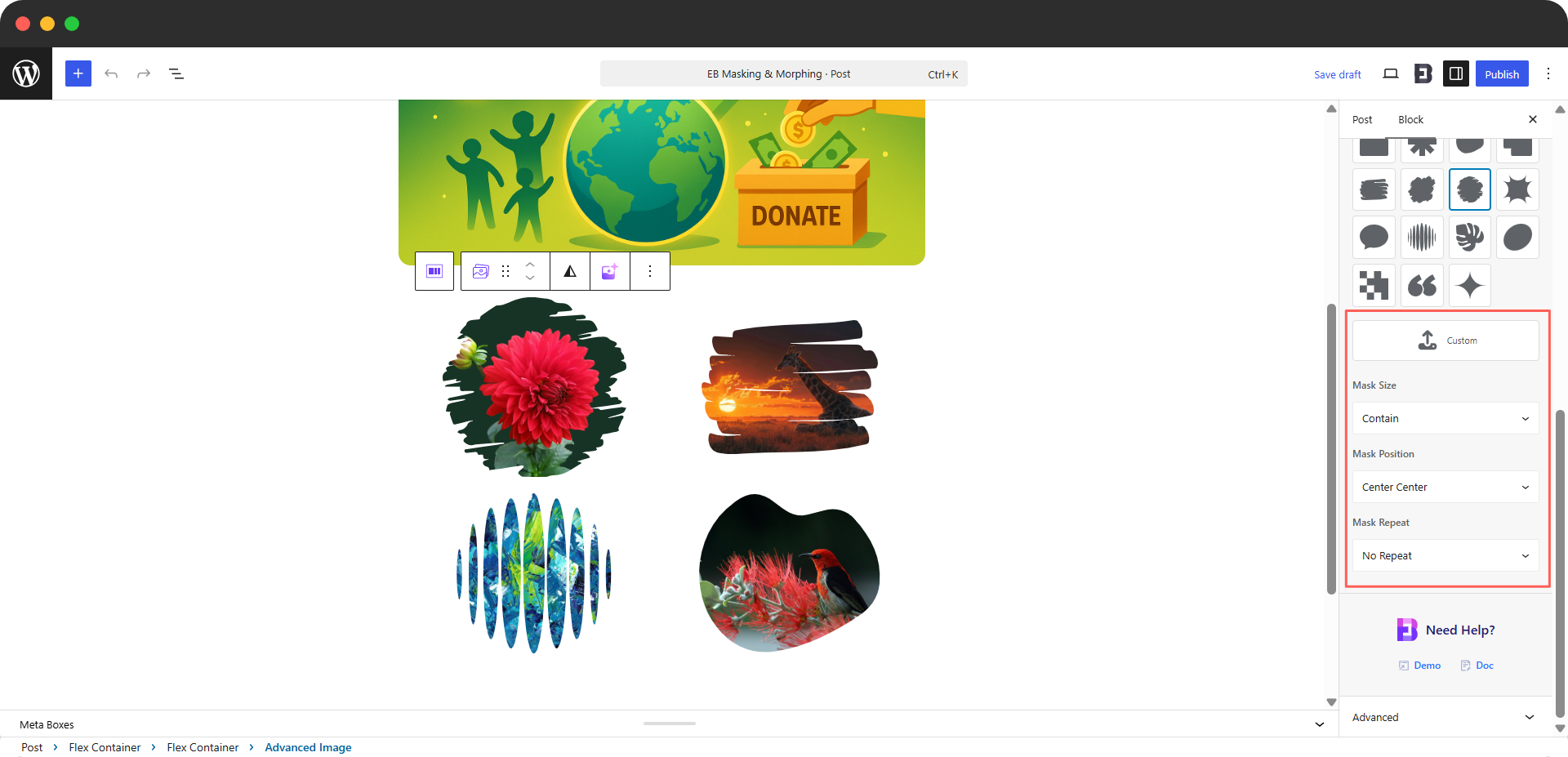
Below the SVG Mask shapes, you will find three controls that fine-tune how the mask sits on your image:
- Mask Size: Controls how the mask is scaled. The default is Contain.
- Mask Position: Controls where the mask is placed. The default is Center Center.
- Mask Repeat: Controls whether the mask repeats. Options are No Repeat, Repeat, Repeat X and Repeat Y.
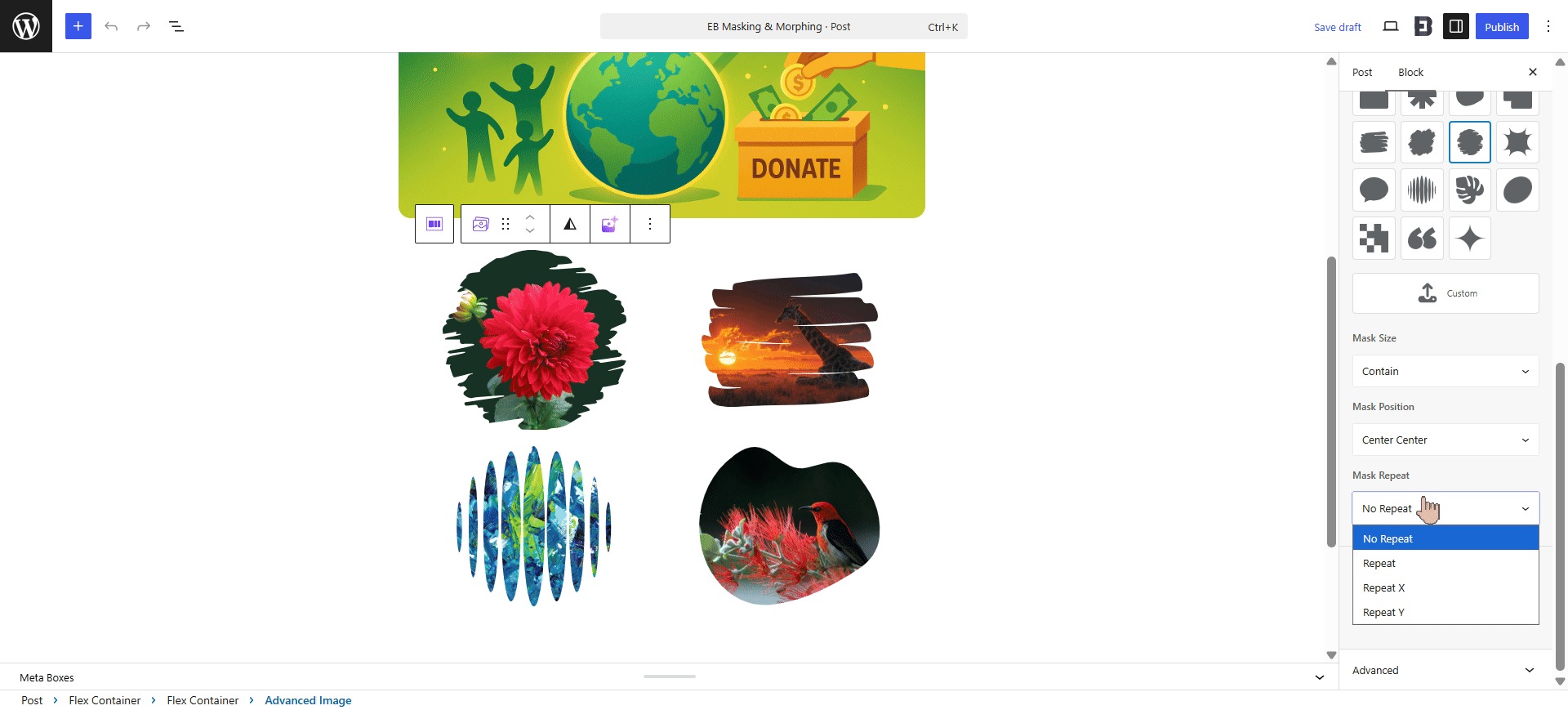
Adjust these to get the exact framing and tiling you want.
Step 6: Add A Hover Mask #
You can make your masked image change shape when a visitor hovers over it. Switch from the ‘Normal’ state to the ‘Hover’ state, then turn on the ‘Enable Hover Mask’ toggle.
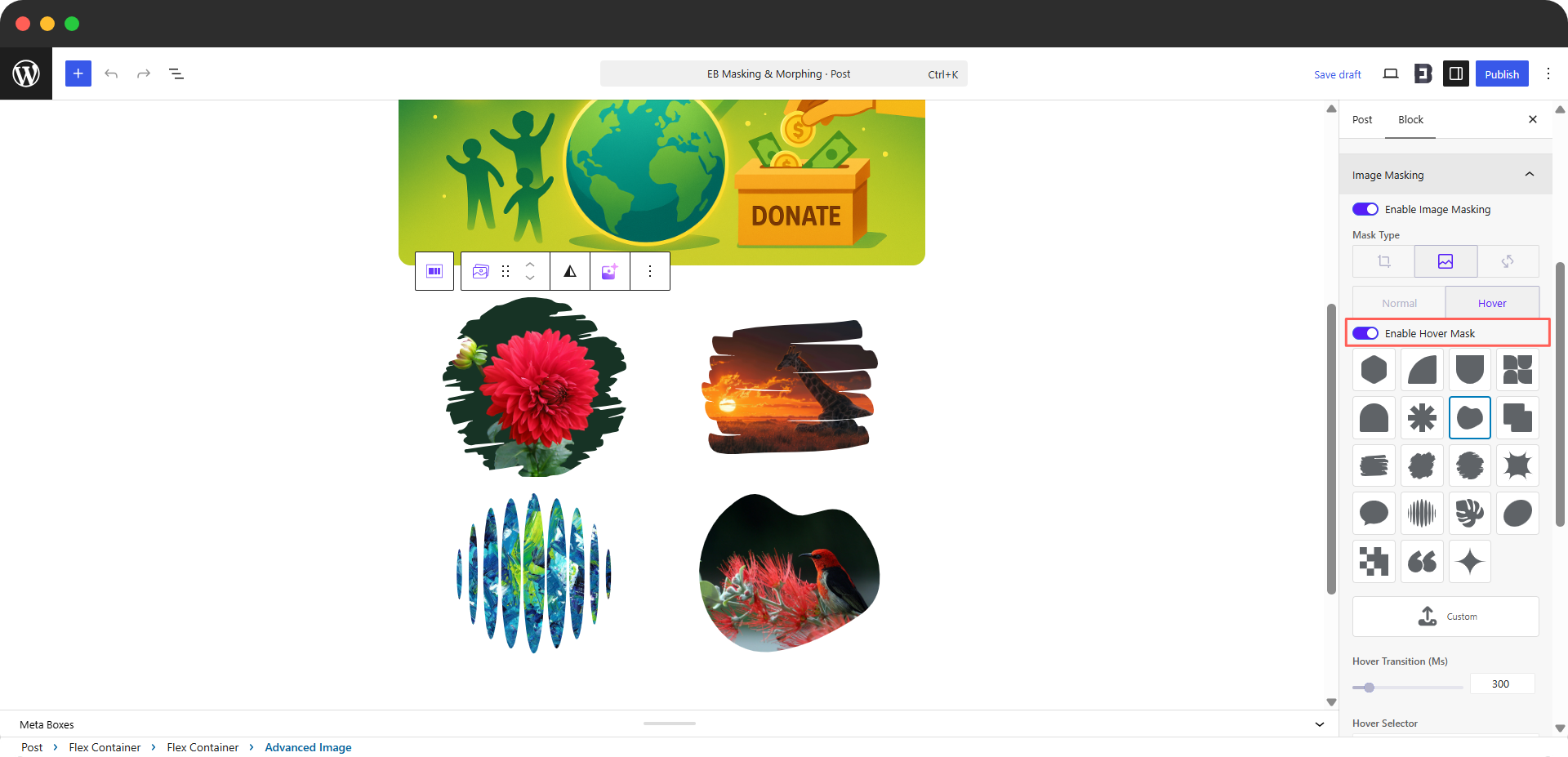
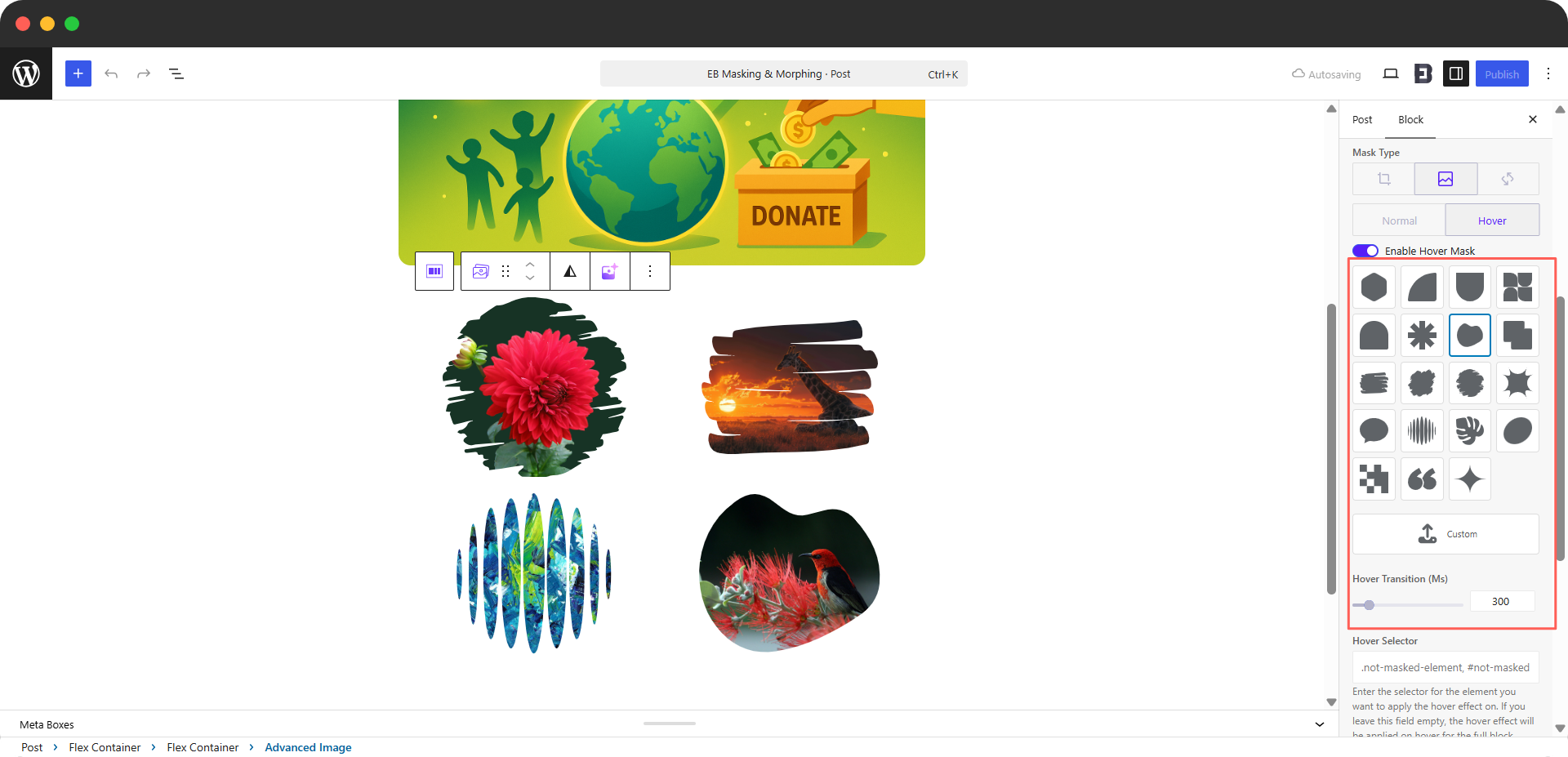
A second grid of shapes appears so you can choose the shape that will be revealed on hover. You can also click Custom to upload your own hover mask.
To control how smoothly the shape changes, set the Hover Transition (Ms) value. The default is 300 milliseconds; a higher value makes the transition slower and softer.
Step 7: Target a Specific Element with the Hover Selector #
The ‘Hover Selector’ field lets you decide which element triggers the hover effect. Enter a CSS selector (for example, .not-masked-element, #not-masked) for the element you want the hover effect to apply to.
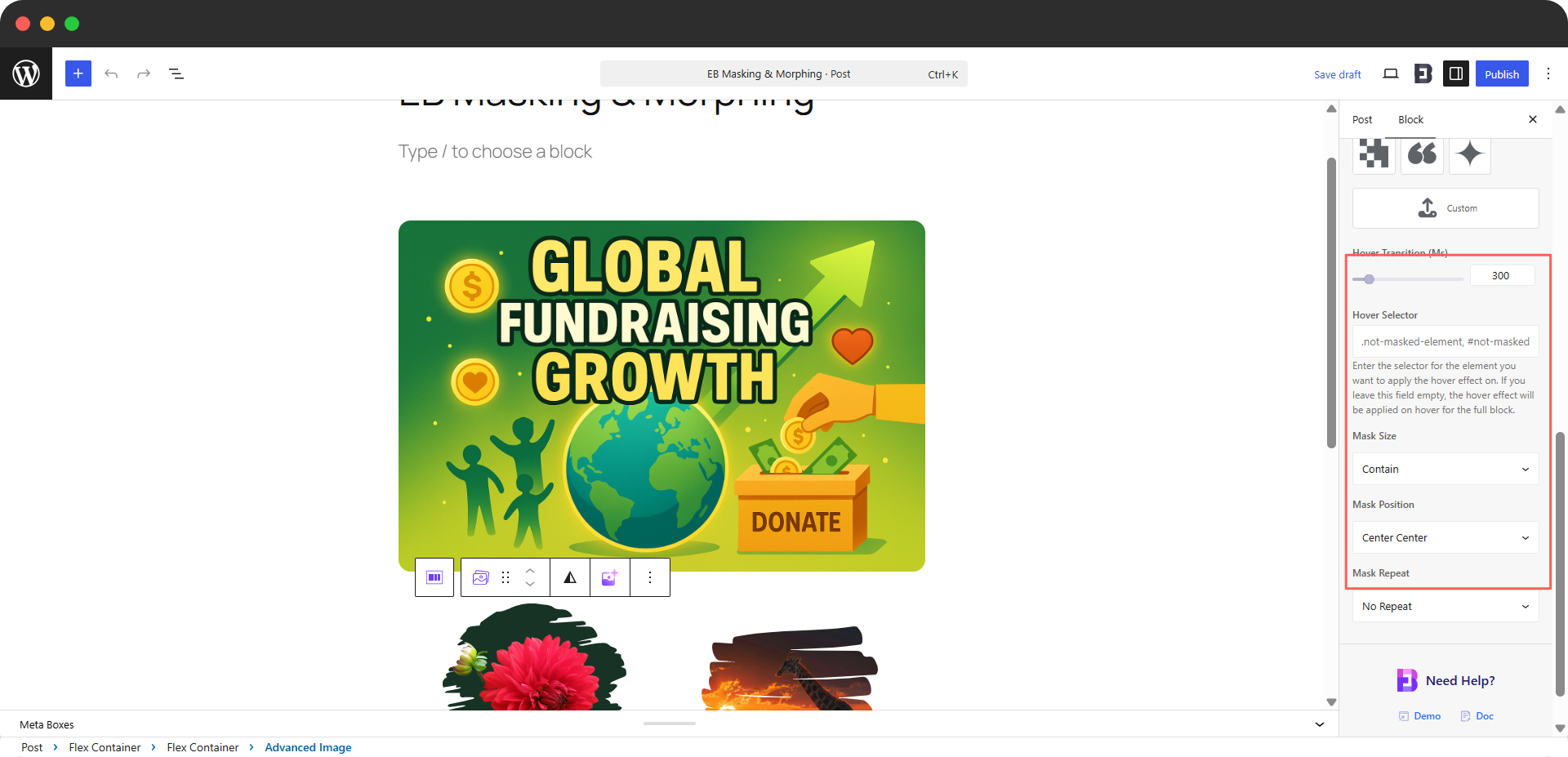
Note: If you leave this field empty, the hover effect is applied when a visitor hovers over the full block.
Step 8: Animate Your Image with Image Morphing #
Select the ‘Image Morphing’ icon to animate your image between different shapes.
Image Morphing offers two ‘Morphing Type’ options: ‘SVG’ and ‘Clip Path’. Choose the one that fits the effect you want, then configure the settings described in the next two steps.
The Exclude Selectors field is available for both morphing types. Enter comma-separated CSS selectors (for example, .avatar, .exclude) for any elements you want the morphing effect to skip.
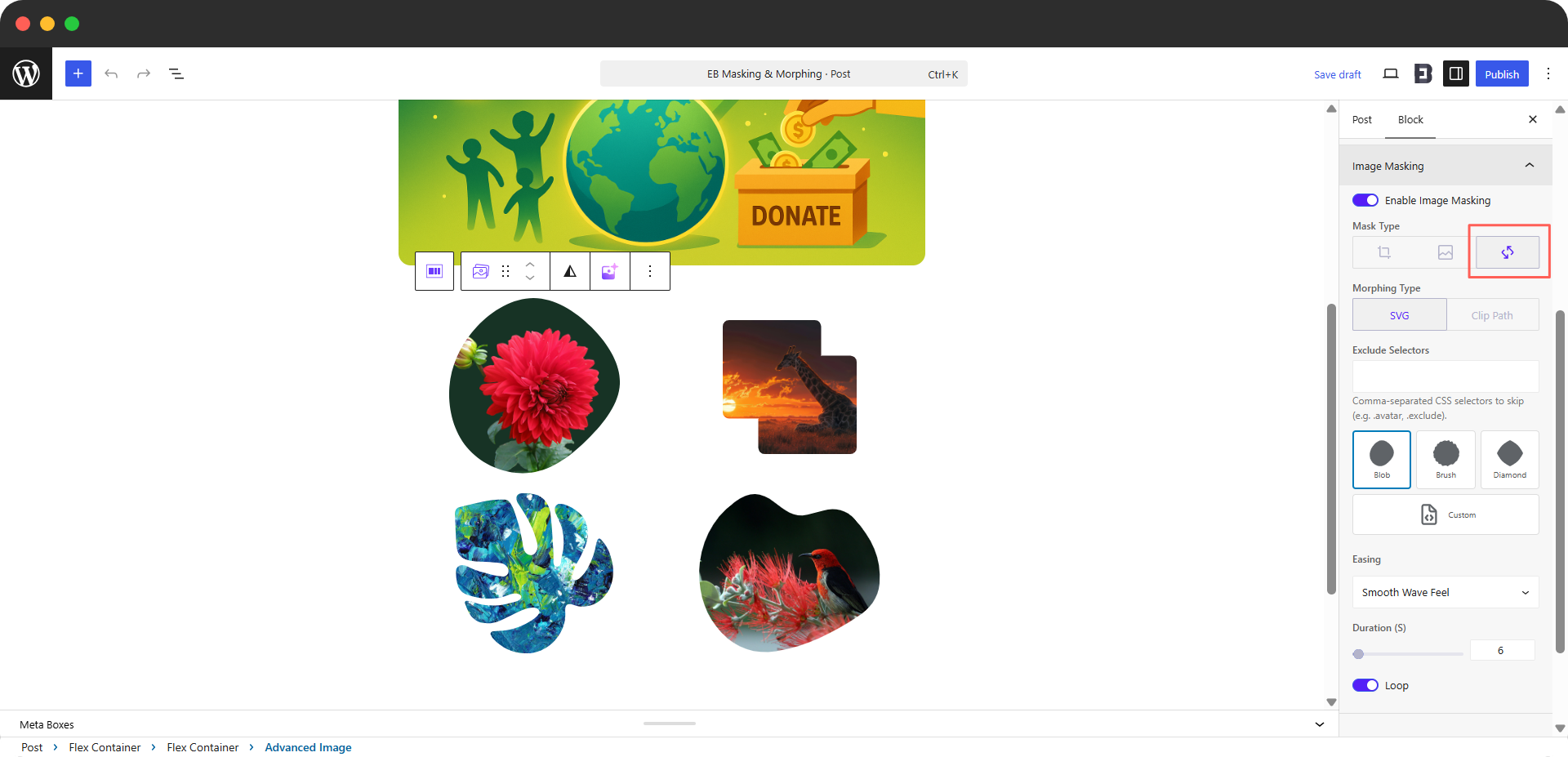
Step 9: Configure SVG Morphing #
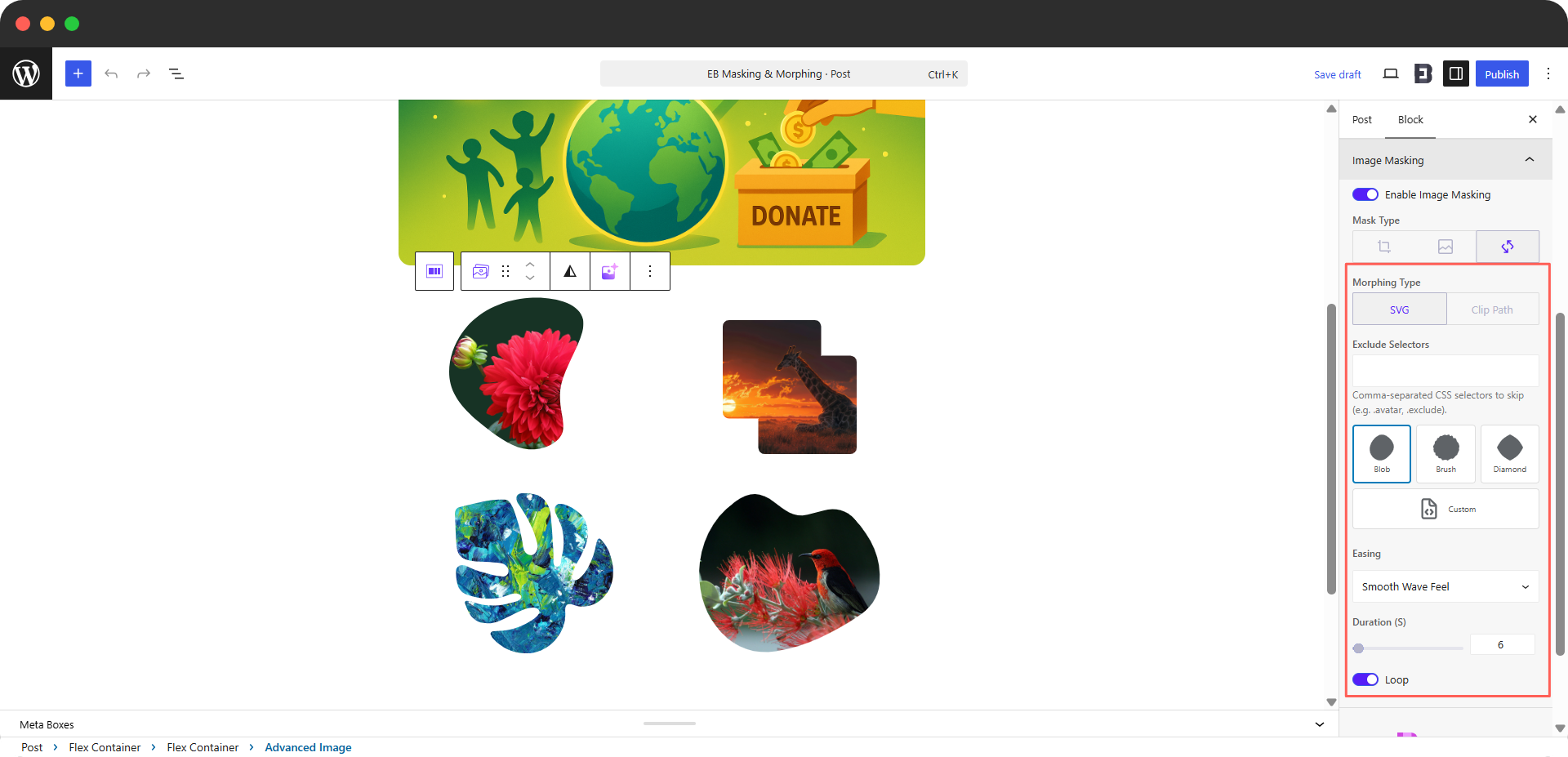
With SVG selected as the Morphing Type, you can build a smooth, organic animation:
- Shapes: Choose from Blob, Brush and Diamond, or click Custom to add your own shape.
- Easing: Set the animation feel. The example uses a Smooth Wave Feel.
- Duration (S): Set how long one animation cycle lasts, in seconds. The default is 6.
- Loop: Turn this toggle on to make the animation repeat continuously.
Step 10: Configure Clip Path Morphing #
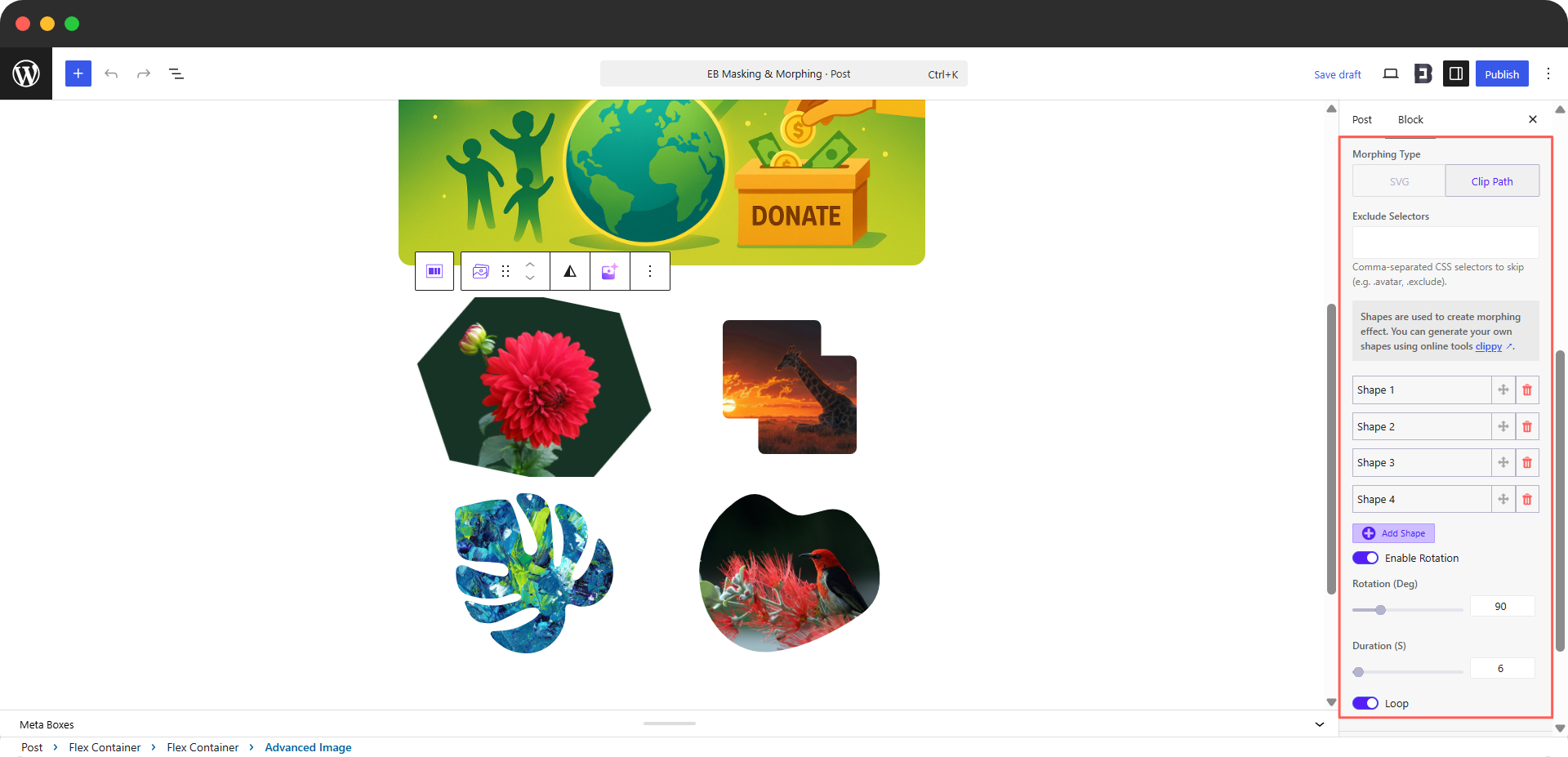
Switch the Morphing Type to Clip Path to animate your image between several clip-path shapes:
- Shapes: The panel lists Shape 1, Shape 2, Shape 3, and Shape 4, each with its own field, a drag handle to reorder it, and a delete icon to remove it. Click Add Shape to include more shapes in the sequence.
- A helper note explains that these shapes create the morphing effect, and you can generate your own shapes using online tools such as Clippy.
- Enable Rotation: Turn this on to add a rotation effect during the animation.
- Rotation (Deg): Set the rotation angle. The example uses 90 degrees.
- Duration (S): Set how long one animation cycle lasts. The default is 6.
- Loop: Turn this on to repeat the animation continuously.
Final Outcome #
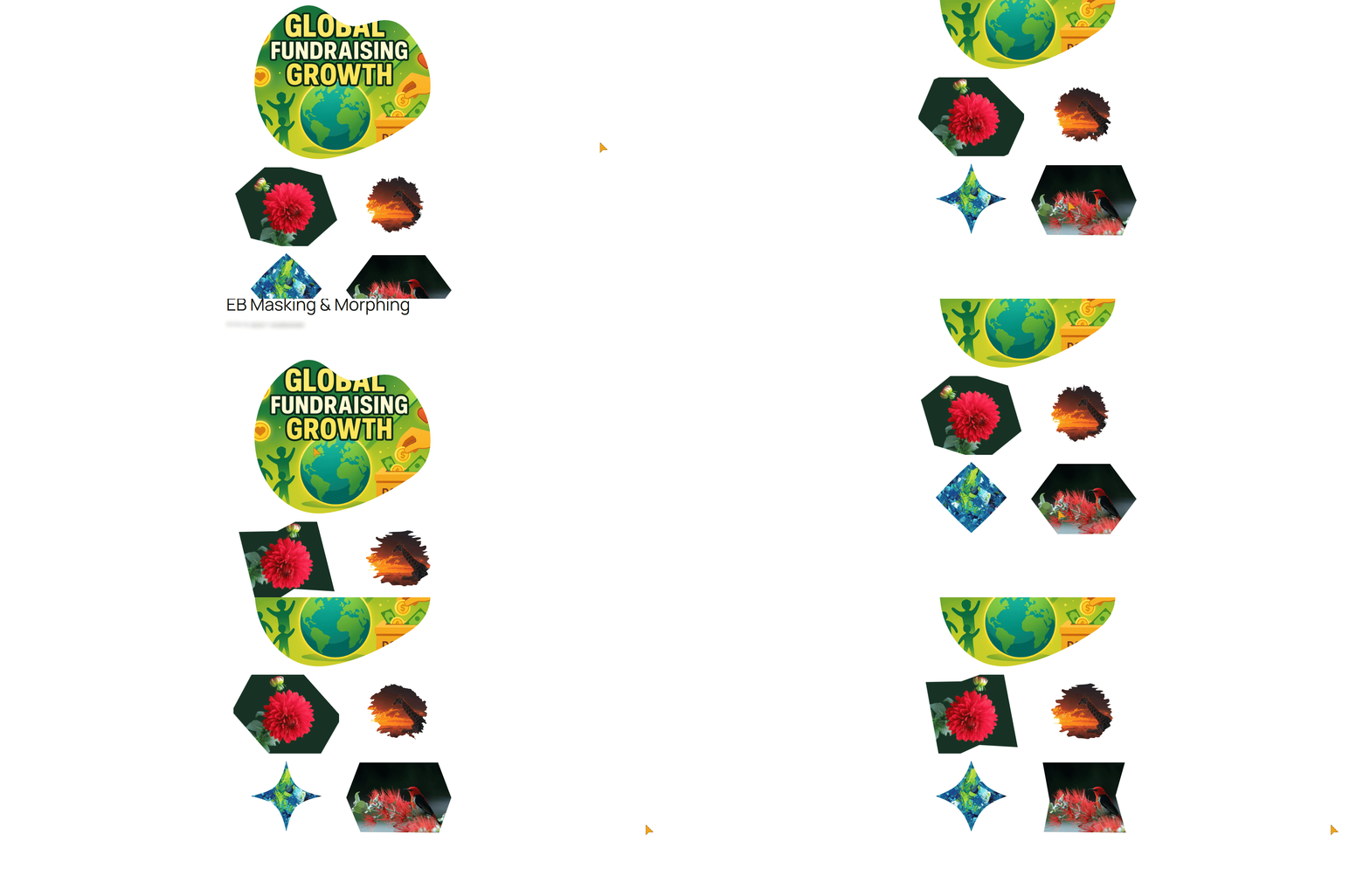
After completing the setup, your image will display in your chosen masked or morphed style instead of a plain rectangle. Depending on your settings, it can appear as a crisp geometric shape, a soft organic form, an interactive hover reveal, or a continuously animating morph.
Getting stuck? Feel free to Contact Our Support for further assistance.


