
EB Protected Content feature lets you secure any content directly inside the Gutenberg editor. Apply flexible password protection to text, images, sections, and more, while having full control over who can access your content.
Note: EB Protected Content is a PRO feature. Before getting started, make sure you have installed and activated Essential Blocks PRO
How to Enable EB Protected Content? #
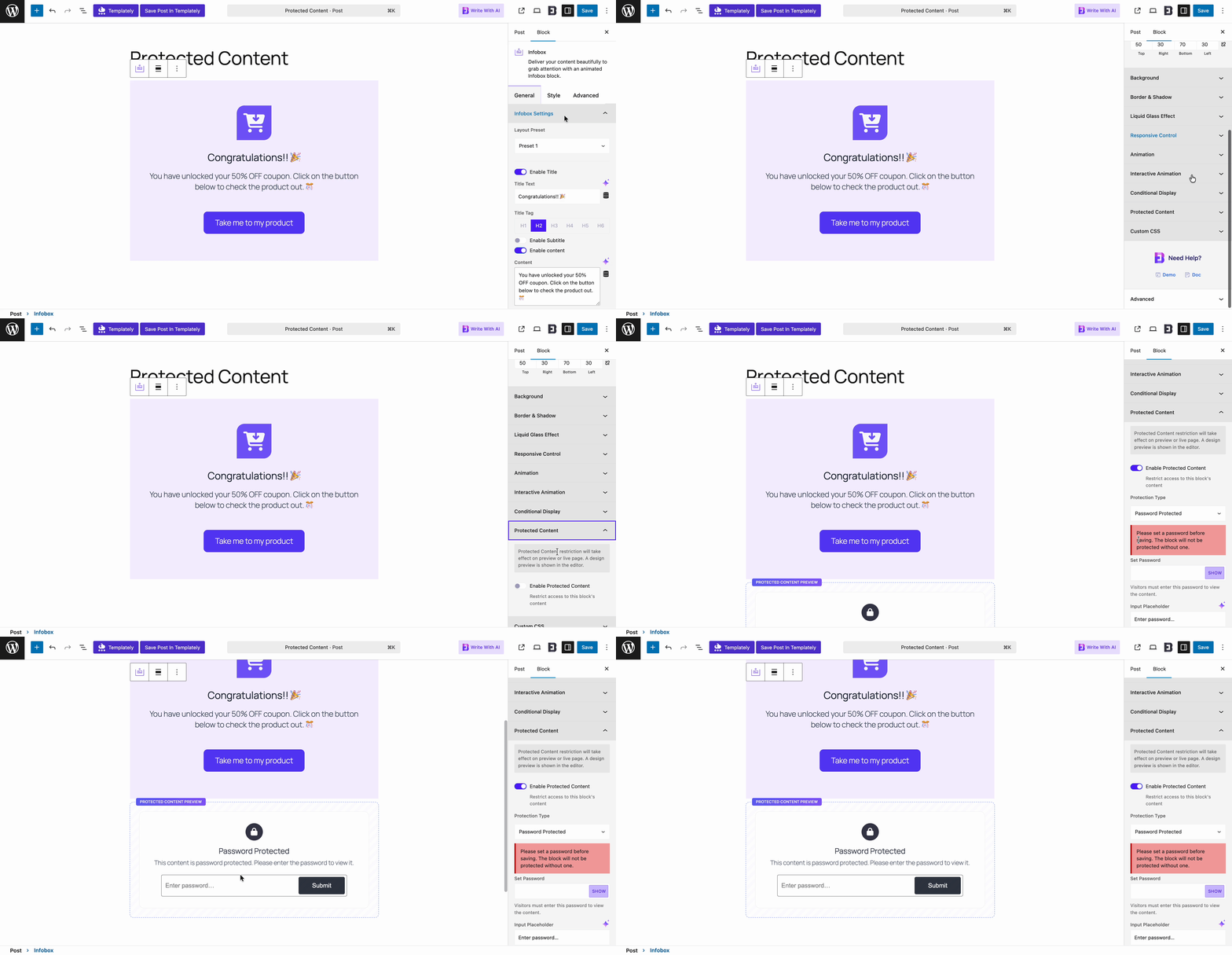
First, from the Gutenberg editor, select a block you want to password protect. After that, from the ‘Advanced’ tab of the right sidebar, go to ‘Protected Content’ and toggle the button to enable the feature.
How to Configure EB Protected Content Feature? #
After enabling the feature, you will find different options to set a password, customize, choose a pattern, control the lock pattern and a lot more.
Set the Password #
After enabling the ‘Protected Content’, the first step is to set the password. From ‘Protection Type’, select ‘Password Protected’ and add your password in the next input field.
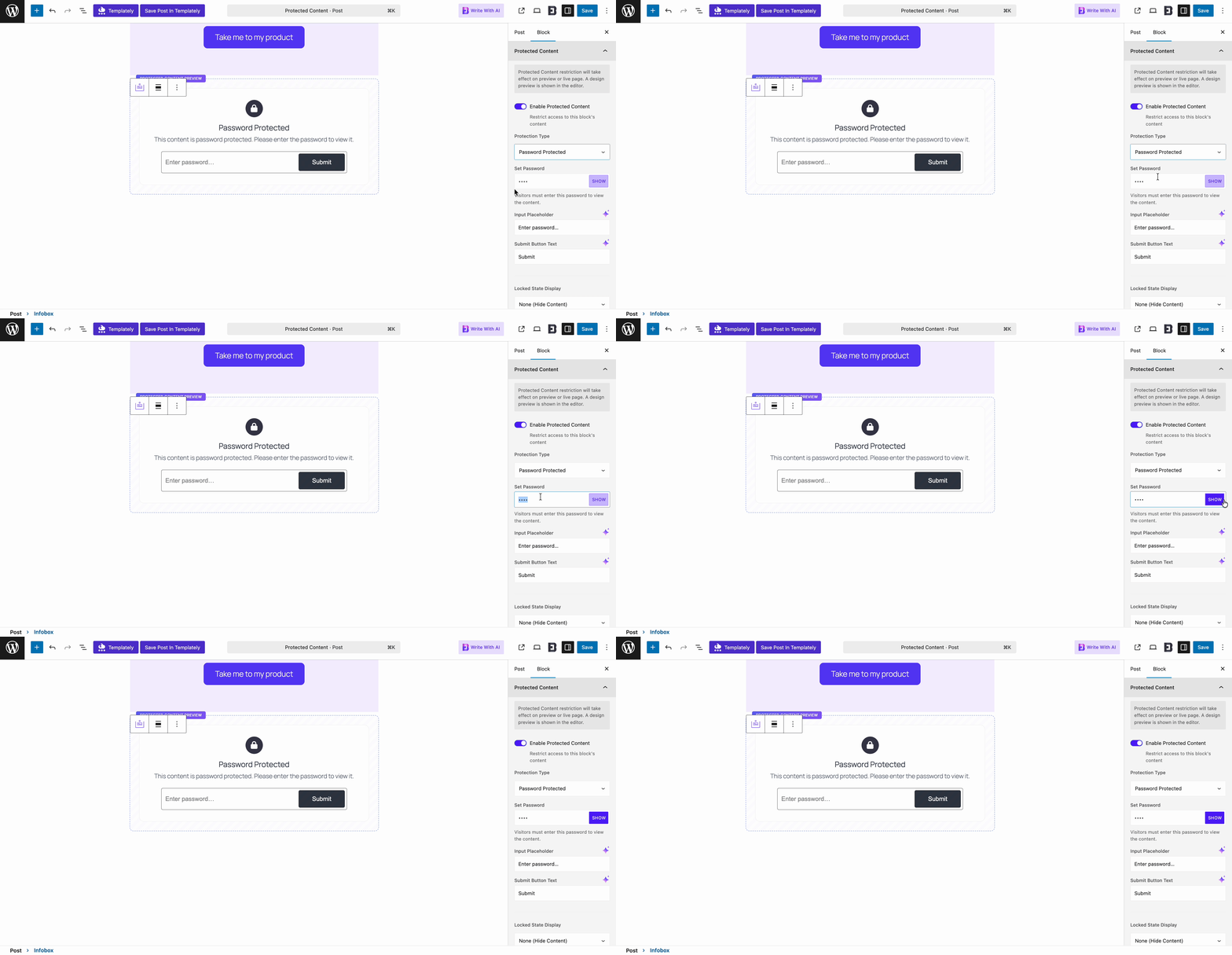
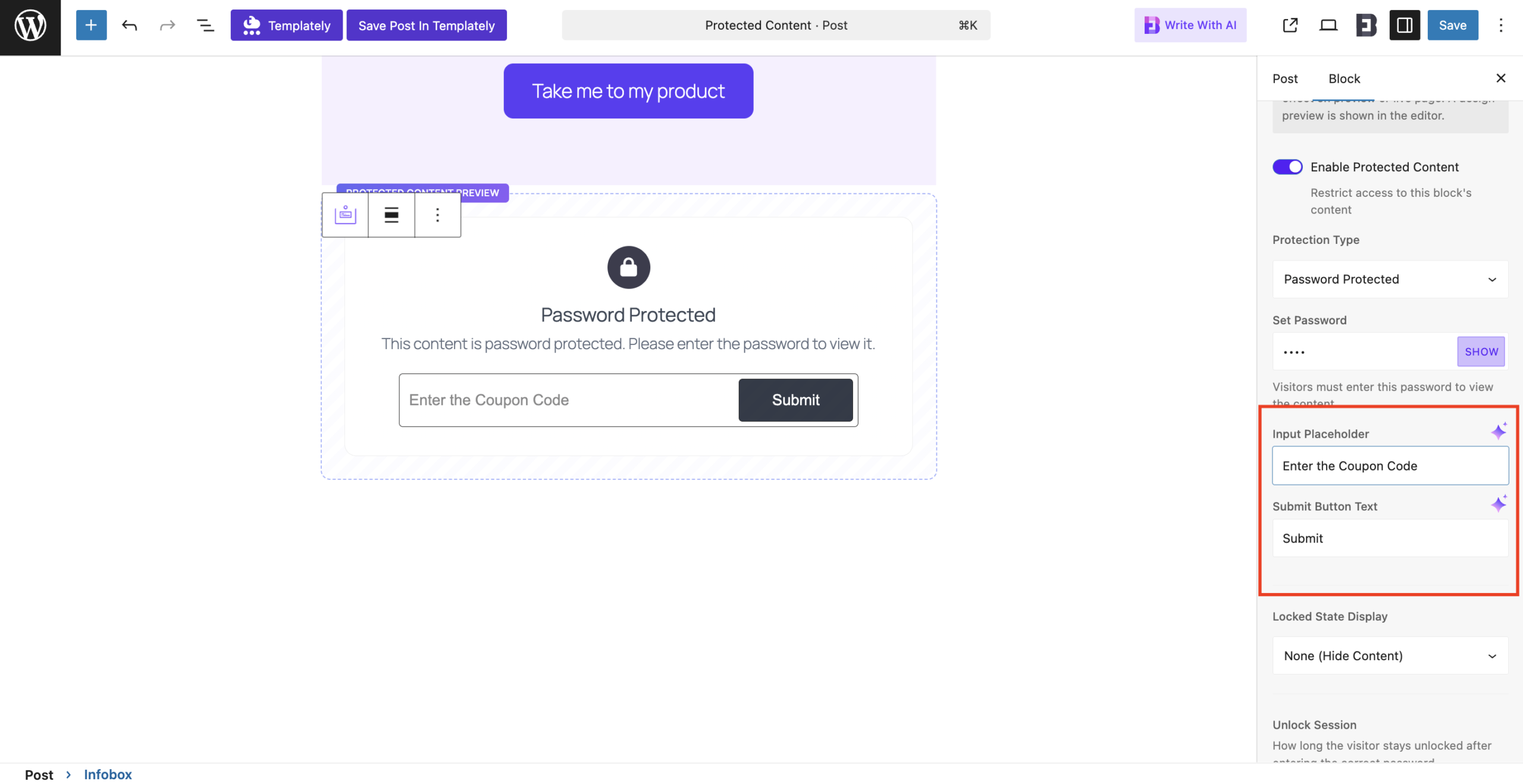
Next, in the ‘Input Placeholder’, you can add custom text. Similarly, you can also customize the text for the Submit Button.
Locked State Display #
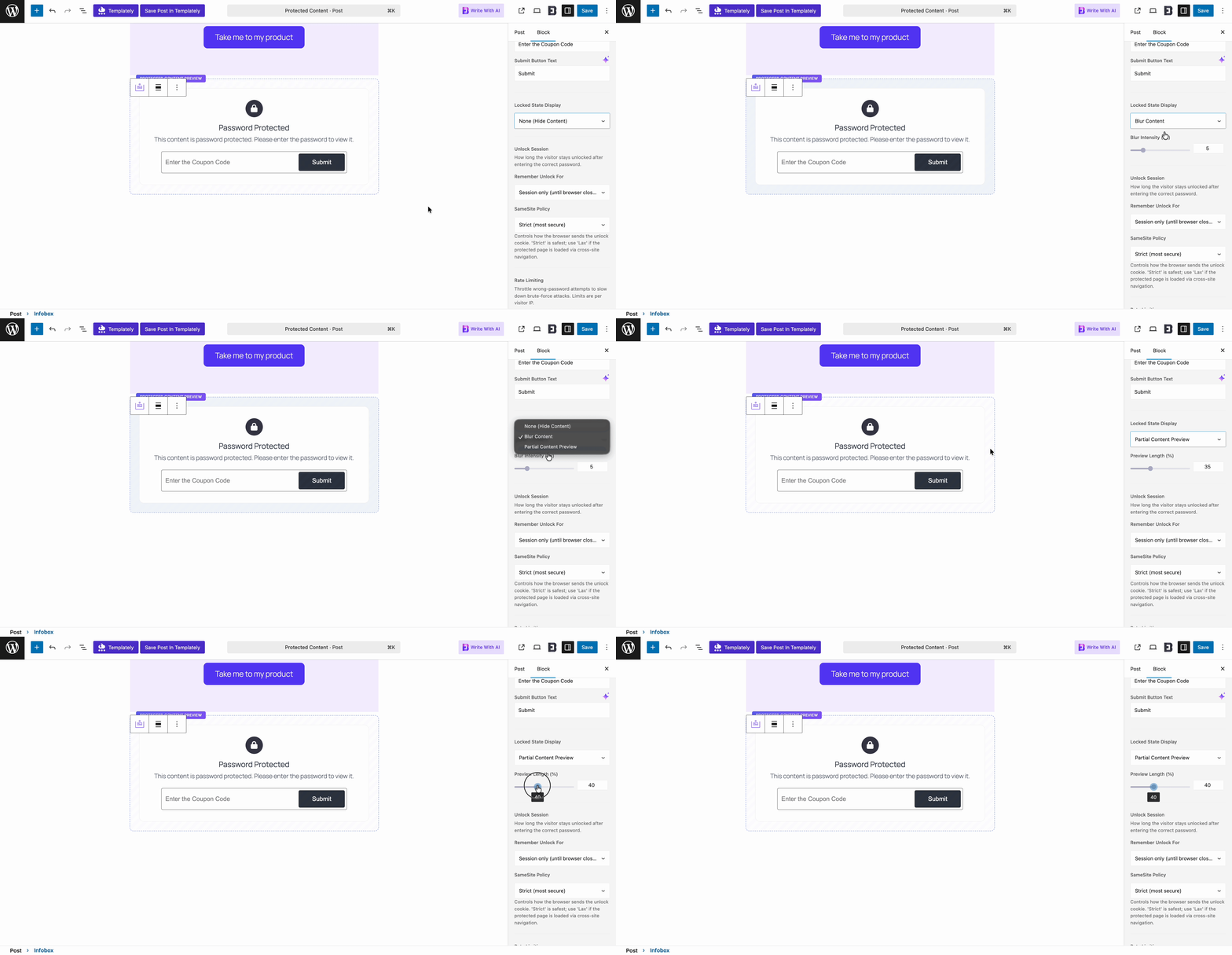
Next, you can set how you want to show the protected content on your website. Here, you can either simply hide the content or blur it using the option ‘Blur Content.’ You can also customize the ‘Blur Intensity’ for your protected content.
You can also partially show the content by choosing ‘Partial Content Preview.’ You will also find a slider to choose the preview length of your protected content.
Set Unlock Session #
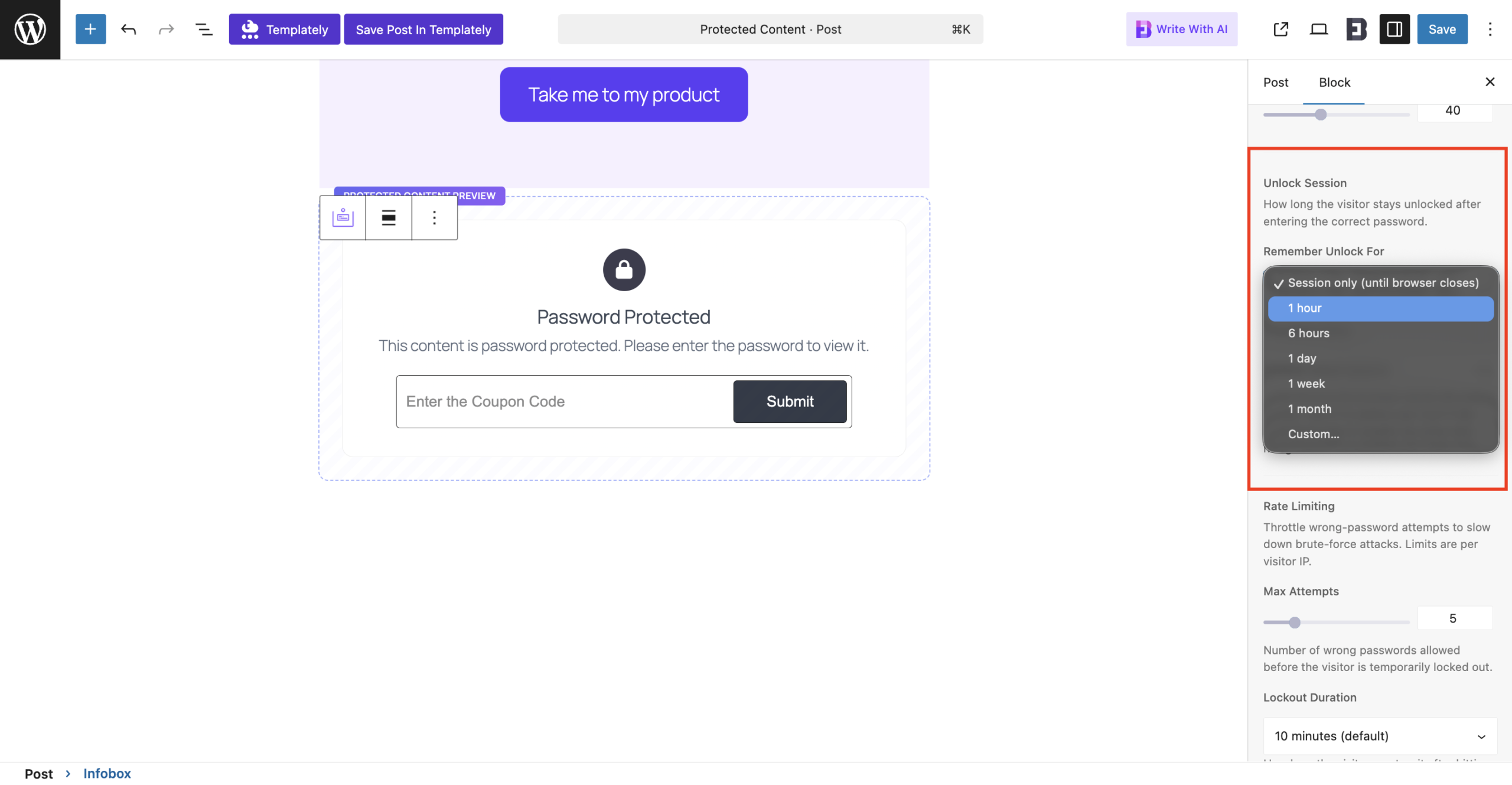
Next, you can control how long your visitors can access the unlocked version of your protected content. From the ‘Remember Unlock For’ dropdown menu, select specific timing for the unlocked content.
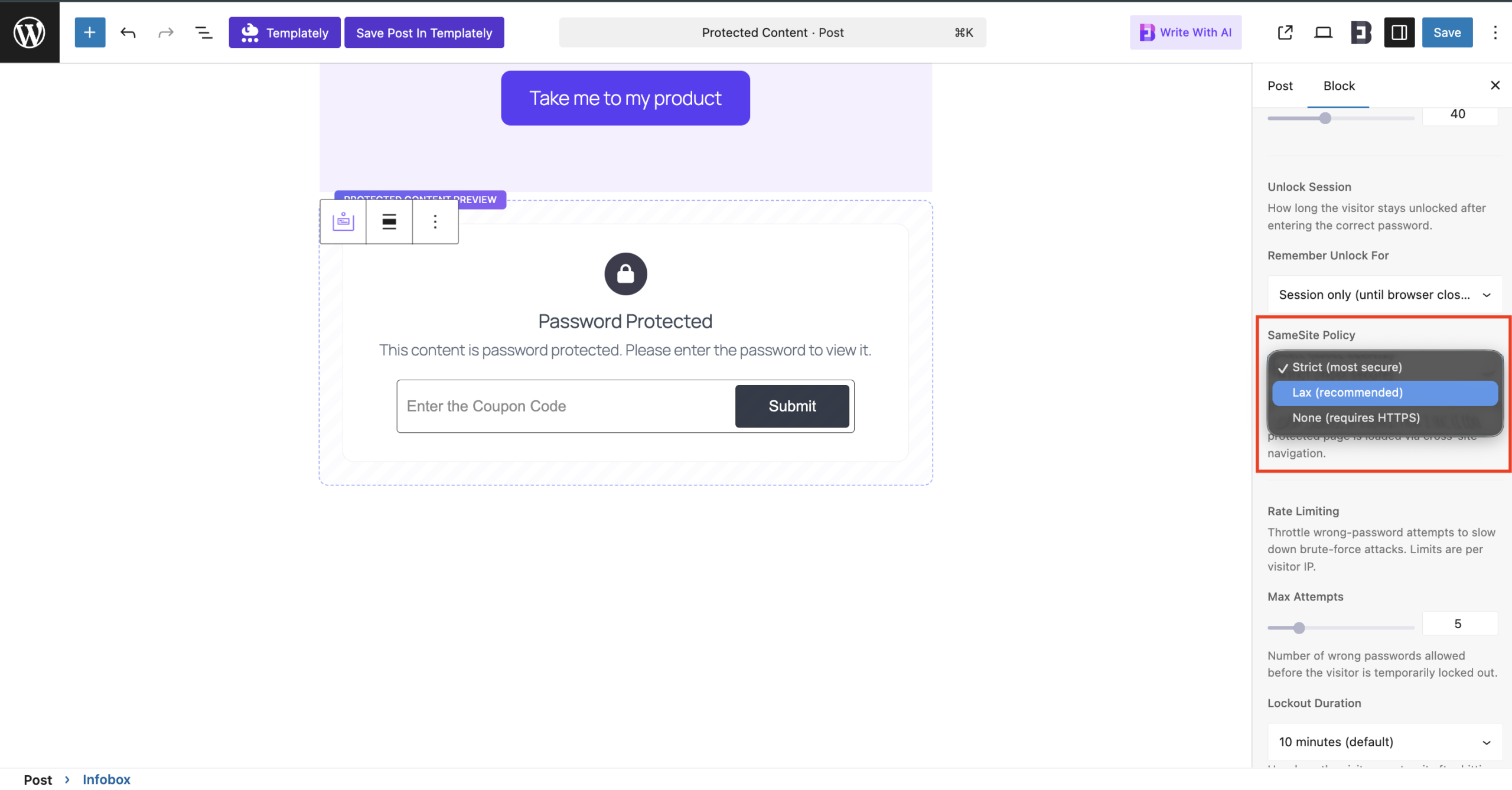
Next, choose the SameSite Policy. This controls how the browser sends the unlock cookie. ‘Strict’ is safest; use ‘Lax’ if the protected page is loaded via cross-site navigation.
Rate Limiting #
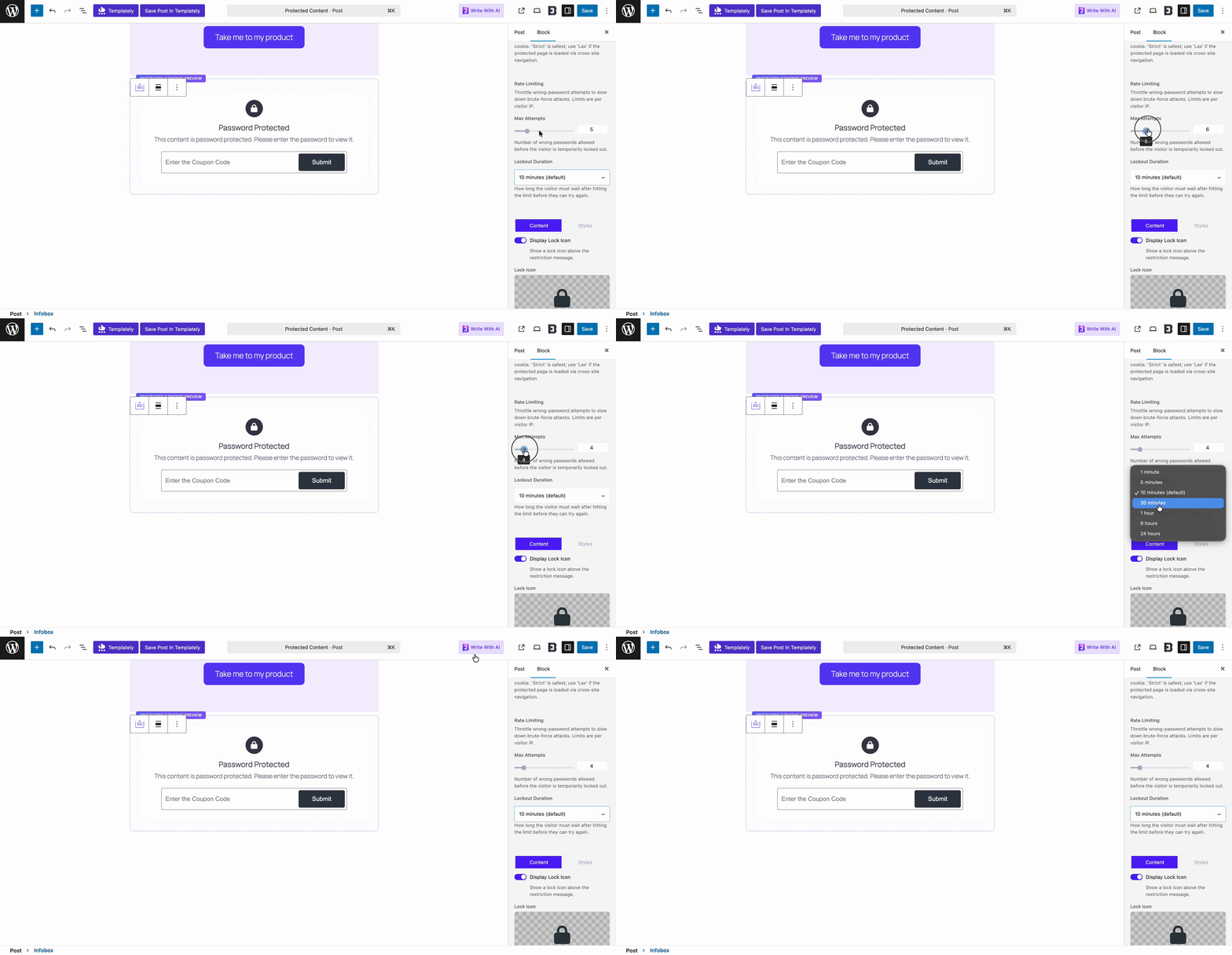
In this section, you can set a time limit for each incorrect password attempt made by your visitors.
From ‘Max Attempts’ choose the number of times a visitor can put in the password and attempt to access the protected content.
From the ‘Lockout Duration’, choose how long the visitor must wait after hitting the limit before they can try again.
Lock Icon Customization #
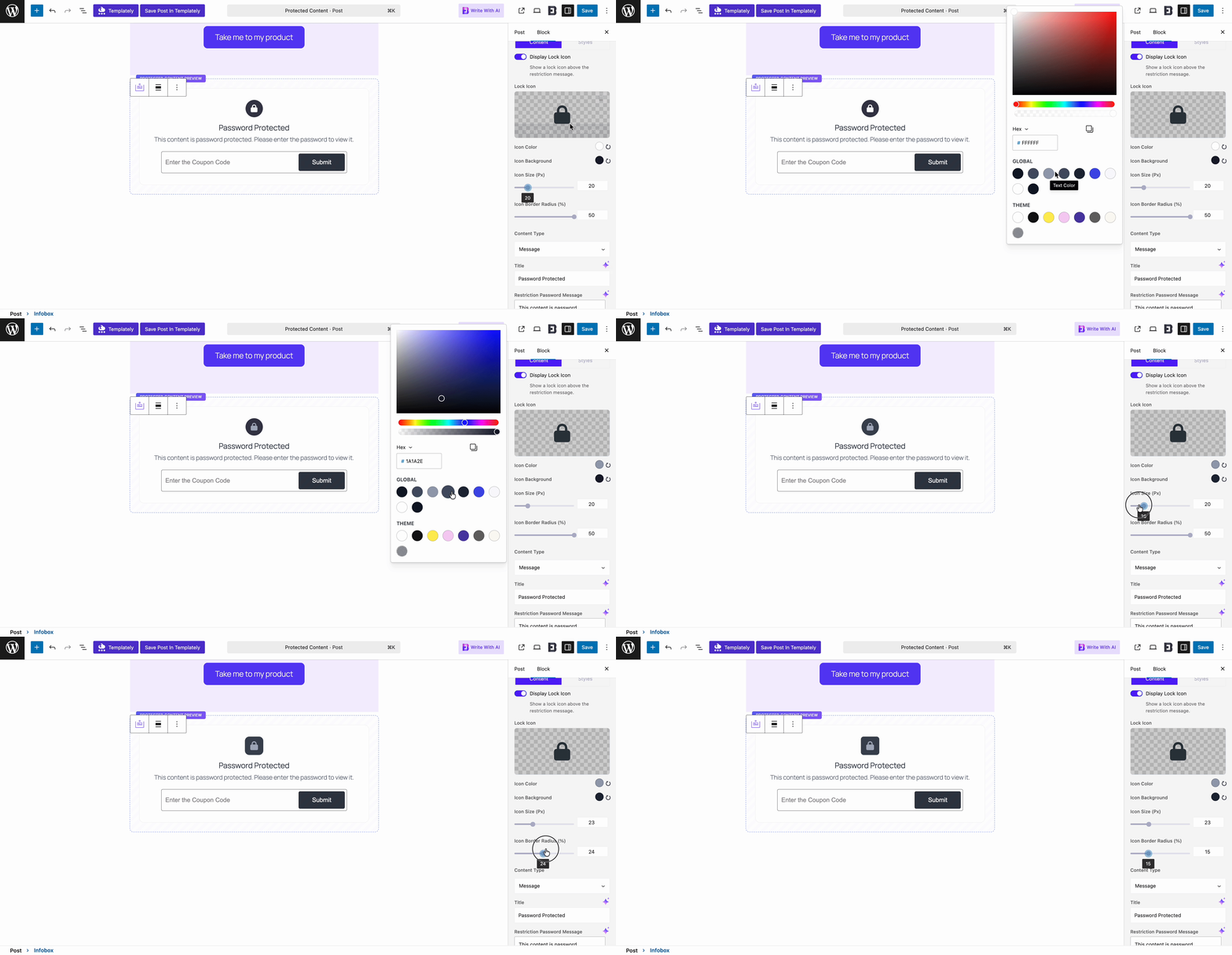
Here, you can customize the lock icon for your website. You can choose the icon and select the icon and background color. You can also adjust the icon size and icon border radius from the controller.
Select the Content Type #
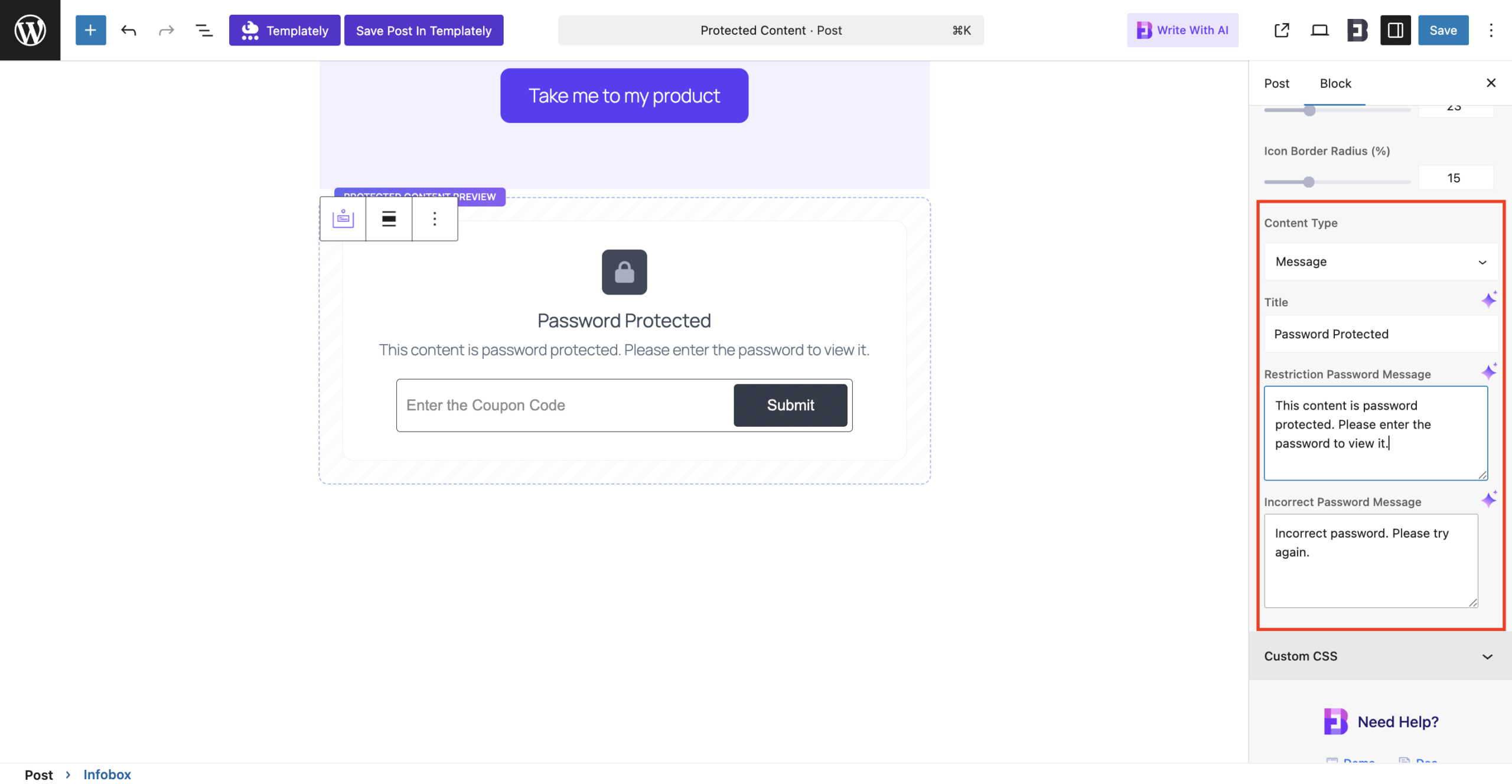
Next, you can choose a specific content type. Either show a message in the ‘Protected Content,’ or you can choose a specific pattern. If you want to choose a message, then you can add different ‘Title’, ‘Restriction Password Message’ and ‘Incorrect Password Message.’
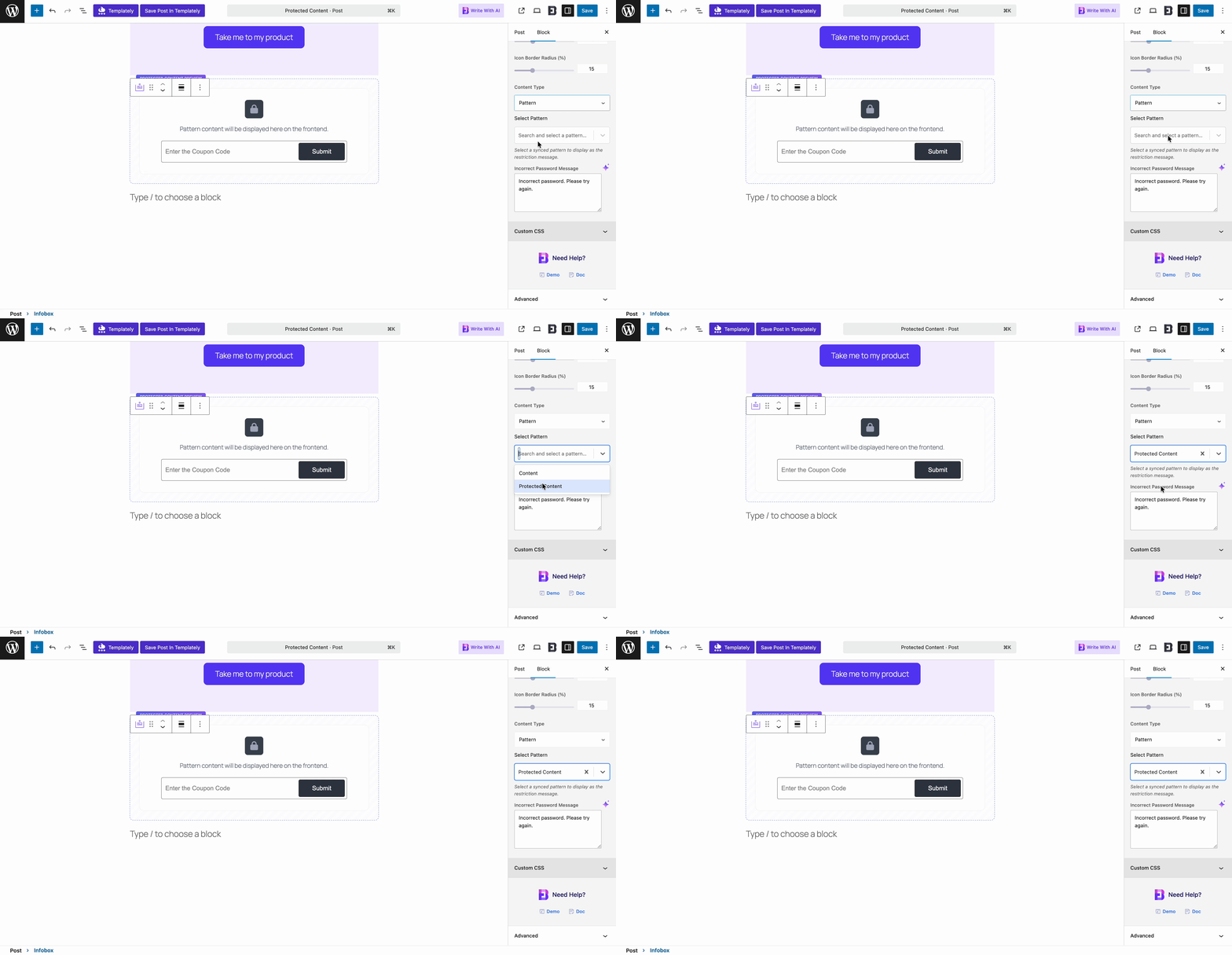
If you want to choose ‘Pattern’, then from the dropdown, select a synced pattern to display as the restriction message.
Finally, click on the ‘Publish’ button to make your protected content LIVE!
Final Outcome #
Your content will now be password-protected and secured on your website. By providing the correct password, your visitors can unlock and view the protected content or blocks.
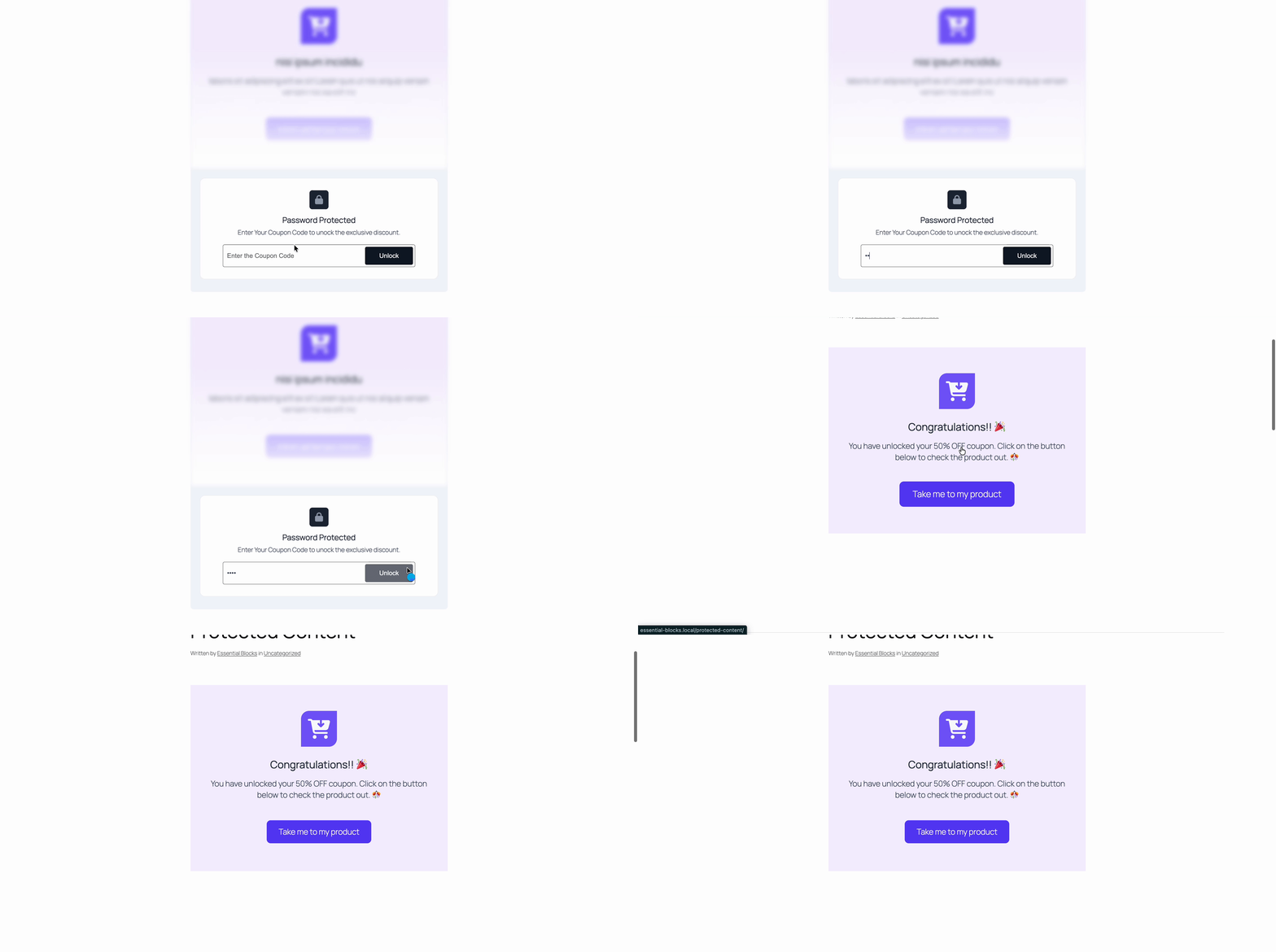
By following these steps, you can easily protect your content or blocks on your website using EB Protected Content.
Getting stuck? Feel free to contact our support for further assistance.


