
EB Timeline helps you visually showcase events, milestones, or step-by-step progress in a clear, structured timeline format. It simplifies the presentation of chronological information in a clean, customizable format, making it ideal for company histories, project roadmaps, processes, or feature highlights on your website.
Learn how to create a dynamic and visually engaging timeline on your Gutenberg website using the Timeline block from Essential Blocks in Gutenberg.
How to Activate the EB Timeline Block? #
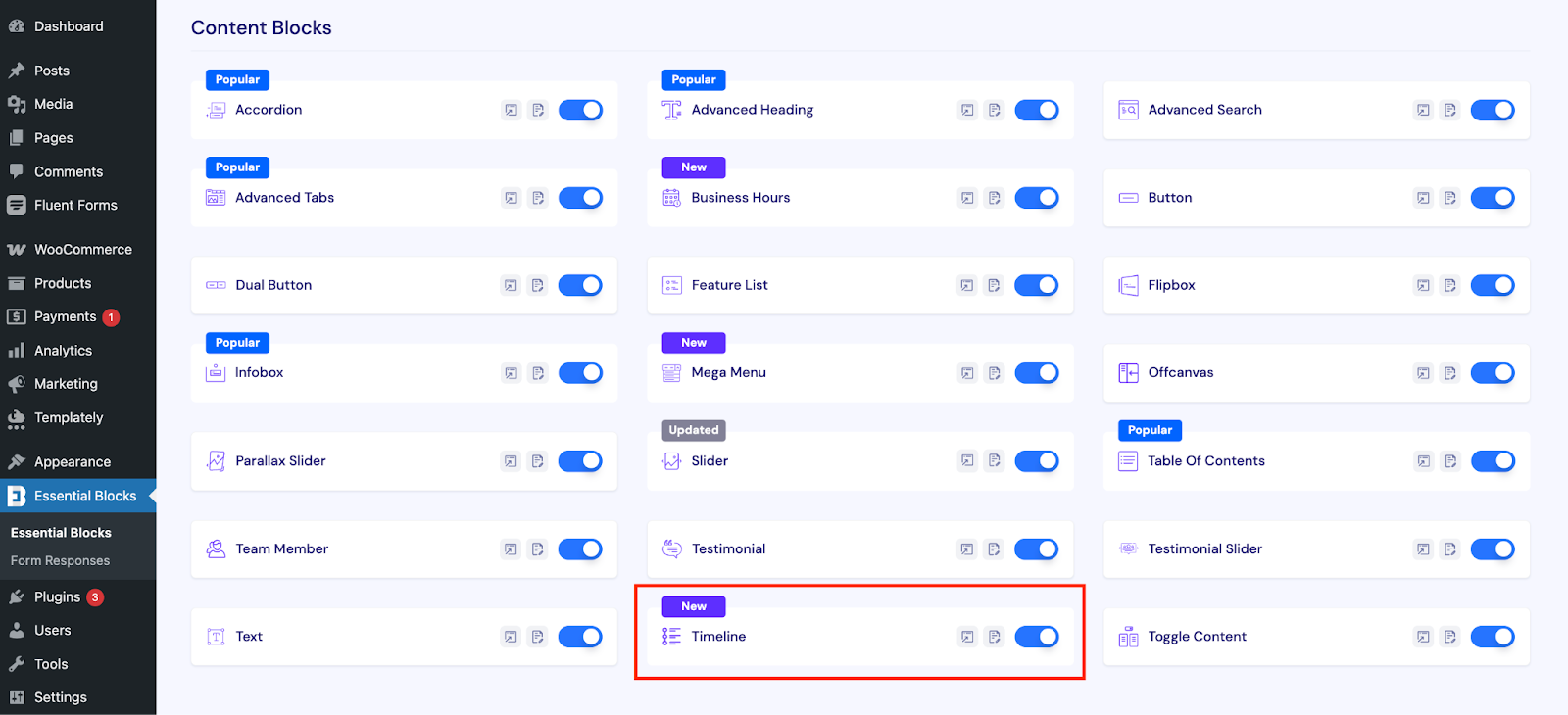
To activate the Timeline block, navigate to Essential Blocks → Blocks. Then, from the Content Blocks section, toggle to enable the block as shown below.
How to Configure the Timeline in Gutenberg? #
Open the page or post where you want to display your timeline, then add the EB Timeline block to that section. Search for the ‘Timeline’ block and insert it into the desired section.
After inserting, you will get two options: ‘Choose’ or ‘Start blank’. Select ‘Start Blank‘ if you want to create the timeline according to your preferences.
If you click on ‘Choose’, you will find premade templates for the Timeline. There, you will have the option to choose from three different presets: Preset 1, Preset 2 and Preset 3.
Preset 1: A modern, minimalist timeline with single-line dates and detailed descriptions, creatively aligned with each scroll.
Preset 2: A simple straight-line layout, perfect for SaaS changelogs or showcasing product versions with clear explanations.
Preset 3: A modern, highlighted design with customizable icons, headings, and links—ideal for milestones, achievements, or key events.
The Timeline block comes packed with versatile global features like tags, images, icons, and tickers. You can start from a blank canvas or use the unique text editor to fully customize your timeline exactly the way you want.
However, if you want more control over the layout or wish to refine the overall design, you can customize the structure of each section using the following options.
General #
From the Gutenberg right sidebar, go to the Block settings. Under the General tab, you’ll find several options: Timeline Settings, Timeline Line Style, Title, Meta, Timeline Icon and Custom Content option. Each section offers customizable styling and configuration options.
Timeline Settings: Here, you can choose the position of the timeline where you particularly want to align it. Also, you can choose 4 different styles for your chosen timeline preset.
Meta: By enabling or disabling the meta option, you can choose whether you want to show the date or not. Even after enabling the Meta, you can also hide the date option. You will also be able to show subheadings and labels in the timeline.
Timeline Icon: Add any images to the timeline icon based on your brand preferences.
Content Editor: Here, you can choose the content for your timeline. Here, you will be able to choose the heading and content for the timeline. Here, you will also be able to enable the ‘Read More’ button if you have long-form content.
Style #
Next, from the Style tab, you can create different styles for the timeline. You can style each option on the timeline, such as Connector width, color and progress line color, Bullet, Meta, Label and Card’s typography and color within this style option.
Advanced #
In the Advanced tab of the Timeline block, you can easily access a comprehensive set of controls to fine-tune both the appearance and behavior of your timeline. These options give you greater flexibility to align the timeline with your website’s overall design and user experience.
The Advanced settings include Visibility Options, Margin & Padding, Background, Border & Shadow, Liquid Glass Effect, Responsive Control, Animation, Interactive Animation, Conditional Display, and Custom CSS, allowing you to customize every detail with precision.
Once you’re done customizing, click “Save” or “Publish” at the top and preview your changes.
Final Outcome #
By following this guide, you’ve learned how to add Timeline to your WordPress website. With the Essential Blocks plugin, you can seamlessly insert the Timeline block with a professional look.
Getting stuck? Feel free to Contact Our Support for further assistance.


