
EB Image Hotspots helps you easily highlight images with interactive hotspots, including custom tooltips, pins, and more, to showcase details, pricing, tags, or links. You can set custom tooltip content, adjust positions, add animations, and more to make your image hotspots engaging for your site visitors.
Follow the step‑by‑step guidelines below to configure and style your EB Image Hotspots.
How To Activate The EB Image Hotspots Block? #
To activate the Image hotspot, navigate to Essential Blocks → Blocks. Then, from the Creative Blocks section, toggle to enable the block as shown below.

Note: Image hotspot is a freemium block. Install and activate the Essential Blocks PRO plugin on your website along with the free version.
How To Configure Image Hotspot In Gutenberg? #
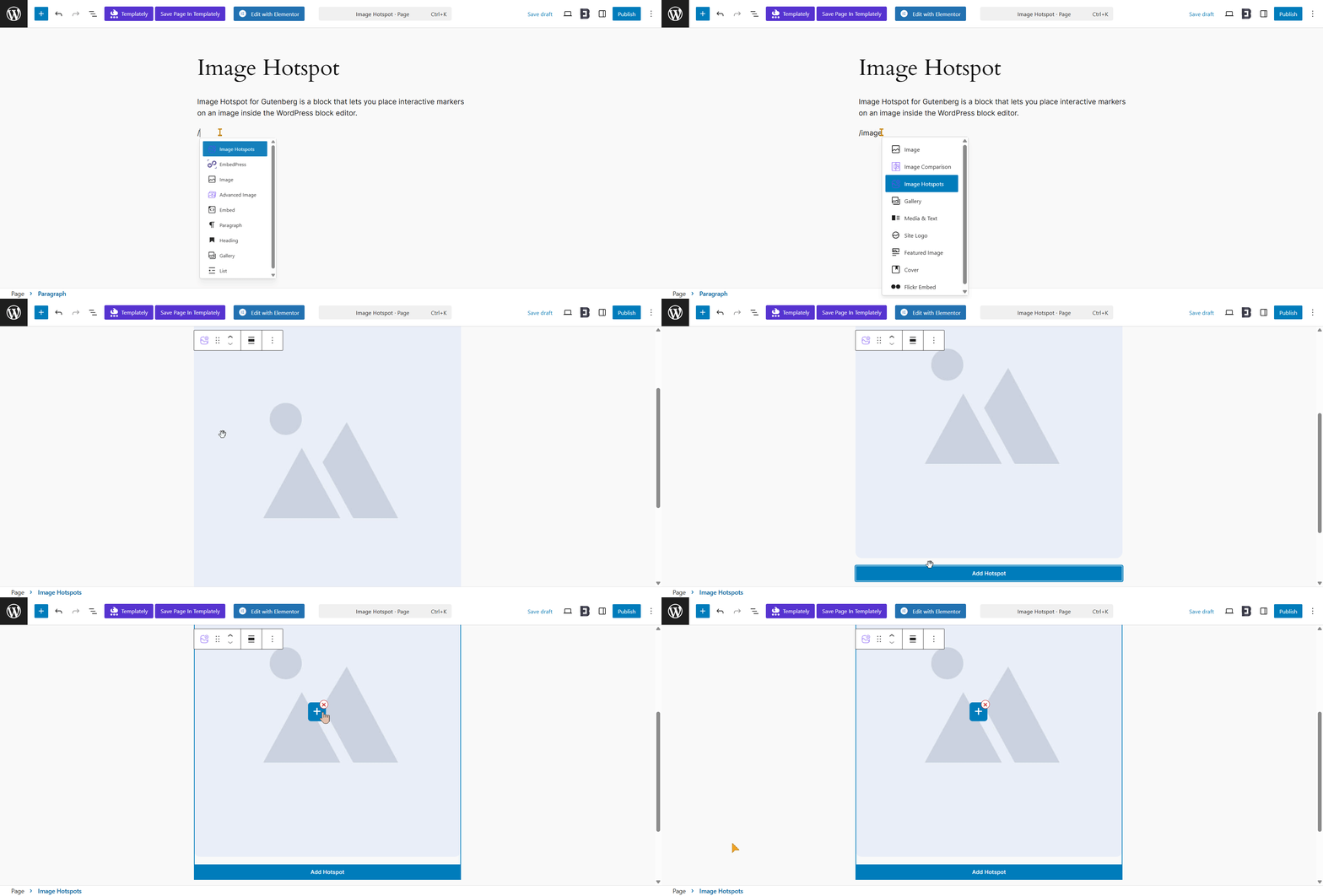
Open the page or post where you want to display your image hotspot, then add the EB Image Hotspots block to that section. Search for the ‘Image Hotspot’ block and insert it into the desired section.
After that, tap ‘Add Hotspot’, which will place a hotspot at the position you selected.
General #
Once you’ve added your image hotspot, navigate to the Block→ General tab. Under this tab, you can customize your image hotspot. Use the different tab to configure the image hotspot. Below are the available settings:

Image #
You can add your preferred image by clicking the Replace button shown below. Besides, you can adjust the added image from the image settings. Here you can choose the styles of the image and sizes and adjust more settings according to your preferences.
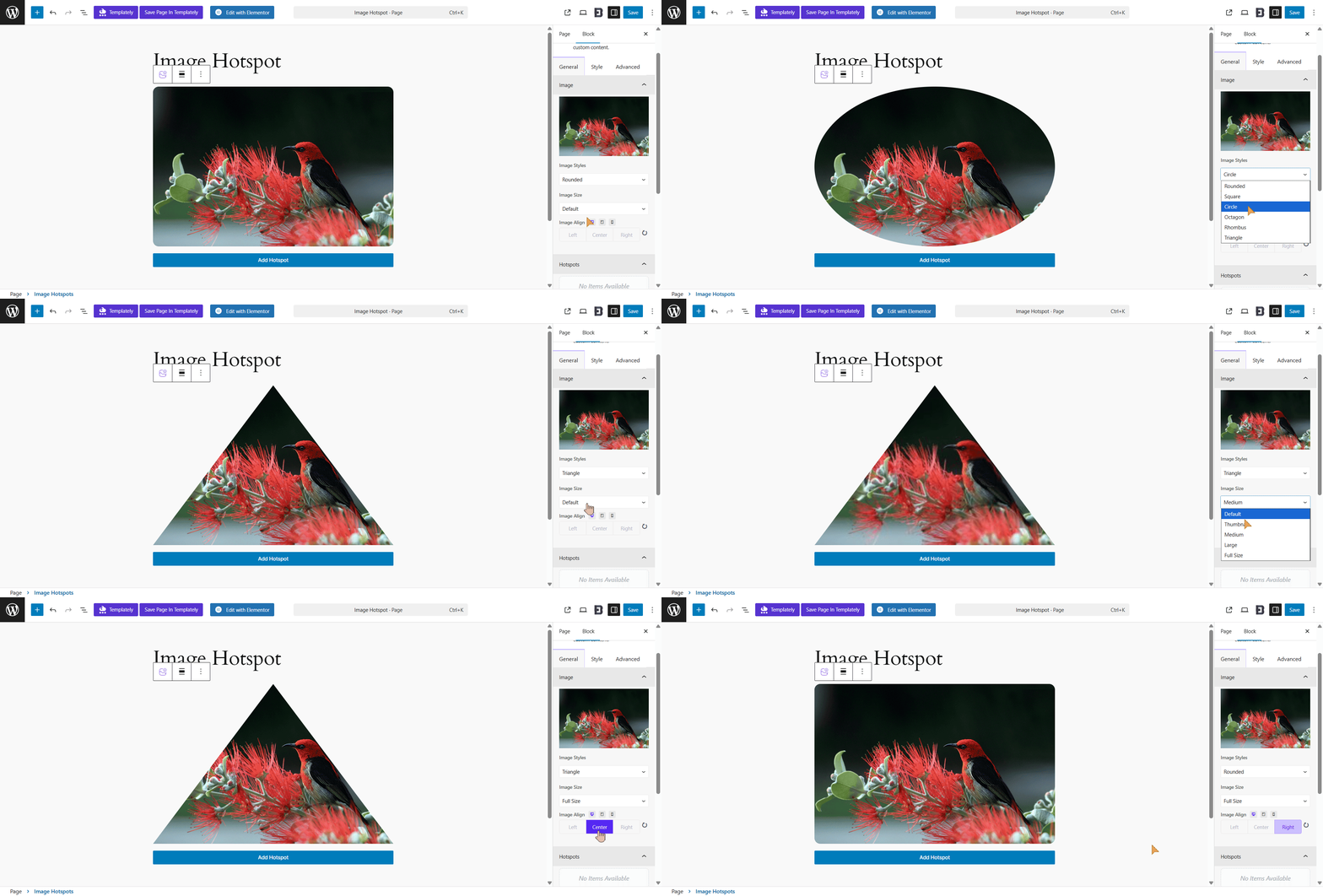
You can also add multiple hotspots using the Image Hotspots block, allowing you to highlight several key areas of an image.
Hotspots #
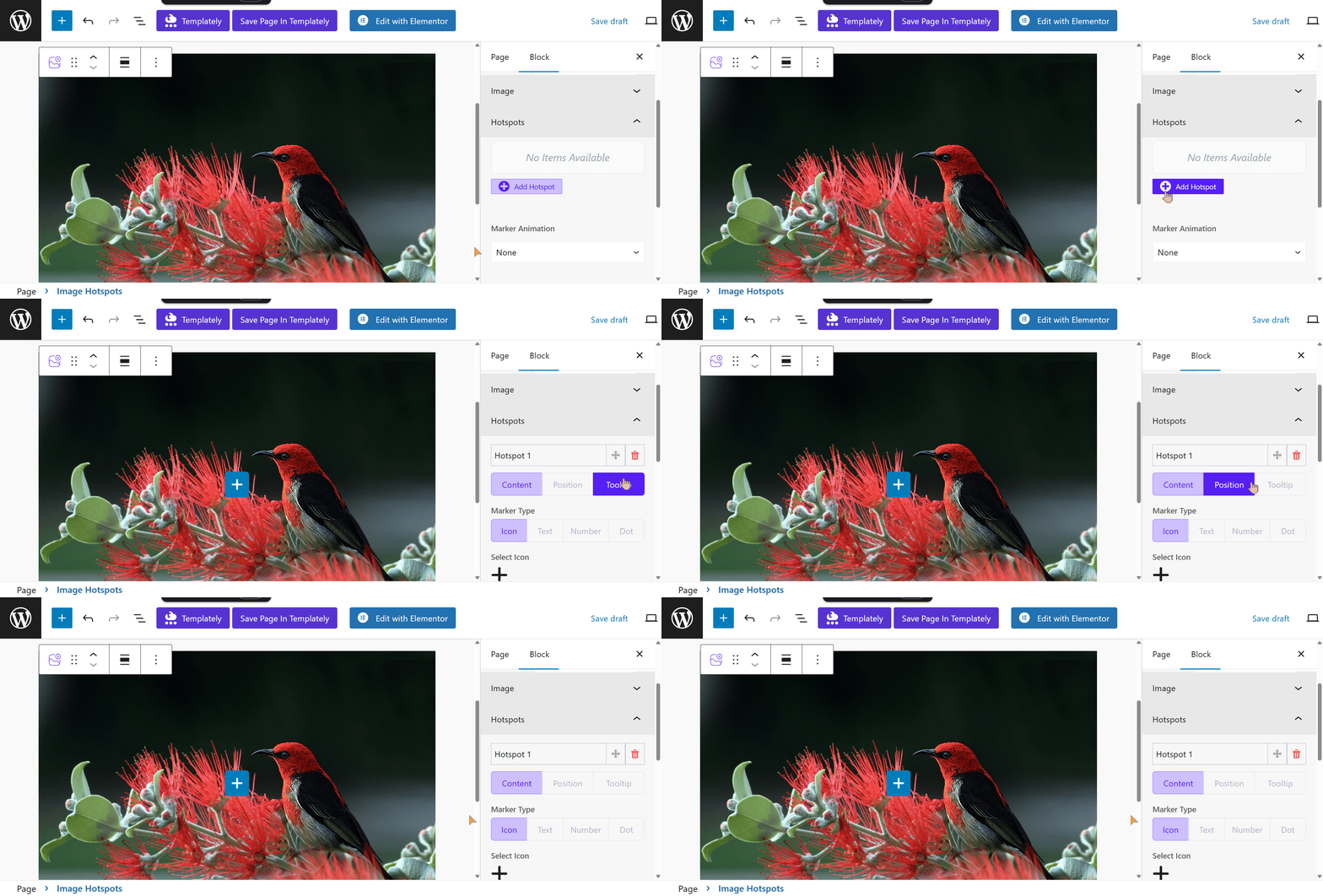
You can add multiple hotspots using the ‘Add Hotspot’ button. And each new hotspot section comes with three separate tabs displaying ‘Content’, ‘Position’, and ‘Tooltip’.
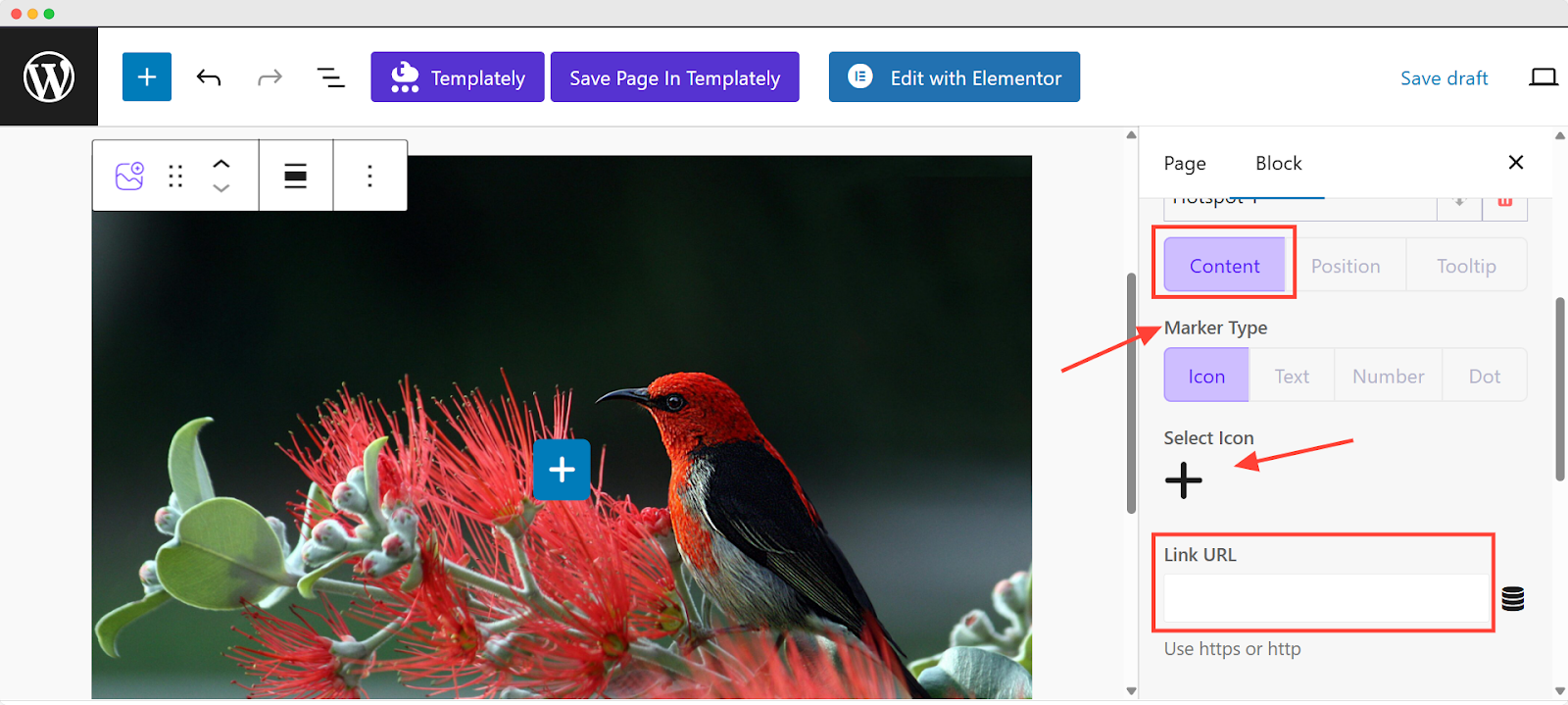
In the ‘Content’ section, you can choose the type of content to display, such as text, an icon, or a blank hotspot. You can also add a link and choose whether the hotspot should open in a new tab.
Use the ‘Position’ option to choose where you want to place your image hotspot marker. The X and Y controls let you adjust the marker’s position along the horizontal and vertical axes.
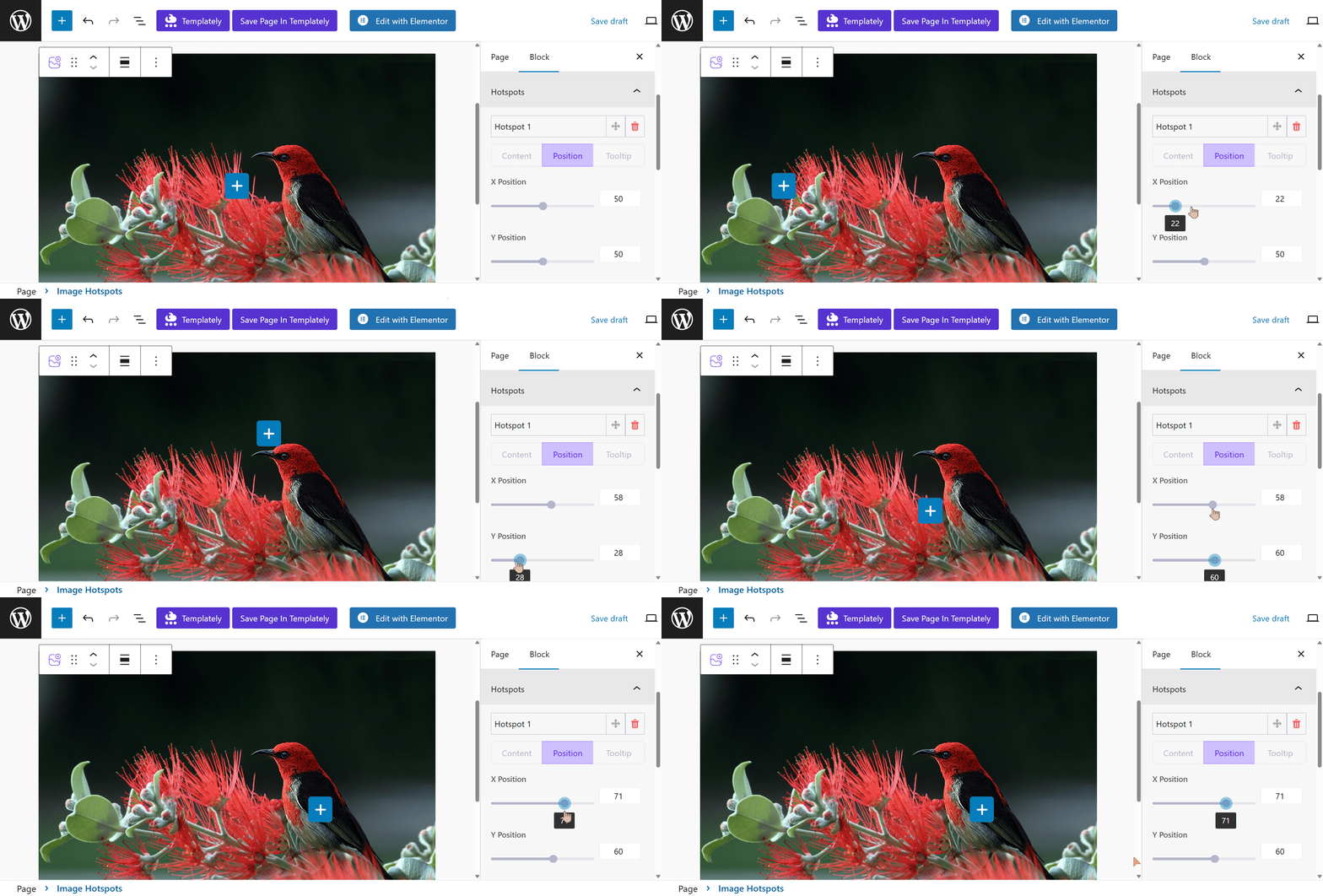
You can also enable the ‘Tooltip’, which displays a dialog box when visitors hover over the hotspot. From the ‘Media Type’, you can customize the tooltip by adding an icon or image, and you can set your own tooltip title, content and URL based on your preferences.

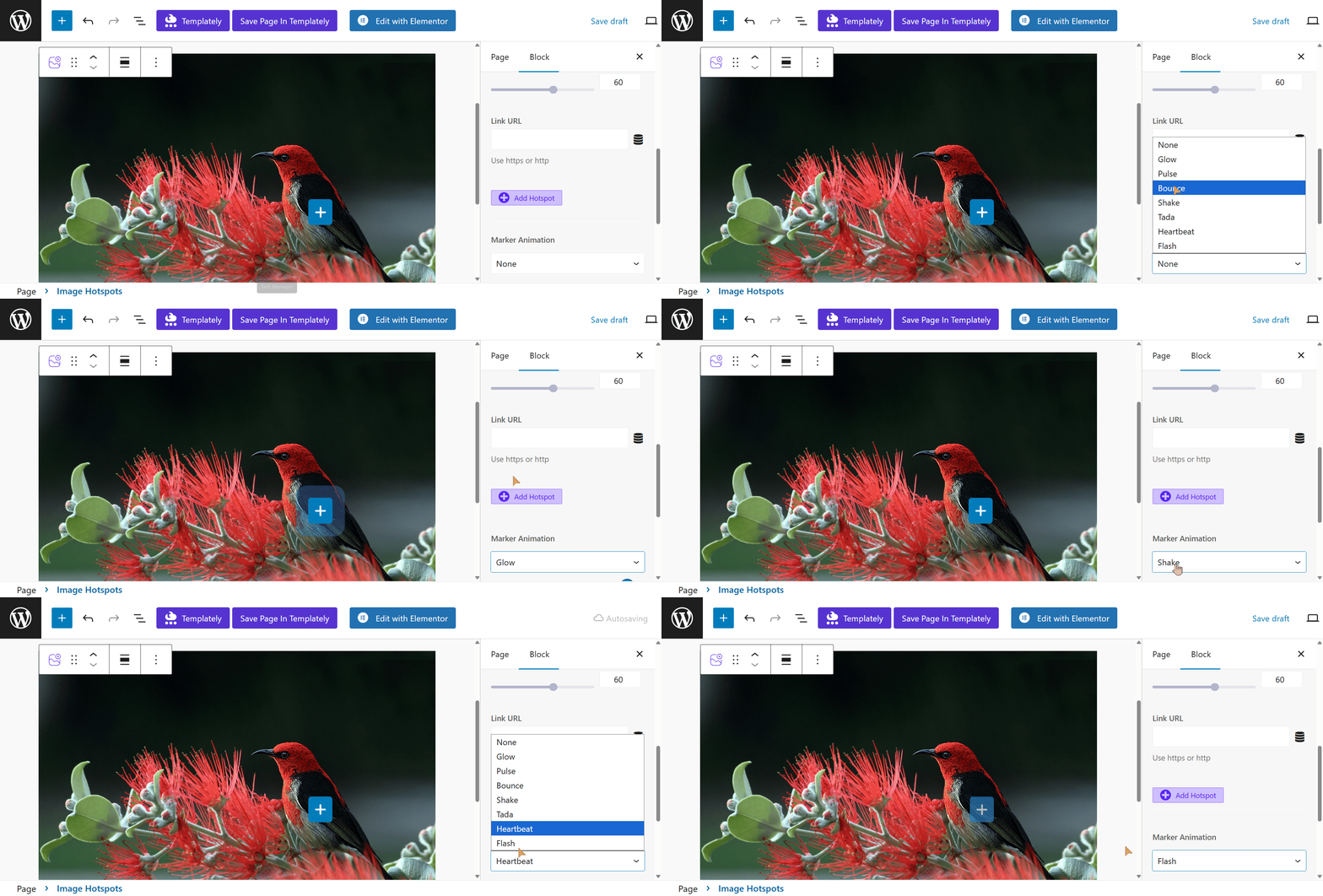
If you want, you can also choose a preferred ‘Marker Animation’ to add extra visual effects to your image hotspots. There are 7 animation styles available and you can add them based on your preference.
Tooltip #
You can also customize the Tooltip and toggle the ‘Show Arrow’ option on or off and use the drop‑down menu to set the tooltip position to Top, Bottom, Left or Right.
Use the ‘Always Visible Tooltip’ toggle to control whether the tooltip is always visible.
You can also customize how the tooltip appears using the ‘Trigger’ option and you can add visual effects using the ‘Animation’ settings. You can also set the Animation Duration and Animation Delay according to your preferences.

After configuring the tooltip, be sure to save your changes.
Final Outcome #
By following this guide, you have learned how to add and configure the Image Hotspot block in the Gutenberg Page Builder.

This is how you can beautifully showcase your image hotspots section on your WordPress website using EB Image Hotspots.
Getting stuck? Feel free to Contact Our Support for further assistance.


