
If you regularly post updates on Facebook, it can feel repetitive to publish the same content again on your website just to keep it active. At the same time, if your latest posts, announcements, offers, or community interactions are missing from your site, visitors may not see how active and trustworthy your brand really is. That is why many users look for a simple way to show their latest Facebook posts on their website without manual effort.
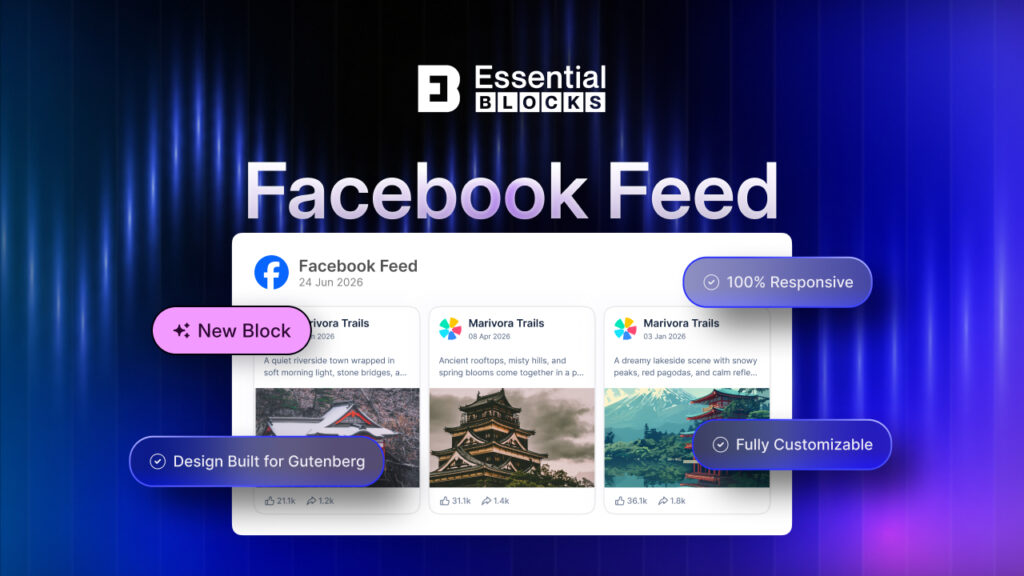
A Facebook Feed on WordPress solves that problem by pulling posts directly from your Facebook page and displaying them on your site automatically. This helps you keep your website fresh, showcase social proof through visible activity and engagement and make your Facebook page on website pages more useful for visitors. If you use Gutenberg, the setup becomes even easier with the right block-based solution.
TL;DR
Too long? Didn’t read? Here is what you should know.
| Topic | Quick Summary |
| What this blog covers | This guide explains how to show your latest Facebook Feed on your WordPress website using Essential Blocks. |
| Why it matters | Adding a Facebook feed helps keep your site updated automatically, shows social proof, increases engagement, and can drive more followers to your Facebook page. |
| Who this is for | It is ideal for WordPress users, marketers, business owners, and anyone using Gutenberg who wants to display a Facebook page on website pages easily. |
| What you need before starting | You need a Facebook Page, a Meta app, a Page ID, and a Page Access Token to connect the feed properly. |
| Main setup process | Create the Meta app, generate the access token, enable the Facebook Feed block in Essential Blocks, connect the API details, insert the block in Gutenberg, and customize the display. |
| Customization options | You can control post source, number of posts, filters, layout style, spacing, pagination, and which content elements to show or hide. |
| Best practice takeaway | Display only relevant posts, keep the design aligned with your website, avoid overcrowding the page, and place the feed where it supports user action. |
| Business value | A Facebook feed can help promote offers, highlight events, showcase customer interaction, and make your website feel more active and trustworthy. |
Why Add a Facebook Feed to Your WordPress Website?
Adding a Facebook feed to your website does more than fill up space with social content. It helps connect your website with your brand activity on Facebook, so visitors can instantly see updates, announcements, promotions, and community engagement in one place. When used well, it can strengthen credibility and make your site feel more active.
A live feed is also practical for businesses that already post regularly on Facebook but do not want to duplicate the same effort on their website. Instead of creating separate updates for both platforms, you can show relevant Facebook content directly on your WordPress pages and keep visitors informed with minimal maintenance.
Keep Your Website Updated Automatically
A Facebook feed helps keep your website current by pulling in fresh posts from your page. This means your visitors can see recent updates, promotions, event notices, or announcements without you having to manually edit your website every time.
For growing businesses, this saves time and reduces content management effort. If your team is already active on Facebook, displaying that activity on your site creates a more dynamic experience while keeping your website content regularly refreshed.
Increase Trust Through Social Proof
When visitors see active posts, reactions, comments and shares, it sends a clear message that your brand is real and engaged with its audience. This kind of visible activity can act as social proof, especially for first-time visitors who are still deciding whether to trust your business.
A well-placed feed can also show customer interactions, community responses and the consistency of your brand communication. That extra layer of transparency often makes your website feel more credible and approachable.
Drive More Facebook Followers
Displaying your Facebook content on your site can encourage visitors to connect with your brand on social media as well. If they like what they see in the feed, they are more likely to click through, follow your page and stay connected beyond a single website visit.
This is especially useful for brands that use Facebook to share timely updates, run promotions, or build communities. Your website becomes another channel for converting casual visitors into long-term followers.
Improve Visitor Engagement
A Facebook feed can make a page more interactive and visually appealing, especially when compared to static text-only sections. Visitors are naturally drawn to recent posts, media, reactions and clickable updates, which can increase the time they spend on your site.
It can also support content discovery. Instead of leaving your site after reading one section, users may continue exploring your offers, events, or brand stories through the posts displayed in the feed.
While in WordPress, adding a Facebook Feed requires <iframe> embed code or Native HTML, which becomes difficult for many users. That’s where a dedicated Facebook Feed block becomes useful.
Introducing Facebook Feed by Essential Blocks
Introducing Facebook Feed by Essential Blocks—a dedicated Gutenberg block that makes it easier to display your latest Facebook posts directly on your WordPress website. Instead of relying on a basic social embed that offers little flexibility, this block is designed to give Gutenberg users more control over how their Facebook content appears inside the editor. That makes it a more practical option for anyone who wants their feed to feel like a natural part of the page rather than a disconnected widget.
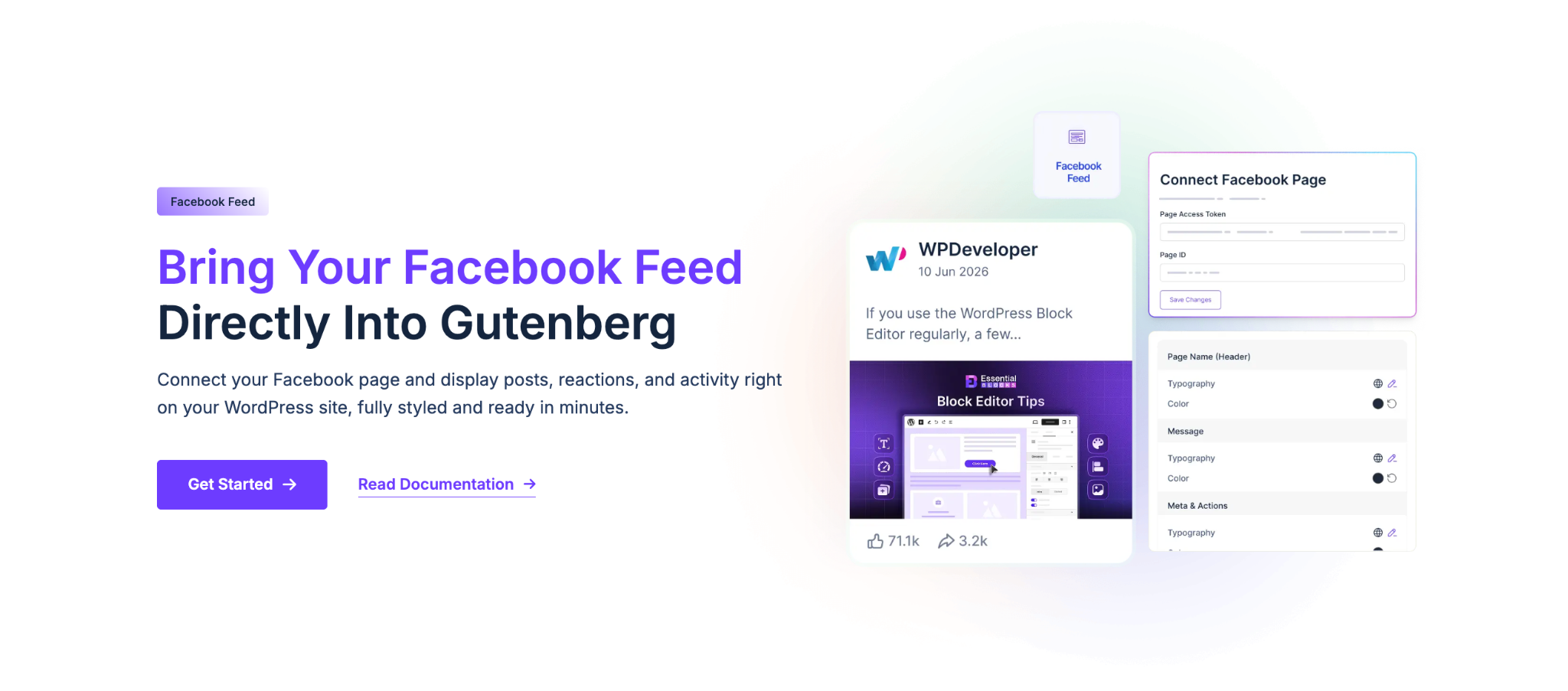
Beyond that, the block comes with useful customization features to help you shape the feed based on your needs. You can connect your Facebook page with a Page ID and Access Token, sort posts, choose how many posts to display, set cache duration, and filter content by keyword, hashtag, or post type. It also gives you multiple layout options such as Grid, List, Masonry, and Carousel, along with controls for columns, spacing, pagination, and visibility for elements like profile image, page name, timestamp, reactions, comments, shares, and post links.
How to Show Facebook Feed on Your WordPress Website Using Essential Blocks
Showing a Facebook page on website content is much easier when the setup is broken into clear steps. Before inserting the block into a page, you will need to prepare your Facebook connection details and then configure the block inside WordPress. Once everything is connected, you can customize how the feed looks and behaves for your audience.
The overall flow is simple: create the Facebook app connection, generate the Page Access Token, enable the block in Essential Blocks, connect the API details, insert the block in Gutenberg and then style the feed to match your website.
Step 1: Create a Facebook App for the Connection
Start by logging into your Meta for Developers account and creating a new app. During setup, you need to provide an app name, contact email, choose the relevant use case, connect the business portfolio, review the requirements, and complete the app creation process.
After the app is created, open the Use Cases area and customize the permissions. The setup requires permissions such as
- pages_show_list
- business_management
- pages_read_engagement
- pages_manage_metadata
- pages_read_user_content
- pages_manage_posts
- pages_manage_engagement
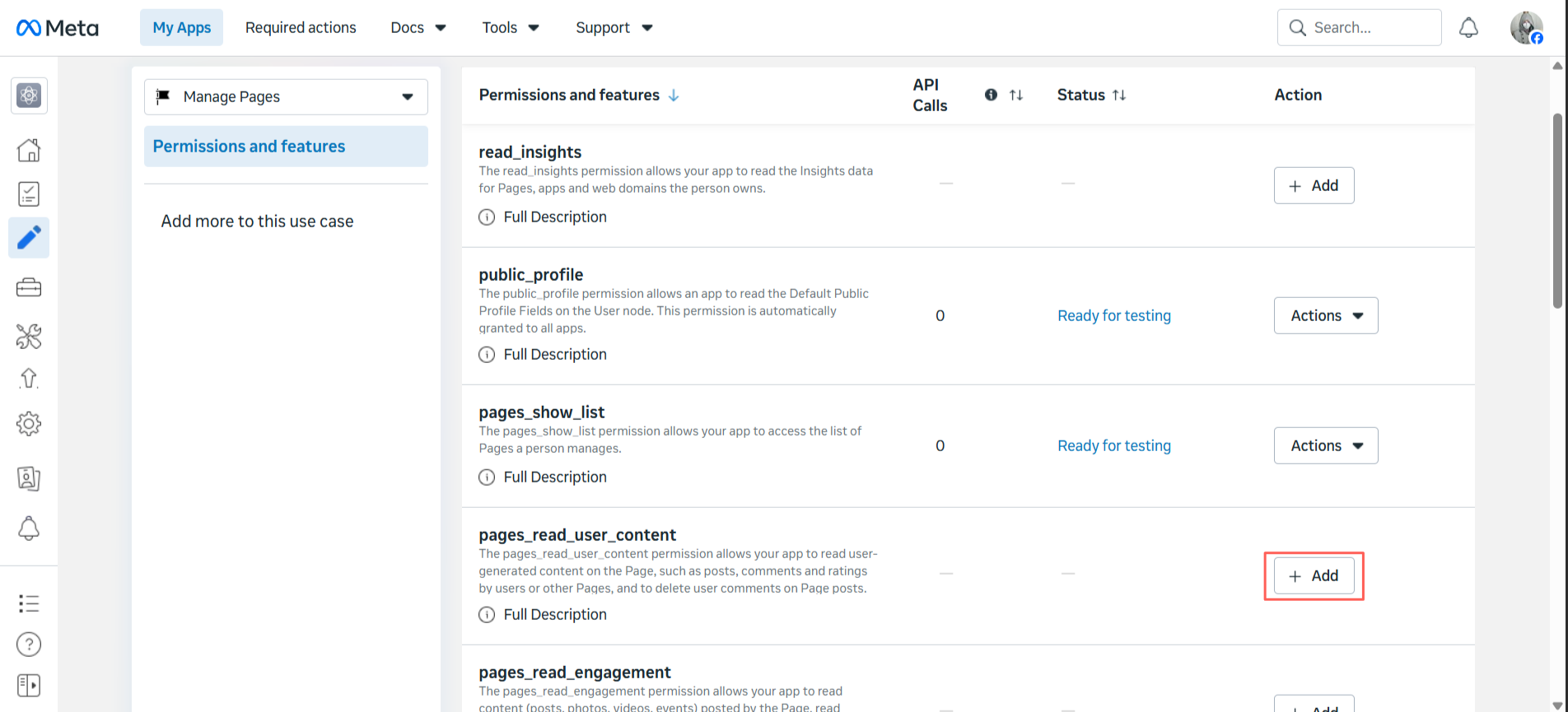
So the feed can properly retrieve and display content from your page.
Note: This setup only needs to be done once. After your Facebook App is connected, you can reuse it across your website whenever you add a Facebook Feed block.
Step 2: Generate the Facebook Page Access Token
From the app dashboard, go to Facebook Login for Business, open Quickstart, and choose Web. Then enter your site URL and save it so the app recognizes your website as an approved destination.
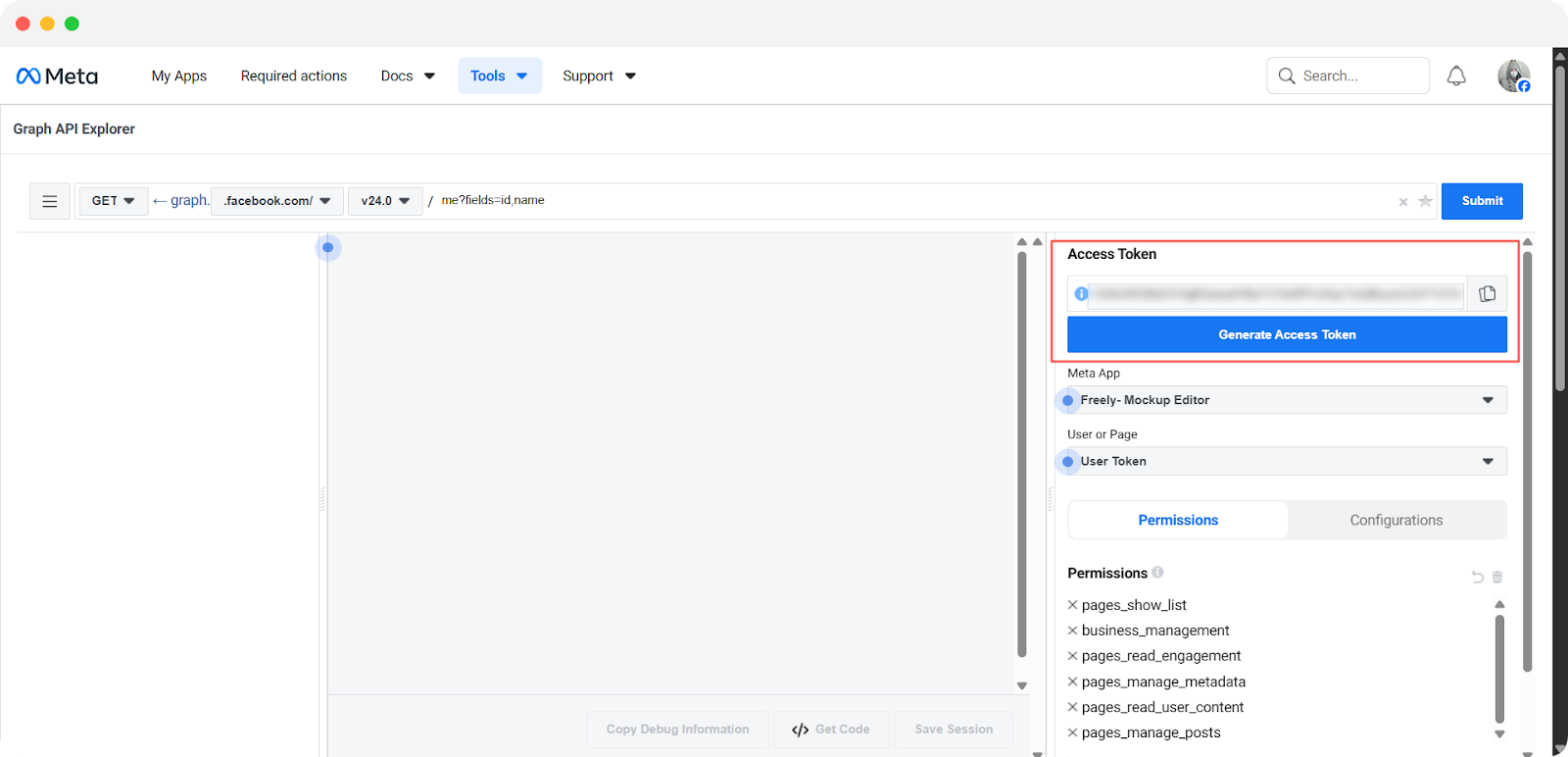
Next, open the settings for Facebook Login for Business, add your website URL under Allowed Domains For The JavaScript SDK, enable the JavaScript SDK option, and save the changes. Then navigate to the Graph API Explorer, add the required permissions, and generate the access token you will use inside WordPress.
Step 3: Find Your Facebook Page ID
To complete the connection, you also need your Facebook Page ID. This can be retrieved from Meta Business Suite by going to Settings and then Profile, where your page details are available for use in the integration.
Make sure you keep both the Page Access Token and Page ID ready before moving back to WordPress. These two details are required to connect your Facebook account with the block successfully.
Step 4: Enable the Facebook Feed Block in Essential Blocks
Now go to your WordPress dashboard and open Essential Blocks. Inside the plugin dashboard, head to the Blocks tab and scroll to the Social Blocks section to enable the Facebook Feed block.
Once enabled, the block becomes available inside Gutenberg, which means you can now add a Facebook feed on WordPress pages or posts just like any other block in the editor. This keeps the workflow familiar for content teams already working inside Gutenberg.
Step 5: Connect the API Integration
After enabling the block, open the Settings tab in Essential Blocks and find the API Integration section. From there, click Edit for Facebook and enter your Page Access Token and Page ID in the popup window.
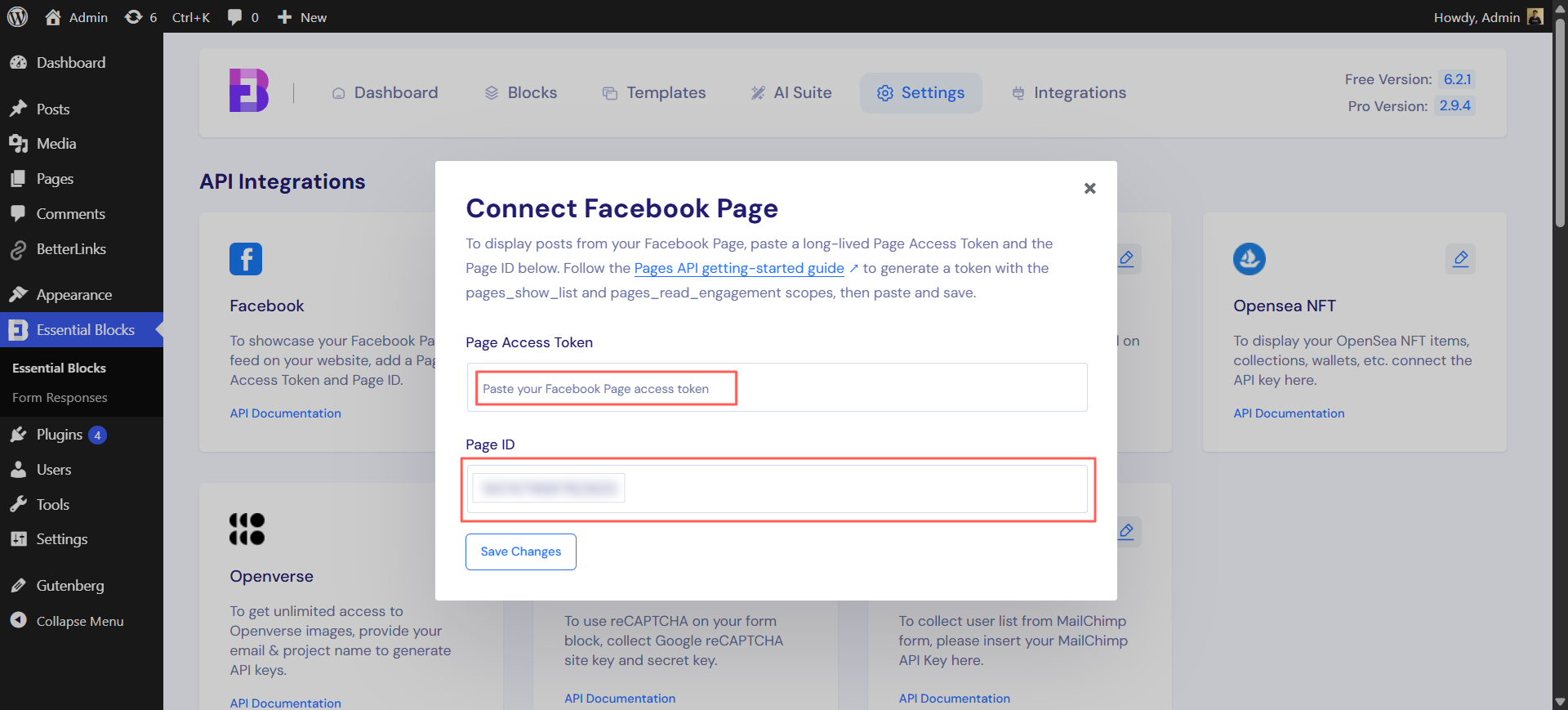
This step links your Facebook page with Essential Blocks, allowing the block to fetch and display your content correctly. Once connected, you are ready to place the feed anywhere you want inside your WordPress site.
Step 6: Insert the Facebook Feed Block in Gutenberg
Open the post or page where you want the feed to appear. In the Gutenberg editor, search for Facebook Feed under the available blocks, then insert it into your content area where it fits best.
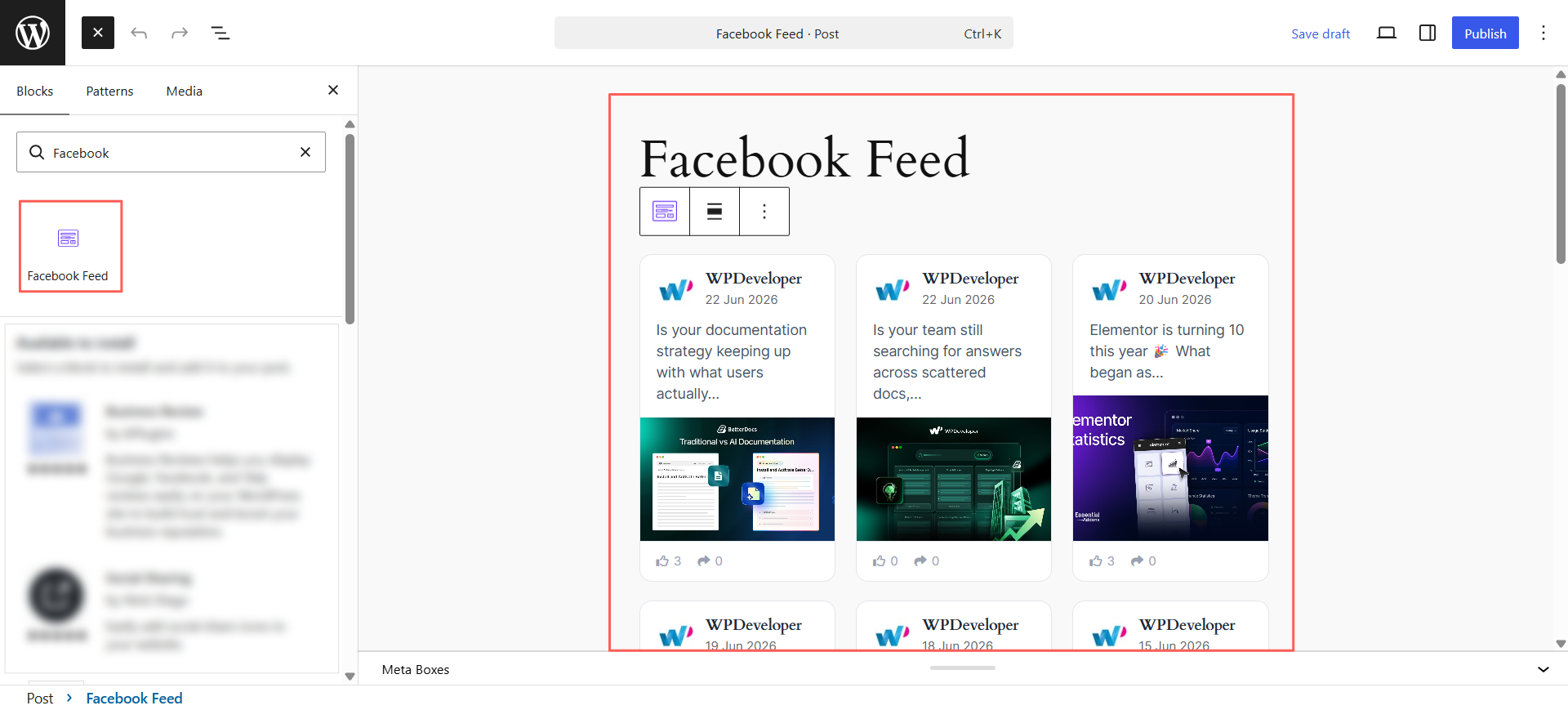
This is where Facebook Feed on Gutenberg becomes especially useful. Instead of depending on external widgets or manual embeds, you can manage the entire display directly inside the editor and keep the design flow consistent with the rest of the page.
Step 7: Configure Source Settings
Inside the block settings, you can customize the Sources options to control what appears in the feed. This includes sorting posts, defining the number of posts to display, setting cache duration, and filtering by post type, keyword, or hashtag.
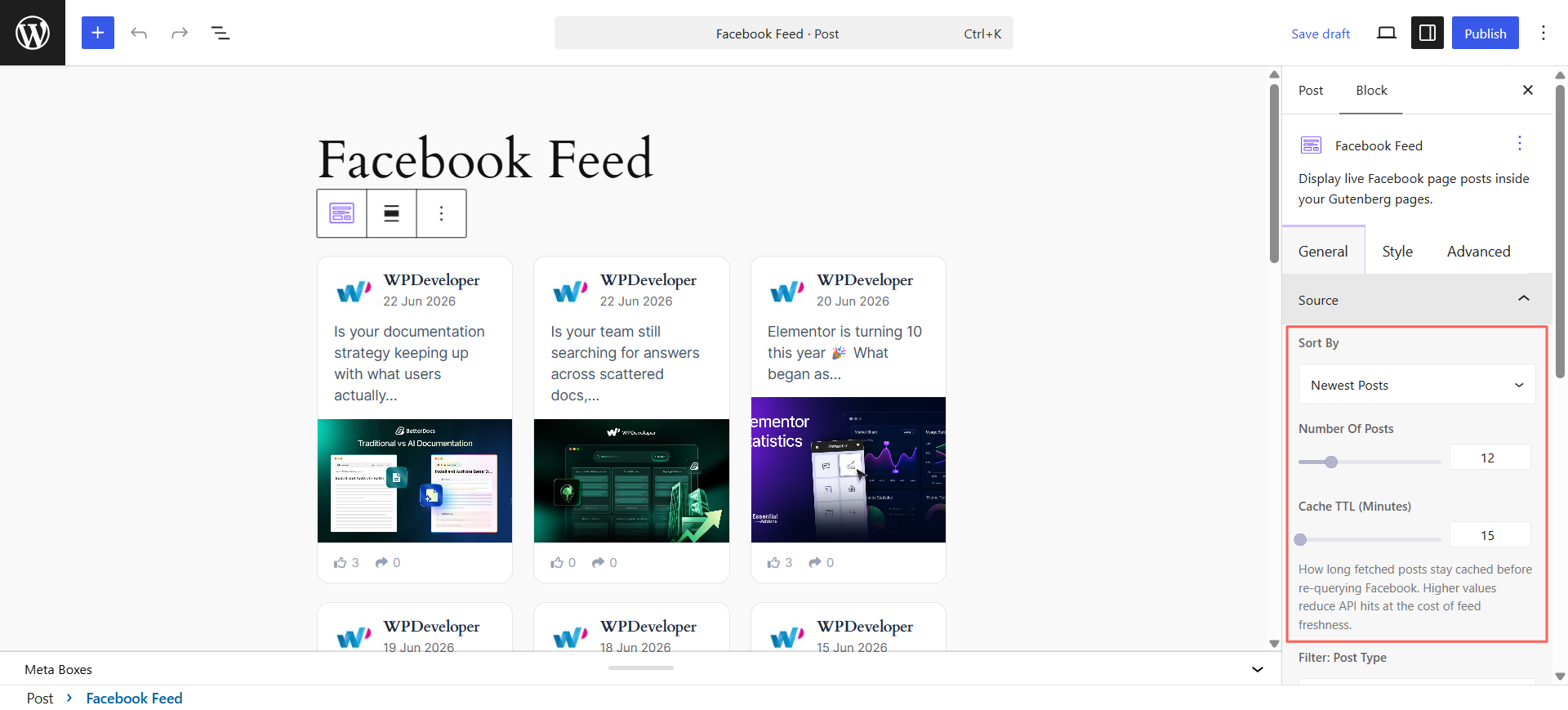
These settings are useful if you only want to show selected updates instead of every single post. For example, businesses can filter promotional posts, event-related content, or campaign-specific hashtags to keep the feed more focused.
Step 8: Choose a Layout That Fits Your Page
The block also lets you adjust the Layout settings. You can choose from Grid, List, Masonry, or Carousel, then refine the number of columns and spacing between items based on your design needs.
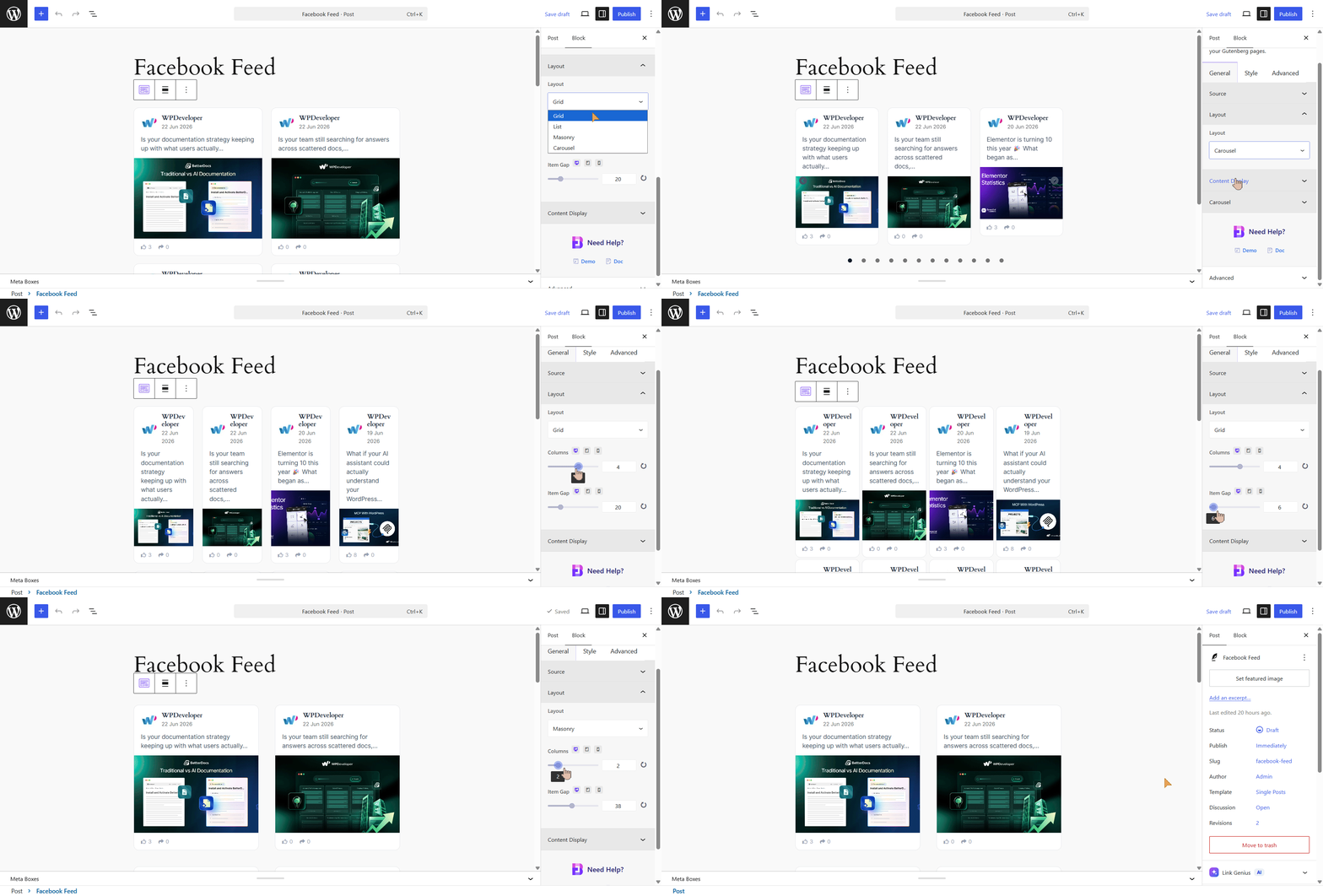
This flexibility makes it easier to match the feed with different page types. A grid may work well on a homepage, while a list or carousel may fit better on landing pages, event pages, or service-specific sections.
Step 9: Control What Content Elements Appear
Under Content Display, you can decide whether to show or hide the profile image, page name, timestamp, reactions, comments count, shares count, and post message. You can also limit the message length, enable pagination, link posts directly to Facebook, and choose whether links open in a new tab.
These options help you fine-tune how much information users see at a glance. A cleaner display often performs better, especially when the goal is to support the page rather than let the social feed dominate it.
Need advanced configuration options? Our complete documentation walks through every available setting. To learn more in detail, check the documentation.
Best Practices for Displaying Facebook Feeds
Adding the block is only part of the job; placement and presentation matter just as much. A feed should support the page experience, not distract from it. When it is aligned with your content goals and visual design, it becomes a useful conversion and engagement element rather than a random social embed.
The best results usually come from showing targeted posts, maintaining visual consistency and keeping the feed easy to browse. A strategic setup helps visitors engage with your brand while still focusing on the purpose of the page.
Show Only Relevant Posts
Not every Facebook update belongs on your website. If your page includes mixed content, use available filtering and sorting options so only the most relevant posts appear for your audience.
For example, a service page should highlight helpful updates, testimonials, or announcements instead of unrelated casual posts. Relevance improves clarity and keeps the feed aligned with user intent.
Match the Feed with Your Website Design
Your feed should look like a natural part of the page, not an add-on that feels visually disconnected. Choose a layout, spacing and content visibility settings that complement your typography, colors and page structure.
If your site has a clean and minimal style, reduce unnecessary clutter in the feed. Hiding extra elements and limiting text length can create a much more polished result.
Avoid Displaying Too Many Posts
Showing too many posts at once can overwhelm visitors and make the page feel crowded. It may also push important website content further down the page than necessary.
A smaller, curated number of posts usually performs better. Start with a limited feed and expand only if it genuinely adds value to that page’s purpose.
Place the Feed Strategically
Think carefully about where the feed appears. On some pages, placing it near testimonials, event details, or community updates can reinforce trust and activity. On other pages, it may work better lower down as supporting content.
The ideal position depends on what you want visitors to do. If conversion is the goal, the feed should support that action rather than compete with your main call to action.
Ways Businesses Can Use Facebook Feeds
Businesses can use a Facebook feed for much more than simply displaying social posts. When placed thoughtfully, it can support trust-building, content visibility, campaign promotion and even lead generation. The key is to align the feed with a page’s purpose instead of treating it as a decorative social add-on.
From eCommerce brands to agencies, local businesses, educators and event organizers, there are several practical ways to make a Facebook feed contribute to business goals while keeping the website current and engaging.
- Show recent promotions and product launches: Businesses running seasonal offers, new arrivals, or limited-time campaigns can use the feed to surface those updates automatically on key pages. This reduces manual website editing and helps visitors notice current promotions quickly.
- Highlight events and community activities: If your business hosts webinars, workshops, meetups, or in-store events, a live Facebook feed can showcase those announcements and post-event highlights. It helps keep your event-related pages active and informative.
- Display customer interactions for credibility: Reactions, comments and shared posts can reinforce the sense that people are engaging with your brand. This is especially valuable for small businesses and local brands that want to build trust with first-time visitors.
- Support restaurant, retail, or local business updates: Local businesses often use Facebook for day-to-day communication such as special hours, menu updates, restocks, or announcements. Bringing those posts onto the website helps customers find current information without searching multiple platforms.
- Strengthen brand storytelling on homepage or about pages: A Facebook feed can complement your brand story by showing real-time moments, behind-the-scenes content, team culture, or public milestones. This adds authenticity and makes static pages feel more alive.
- Drive more social engagement from website traffic: Website visitors may not always discover your social channels on their own. A visible feed introduces your content style and gives them a reason to follow your page, helping you turn web traffic into a longer-term audience.
Start Displaying Your Facebook Feed with Confidence
Adding a Facebook Feed to your website is a practical way to connect your social presence with your WordPress content. It helps keep your pages updated, adds social proof, and gives visitors more reasons to engage with your brand beyond a single visit.
If you are already using Gutenberg, this setup becomes even more effective because you can manage everything inside the editor with flexible display controls. A well-placed Facebook Feed can keep your website active, strengthen social proof, and save hours of manual updates. Try different layouts, keep the feed relevant and make your social presence a natural part of your Gutenberg pages. Use it where it supports your business goals most.
Do you like this Gutenberg block? Feel free to share your opinion in our Facebook Community because we value your feedback. Do not forget to subscribe to our blog for more guidelines.