
Every WordPress product now claims to be “AI-powered”, and the AI in block editor conversation is louder than ever now that WordPress 7.1 has built on the AI Client that WordPress 7.0 put into core. Some Gutenberg AI features save hours every week. Others add a sparkle icon to a task that never needed one, then send you an API bill for it. With WordPress running about 40% of all websites according to W3Techs, a lot of site owners are now trying to sort one group from the other.
In this guide, we look at where AI in the WordPress block editor helps, where it falls short and why. You will see real numbers on accessibility, SEO and mobile traffic, practical examples for each feature, a scoring checklist you can use on any WordPress AI tool and a simple weekly workflow. By the end, you will know which features to switch on today and which ones to leave off.
Why the Block Editor Is Becoming an AI Playground
The block editor is built on structured blocks, and structure is what AI works with best. Every block stores its content and settings as clear attributes: a heading has a level, a button has a label and a link, an image has a source and alt text. That means an AI model can be asked to fill, rewrite or rearrange one specific field instead of guessing its way through a wall of HTML. Gutenberg AI tools can therefore make small, targeted edits that you can see and undo, which is far harder in a classic editor.
WordPress 7.1 “Mary Lou”, released on August 19, 2026, builds on that base rather than replacing it. It refines the Abilities API with execution filters, shared discovery and a public exposure flag, which the release notes say make it easier to build integrations and automation, “including AI-powered tooling.” It does not add AI writing buttons to the editor itself, so the AI features you see there still come from plugins.
Alongside core, the WordPress AI team publishes the opt-in AI plugin (formerly called AI Experiments), which tests features such as excerpt generation, title suggestions, alt text suggestions and image creation or editing. When the platform itself offers a standard connection, every plugin author can add AI with far less code, and that explains the sudden flood of AI buttons in the editor. For the developer side of this change, see the official handbook page for the WordPress AI Client.
More AI Buttons Do Not Mean More Value
More choice is welcome, but it comes with costs that demos rarely show. Each feature can add scripts to the editor, another settings page to learn, another provider account to manage and another line on your monthly API bill. Output can also change from one request to the next, which makes quality hard to keep consistent across a team of writers.
The practical question is no longer “does this plugin have AI?” but “does this AI feature remove work I already do, and can I trust the result?” The sections below answer that question feature by feature.
What’s Actually Useful: Block Editor AI Features Worth Using
The block editor AI features that hold up in daily use share one trait: they remove repetitive work you already understand, and they work from material you supply. You stay the expert, and the AI does the typing. When the source facts come from you, the risk of errors drops and the time saved is easy to measure. Here are the features that pass that test most often.
AI Alt Text Generator for Images And Media
Alt text is the clearest win for AI in the block editor because the problem is large and the task is repetitive. The 2026 WebAIM Million report found detectable WCAG failures on 95.9% of the top one million home pages. Missing image alt text appeared on 53.1% of those pages, and 16.2% of all home page images had no alt text at all. With an average of 66.6 images per home page, it is easy to see why writers skip it under deadline.
An AI alt text generator drafts a description for each image, and you edit it. The official AI plugin adds an alt text button to the Image block and a bulk action in the Media Library, and ThinkRank can write AI alt text for your images and bulk-fill any that are missing.
As a rough example, writing alt text for a 40-image product gallery by hand at about 90 seconds per image takes an hour. Reviewing and correcting 40 AI drafts at about 15 seconds each takes ten minutes.
Always check the draft, though: the model does not know your product names, and Google’s own guidance says AI-written alt text should be reviewed for accuracy like any other content. A good draft reads “Blue Essential Blocks pricing table with three plans on a white background”, not “image of a table”. For more ways to make your pages accessible, see our guide to accessibility-first Gutenberg design.
Rewriting, Shortening And Tone Adjustments
AI is very good at transforming text you already wrote. It can shorten a paragraph to fit a card, turn a long introduction into a hero subtitle, switch tone from formal to friendly, or produce three headline variations for an A/B test. These edits are low-risk because every fact in the output came from your original text, so there is little room for invented claims.
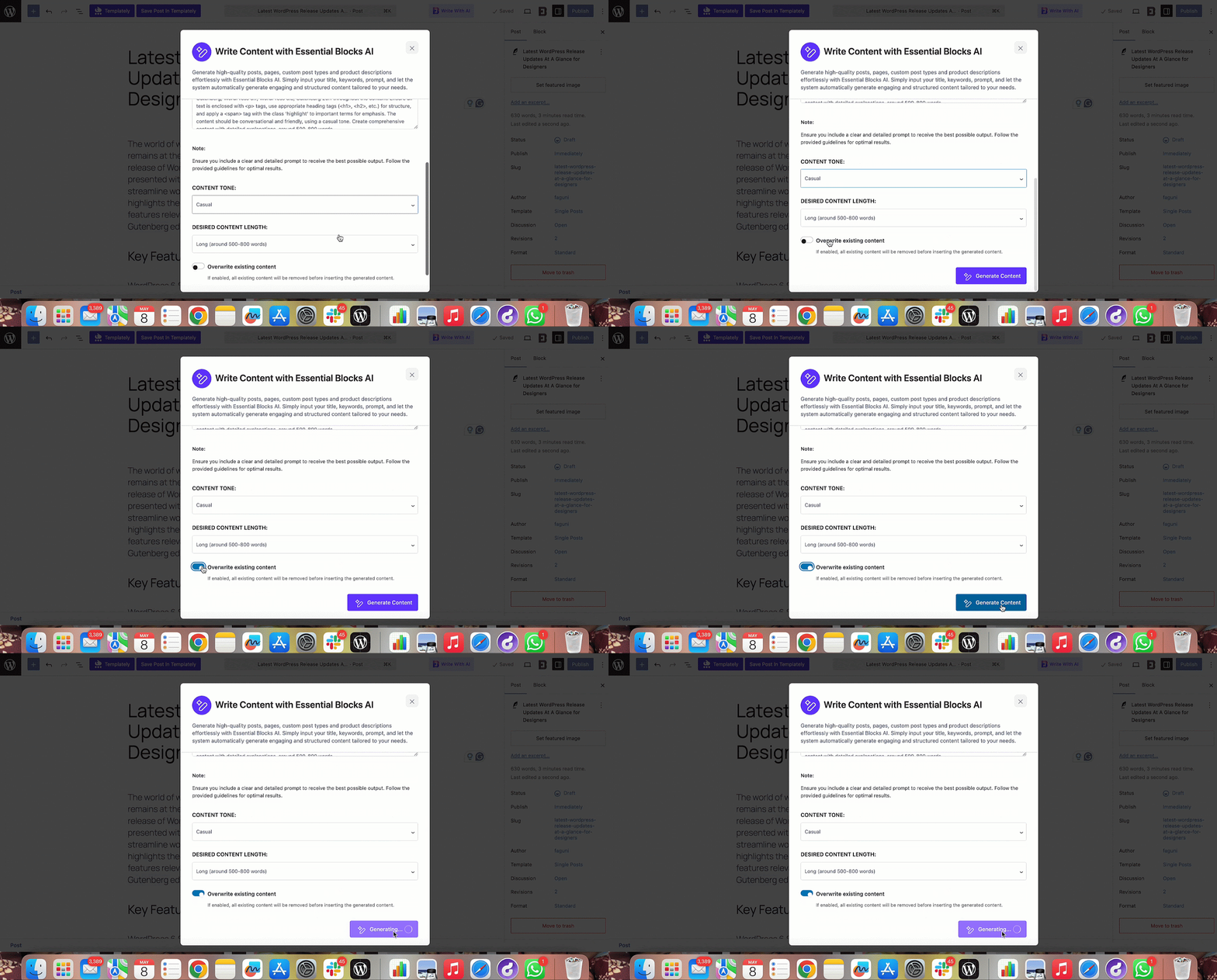
Here is a practical example. You write a 120-word feature description once, then ask the AI for a 20-word version for an Infobox block, a 10-word version for a button tooltip and a 40-word version for a social post. With AI content generation inside rich text fields, Essential Blocks lets you do this from the block itself, choosing a tone and length for headings and other text inputs. You stay in the editor, and the text lands in the right block. The AI text and image features in Essential Blocks are free, with no limit on the plugin side. You only pay OpenAI for your own usage, so your OpenAI account needs credit.
AI Image Generation And Editing for Placeholders And Concepts
Image generation is useful when it fills a clear, narrow need: a background texture, a hero concept to show a client, an illustration for a section that has no photo yet, or a quick variation of an existing graphic. The Essential Blocks AI image generator creates images from a prompt inside the Gutenberg editor, with options for model, image type and size, and later releases added AI image editing.

It is less useful as a replacement for real product photos, team photos or screenshots, where accuracy matters more than speed. Treat generated images as placeholders and design assets, give each one proper alt text and, if you run a store, follow Google’s advice to label AI-generated product images and keep the IPTC metadata that marks them as AI-made.
Layout And Pattern Generation from Real Blocks
Generating a starting layout from a prompt, such as “pricing section with three tiers and a FAQ”, can speed up early drafts and client mockups. It is most useful when the result is made of real, editable blocks rather than locked HTML or a single custom block you cannot change. You should be able to click any part of the layout and edit it with the normal block controls.
Pair this with a strong library of Gutenberg blocks such as Essential Blocks, which offers 70+ blocks, so the layout is built from flexible, well-designed components. Essential Blocks does not generate layouts from prompts, but its ready-made block patterns give you a similar head start. For full pages, start from one of Templately’s 3,000+ ready Gutenberg templates and use AI only to adjust the copy. You get a tested responsive design and still save time on text.
Summaries, Excerpts And Meta Descriptions
Generating excerpts, TL;DR boxes, title options and meta descriptions from finished content is a clear time-saver. The source material is already on the page, so the AI is condensing, not inventing.
For example, once a 2,000-word tutorial is done, AI can suggest a 155-character meta description, a 40-word excerpt for the blog archive and a three-bullet summary for the top of the post in under a minute. An AI SEO plugin such as ThinkRank builds on this to help with metadata, schema and on-page optimization. Like the other tools here, its AI features run on your own AI provider API key, and our guide to ThinkRank for the Gutenberg block editor shows how it works in practice. Read each suggestion before saving, because Google’s guidance asks site owners to review AI-written titles, meta descriptions and structured data, not only the body text.
First Drafts from Your Own Brief
Full-draft tools are useful when you give them a real brief. Essential Blocks Write With AI generates post or page content from a title, keywords and a prompt, with a choice of tone and length (short at 150 to 250 words, medium at 300 to 500, long at 500 to 800). It runs on your own OpenAI API key, with a token limit you set in the dashboard, so you control the cost.
Used well, this gives you a structured first draft to edit: a product page outline, a first pass at a FAQ section or a starting point for a short announcement. Used badly, it becomes the hype feature described next. The difference is what you do after you click Generate.
What’s Just Hype: AI Features That Rarely Deliver
Hype features have the opposite profile. They promise to replace your judgment, they work without your content or context, or they create output that is hard to edit later. They look impressive in a launch video and cost you time a month later. Watch for these patterns.
Publishing One-Click Full Posts As-Is
One-click full articles that go live without editing tend to be generic, unsourced and sometimes wrong. Large language models predict likely words; they do not check facts. Google’s guidance on generative AI content tells publishers to manually fact-check and review all AI-generated content, and its spam policies treat mass-produced pages that add no value as “scaled content abuse”, whether a person or a model wrote them.
The data supports a middle path, not a ban. An Ahrefs study of 600,000 pages found that 86.5% of top-ranking pages contained some AI-generated content, while across all the pages studied only 4.6% were purely AI-written and 81.9% mixed human and AI work. The correlation between AI share and ranking position was 0.011, effectively zero. Ahrefs also notes that #1 results lean slightly toward less AI content and that no AI detector is perfect, so read this as room for AI-assisted writing, not proof that unedited AI content ranks. Google does not reward or punish AI content as such; it rewards useful content. An AI-written “10 best practices” post that repeats what hundreds of other posts say, with no examples from your own work, is unlikely to stand out in search results or in AI answer engines.
AI Chat Panels with No Site Context
A chat window inside the editor sounds useful, but if it cannot see your site, your brand guidelines, your existing posts or the block you have selected, it is no better than a separate browser tab. You still copy and paste every answer, and the panel adds scripts and screen space to an editor that is already busy.
Chat becomes useful only when it can act on context: reading the current post, knowing your style rules or calling site actions through the Abilities API. Until a chat panel can do that, a plain AI writing assistant for WordPress that edits the selected block will usually save more time.
AI Design “Magic” That Breaks on Mobile
Some tools generate impressive desktop designs from a single prompt, then collapse on phones or use hard-coded styles you cannot change with normal block settings. A layout that only looks good on a 27-inch monitor fails most of your visitors. WordPress 7.1 also added responsive styling controls, so you can now set how a block looks on different screen sizes from Global Styles or the block settings, without custom CSS. An AI design tool that ignores those controls is even harder to justify.
Before keeping any AI-generated design, open the responsive preview, check tablet and mobile views and try changing a color, spacing value and font size from the block sidebar. If you have to edit code to fix it, the feature has created work rather than saved it.
AI That Runs on Every Page Load
Some plugins call an AI service on the front end, for example to personalize text or answer visitor questions, every time a page loads. Each request adds network time and cost. Google’s Core Web Vitals treat a Largest Contentful Paint above 2.5 seconds and an Interaction to Next Paint above 200 milliseconds as needing improvement, and a slow third-party call can push a page over those limits. Editor-side AI that runs once while you write does not have this problem, which is one more reason to prefer it. For a closer look at these metrics, see our guide to Core Web Vitals for block editor sites.
Useful vs. Hype: A Quick Comparison
Use this table as a short summary of the features covered above. The verdict depends on how you use each feature, so the right-hand column shows the condition that makes it worth keeping.
| Block editor AI feature | Verdict | When it is worth using |
| Alt text generation | Useful | Always, as long as you review each draft for product names and accuracy |
| Rewriting, shortening and tone changes | Useful | When the facts come from text you already wrote |
| Excerpts, titles and meta descriptions | Useful | After the content is finished, with a quick human edit |
| AI image generation and editing | Useful for placeholders | For concepts, backgrounds and illustrations, not real product or team photos |
| Layout and pattern generation | Useful with conditions | Only when the output is made of normal, editable, responsive blocks |
| Full-post drafts from a brief | Useful with conditions | As a first draft you edit, fact-check and add your own examples to |
| One-click posts published as-is | Hype | Rarely; generic, unsourced pages risk scaled content abuse |
| Chat panels with no site context | Hype | Only once the chat can read your post, style rules or site abilities |
| One-prompt design “magic” | Hype | Only if it passes mobile preview and stays editable from the block sidebar |
How to Evaluate Any Block Editor AI Feature
New WordPress AI tools appear every month, so a repeatable test helps more than any list. Before adopting a feature, score it against these six questions, giving one point for each “yes”:
- Does it remove a task I repeat at least weekly, such as alt text, excerpts or resizing copy?
- Is the output made of normal blocks that I can edit with standard controls?
- Does it work from my own content, brief or data rather than inventing facts?
- Do I know which AI provider it calls and roughly what each use costs?
- Does it run only in the editor, leaving front-end speed unchanged?
- Can I review the result before it is published?
A feature that scores five or six is worth testing on a staging site. A score of three or four means it may help in a narrow case, so test it with care. Skip anything that fails on editability or cost transparency, however impressive the demo looks, because those are the two problems that grow over time.
Test on Real Content, Not Demos
Demos use perfect prompts and ideal content. Test AI features on a messy, real page from your site: a long product page, a post full of brand names or a landing page with many images. You will quickly see whether the feature handles your product names, tone and layout needs.
Then measure. Note how long a task takes without AI, such as writing alt text for one post or producing three excerpt options, and time it again with AI for one week. If you cannot point to minutes saved per post, the feature is probably hype for your workflow, even if it works well for someone else.
Check the Cost Before You Scale
Most block editor AI features use your own API key through the WordPress AI Client or a plugin setting. That keeps you in control, but it also means a busy team can run up a bill without noticing. Set token limits where the plugin allows it (Essential Blocks Write With AI, for example, has a default limit of 1,500 tokens you can adjust), check your provider’s usage dashboard after the first week and limit expensive features such as image generation to the people who need them.
Building a Practical AI Workflow in Gutenberg
A balanced workflow uses AI at the edges of content creation, not at the core. The ideas, facts, examples and opinions come from you. AI handles the transformations around them. Here is a simple five-step workflow you can use for any post or page:
- Outline and write the main argument yourself, using your own experience, data and screenshots.
- Build the page from a tested design base, such as a Templately template or Essential Blocks patterns, instead of asking AI to invent a layout.
- Use AI to resize and rewrite copy for each block: hero subtitles, Infobox text, button labels and FAQ answers.
- Generate alt text, the excerpt and the meta description with AI, then edit each one for accuracy and keywords.
- Review the full page on desktop and mobile, fact-check every claim and only then publish.
This keeps your content original and accurate while still saving real time on repetitive tasks. If you want to go further and connect AI to other parts of your site, our guide to workflow automation tools for WordPress covers options beyond the editor.
Start Using Block Editor AI Where It Saves You Time
Block editor AI is neither magic nor useless. It does well at repetitive transformations such as alt text, rewrites, excerpts, meta descriptions and first drafts from your own brief. It struggles when it is asked to replace expertise, work without context or design for every screen size on its own. With WordPress 7.0 giving every plugin a standard AI connection and WordPress 7.1 making the Abilities API easier to build on, expect more AI buttons and use the six-question test to decide which ones earn a place in your editor.
Ready to try AI in the WordPress block editor the useful way? Install Essential Blocks, connect your OpenAI API key, and start with AI content in your text blocks and AI image generation for placeholders. The AI features are free in Essential Blocks; you only pay OpenAI for what you use.
Was this blog helpful? Do not forget to subscribe to our blog.