The WordPress Block Editor has completely changed how people build pages and publish content. Instead of relying on shortcodes, complex page builder panels, or a messy classic editor experience, Gutenberg gives users a visual, modular way to create everything from blog posts to landing pages. Yet even with all that flexibility, many users still only scratch the surface of what it can do.
That is exactly why learning a few practical Block Editor Tips can make such a big difference. You do not need to become a developer or a WordPress power user overnight. In many cases, a handful of workflow improvements can save minutes on every post, every page update, and every content revision. Over time, those minutes add up fast.
In this guide, you will learn 10 beginner-friendly and some advanced WordPress block editor tips that help you work faster, stay organized and build more consistent pages. Whether you are a blogger, marketer, agency owner, or store manager, these techniques can improve your WordPress content creation workflow immediately.
10 WordPress Block Editor Tips for Your Website
The Block Editor is packed with features that many users never discover. While most people focus on basic content creation, Gutenberg includes workflow tools that can dramatically reduce editing time and improve consistency.
In this part, let us explain more about which block editor tips you should follow for your website and how these Gutenberg tips can save you time and increase efficiency. These will surely help you take advantage of those hidden efficiencies.
1. Master Keyboard Shortcuts for Faster Editing
One of the easiest ways to save time in the block editor is by learning a few essential shortcuts. Most users still rely heavily on clicking menus, dragging blocks, and opening side panels manually. That works, but it is slower than it needs to be.
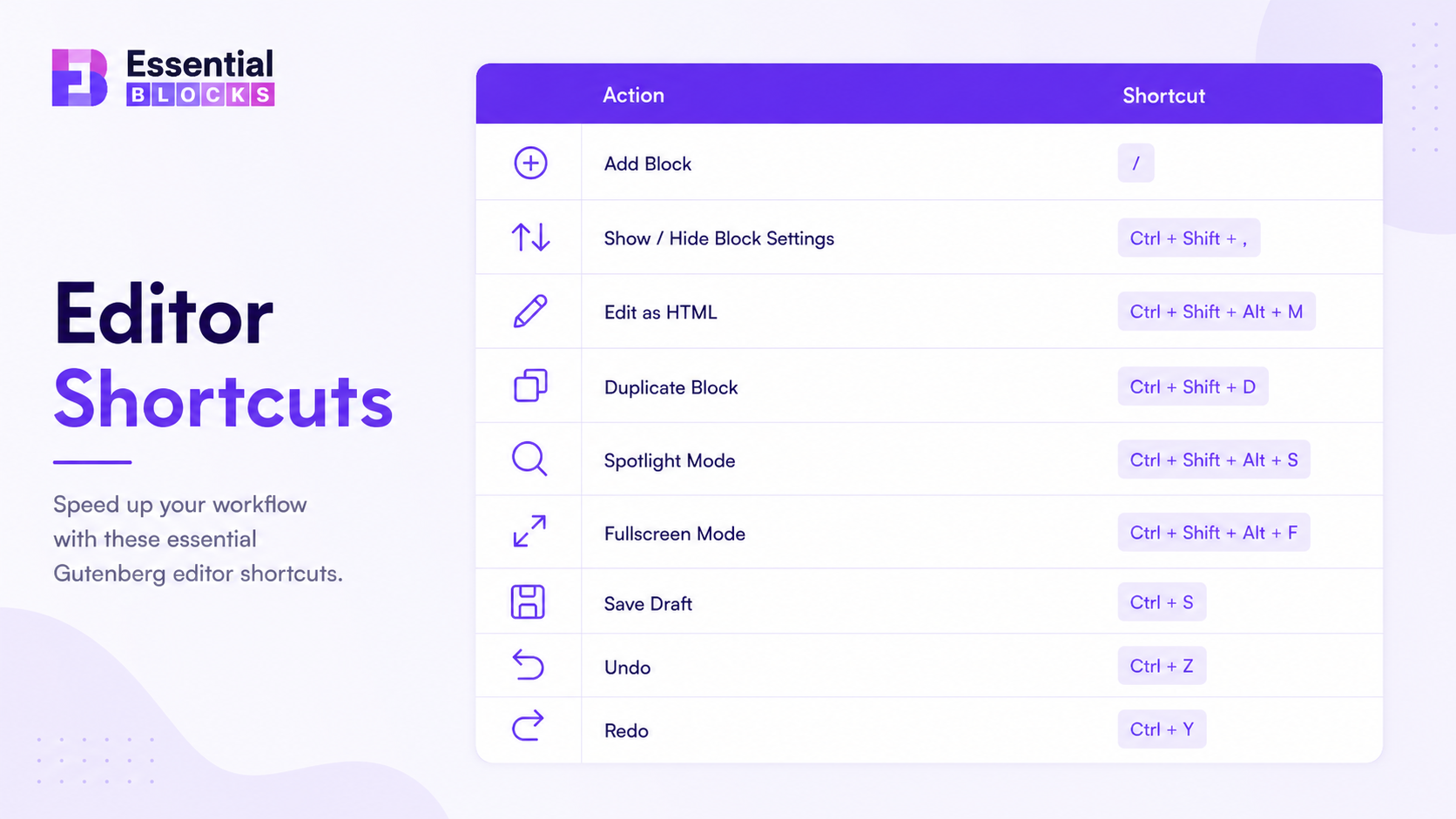
At a minimum, get comfortable with quick actions like copying and pasting blocks, duplicating blocks, undoing and redoing changes, inserting blocks quickly and moving between blocks without constantly touching your mouse. Even standard editing shortcuts can speed up your workflow dramatically when you are writing or formatting long pages.
2. Use the Command Palette Like a Power User
The Command Palette is one of the most overlooked Gutenberg features. Think of it as a quick-access control center built into WordPress. Instead of navigating through multiple menus, you can open a search-style interface and jump straight to the action you want.
For many users, this becomes one of the most effective WordPress editor shortcuts once they start using it regularly.
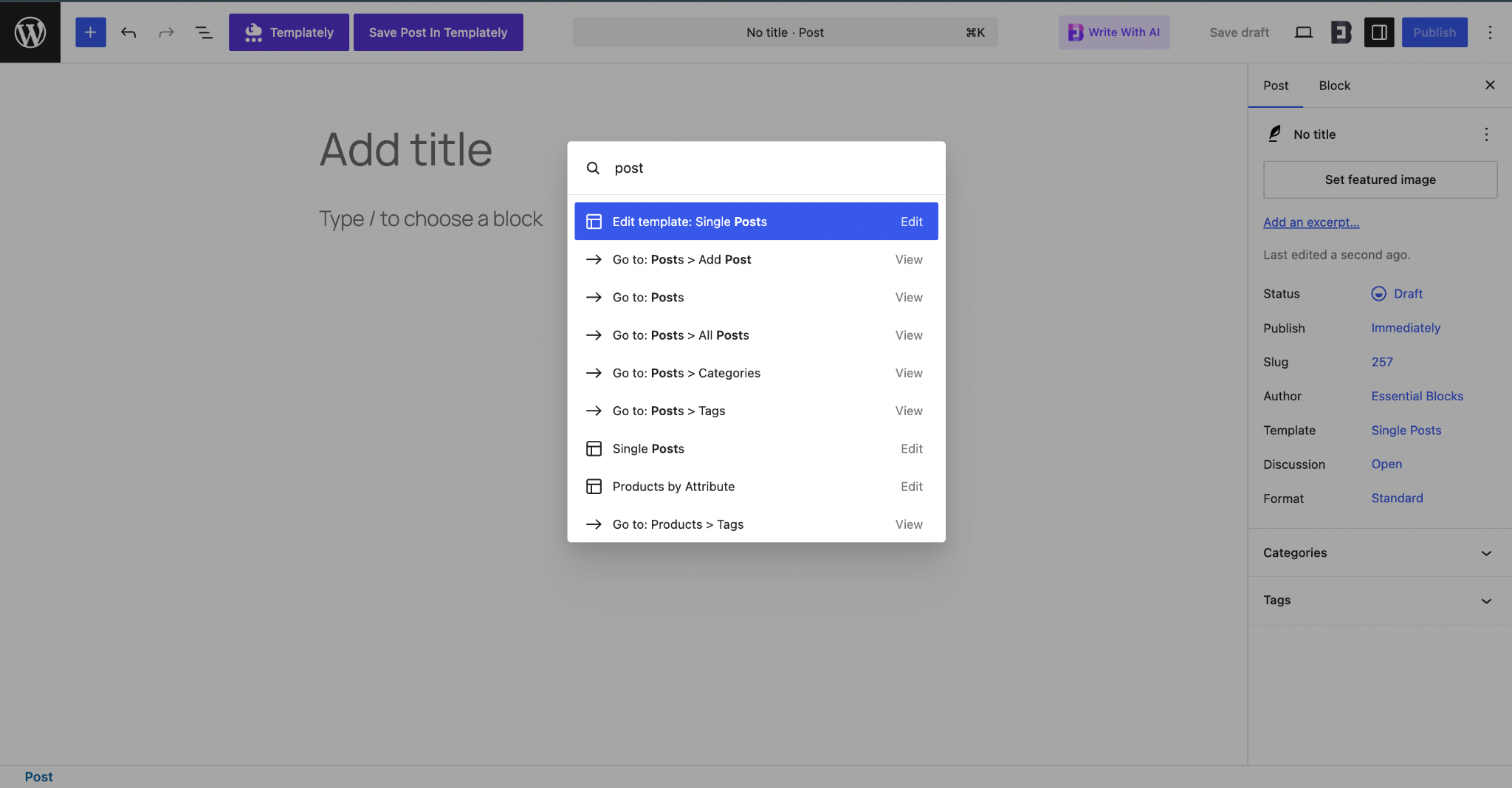
With the Command Palette, you can open pages, create new posts, switch templates, move to editor settings and jump between content areas much faster than clicking manually through the dashboard. It is especially useful when you already know what you want to do and do not want to waste time finding it visually.
The real benefit is momentum. Instead of breaking your flow every time you need to change templates or open a different page, you stay focused. That makes a big difference for anyone publishing frequently or managing multiple site sections.
3. Create Reusable Block Patterns Instead of Rebuilding Sections
Many WordPress users rebuild the same sections again and again without realizing they do not have to. That is where patterns and reusable elements come in.
A pattern is a pre-designed block layout that you can insert whenever needed. A reusable block, now often treated as a synced pattern in newer WordPress experiences, is ideal when you want the same content or design updated in multiple places at once. In simple terms, patterns help you reuse structure, while synced reusable elements help you reuse structure and content together.
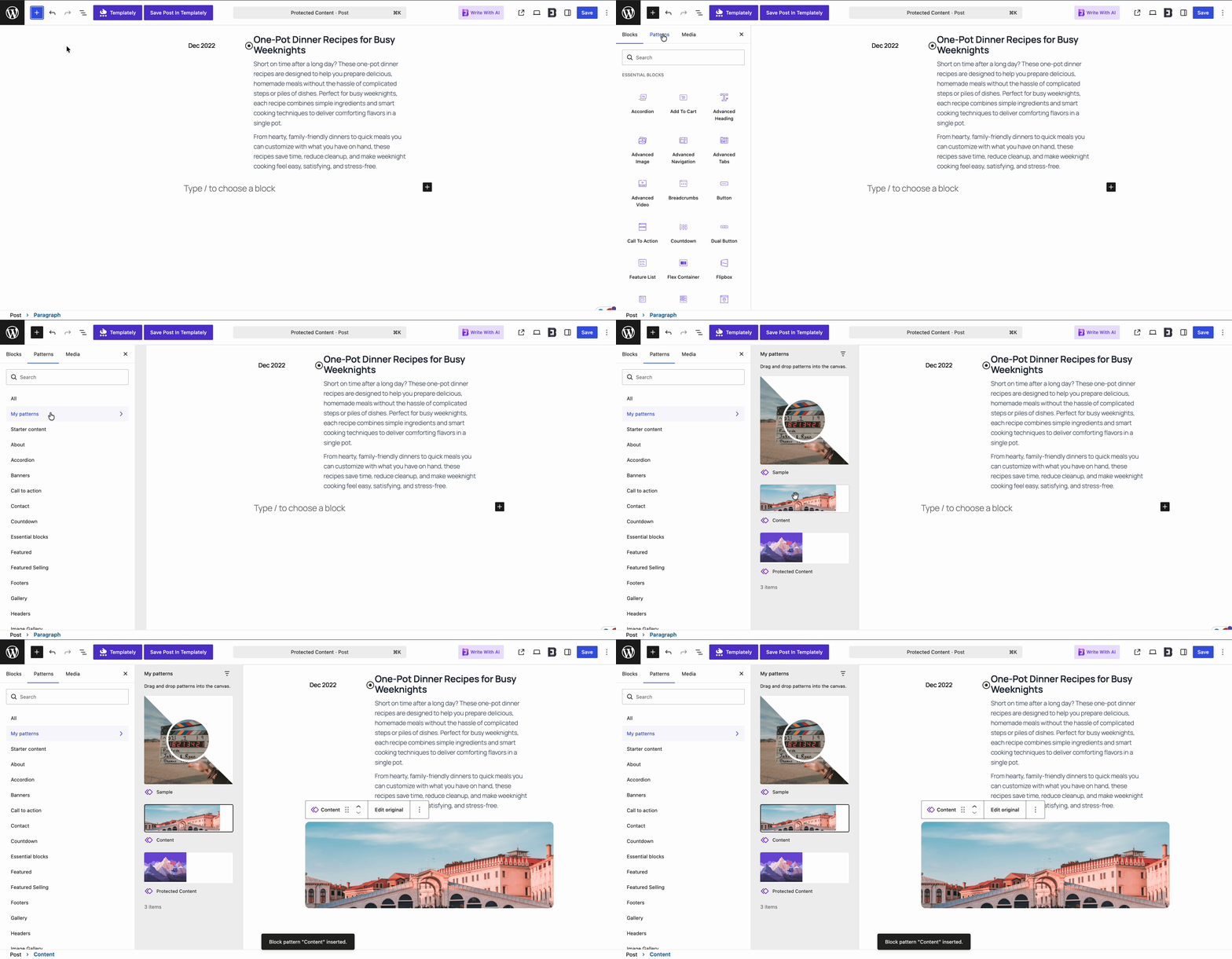
This works beautifully for repeated website sections such as CTAs, FAQ areas, author boxes, feature grids and testimonial sections. If you create these once and save them properly, you can insert them in seconds instead of rebuilding them from scratch every time.
For agencies and teams, this creates consistency. Everyone uses the same layout system, brand spacing and design elements. That reduces mistakes, shortens onboarding time, and makes page building much more efficient.
4. Learn List View for Managing Complex Pages
List View gives you a structured outline of every block on the page. Instead of only seeing content visually, you can see the hierarchy of headings, groups, columns, images, buttons, and nested sections in one place.
This is one of the most practical Block editor best practices for large pages. List View helps you quickly locate blocks, rearrange sections without guesswork, and manage nested layouts without getting lost. If you have ever clicked around trying to select the correct container block, you already know how much time this can save.
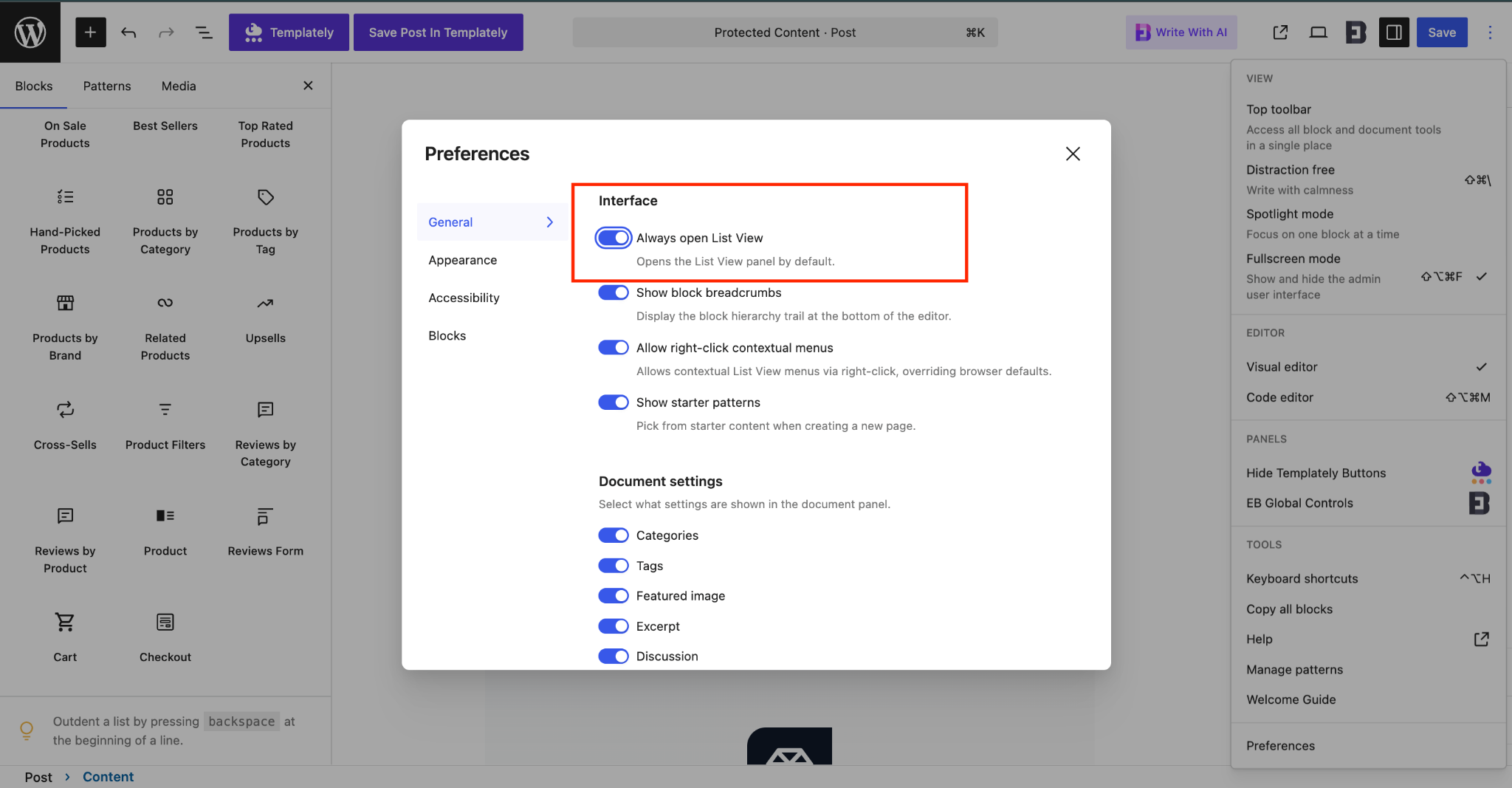
On long landing pages, List View becomes almost essential. Use clear groupings, name reusable sections consistently and collapse areas you are not actively editing. When you do that, page management becomes much easier, especially when multiple design layers are involved.
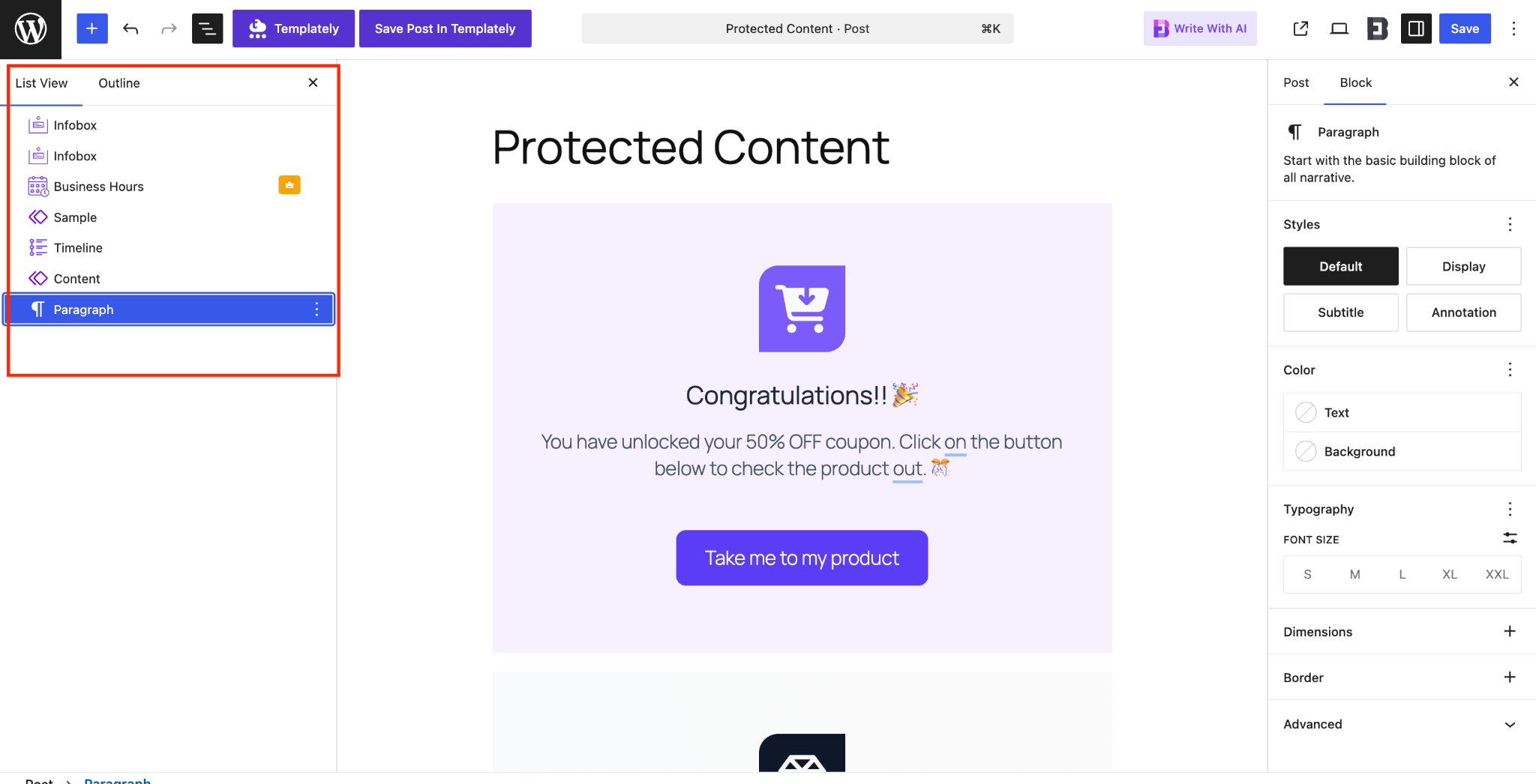
For anyone building service pages, sales pages, or homepage layouts, mastering List View is one of the smartest website-building tips you can adopt.
5. Use Global Styles Instead of Editing Individual Blocks
Global Styles allow you to define site-wide visual rules for typography, colors, spacing, and block appearance. Instead of tweaking every paragraph, button, or heading manually, you set the standard once and let WordPress apply it consistently.
You can standardize typography, brand colors, spacing systems and button styles across the entire site. That means fewer manual edits and fewer inconsistencies.
The biggest time-saving benefit appears when you need to make site-wide design changes. If a client wants a new button color, a different heading size, or more spacing between sections, you do not need to edit dozens of pages manually. You update the global setting and move on.
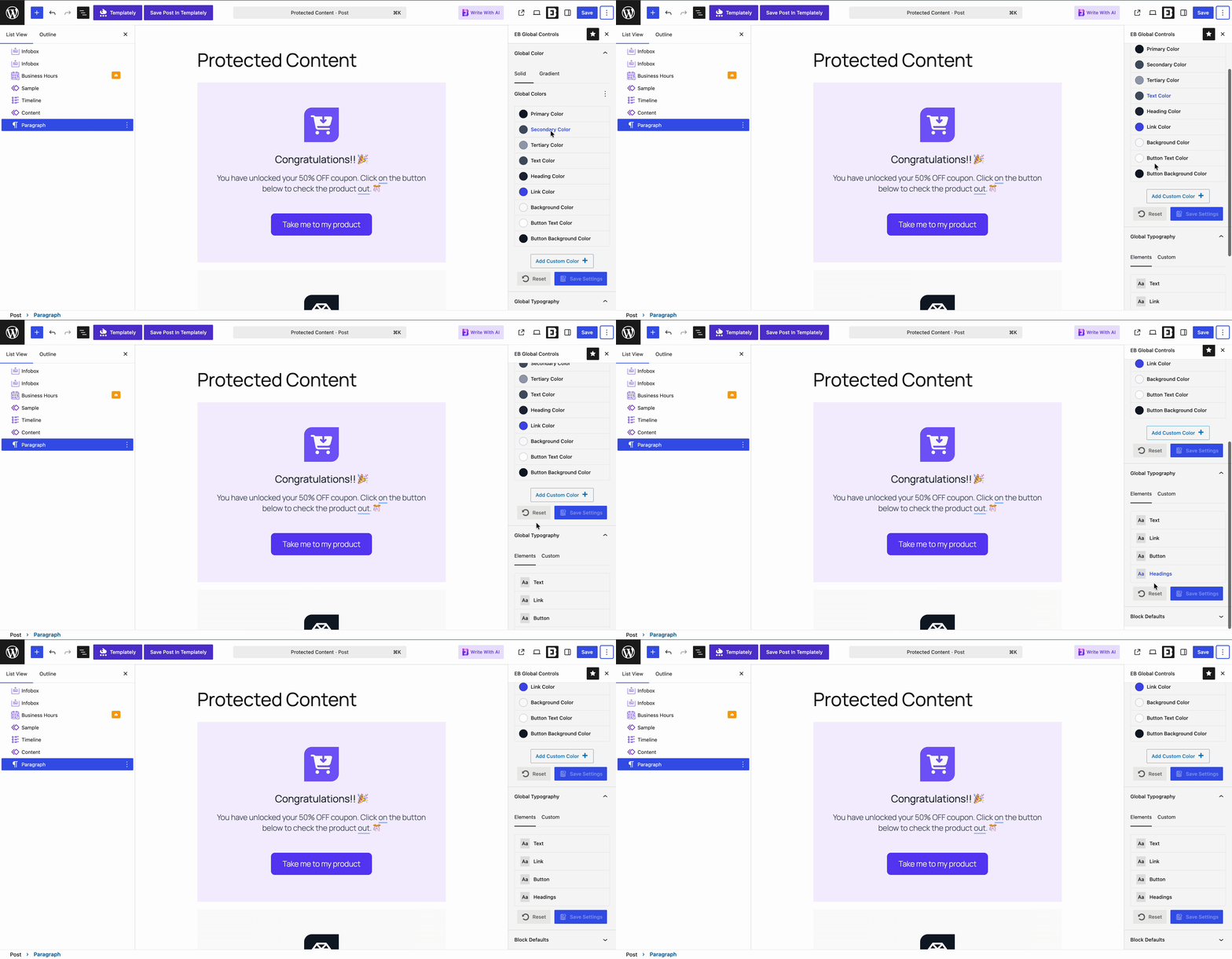
The most common mistake is overriding the styles block by block too often. That creates inconsistency and makes future edits harder. Another mistake is skipping a basic design system before building pages. If you define your typography and spacing rules early, the rest of your WordPress content creation workflow becomes much smoother.
6. Lock Blocks to Prevent Accidental Changes
Block locking lets you restrict how certain blocks can be edited or moved. It is a simple feature, but it can prevent a lot of frustration.
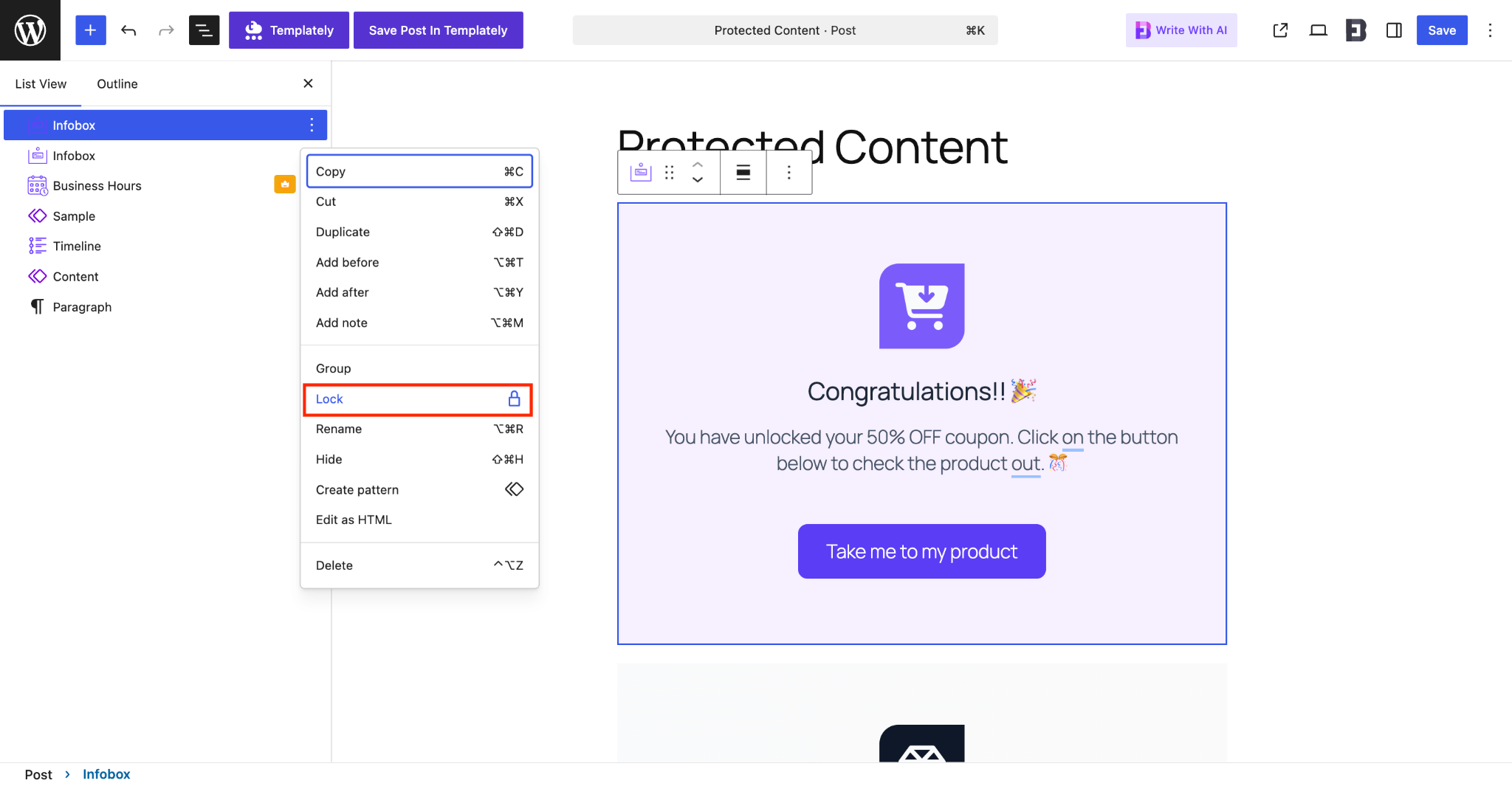
This is especially useful on client websites, in team collaboration environments and on conversion-focused landing pages where layout integrity matters. If you have ever had a carefully designed section accidentally moved, deleted, or edited, you already understand the value.
Depending on the setup, you can prevent blocks from being moved, deleted, or both. This gives you control over which parts of a page stay fixed and which parts remain editable.
Not every block needs to be locked. Reserve locking for critical layouts, conversion sections, and reusable design components where maintaining structure is more important than allowing unrestricted edits.
Imagine building a landing page with a hero banner, trust badge section, and CTA layout that has already been approved. You still want a client or team member to update the text, but you do not want them to accidentally break the structure. Block locking solves that problem neatly.
This is one of the most practical WordPress productivity tips for collaborative editing.
7. Leverage Starter Templates
A blank canvas might feel flexible, but it is rarely efficient. Starting every page from zero means making the same design decisions over and over again.
To get design flexibility, Essential Blocks for Gutenberg can help by providing ready-to-use templates and advanced layouts. Instead of combining basic native blocks manually, you can begin with polished sections and customize them quickly.
This is one of the easiest ways to shorten page-building time while improving consistency. Templates help you move from idea to publishable design much faster, especially when deadlines are tight.
8. Group Related Content Blocks Together
Group blocks help you organize related content into manageable sections. Instead of styling each individual block one by one, you can apply alignment, spacing, background color and layout settings to the group as a whole.
This is ideal for hero sections, feature sections, pricing tables and FAQ areas. Once grouped, those areas become easier to move, duplicate, or restyle.
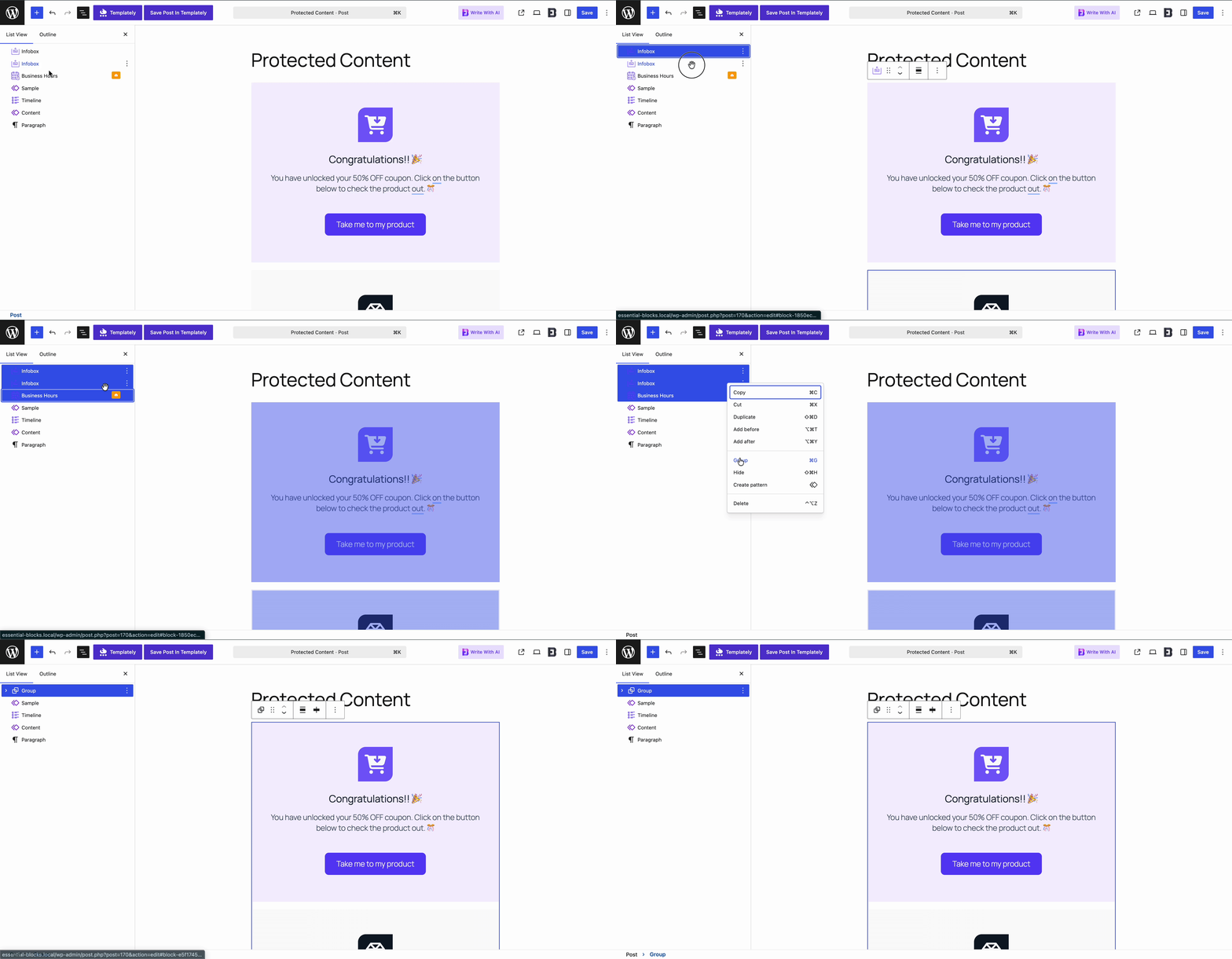
Grouping also makes responsive adjustments easier. Rather than fixing layout issues across many separate blocks, you manage the section at a higher level. That creates a cleaner editing experience and reduces the chance of design inconsistencies.
9. Use Advanced Blocks Instead of Combining Multiple Native Blocks
A common time drain in Gutenberg is trying to recreate advanced layouts by stacking multiple native blocks together. It works, but it can become slow, messy and hard to maintain.
For example, building an accordion with several paragraph blocks, toggles and custom spacing settings is far less efficient than using a purpose-built accordion block.
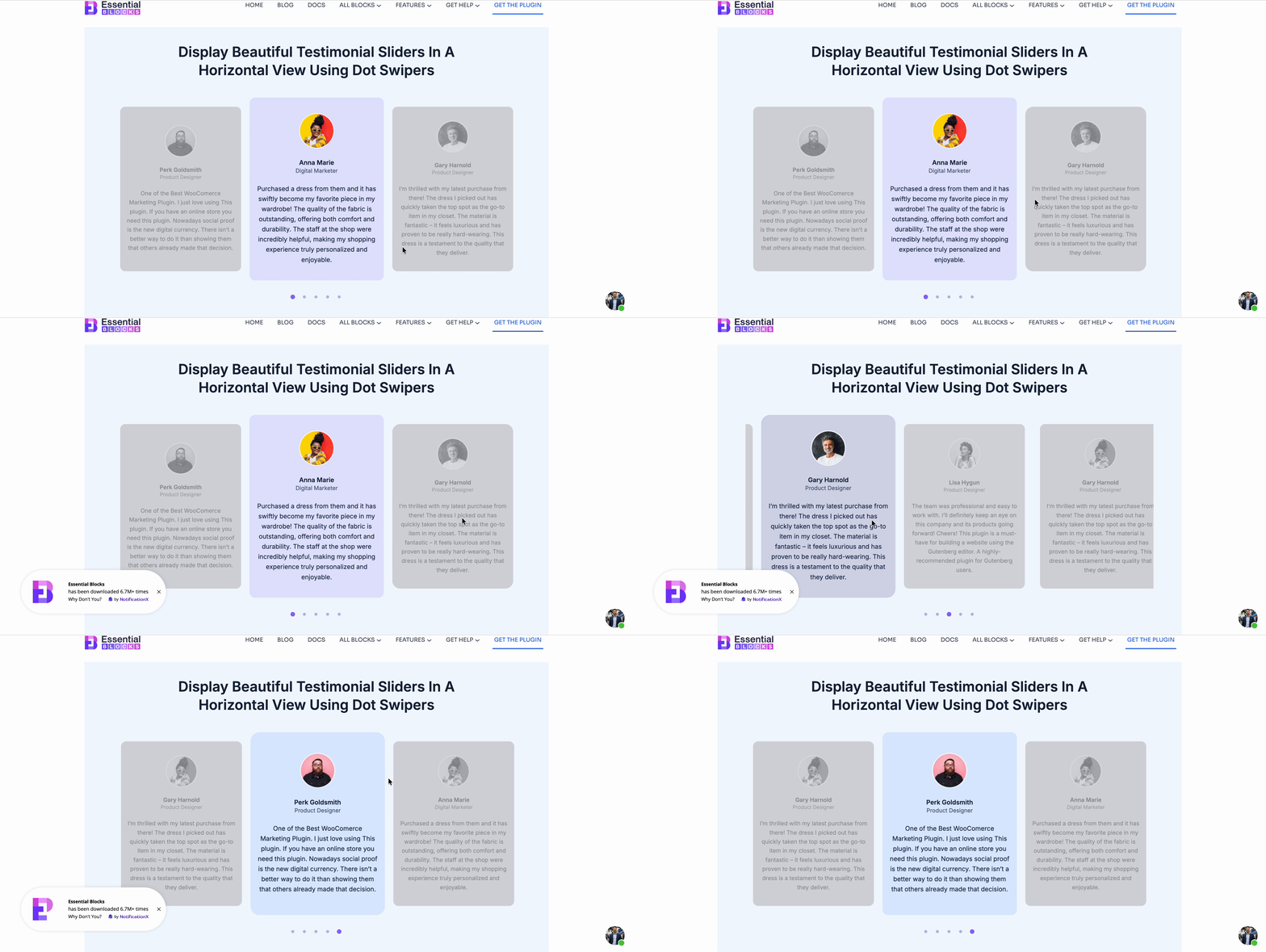
Advanced blocks can dramatically simplify common content needs. A few strong examples include an Advanced Accordion, Testimonial Slider, Advanced Tabs, Call To Action block and Interactive Promo block. This is where Essential Blocks becomes especially useful. Instead of piecing together multiple native elements, you can use advanced blocks built for specific purposes. That reduces setup time, improves design polish, and often results in cleaner editing overall.
10. Create a Repeatable Gutenberg Workflow
The ultimate time-saver is not one feature. It has a repeatable workflow. When you know exactly how you create content from start to finish, you stop making unnecessary decisions every time you open the editor.
Suggested Workflow:
A practical Gutenberg block editor guide for productivity might look like this:
- Start with a template.
- Use saved patterns.
- Structure content with List View.
- Apply Global Styles.
- Optimize responsiveness.
- Publish.
That process may sound simple, but it creates compounding returns. The more often you use the same publishing system, the faster and better your work becomes. This is the real secret behind strong Gutenberg workflow optimization. Productivity is not about rushing. It is about reducing friction.
Bonus Tips for Gutenberg Power Users
Once you have the beginner-friendly tips down, the next step is refining how the editor behaves around your workflow. These advanced tricks are especially useful for people who publish frequently, manage larger sites, or build repeatable page structures every week.
Use Slash Commands And Block Transforms
Users do not rely on the inserter for every new block. Typing / inside the editor to insert blocks instantly can speed up drafting significantly, especially during long-form writing. Block transforms are equally useful. Instead of deleting and rebuilding content, you can often transform one block into another, such as turning text into a quote, a list into columns, or a heading into another structure with fewer clicks.
Use Block Visibility Controls for Smarter Page Variations
If your setup includes visibility controls, use them to create smarter layouts without rebuilding the same page multiple times. This is especially helpful for promotional sections, seasonal offers, audience-specific messages, or WooCommerce content that only needs to appear under certain conditions. Instead of maintaining multiple versions of the same layout, you can manage variations inside a single editing workflow.
Keep Up With New Gutenberg Features
Gutenberg evolves quickly, and new features often introduce workflow improvements that save time without requiring new plugins. Exploring updates regularly helps you spot better ways to handle patterns, layout controls, styling, and content management before old habits slow you down.
How Essential Blocks Make the WordPress Block Editor More Efficient
The right block library can significantly improve your Gutenberg workflow by reducing manual design work and giving you access to more powerful content blocks. With Essential Blocks this process becomes easier and faster than ever. Here is how Essential Blocks helps to make the WordPress block editor more efficient.
Expand Gutenberg without Sacrificing Performance
One reason many users look beyond the default editor is that they want more flexibility without giving up the clean Gutenberg experience. That is where Essential Blocks fits well. It expands what the Block Editor can do while still keeping your workflow centered around native blocks.
Features That Improve Productivity
Essential Blocks helps improve workflow with 70+ advanced blocks, 3,000+ ready templates, design presets, animation controls and marketing-focused blocks that would otherwise take longer to build manually. Instead of forcing you into a separate builder ecosystem, it complements the block editor experience you already use.
Make Your Gutenberg Website Smarter with the Right Tips
The best Block Editor Tips are not flashy tricks. They are practical workflow improvements that reduce friction every time you create content. Mastering keyboard shortcuts, using the Command Palette, saving block patterns, working in List View, applying Global Styles, locking key sections, starting with templates, grouping related content, using advanced blocks, and building a repeatable workflow can save a surprising amount of time.
The real productivity gains do not come from working faster manually. They come from making fewer repetitive decisions and using the editor more strategically.
You do not need to overhaul your workflow overnight. Start with a few improvements, such as List View, block patterns, or the Command Palette. Small changes often create the biggest long-term productivity gains inside Gutenberg. Once those become part of your routine, add a few more. Over time, your entire WordPress content creation workflow will become smoother, faster, and more consistent.
And if you want to get even more out of Gutenberg, tools like Essential Blocks can help you streamline website creation, reduce manual setup, and build professional pages with less effort. If you liked our blog, then subscribe to our blog for all the latest updates and join our Facebook community to stay connected with new features, tips and announcements.