Images play a major role in how visitors experience your website. Whether you are building a portfolio, business website, SaaS landing page, restaurant website or personal brand, visuals often create the first impression.
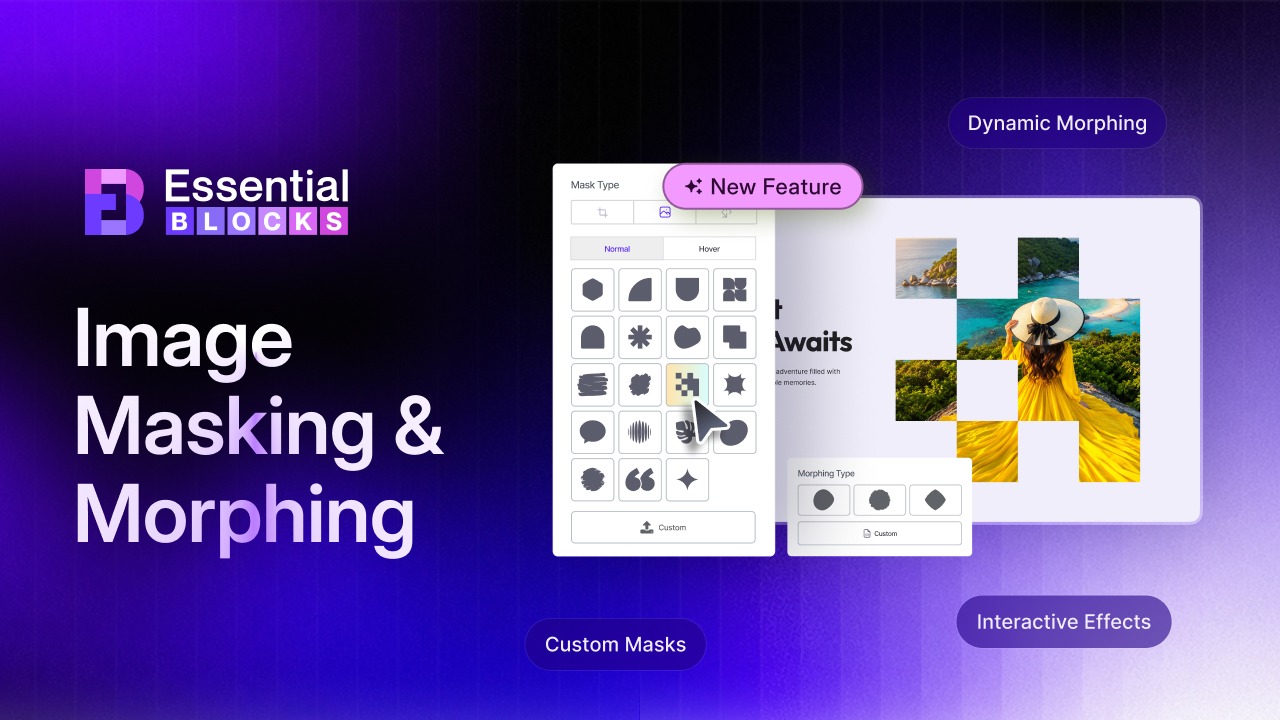
Creating custom image shapes and animated effects often requires graphic design software, custom code or multiple plugins. That is where Image masking and morphing in Essential Blocks comes in.
This powerful feature helps you transform ordinary images into eye-catching visual elements directly inside the Gutenberg editor. In this guide, you will learn how to set up, explore use cases, and configure options for Image Masking and Morphing.
What Is Image Masking And Morphing?
Image Masking and Morphing is an advanced design feature available within the Advanced Images related block of Essential Blocks.
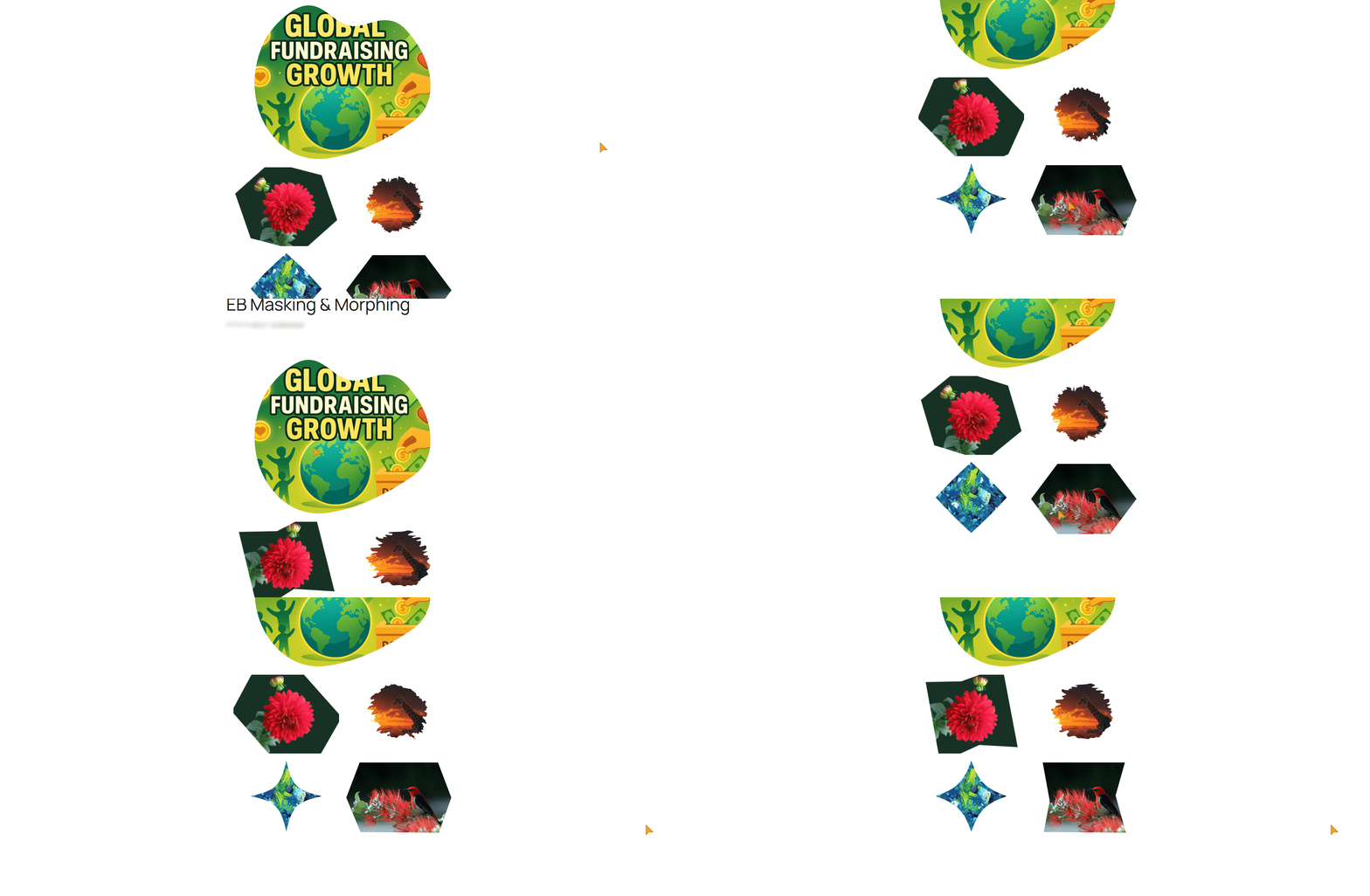
It allows you to apply creative mask shapes to images and animate smooth transitions between those shapes. Instead of displaying an image inside a standard frame, you can present it using organic shapes, geometric forms and dynamic animated effects that attract attention and create a more engaging browsing experience.
Everything can be configured directly from the Gutenberg editor, making it easy for beginners and professionals alike to create unique image presentations for their websites.
Why Image Design Matters More Than Ever?
Modern websites compete for attention in crowded digital spaces. Visitors make decisions about a website within seconds of landing on a page.
Images help communicate your message quickly. When combined with creative layouts and subtle motion effects, they can:
- Draw attention to important content
- Improve visual storytelling
- Increase engagement with page sections
- Create a more memorable brand experience
- Make landing pages feel modern and interactive
Image masking and morphing help you achieve these goals without relying on external design tools or complex development workflows.
Introducing Image Masking And Morphing by Essential Blocks
Adding visuals to a website is rarely as simple as it looks. Many users struggle to make standard rectangular images feel intentional and on-brand and creating custom shapes or animated effects usually means juggling design software, custom CSS or several plugins.
Image Masking and Morphing by Essential Blocks removes that friction. It helps you reshape and animate images directly inside Gutenberg, so site owners save time and skip the technical hurdles, while visitors enjoy more polished, memorable pages that hold their attention. Here are the key benefits that make this feature a valuable addition to your Gutenberg design toolkit.
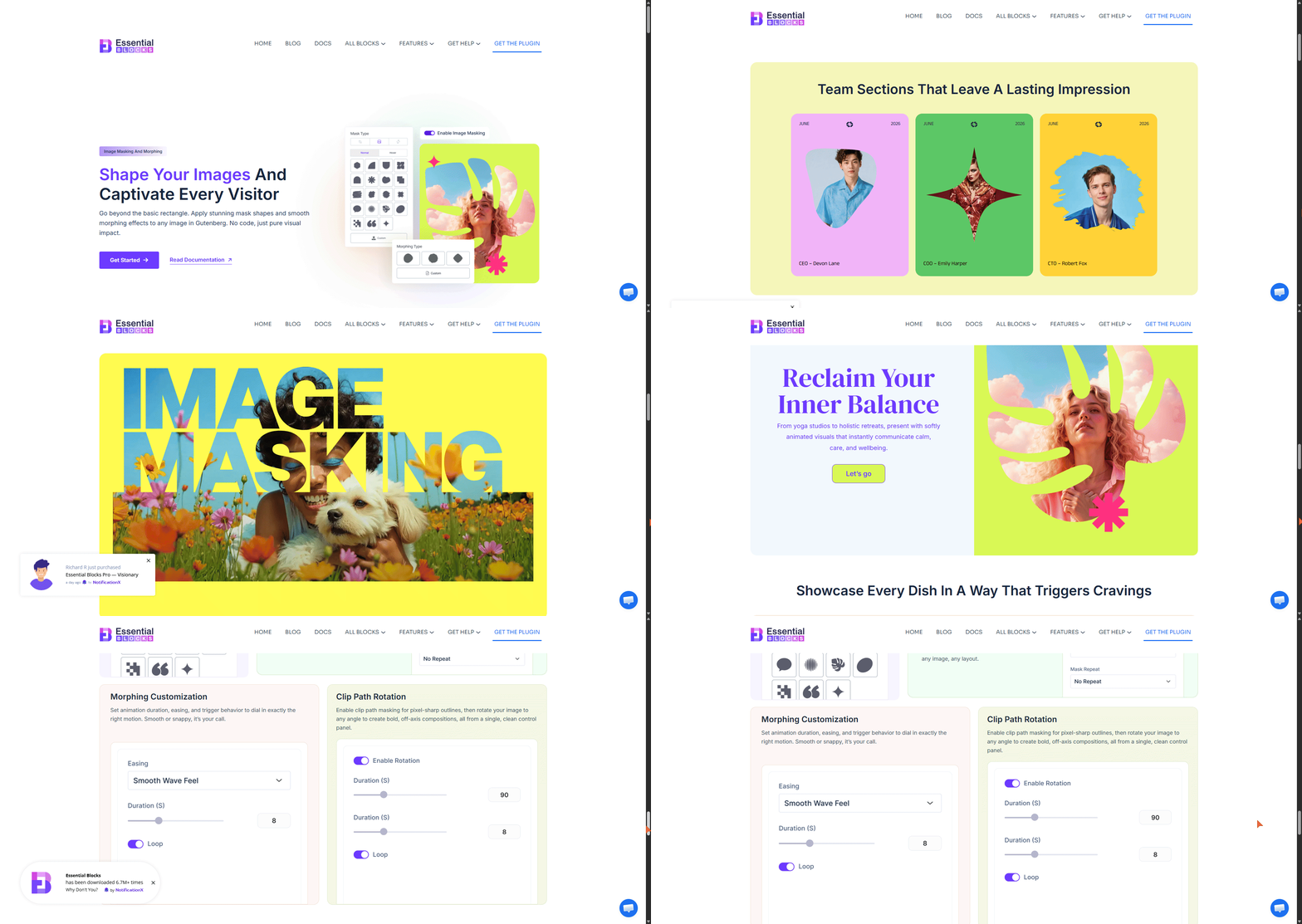
Create Unique Visual Experiences
Stock-style rectangular images make most websites look the same, which makes it hard to stand out. Custom mask shapes let you break free from traditional layouts and present content with creativity and personality. The result is a site that feels distinctive to you and a browsing experience that immediately catches a visitor’s eye.
Add Motion without Coding
Adding motion to a page normally calls for custom code or extra animation tools that many site owners would rather avoid. Built-in morphing animations solve that by letting you create smooth shape transitions with no coding at all. You save development time, and visitors get subtle movement that naturally draws their attention to the content that matters most.
Design Faster Inside WordPress
Switching between separate design applications to crop, mask and export images slows the whole build down. Because everything is configured right inside the Gutenberg editor, there is nothing to export or re-upload. You keep a faster, uninterrupted workflow and your pages ship sooner with a more cohesive look for visitors.
Improve Visual Storytelling
Plain images often fail to connect content with the message behind it, leaving key sections feeling flat. Creative image presentations help support your story and make those sections more impactful. Whether you are showcasing products, destinations or team members, the right visuals help you communicate clearly while giving visitors a more engaging reason to keep reading.
Maintain Design Consistency
Mismatched shapes and animations across a site can quickly make a brand look unpolished. Fine-tuning controls let you adjust masks, animations and positioning so every element aligns with your branding and design system. That consistency protects your brand identity and gives visitors a seamless, trustworthy experience from page to page.
Explore the Powerful Features of Image Masking And Morphing
Image masking and morphing come packed with flexible controls and creative design options that help you transform ordinary images into dynamic visual elements.
Let’s explore the standout features of the Essential Blocks Advanced Image block that make this functionality a powerful addition to your Gutenberg workflow.
Extensive Mask Shape Options
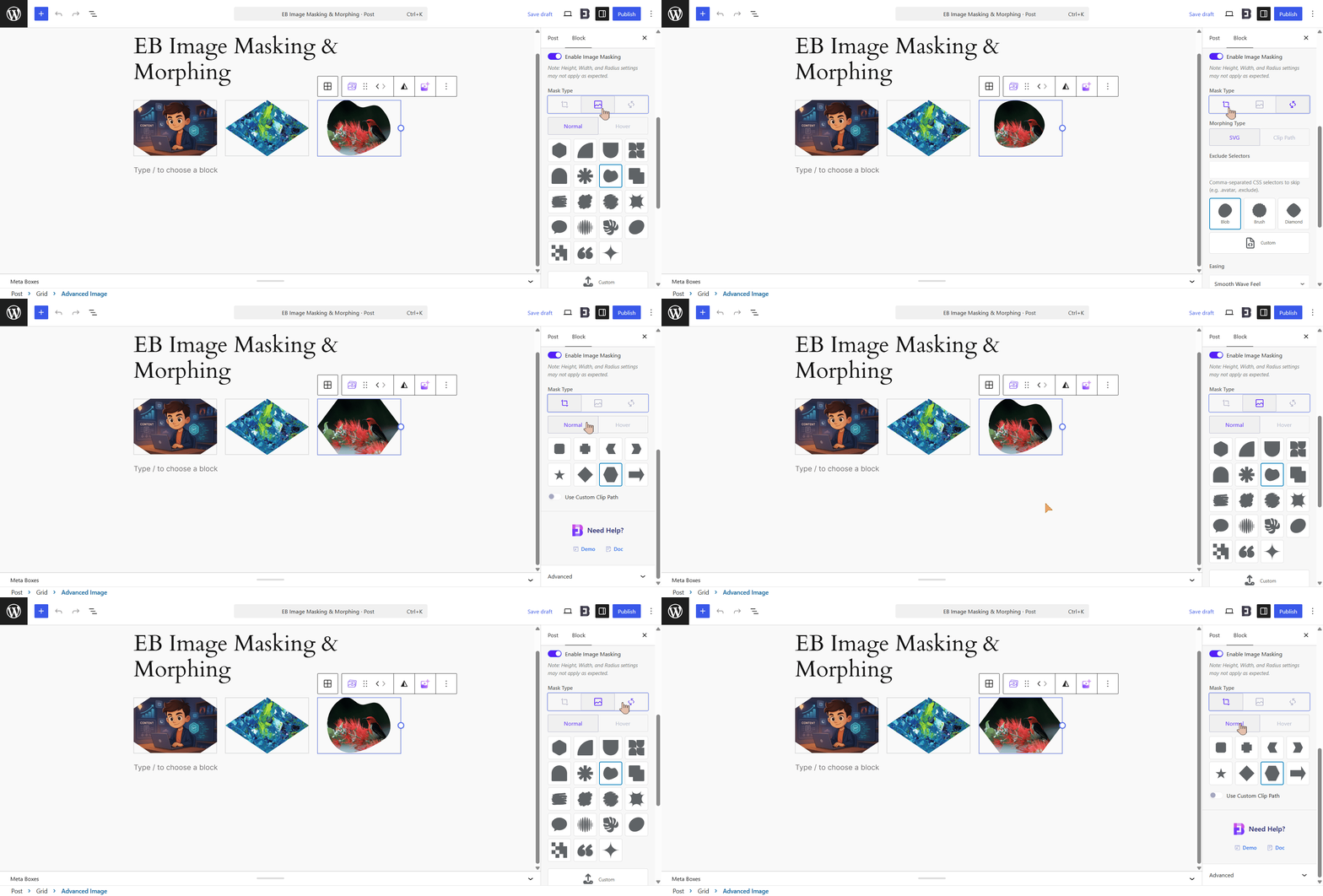
Image masking and morphing include a collection of built-in mask shapes that can instantly transform the appearance of any image.
You can experiment with different shapes and choose the one that best fits your content and layout. Whether you want a modern, playful or artistic appearance, the mask library gives you plenty of flexibility.
Multiple Morphing Animation Styles
Animation plays a key role in creating dynamic user experiences.
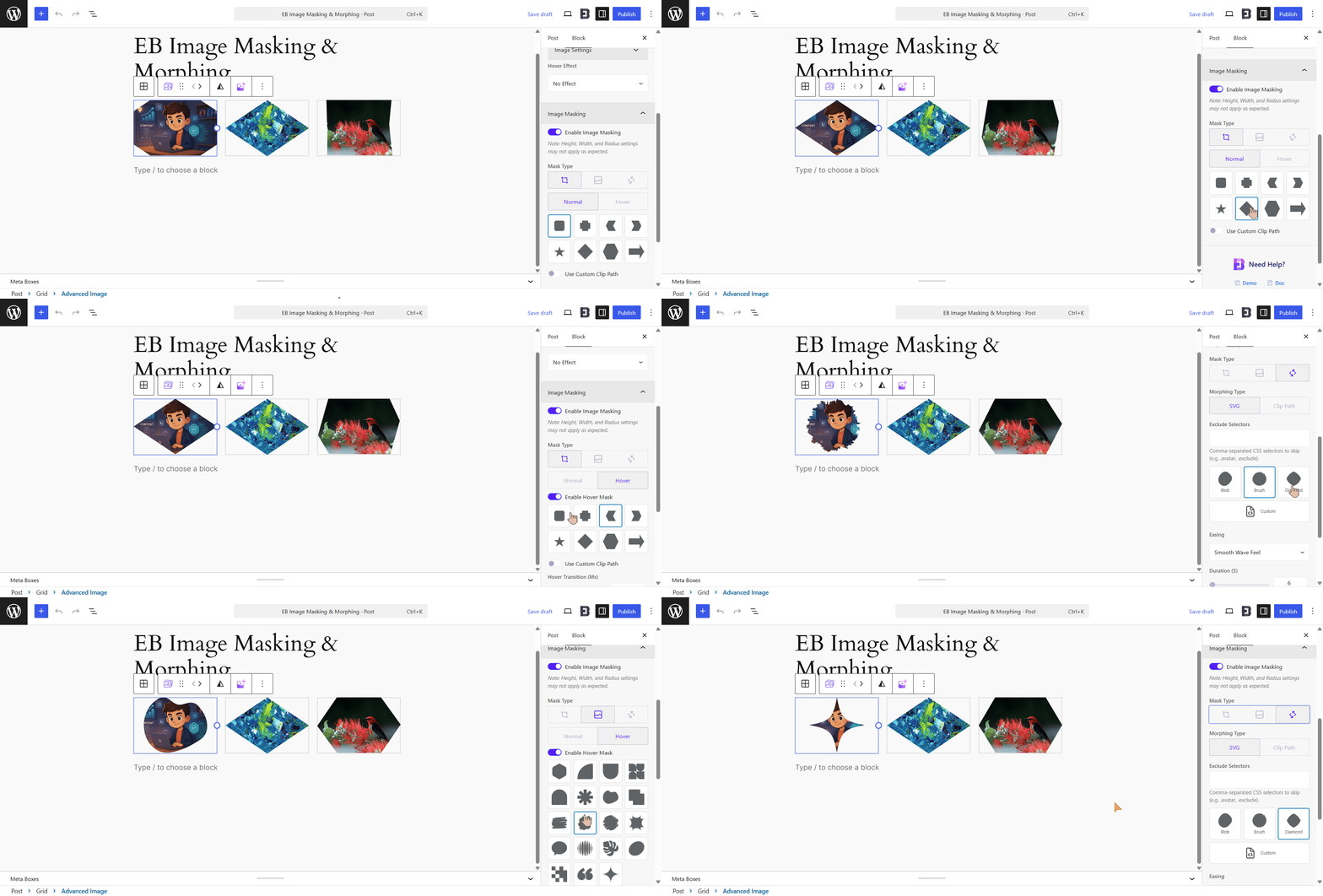
The feature includes various morphing styles that smoothly transition one shape into another. These animations help create movement while maintaining a polished and professional appearance.
Advanced Mask Customization
Every website has unique design requirements.
To give you complete creative control, Image masking and morphing allow you to adjust mask positioning, size and related settings. This ensures that your images fit perfectly within your page layout.
Flexible Morphing Controls
Animation should feel intentional and aligned with your design.
With customization options for morphing effects, you can control the behavior of animations and create experiences that match your brand identity and page goals.
Clip Path Rotation Support
For users who want even more creative freedom, Image masking and morphing include clip path rotation functionality.
This allows you to rotate image compositions and create visually striking layouts that break away from conventional designs.
How to Use Image Masking And Morphing in Gutenberg
Getting started with Image Masking and Morphing is simple. Here is a quick step-by-step overview to help you add your first masked and animated image directly inside the Gutenberg editor.
Add the Essential Blocks Image block to your post or page. Then, open the block settings panel, go to the Image Masking section and enable Image Masking to access the masking and morphing options.
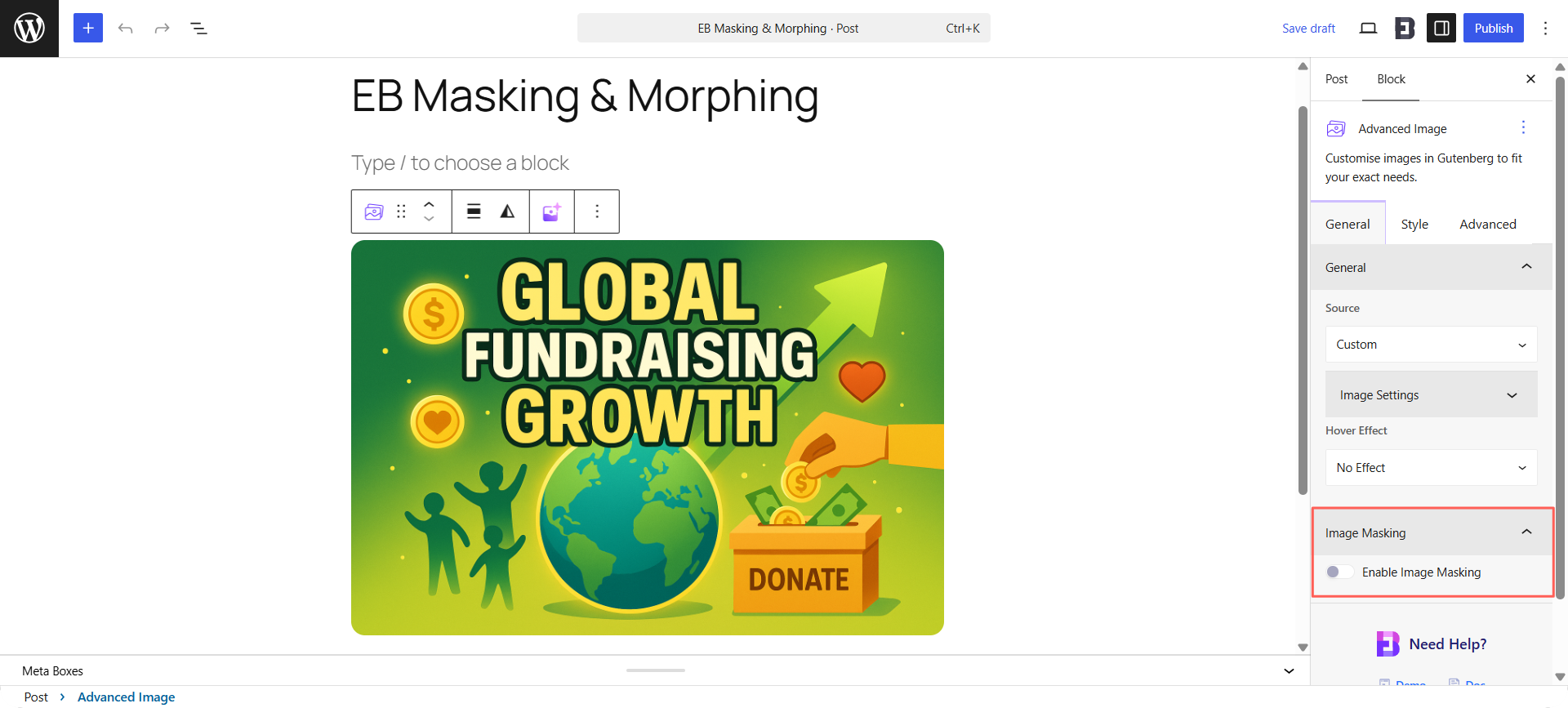
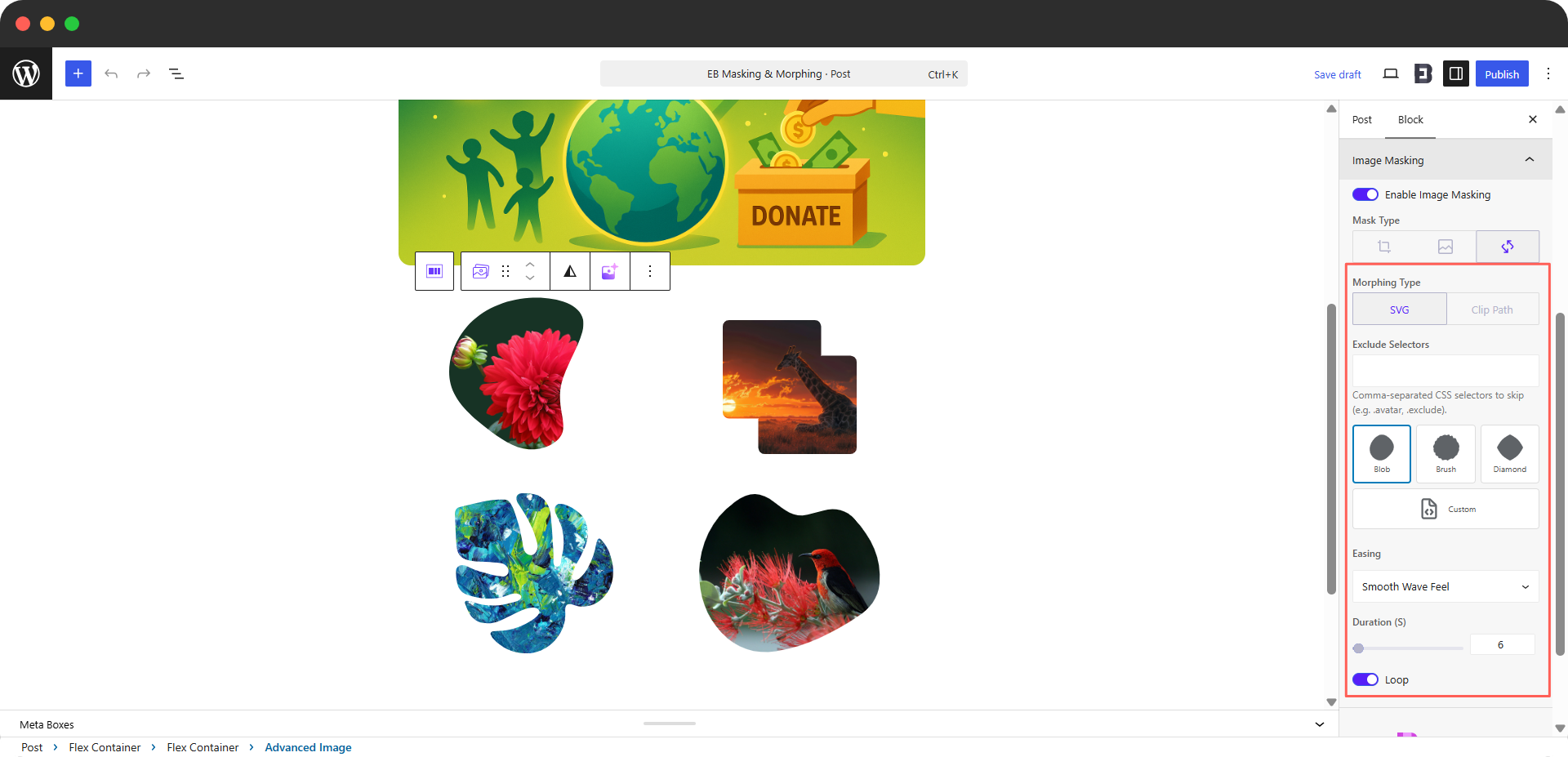
After enabling Image Masking, choose a mask type based on your design needs: Clip Path for geometric shapes, SVG Mask for organic shapes or Image Morphing for animated transitions.
To apply a geometric mask, select the Clip Path option, choose either Normal or Hover mode and pick a preset shape such as a square, star, diamond, hexagon or arrow to instantly transform your image.
Select the Image Morphing icon to animate your image between shapes. Next, choose either the SVG or Clip Path morphing type based on your desired effect. For both options, you can use the Exclude Selectors field to enter comma-separated CSS selectors (e.g., .avatar, .exclude) for any elements you want the effect to skip.
These steps cover the essentials to get you up and running.
For detailed steps and a complete walkthrough of every setting and customization option, check out the detailed documentation on Image Masking and Morphing.
Practical Use Cases for Image Masking And Morphing
One of the biggest strengths of this feature is its versatility. It can be used across a wide range of websites and industries.
Team Member Sections
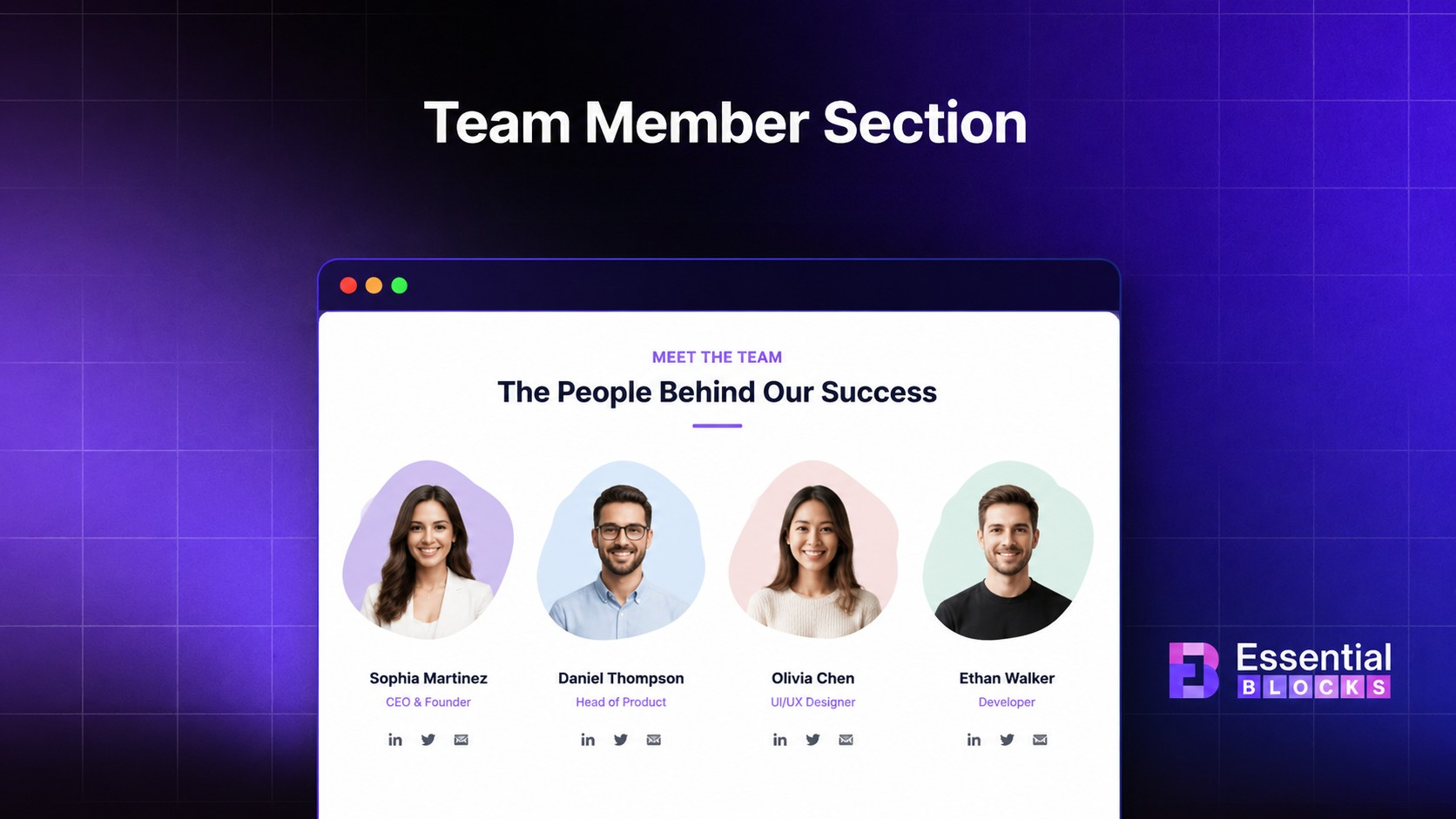
Present team members with creative image shapes that add personality and professionalism to company profiles. Animated morphing effects can make these sections feel more engaging and memorable.
Travel And Destination Pages
Travel websites rely heavily on visuals. Image masking and morphing help showcase destinations in a more immersive way and encourage visitors to explore further.

Wellness And Lifestyle Brands
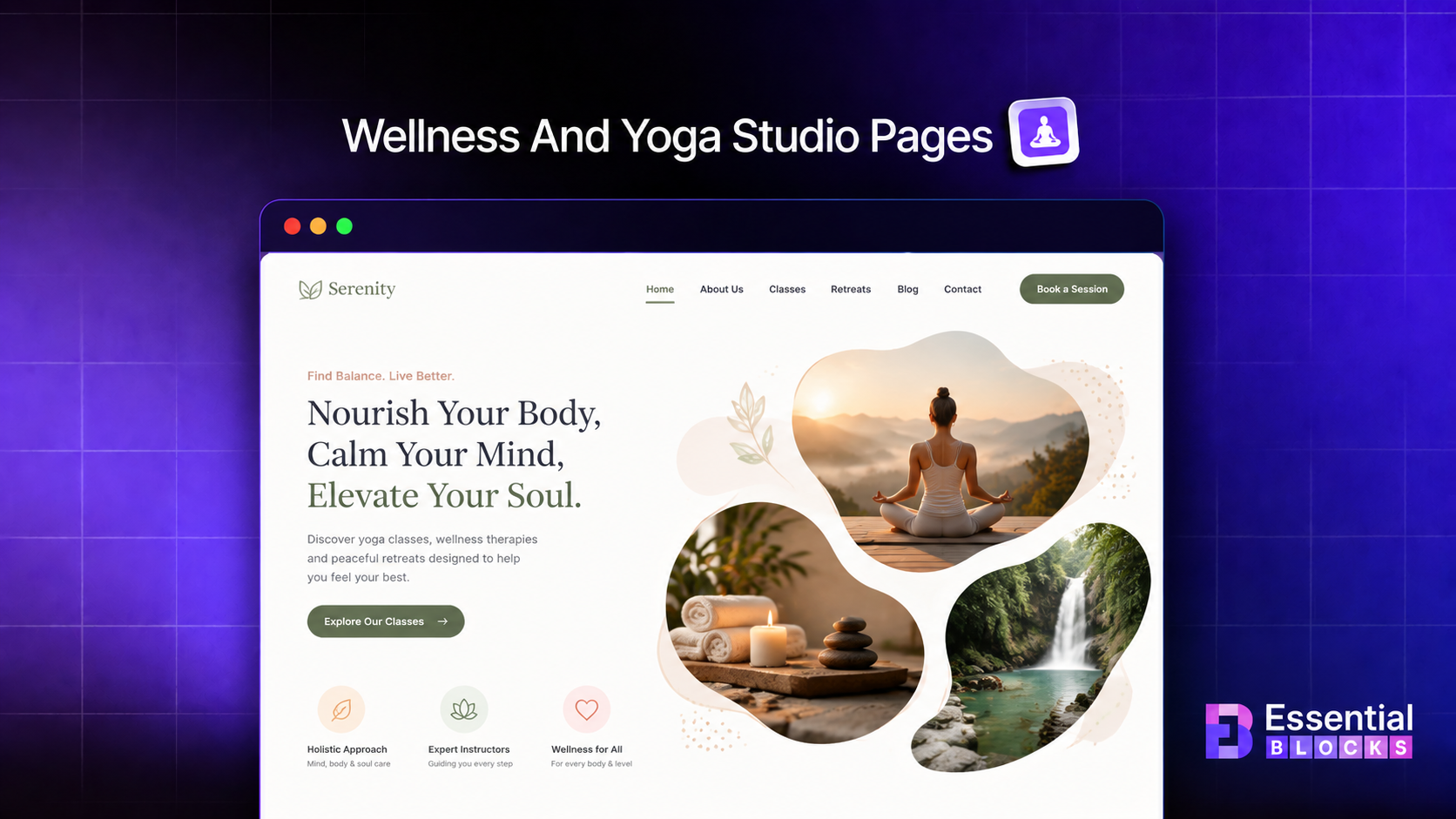
Organic mask shapes work exceptionally well for wellness businesses, yoga studios and lifestyle brands looking to create a calm and welcoming visual identity.
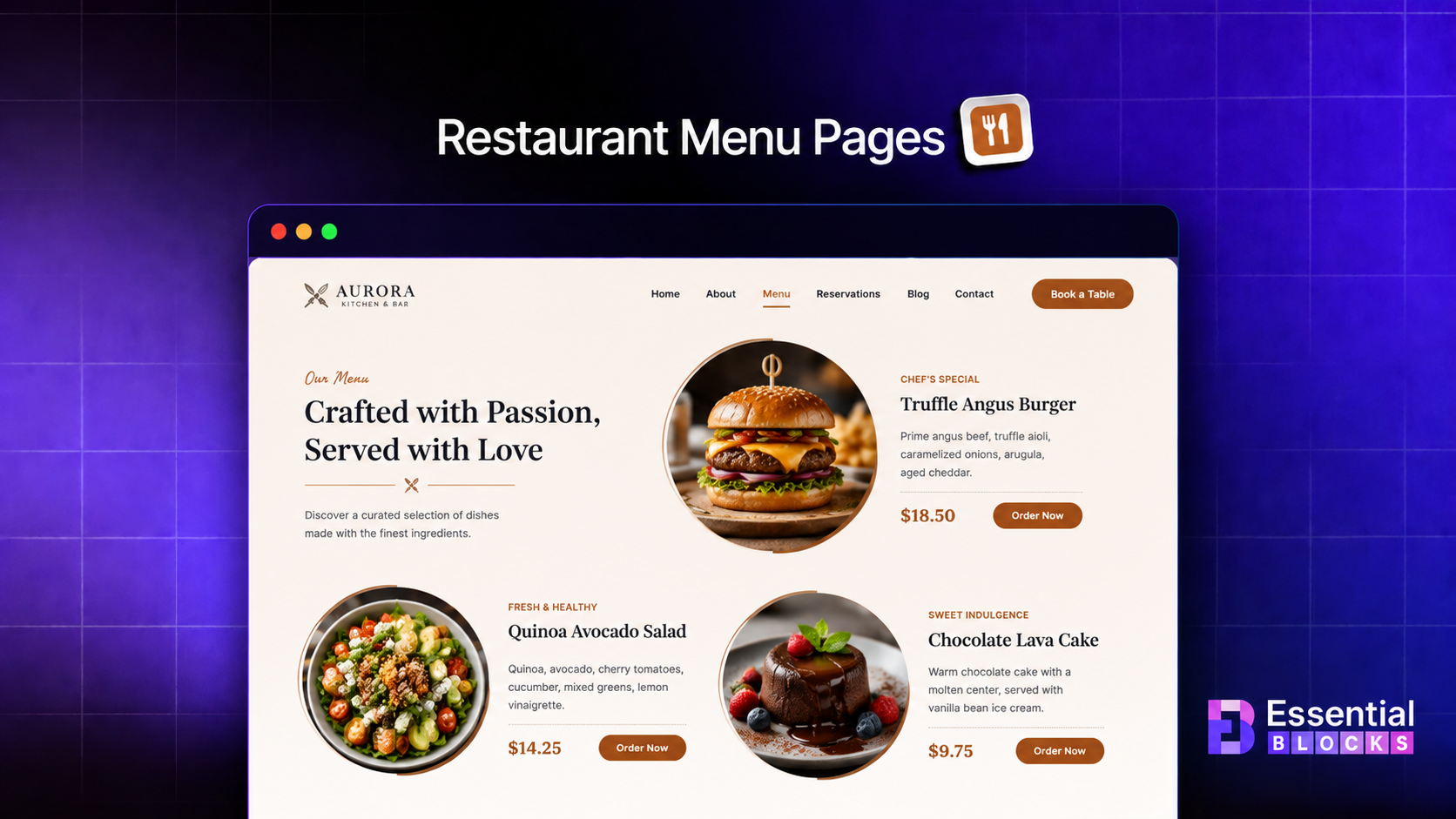
Restaurant And Food Websites
Food photography is one of the strongest marketing assets for restaurants. Creative image presentations help make menu items more appealing and encourage visitors to engage with your content.
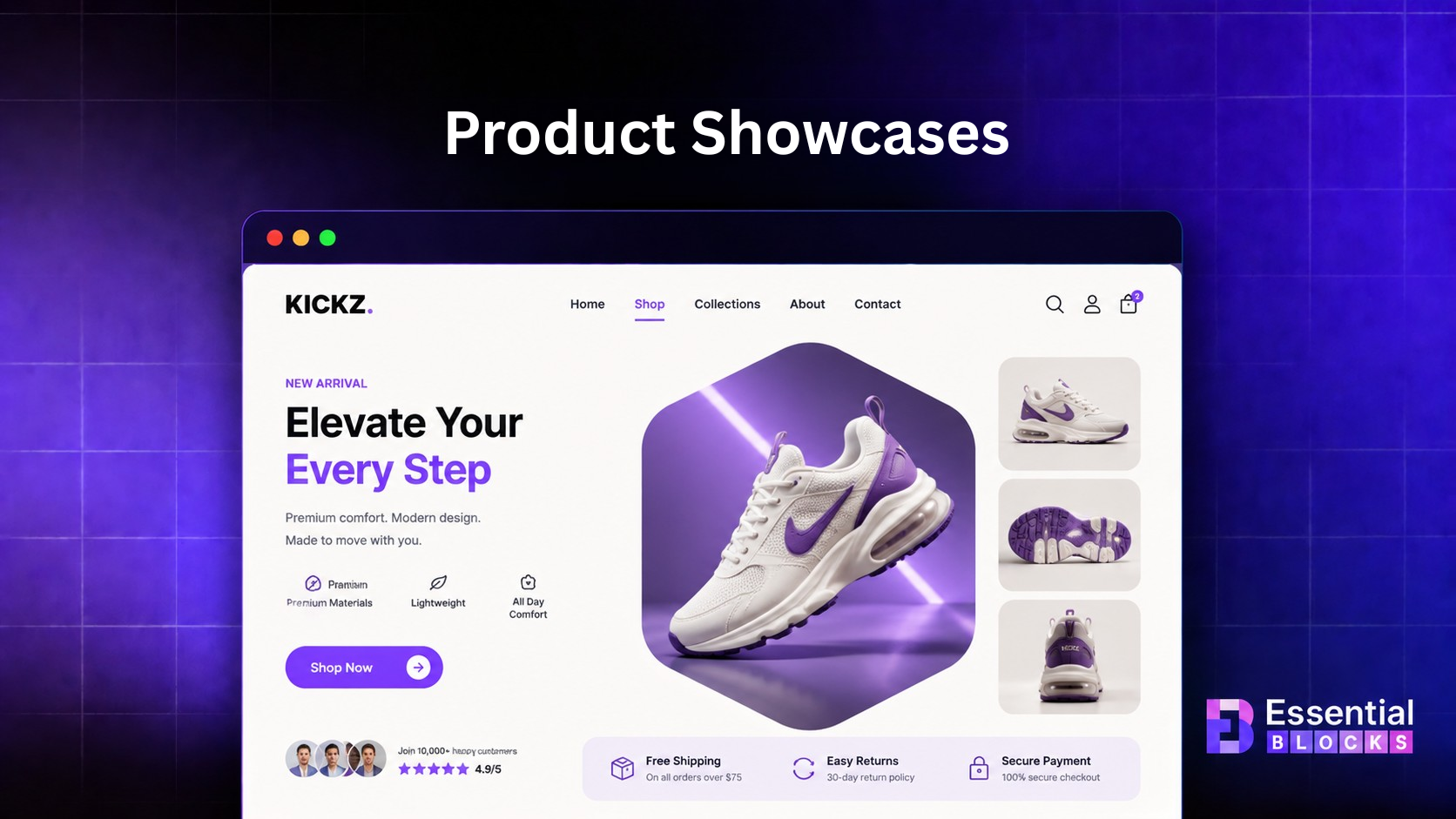
Product Showcases
Highlight products with dynamic image layouts that guide attention toward key offerings and improve the overall shopping experience.
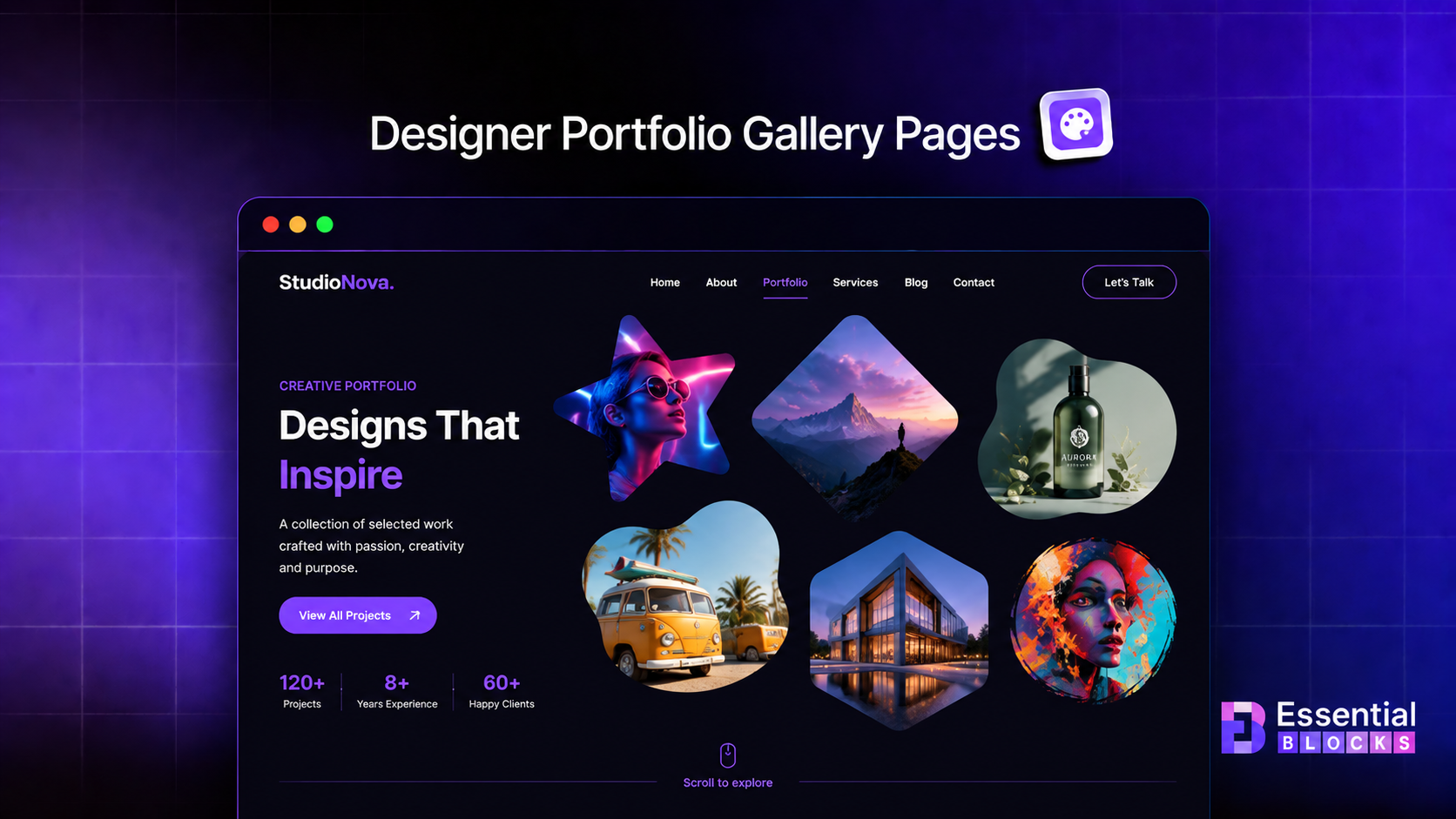
Portfolio Websites
Designers, photographers and creative professionals can use custom image effects to showcase their work in a way that reflects their creativity and expertise.
Best Practices for Using Image Masking And Morphing
Image Masking and Morphing can instantly enhance the visual appeal of your website when used thoughtfully.
A few practical design considerations can help you create engaging image effects that look professional and align with your overall website experience.
- Use high-quality images for the best visual results.
- Match mask styles with your brand identity.
- Apply animations strategically to important sections.
- Avoid excessive motion across multiple page areas.
- Test different shapes to find the best fit for your content.
- Maintain consistency throughout your website design.
Transform Ordinary Images into Engaging Visual Experiences
Visual design plays a significant role in how visitors interact with your website. Small design enhancements can have a major impact on engagement, storytelling and overall user experience.
With Image masking and morphing in Essential Blocks, you can create distinctive image presentations, introduce subtle motion effects and build more engaging layouts directly inside Gutenberg. From team sections and travel pages to restaurant menus and creative portfolios, this feature gives you the tools needed to make your visuals stand out.
If you are looking for a simple way to add creativity and motion to your website without additional design software or custom code, Image masking and morphing is a feature worth exploring.
If you liked our blog, then subscribe to our blog for all the latest updates and join our Facebook community to stay connected with new features, tips and announcements.