Keeping some content private on a WordPress site should not feel complicated. Many site owners want to publish a full page for visitors while still protecting a special section for clients, members, students or subscribers. The challenge is that basic WordPress password protection typically locks the entire post or page, which is not always ideal.
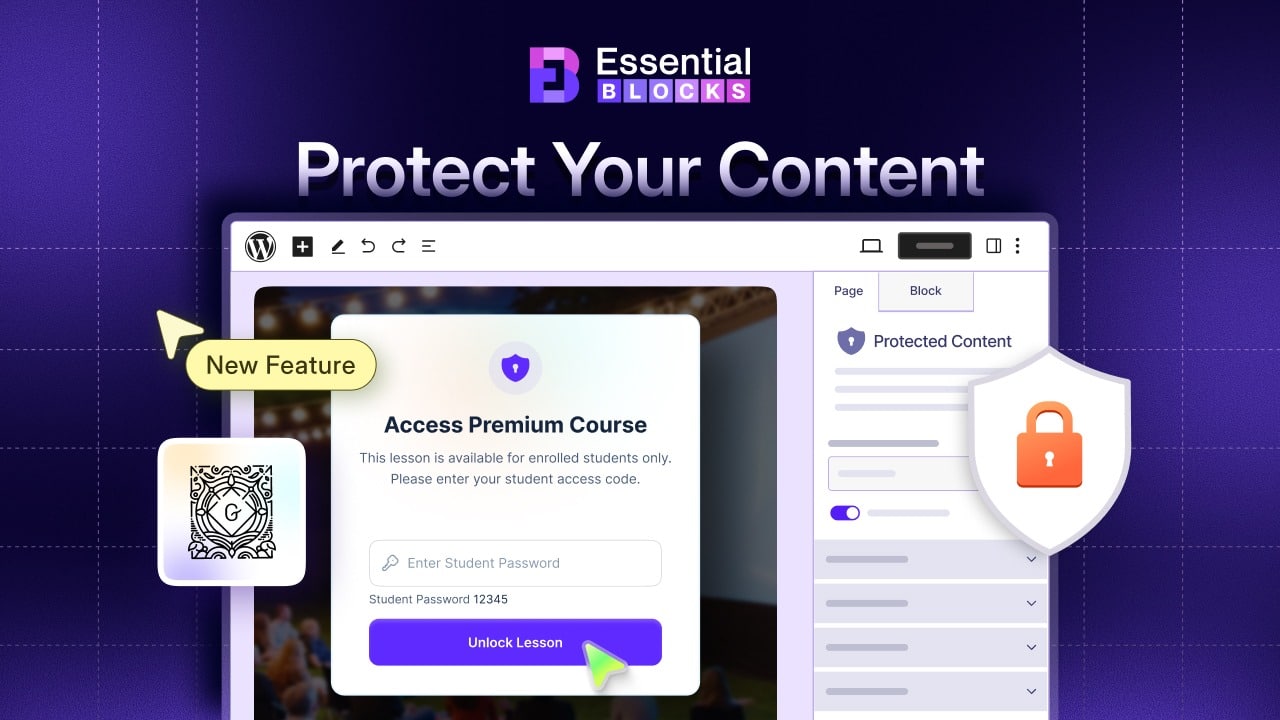
Essential Blocks Protected Content solves this problem by giving you block-level control inside the Gutenberg editor. You can protect only the section that needs restricted access while keeping the rest of the page open and useful for everyone.
This guide will help you understand what Essential Blocks Protected Content does, how to configure it step by step and why it is a smart choice for protected content in WordPress.
What Is Essential Blocks Protected Content?
Essential Blocks Protected Content is a premium content protection feature for the WordPress block editor. It helps you protect specific Gutenberg blocks with a password, instead of locking the entire page.
In simple words, it helps you decide which part of your page should stay public and which part should stay restricted. Visitors can read the open part of the page, but they need the correct password to view the protected section.
This is useful because modern WordPress pages often serve different types of users. One page may include public information, premium resources, client-only notes and subscriber bonuses. With Essential Blocks Protected Content, you can manage those access levels inside the same page.
You can use it to protect many content types, such as:
| Section Type | Description / Purpose |
| Premium blog sections | Exclusive articles available only to members |
| Client-only resources | Materials restricted to specific clients |
| Download links | Files or assets available for secure download |
| Private documents | Confidential files accessible with permission |
| Course materials | Learning resources for enrolled participants |
| Subscriber-only content | Content reserved for subscribers |
| Agency project updates | Internal updates shared with agency clients |
| Bonus templates | Extra design or content templates |
| Special offers | Exclusive deals or promotions |
| Internal notes | Notes visible only to authorized team members |
Why Choose Essential Blocks Protected Content?
There are many ways to protect content in WordPress, but Essential Blocks Protected Content is built for modern Gutenberg websites. It gives you more flexibility than basic full-page password protection and keeps the setup simple for everyday WordPress users.
Protects Specific Blocks
Default WordPress password protection usually locks the whole page or post. Essential Blocks lets you protect only the block that needs access control, so the rest of the page stays visible for visitors and search engines while one section remains private.
Works Inside Gutenberg
You can configure the feature directly from the WordPress block editor. Select the block, enable Protected Content and adjust the options from the sidebar without leaving the editor or managing complex settings. This keeps the workflow fast and familiar.
Requires No Code
You do not need to edit theme files or write custom code. Essential Blocks is built for users who want practical content protection without technical work. It is simple for beginners yet flexible enough for experienced WordPress users.
Gives Better Locked Content Options
You can decide how the protected section appears before access is granted. Hide content for sensitive information, blur or show a partial preview for premium teasers. You can also adjust blur intensity and preview length to match your content strategy.
Supports Smarter Access Control
The unlock session setting improves the experience for trusted users, while rate limiting reduces repeated wrong password attempts. Together, these controls balance convenience with protection and make access more secure.
Helps You Match Your Brand Style
You can customize the lock icon, background color and restriction message. Synced patterns are also available for a more designed access message. These options help the protected section look polished and consistent with your brand.
Safeguards Content from Unauthorized Users
Essential Blocks keeps selected content restricted behind password access. Unauthorized visitors cannot simply open the page or inspect the browser to view the protected block. The correct password must be entered before access is granted.
Fits Different Website Goals
Protected content can support content marketing with gated articles, lead generation through downloads and secure client portals for updates. It is also useful for online courses, subscriber bonuses, premium resources, private pages and internal notes.
How to Configure Essential Blocks Protected Content?
First, open the Gutenberg editor and choose the block you want to secure. Then go to the Advanced tab on the right sidebar and find the ‘Protected Content’ option. Toggle the button to activate it and the block will be locked with password protection.
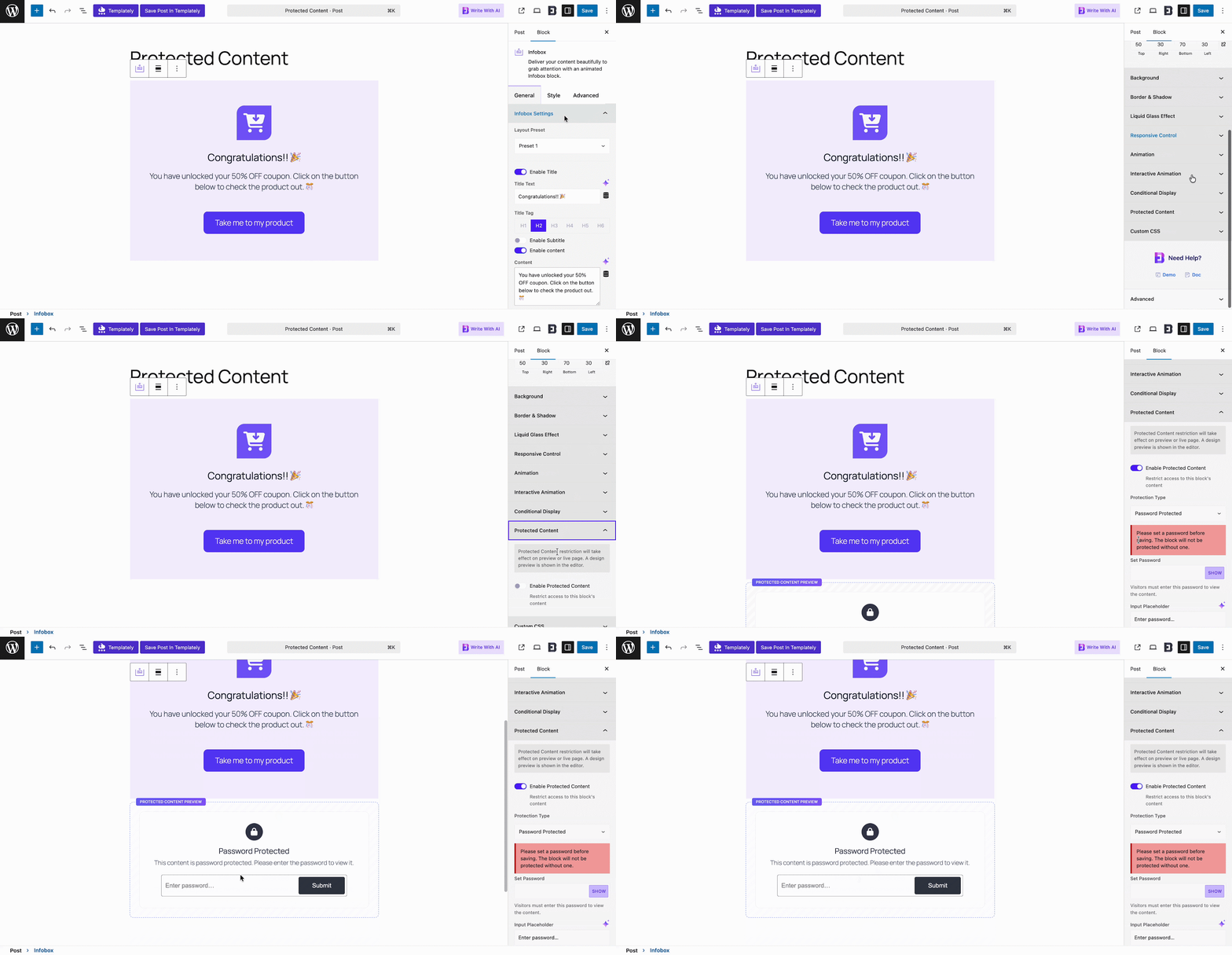
After you enable the Protected Content feature, several options appear for customization. You can set a password, choose a lock pattern and control how the lock works. These options give you the flexibility to secure your block in the way that fits your needs.
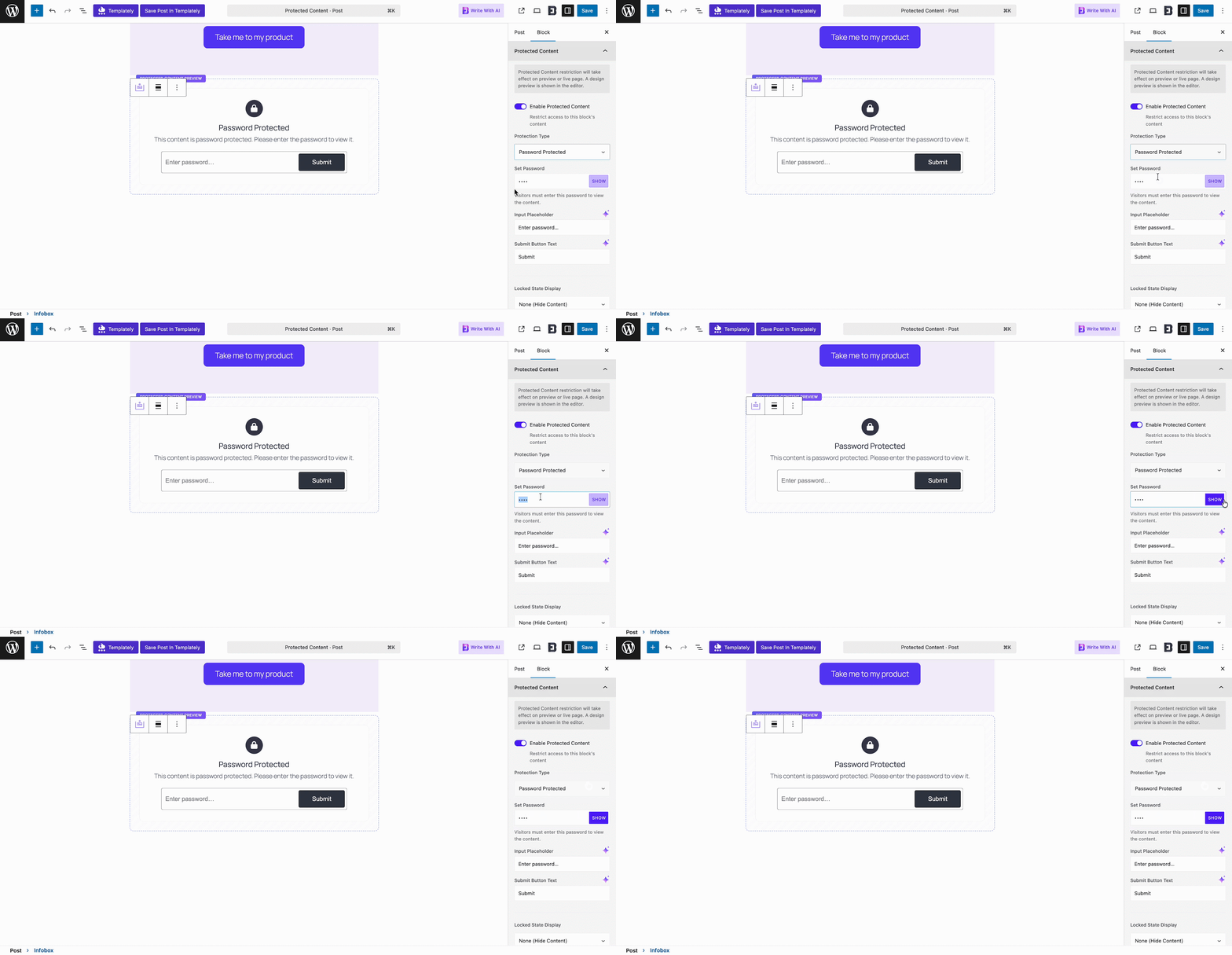
Set the Password
After you turn on the Protected Content feature, the first step is password setup. From the ‘Protection Type’ menu, choose ‘Password Protected’ and enter your password in the input field. This ensures that only users with the correct password can access the block.
Locked State Display
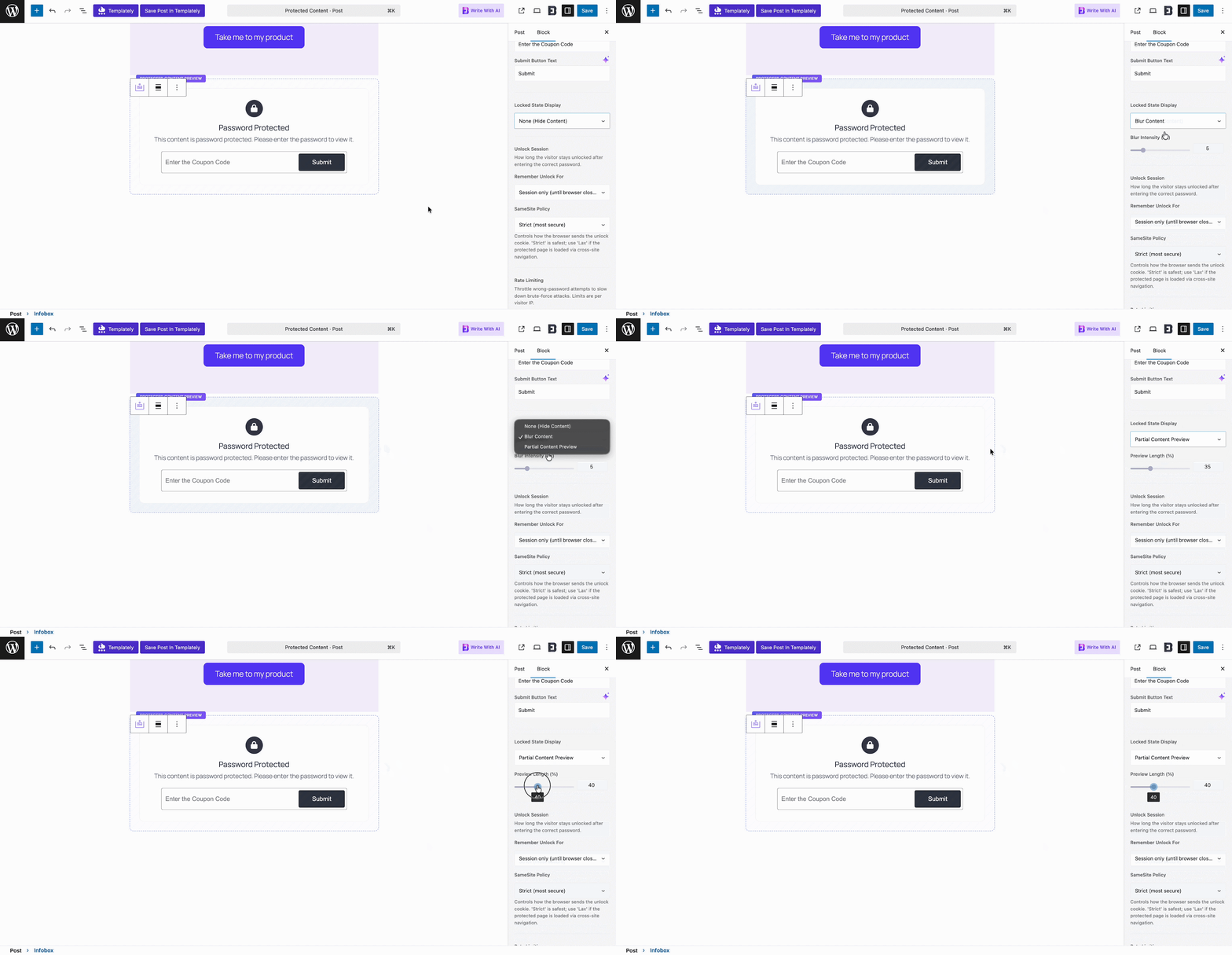
Once the Protected Content feature is active, you can decide how the secured block appears on your site. You may choose to hide the content completely or apply a blur effect with adjustable intensity.
Another option is a partial preview, where visitors see a limited portion of the content.
Set Unlock Session
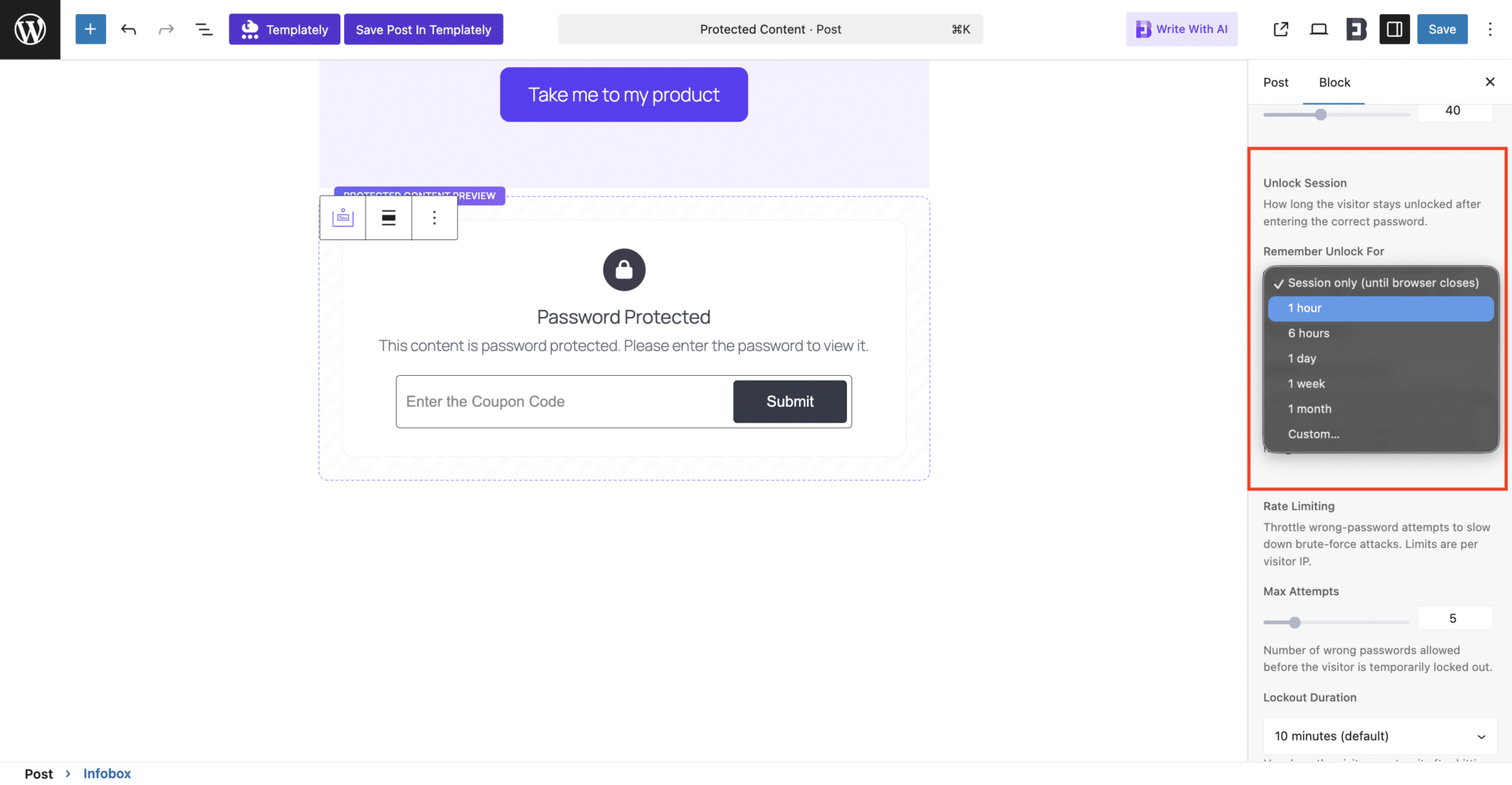
After you enable ‘Protected Content’, you can decide how long visitors keep access once they unlock it. Use the ‘Remember Unlock For’ dropdown menu to select a specific time limit. This setting ensures that access remains temporary and gives you full control over how long the protected block stays open.
Rate Limiting
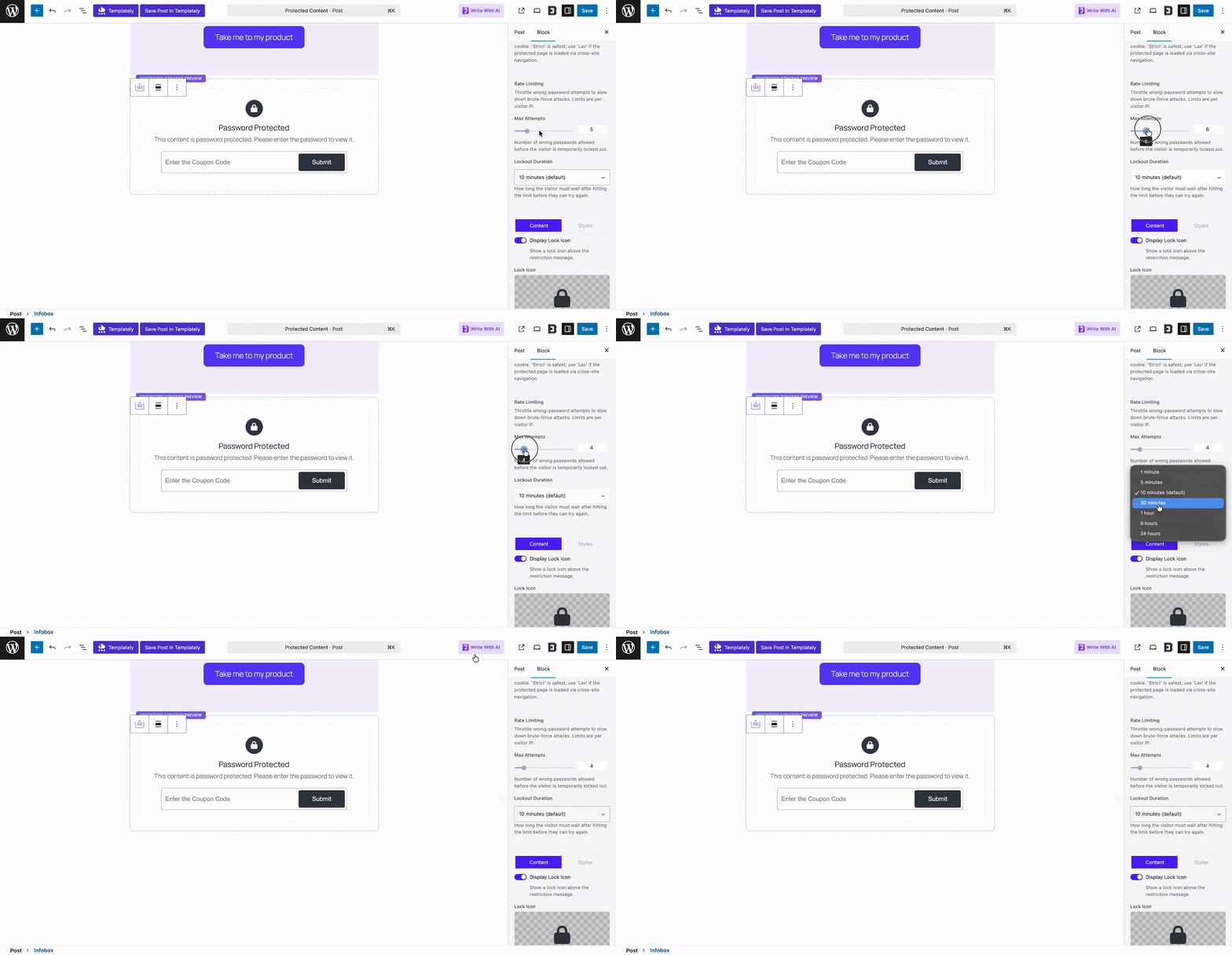
In this section, you can set rules for incorrect password entries. From the ‘Max Attempts’ option, choose how many times a visitor may try to enter the password.
Then use the ‘Lockout Duration’ setting to decide how long the visitor must wait after reaching the limit before they can attempt again. These controls add extra security and prevent repeated guessing of the password.
Lock Icon Customization
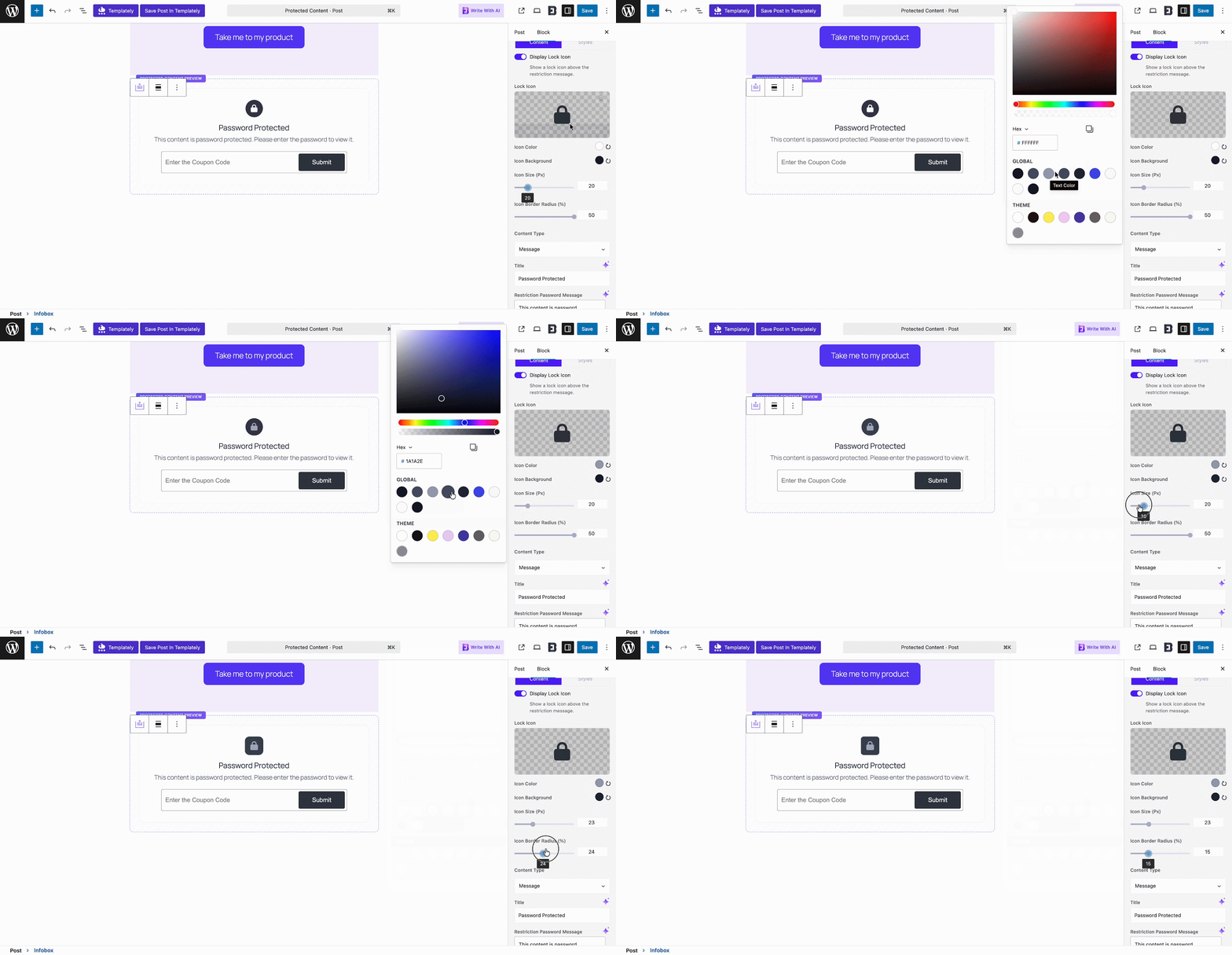
In this section, you can personalize the lock icon for your site. Choose the icon style, set the icon color and background color, and adjust the size to fit your design.
You can also control the border radius to give the icon a sharper or smoother look. These options let you match the lock icon with the overall style of your website.
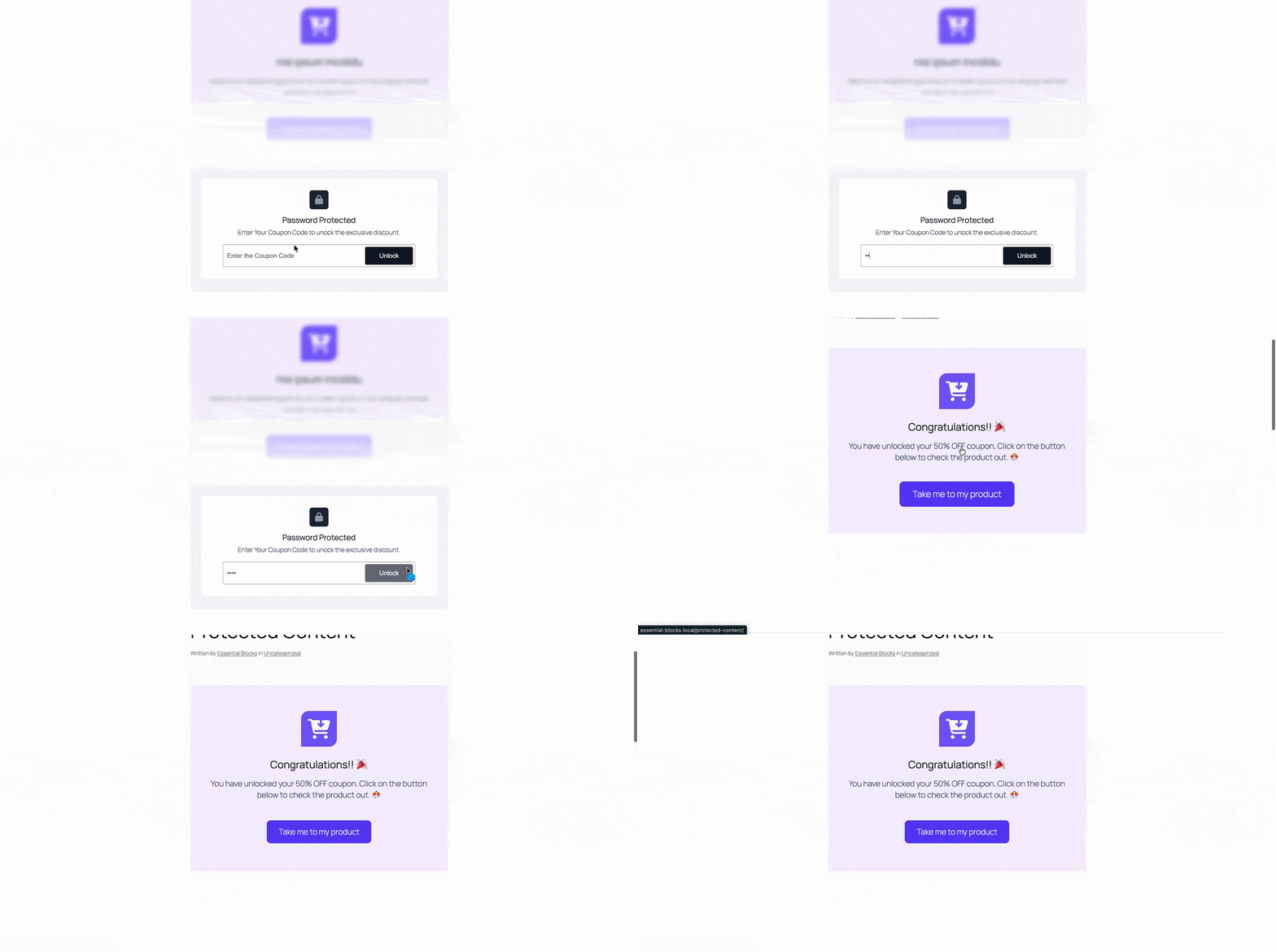
Once publishing is complete, your content becomes password‑protected on the site. Visitors must enter the correct password to unlock and view the protected block. This ensures that only authorized users gain access while keeping your content safe.
See the documentation for more details. It includes step by step guidance to help you get started quickly.
Why Protected Content Matters for WordPress Websites
Not every piece of content should be available to every visitor. Some resources are created for a specific group, such as paying members, active clients, enrolled students or email subscribers.
Without the right content protection system, site owners often face two common problems. They either make the whole page private, which limits the public value of the page, or they share private resources manually through email, which can become messy over time.
Essential Blocks Protected Content gives you a cleaner option. You can keep your main content visible for search engines and public visitors, then protect only the valuable section that needs restricted access.
This works well when you want to:
- Add a protected bonus section for selected users
- Share private files without creating a separate page
- Build a simple premium content experience
- Offer client-only access from your website
- Create subscriber-only resources inside blog posts
This makes the feature useful for bloggers, agencies, course creators, coaches, consultants, membership site owners and WordPress developers.
Practical Use Cases for Essential Blocks Protected Content
Essential Blocks Protected Content is useful because it supports many real website needs. It is not only for membership sites. It can help any WordPress site owner who wants to control access to a specific part of a page.
Restrict Premium Content in WordPress Gutenberg
If you publish premium resources, Essential Blocks Protected Content can help you control access without building a full membership system immediately. This makes your content more valuable and gives readers a reason to take the next step.
You can protect:
- Paid guides
- Bonus chapters
- Downloadable templates
- Premium checklists
- Exclusive tutorials
- Subscriber-only updates
Example: You publish a public blog post with helpful tips. At the end, you add a premium checklist and protect it with a password. You can share the password with paid users or email subscribers.
Share Client-Only Resources
Agencies, freelancers and consultants often need to share private resources with clients. Instead of sending everything through email, you can create a client resource page and protect the private section with a password. This keeps your client communication cleaner and more professional.
You can protect:
- Project links
- Work updates
- Brand assets
- Strategy notes
- Private reports
- Client instructions
- Approval documents
Example: You create a page called Client Project Hub. The top section explains the project status. The protected section includes download links, reports and private notes. Only the client with the password can access that section.
Protect Course Lessons And Training Materials
Online educators can use protected blocks to manage access to learning resources. This keeps your course content organized and easy to manage inside WordPress.
You can protect:
- Lesson files
- Video sections
- Homework instructions
- Downloadable worksheets
- Private training notes
- Bonus learning materials
Example: You create a course lesson page. The lesson overview is public, but the worksheet and practice files are protected. Students enter the lesson password to unlock the materials.
Add Subscriber-Only Bonuses to Blog Posts
If you want to reward subscribers, you can add protected bonus sections inside normal blog posts. The public post gives value to all readers. The protected section gives extra value to subscribers. This helps you create a stronger reason for visitors to subscribe, return and engage with your content.
You can protect:
- Bonus tips
- Extra examples
- Download links
- Resource lists
- Swipe files
- Templates
Hide Sensitive Page Sections without Hiding the Full Page
Sometimes a page should stay public, but one section should stay private. Essential Blocks Protected Content helps you do that without changing the full page structure. This gives you more control over mixed-access pages.
You can use it for:
- Event pages with private joining links
- Product pages with wholesale details
- Team pages with internal notes
- Resource pages with restricted files
- Service pages with client-only instructions
Best Practices for Protected Content in WordPress
Protecting content is not just about locking it away; it is about creating a thoughtful experience for your visitors. When used with a clear purpose, the Protected Content feature can build trust, highlight value and encourage engagement.
Follow these simple practices that balance security with usability:
| Best Practice | Key Action | Benefit |
| Clear Purpose | Use protected content only with intention | Creates meaningful experience and avoids unnecessary restrictions |
| Keep Public Content Useful | Share valuable content openly, protect bonus or premium sections | Builds trust and shows value before asking visitors to unlock |
| Use Clear Access Messages | Explain why content is protected and who can access it | Reduces confusion and increases transparency |
| Examples of Access Messages | ‘Bonus guide for subscribers only’ ‘Section for approved clients’ ‘Enter course password to unlock lesson.’ | Provides clarity and sets expectations |
| Choose Right Locked Display | Hide for sensitive info, Blur for teasers, Partial preview for conversion | Makes protection feel intentional and aligned with content type |
| Test Before Sharing | Check correct and incorrect passwords, mobile and desktop views | Prevents issues and ensures a smooth user experience |
| Use Smart Passwords | Avoid weak passwords like ‘123456.’ Use simple phrases relevant to the group | Balances ease of use with security |
Turn Protected Content into a Smarter WordPress Experience
Protected content should feel clear, useful and easy to access for the right audience. If you want to create protected content in WordPress with more control and less complexity, Essential Blocks Protected Content is a smart feature to use.
Try Essential Blocks Protected Content today and start building safer, cleaner and more valuable protected sections inside your WordPress website.
If you liked our blog, then subscribe to our blog for all the latest updates and join our Facebook community to stay connected with new features, tips and announcements.