
If you run a WooCommerce store, you already know that product images alone are not always enough to convince a buyer to click ‘Add to Cart.’ Shoppers want to see products in action. They want to understand size, texture, functionality and real-world usage before spending their money. That is where a product video gallery for WooCommerce becomes a game-changer for your online store.
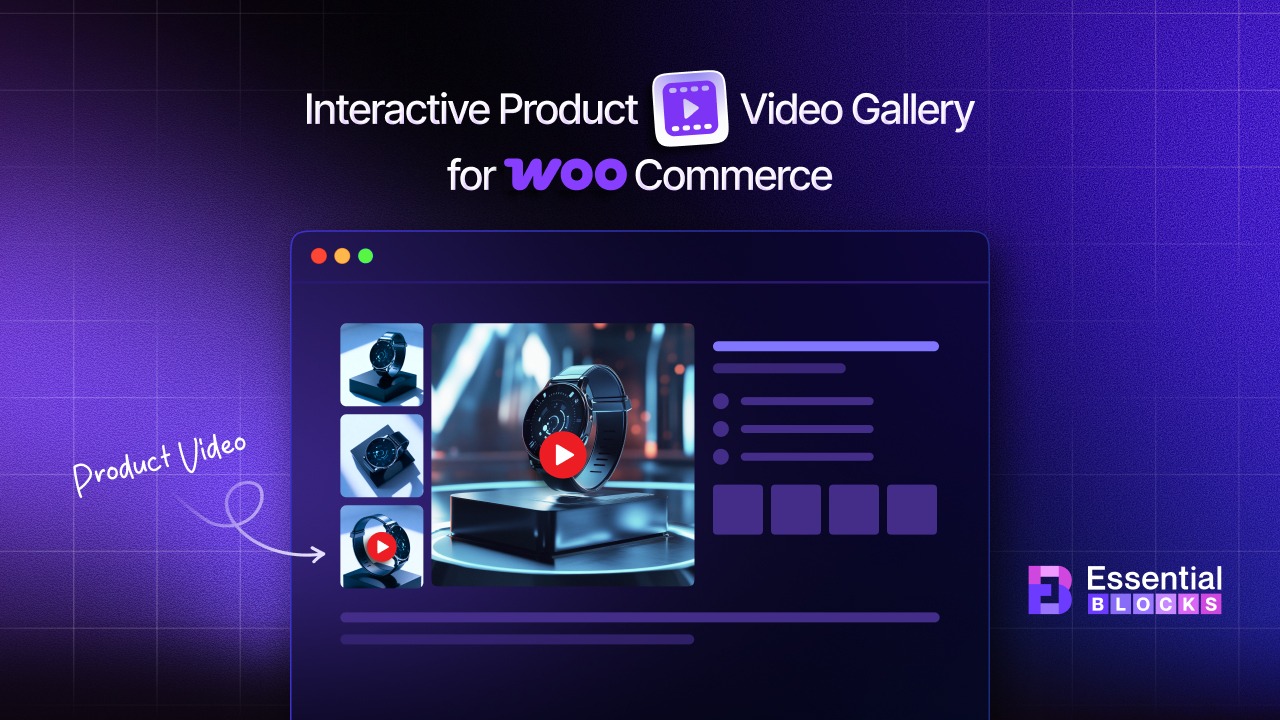
In this guide, you will learn simple, proven ways to create a fully interactive WooCommerce video gallery that looks professional, loads fast and helps you close more sales. Whether you are a beginner or an experienced WordPress user, this step-by-step walkthrough will get your product videos live without any coding required.
Why a Product Video Gallery for WooCommerce Matters More Than Ever in 2026
Consumers are more visual than ever. Research from Wyzowl’s 2024 State of Video Marketing Report found that 91% of businesses now use video as a marketing tool, up from just 61% in 2016. More importantly, 96% of people say they have watched an explainer video to learn more about a product or service. These numbers are not surprising given how heavily video-driven platforms like TikTok, YouTube and Instagram have shaped buying habits.
For WooCommerce store owners, this translates directly into revenue. Stores that use product videos on WooCommerce product pages consistently see higher average session times, lower bounce rates and better add-to-cart rates compared to image-only galleries.
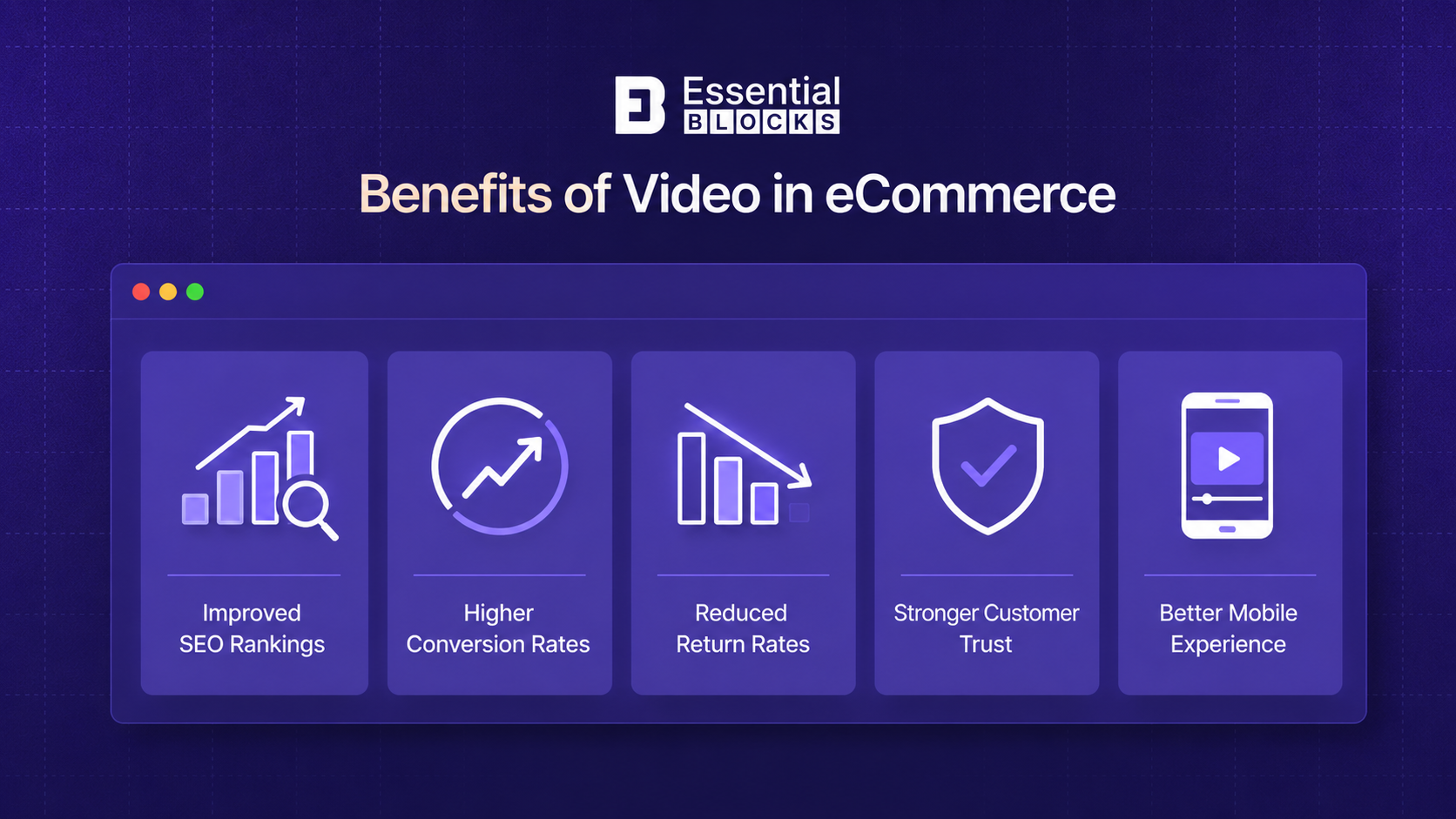
A closer look at the specific benefits of adding a WooCommerce product video to your store:
Stronger SEO Performance
Pages with video content tend to rank higher in Google search results. Video also increases time-on-page, and longer dwell times send a positive signal to Google’s ranking algorithm.
A product page enriched with video gives search engines more context to index, helps you compete for video-rich snippets and keeps shoppers on the page long enough to convert. This is the single biggest long-term payoff, which is why it leads the list.
Higher Conversion Rates
Product videos help shoppers make confident purchase decisions. When a buyer can watch a product move, fit and function before checkout, hesitation drops and add-to-cart rates climb.
Stores that pair video with their product images consistently outperform image-only pages on this metric.
Lower Return Rates
When customers see exactly what they are buying, there are fewer surprises after delivery. Accurate expectations mean fewer ‘this isn’t what I pictured’ returns, which protects both your margins and your reviews.
Greater Customer Trust
A detailed product video builds transparency, especially for high-ticket or technically complex products. Showing the real item, rather than a polished stock photo, signals that you have nothing to hide and reassures first-time buyers.
Mobile-Friendly Engagement
A well-built, mobile-responsive WooCommerce video gallery keeps phone shoppers engaged longer, which matters a great deal given that over 70% of eCommerce traffic now comes from mobile devices. Tap-to-play videos are easier to consume on a small screen than pinch-to-zoom images.
What Makes a Great WooCommerce Product Video Gallery?
Not all video galleries are created equal. Before choosing your setup method, you should understand what features separate a basic video embed from a truly engaging WooCommerce video gallery.
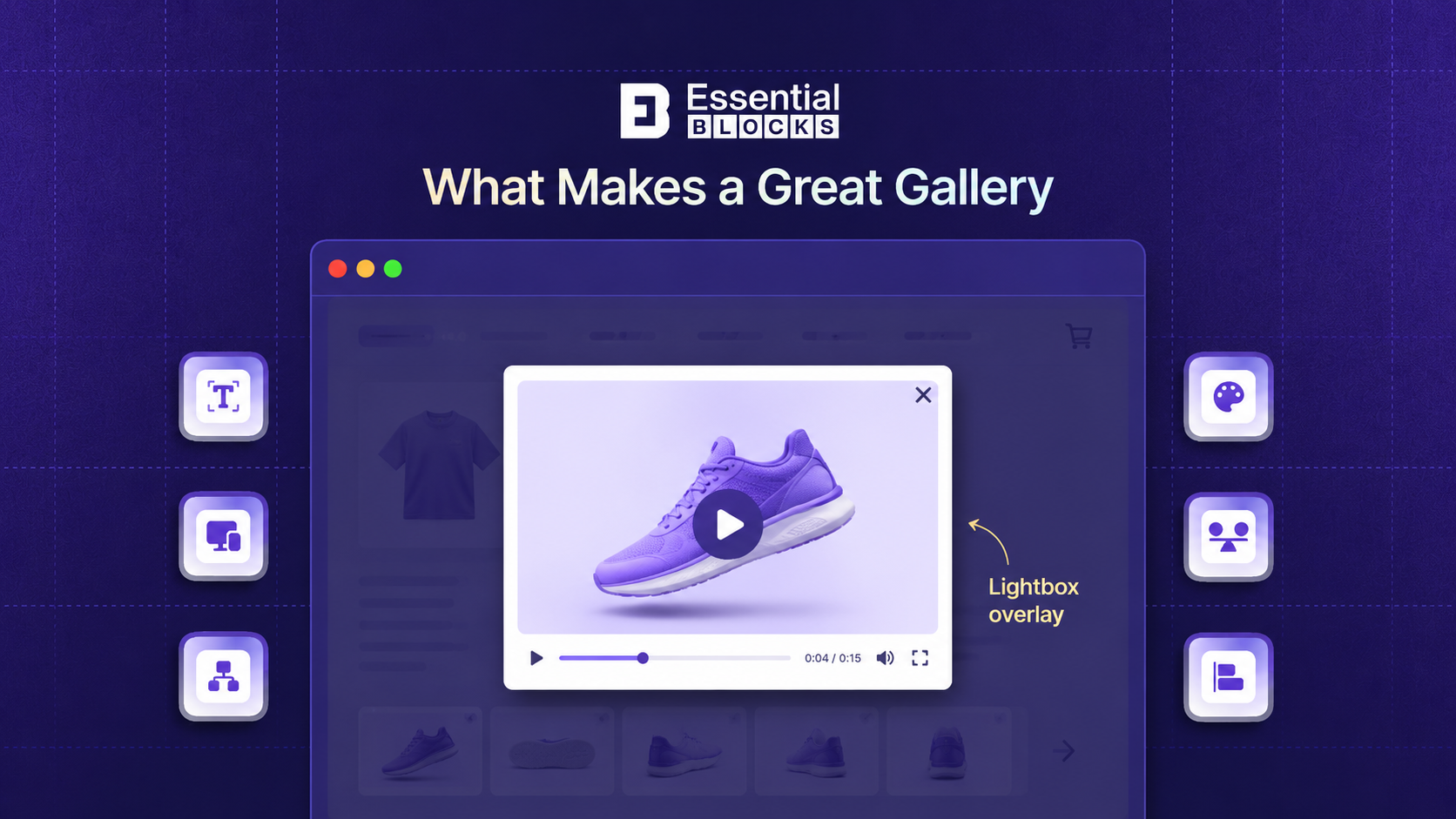
A high-quality product video gallery for WooCommerce should include:
- Thumbnail navigation: Shoppers should be able to switch between images and videos using a clean thumbnail strip below or beside the main viewer.
- Lightbox support: Clicking a video should open it in a full-screen or overlay lightbox for a distraction-free viewing experience.
- YouTube and Vimeo compatibility: Your gallery should support both of the most popular video hosting platforms, making it easy to add YouTube videos to WooCommerce product pages and add Vimeo videos to WooCommerce pages without technical headaches.
- Autoplay options: An autoplay video WooCommerce product page setting lets you play videos automatically on page load, capturing attention immediately.
- Zoom integration: Combining video with image zoom features creates a more complete product exploration experience.
- Mobile responsiveness: The gallery must look and function perfectly on phones and tablets.
- Fast loading: Heavy or poorly optimized video players slow down your site and hurt both rankings and conversions.
Now, let us look at the main methods to achieve all of this.
Method 1: Use the WooCommerce Product Video Extension
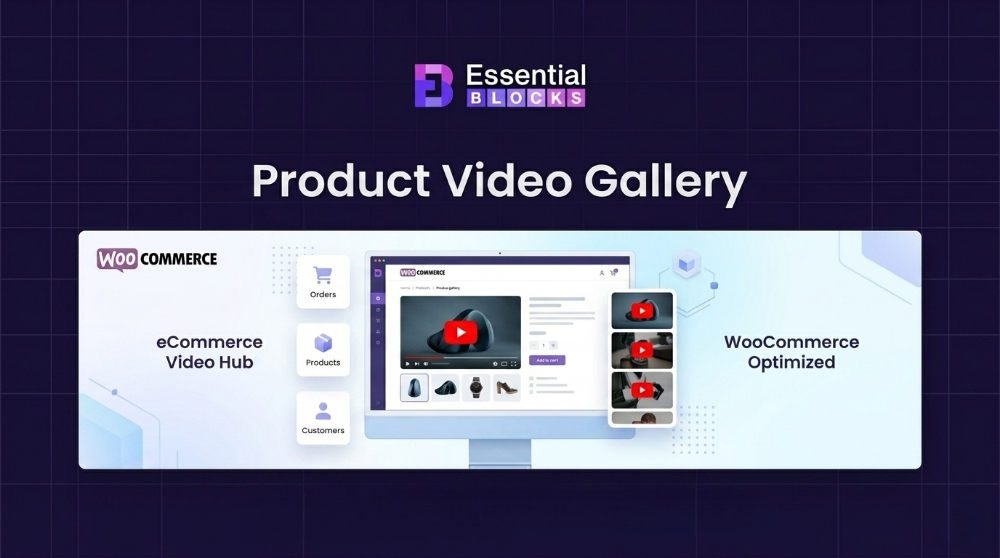
WooCommerce offers an official Product Video extension that lets you replace static images with engaging videos directly on your product pages. You can add videos through direct URLs or file uploads and surface them with a dedicated video bar for a smoother viewing experience, all without writing a line of code.
Getting Started with Installation
Start by downloading the plugin from WooCommerce.com via the ‘Add to store’ option or your My Subscriptions area. After downloading the .zip file, go to WordPress Admin, open Plugins, select Add New and upload the file. Once installed, activate the plugin to begin setup.
Setup And Configuration Guide
After activation, a ‘Featured Video’ section becomes available in WooCommerce settings. From here, you can control global options such as auto play, mute, full screen mode, looping, video controls, layout style and display settings for shop and product pages. You can also define video dimensions and save your configuration once done.
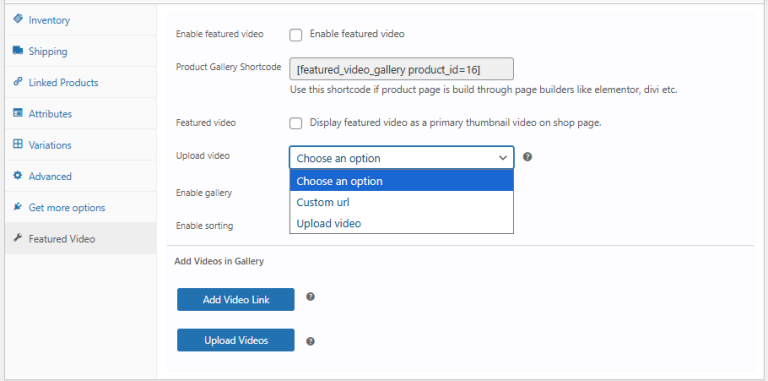
Image source: WooCommerce — Add Featured Videos in Product Gallery
You will also find settings for a Launch Video button, where you can enable it on shop pages, customize the label, and adjust colors to match your store design.
For further customization, a Custom CSS option allows you to fine-tune the appearance to fit your branding.
Product-Level Video Settings
Inside any product, go to the Product Data panel and open the Featured Video tab. Enable the feature, then upload a video file or paste a link from platforms like YouTube, Vimeo, or Dailymotion. This video can replace the featured image or act as the main product thumbnail if enabled.
You can also activate video support in the product gallery and allow multiple videos with sorting options for better control.
Add Videos to Product Variations
For variable products, open the Variations section in the product editor. Select a variation and add a video either by uploading or pasting a link. Each variation can display its own video, giving customers a clearer view of product options.
Go through the documentation to discover everything in detail.
Method 2: Use a WooCommerce Product Video Gallery Plugin
A dedicated WooCommerce product video gallery plugin unlocks features that the default setup simply cannot provide. Plugins let you create a fully interactive, beautifully designed gallery with thumbnails, zoom, lightbox and autoplay all working together smoothly.
How to Add Videos to WooCommerce Product Galleries
Follow these quick steps to add product videos to your WooCommerce galleries and shop pages:
Step 1: Install & Activate WooGallery
WooGallery is a simple plugin that helps you create engaging WooCommerce product galleries. It allows you to add unlimited images and videos to product pages, including variable products and shop pages, along with features like sliders, lightbox and zoom. Install and activate WooGallery to begin.
Step 2: Add Videos to Product Gallery
Go to the Products section and open an existing product or create a new one. Click on ‘Add product gallery images,’ upload a thumbnail and paste your video link. You can add videos from platforms like YouTube or Vimeo. Save the product once done. You can repeat the process to add multiple videos.
Step 3: Customize Gallery Design
WooGallery provides various design options to make your gallery more interactive. You can choose different layouts, adjust sliders, change thumbnail positions, and apply zoom or hover effects. Customize these settings based on your store design.
Step 4: Update the Gallery
After adding videos and adjusting the design, click Update or Publish on the product page. Then save the plugin settings from the top right to apply the changes. Your product video gallery is now ready.
Explore the documentation for more details and deeper insights.
eCommerce Product Video Best Practices for WooCommerce in 2026
Even the best plugin or block setup will underperform if your actual videos are not optimized. Here are the key eCommerce product video best practices to follow: