A website header menu is more than a navigation bar. It guides visitors, highlights important pages and improves the browsing experience from the very first click. With modern Gutenberg tools, you can now build interactive and visually engaging header menus without touching code.
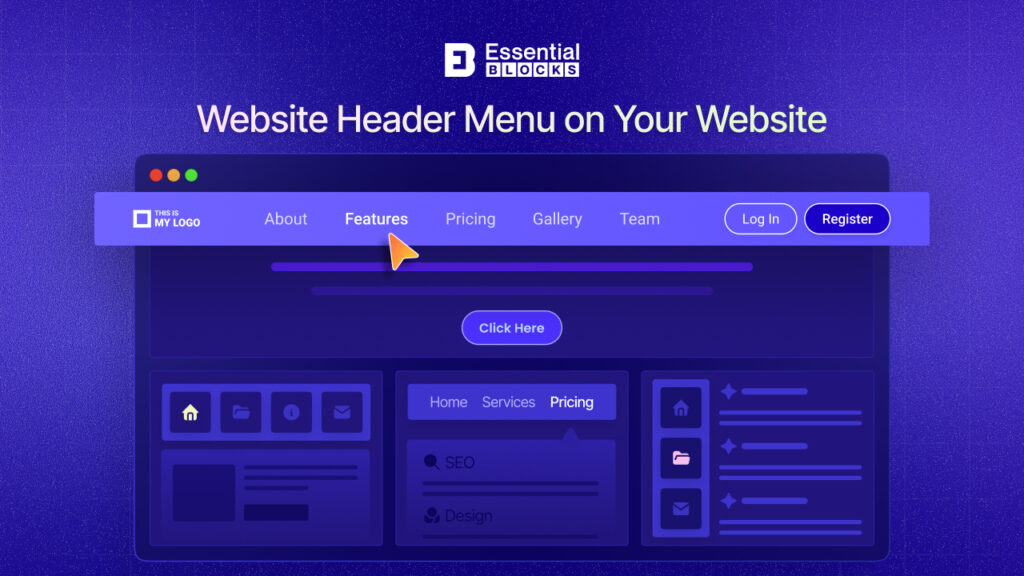
If you are building a WordPress website with the block editor, there are several creative ways to design a powerful header menu that looks modern and works smoothly across devices. In this guide, we will explore five creative and Gutenberg-friendly ways to add a website header menu in WordPress.
Why Your Website Header Menu Matters
Your website header menu helps users quickly find information, products, blog posts or services. A poorly designed navigation system can increase bounce rates and reduce conversions. With Gutenberg, you can now create more dynamic navigation experiences using blocks and visual builders.
A well-structured menu can help you:
- Improve website navigation
- Showcase important pages
- Increase user engagement
- Enhance mobile browsing experience
- Support SEO and accessibility
- Highlight products, categories, or offers
So, how do you actually build a better header menu in WordPress? Let’s break it down into five creative and practical approaches you can use right away.
1. Create Advanced Mega Menus with Essential Blocks
A mega menu can completely transform how users explore your website. Instead of showing only a simple dropdown list, mega menus allow you to organize large amounts of content in a structured and visually engaging layout. This type of navigation is especially useful for websites with multiple categories, products, services, or resources.
For modern WordPress websites, mega menus help improve content discoverability and create a smoother browsing experience. Users can instantly access featured pages, blog categories, products, or important links without multiple clicks. This approach also makes the header look more professional and interactive.
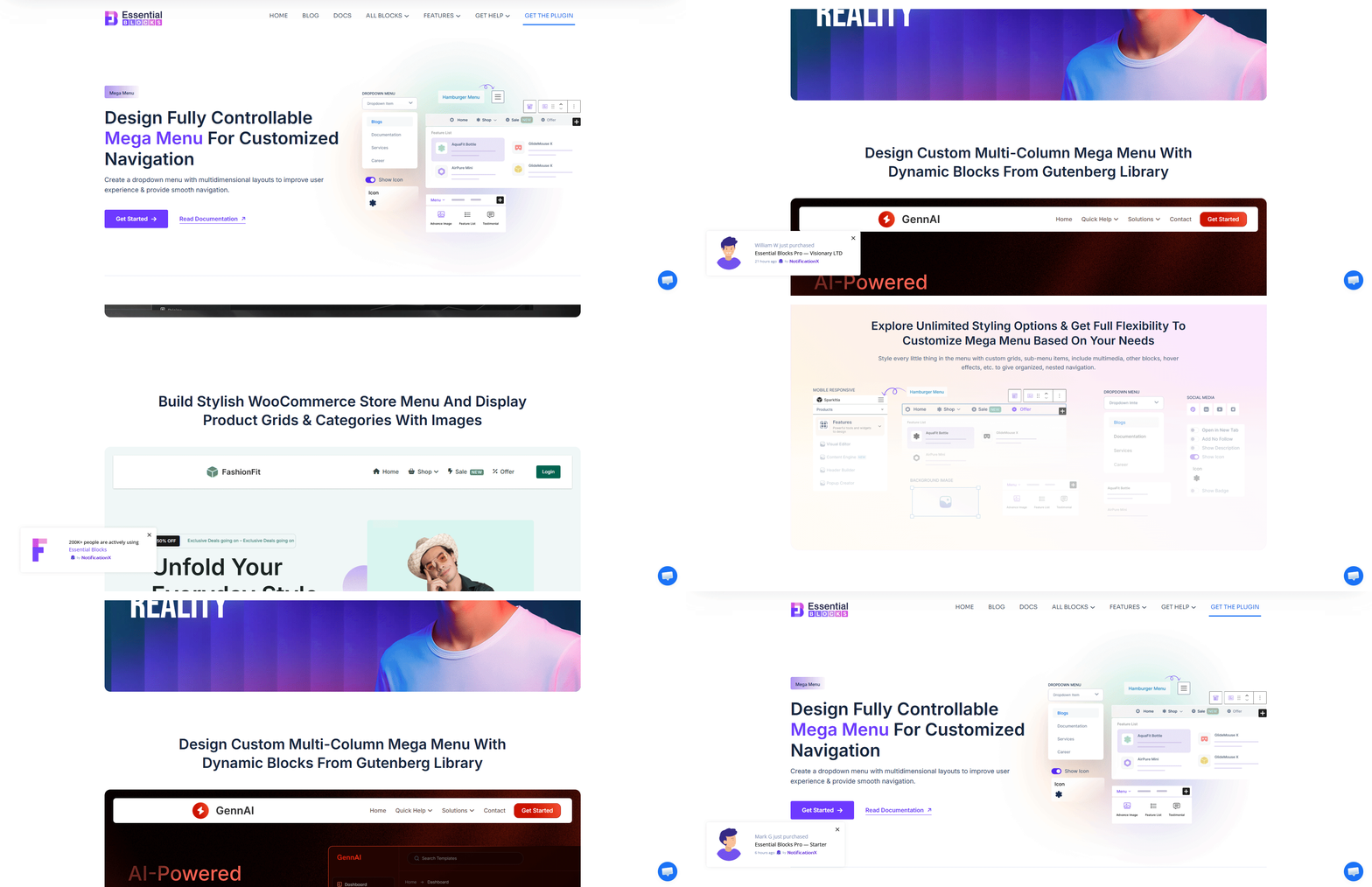
If you are using Gutenberg, Essential Blocks Mega Menu offers one of the easiest ways to create advanced navigation layouts directly inside the block editor. Since it works natively with Gutenberg, you can design menu content visually without relying on external builders or coding.
Unlike traditional dropdown menus, mega menus allow you to display multiple navigation sections, featured content, images, buttons, icons and even templates inside a large expandable panel.
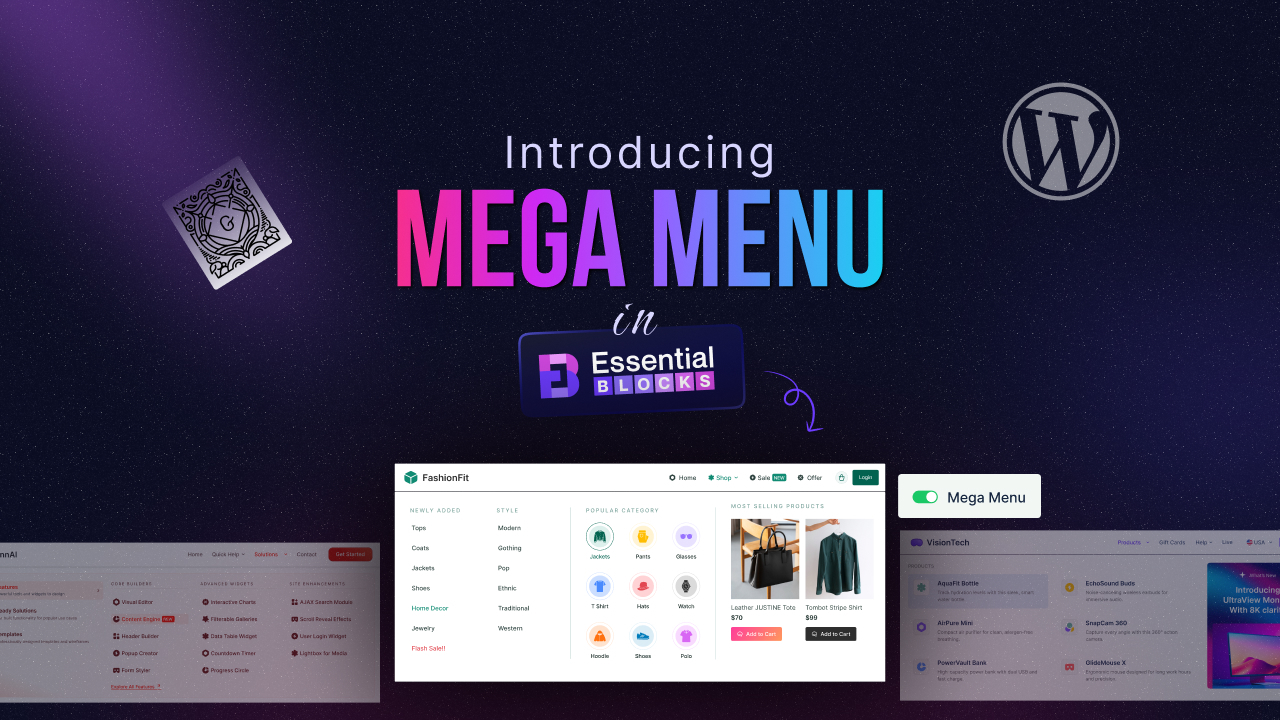
For Gutenberg users, the easiest way to create this experience is with the Essential Blocks Mega Menu.
This approach works especially well for:
- eCommerce websites
- SaaS websites
- News portals
- Educational websites
- Agency websites
- Large content-driven blogs
Creative Ways to Use Mega Menus
Mega menus are more than just navigation tools; they can transform how visitors explore your site. By combining visuals, structured layouts and interactive elements, you can highlight products, categories, or content in a way that feels engaging and easy to browse.
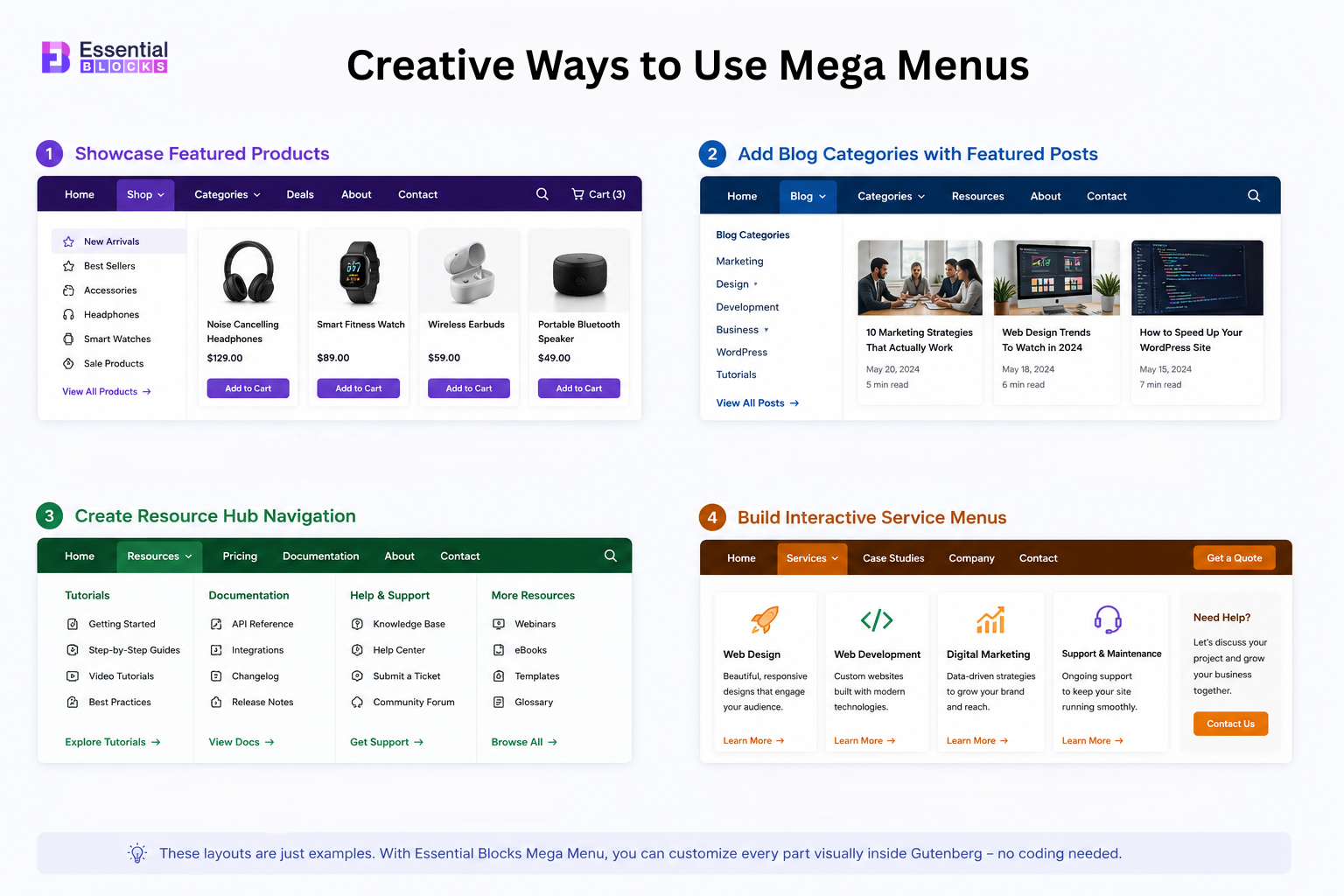
Some creative menu ideas you can build using Essential Blocks Mega Menu:
Showcase Featured Products
Highlight your top‑selling or seasonal products directly inside the navigation menu. Use product images, short descriptions, pricing details and clear call‑to‑action buttons to encourage clicks. This approach turns your menu into a mini storefront, helping visitors discover and purchase items faster without extra browsing.
Add Blog Categories with Featured Posts
Organize your blog content by displaying popular categories in the menu. Pair each category with a featured article, thumbnail image or short excerpt to spark interest. This not only improves content discovery but also drives more traffic to posts that matter most to your audience.
Create Resource Hub Navigation
Transform your menu into a structured resource hub by grouping tutorials, documentation, videos and support links. A well‑organized layout makes it easy for users to find the help they need quickly. This is especially valuable for SaaS platforms, online courses or businesses offering technical products.
Build Interactive Service Menus
Agencies and service providers can use mega menus to showcase offerings with icons, short descriptions and direct contact buttons. This interactive design helps visitors understand services at a glance and makes it simple to reach out for inquiries or bookings.
2. Add Sticky Header Navigation for Better User Experience
Sticky header navigation has become a standard feature for modern websites because it improves accessibility and keeps important navigation links within reach at all times. Instead of disappearing while users scroll, the menu remains visible at the top of the screen. This creates a more convenient browsing experience, especially on content-heavy websites.
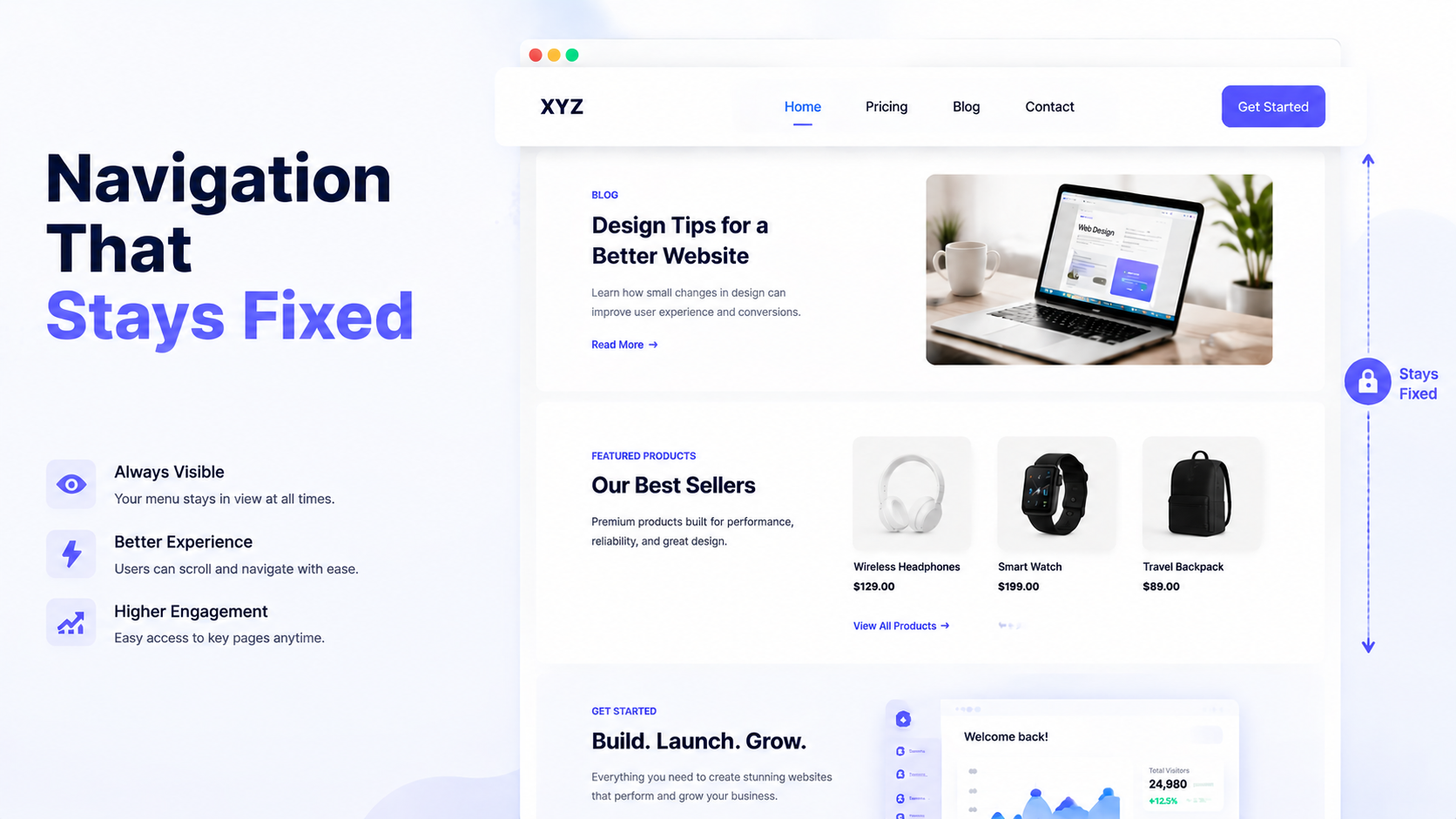
A sticky header can also improve user engagement and conversions. Visitors can quickly access pricing pages, product categories, contact forms, or CTA buttons without returning to the top of the page. This is particularly helpful for online stores, SaaS websites and blogs with long-form content.
Creating sticky navigation is now easier than before. You can customize the header layout, scrolling behavior and visual effects without writing custom code.
A sticky header keeps your navigation menu visible while visitors scroll through the page.
This improves accessibility and helps users quickly navigate without scrolling back to the top. Sticky headers are especially useful for:
- Long-form blog posts
- Online stores
- Landing pages
- Membership websites
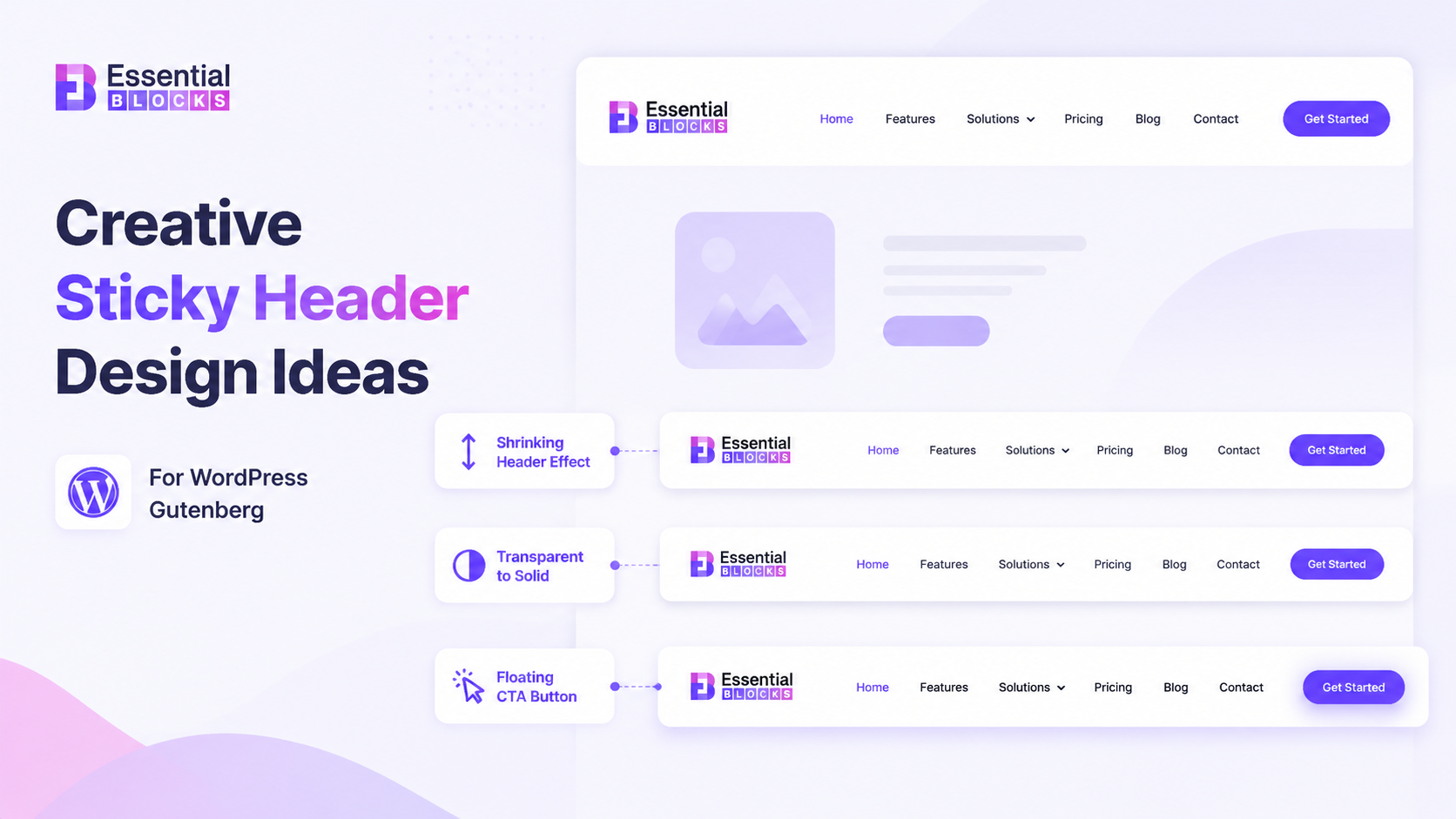
Creative Sticky Header Ideas
Sticky headers are not just about keeping navigation visible; they can add style, functionality and a touch of creativity to your site. With the right design approach, a sticky header can guide users smoothly, highlight key actions and enhance the overall browsing experience.
Shrinking Header Effect
Start with a larger, visually striking header that immediately grabs attention. As users scroll down, the header smoothly transitions into a compact version, keeping navigation accessible without taking up too much screen space. This effect improves readability and creates a sleek, modern browsing experience.
Transparent to Solid Header Transition
Use a transparent header over hero images or banners to create a clean, immersive look. As visitors scroll, the header gradually shifts to a solid background color, ensuring text and navigation remain clear against different page sections. This transition adds polish while maintaining usability.
Floating CTA Button Inside Header
Enhance your sticky header by embedding a bold call‑to‑action button. Options like Get Started, Contact Us, Book Demo or Shop Now can remain visible at all times, encouraging conversions without disrupting the browsing flow. Positioning the button prominently within the header ensures it’s always within reach, whether on desktop or mobile.
3. Use Off-Canvas Mobile Menus for Modern Navigation
As mobile browsing continues to dominate web traffic, website navigation must become more responsive and mobile-friendly. Traditional menus often take up too much space on smaller screens and can create cluttered layouts that feel harder to use. Off-canvas menus solve this by keeping navigation hidden inside a collapsible sidebar that slides into view when needed, giving users access only when they want it.
This creates a cleaner and more modern user experience. Visitors can move through important pages quickly while keeping the interface minimal and distraction-free. Off-canvas menus are also widely used in modern apps and premium websites because they feel intuitive, structured and visually polished across devices.
For WordPress users, Gutenberg makes this even more flexible by letting you build responsive layouts using blocks and native settings. You can enhance the off-canvas panel with icons, buttons, banners and dynamic content to improve usability and make navigation more engaging.
Overall, off-canvas navigation fits naturally into mobile-first design. It keeps menus accessible without overwhelming the screen, offering a smooth app-like browsing experience through a simple side-panel interaction.
Benefits of Off‑Canvas Menus
Off‑canvas menus slide in from the side of the screen, offering a modern way to present navigation without cluttering the main layout. They are especially useful for mobile and content‑heavy websites.
Why they stand out:
- Saves screen space: By keeping navigation hidden until needed, off‑canvas menus maximize the visible area for content.
- Improves mobile usability: Mobile users benefit from a clean interface where navigation is accessible but not intrusive.
- Keeps navigation organized: Complex menus can be neatly tucked away, reducing visual noise and improving user focus.
- Supports large menu structures: Perfect for eCommerce or membership sites with multiple categories, sub‑menus and links.
- Creates cleaner layouts: Designers can maintain a minimalist look while still offering robust navigation options.
Creative Off‑Canvas Menu Ideas
Off‑canvas menus are not just a space‑saving navigation trick; they can be transformed into powerful engagement tools. By sliding in from the side, they give you extra room to add features that go beyond simple links. From social media integration to personalized account shortcuts and promotional banners, creative off‑canvas menus can enhance usability, drive conversions and make your site feel more dynamic.
Beyond basic navigation, off‑canvas menus can be customized to add functionality and enhance user engagement. Here are some creative ways to use them:
Add Social Media Icons
Include links to your social media profiles directly inside the mobile menu. This keeps your brand connected across platforms and encourages users to engage beyond your website.
Add User Account Shortcuts
For membership sites, online stores, or WooCommerce setups, off‑canvas menus can feature quick links like My Account, Wishlist, Orders, or Dashboard. This makes account management seamless and user‑friendly.
Include Promotional Sections
Turn your menu into a marketing tool by adding banners, seasonal promotions or limited‑time offers. This ensures visitors see key campaigns without relying solely on homepage visibility.
4. Build Icon-Based Navigation Menus
Visual navigation has become increasingly popular in modern web design because it helps users identify menu items faster. Icon-based menus improve the browsing experience by making navigation more intuitive and visually appealing. Instead of reading every text label, users can quickly recognize sections through familiar icons, which reduces effort and improves overall usability.
This approach works especially well for tech websites, SaaS platforms, portfolios and eCommerce stores where clean design and user experience play a key role. It also helps create a more structured and modern header layout. When combined with subtle hover effects and animations, icon menus can further enhance the visual appeal and give your website a more polished, premium feel.
So how does this work inside WordPress using the Gutenberg block editor? With Gutenberg, you can easily add icons to navigation menus using blocks, icon libraries and Gutenberg-friendly plugins. This allows you to create highly customized navigation layouts while maintaining design consistency across your website and keeping everything easy to manage.
Why Icon Menus Work
Icon‑based menus are powerful because they simplify navigation and make actions instantly recognizable. Instead of scanning through text, users can quickly identify what they need by associating familiar symbols with functions. For example, a home icon immediately signals the homepage, a cart icon points to shopping, a search icon invites exploration and a user profile icon directs to account settings.
Even specialized sites can benefit; a documentation icon helps tech users find resources faster. This approach is especially effective for tech websites, SaaS dashboards, online stores and portfolio websites, where clarity and speed of navigation are critical.
Creative Icon Menu Ideas
Icons do not have to be static or purely functional; they can be styled creatively to enhance user experience and brand personality.
Here are some ways to make icon menus more engaging:
Minimal Navigation Layout
For modern, minimalist websites, icons can replace bulky text menus. Pair compact icons with subtle tooltips so users still understand their purpose. This creates a sleek, uncluttered interface that feels contemporary while remaining user‑friendly.
Interactive Hover Effects
Icons can come alive with hover animations, color transitions, or underline effects. These micro‑interactions add personality to your site and guide users visually, making navigation feel more dynamic and engaging.
Mixed Icon And Text Navigation
Sometimes clarity matters more than minimalism. Combining icons with text labels ensures users instantly understand each option. This hybrid approach balances aesthetics with usability, making it ideal for sites with diverse audiences or complex navigation structures.
5. Add Dynamic Search And Smart Navigation Features
Modern website navigation is no longer limited to simple menu links. Many websites now use interactive header elements that help visitors discover content faster and improve the overall browsing experience. Features like live search, dynamic categories and personalized navigation can make a website feel more responsive and user-focused.
Smart navigation features are particularly effective for online stores, large blogs, membership websites and content-heavy platforms. Instead of forcing users to browse manually, these features help visitors instantly find products, articles or resources.
You can create dynamic navigation systems without custom coding. Combining search functionality with interactive menu elements can significantly improve usability and engagement.
Creative Smart Header Features
Smart headers go beyond simple navigation; they enhance usability, personalize the browsing experience and keep key actions within reach. By integrating dynamic elements into your header, you can guide users more effectively and create a seamless journey across your site.
AJAX Search Bar
A live search bar built with AJAX allows users to see results instantly as they type, without reloading the page. This improves speed, reduces friction, and helps visitors find what they are looking for in seconds. It is especially useful for content‑heavy websites, online stores, or blogs where quick discovery is essential.
Category‑Based Navigation
Dynamic category‑based menus make navigation smarter by showing items based on tags, categories, or user preferences. Instead of static links, your header adapts to highlight relevant sections, making it easier for visitors to explore large websites with diverse content.
Recently Viewed Content
Adding a ‘Recently Viewed’ section inside the header helps returning users pick up where they left off. Whether it is products in an eCommerce store or articles in a blog, this feature improves user experience by reducing the number of clicks needed to revisit important content.
Personalized User Navigation
Smart headers can adapt based on whether a visitor is logged in or browsing as a guest. This personalization ensures users see the most relevant options:
- Guests: Login/Register links encourage account creation.
- Logged‑in users: Dashboard, Profile, Wishlist or Orders links provide quick access to account features.
How to Build Creative Website Header Menus
If you want to create advanced and visually engaging website header menus in Gutenberg, then Essential Blocks Mega Menu is the perfect place to start. Using this powerful block, you can build everything from multi-column dropdown menus to fully responsive off-canvas mobile navigation directly inside the Gutenberg editor.
With Essential Blocks and Gutenberg, you can creatively design:
- Advanced multi-column mega menus
- Mobile-responsive off-canvas menus
- Product showcase navigation menus
- Resource hub dropdown menus
- Interactive service menus
- Icon-based navigation layouts
- CTA-focused header menus
- WooCommerce category menus
- Promo banner navigation sections
- Dynamic content-rich dropdown menus
Essential Blocks also gives you responsive controls, animation settings, hover effects, badges, icons and flexible styling options to create modern website navigation experiences with complete design freedom.
The best part is that everything can be customized visually using Gutenberg blocks without coding. You can use blocks like:
| Block | What It Does | Best Use Case |
| Navigation Block | Adds structured navigation links with dropdowns or nested menus. | Building the main site menu or footer navigation. |
| Icon Block | Inserts icons to visually represent actions or sections. | Adding cart, search, or profile icons for quick recognition. |
| Button Block | Creates clickable buttons with customizable styles. | Adding CTAs like Shop Now, Get Started, or Contact Us inside menus. |
| Advanced Heading | Provides styled headings with typography options. | Highlighting menu sections or labeling dropdown categories. |
| Advanced Search | Adds a search bar with enhanced functionality. | Allowing users to quickly find products, posts, or resources. |
| Infobox | Displays content boxes with icons, text, and links. | Showcasing services, features, or quick info inside the menu. |
| Featured List | Creates lists with icons, images, or styled bullets. | Highlighting top products, categories, or blog posts. |
| Offcanvas | Builds hidden side menus that slide in when triggered. | Mobile navigation or secondary menus for promotions and resources. |
| Image Block | Inserts images with alignment and styling options. | Adding product thumbnails, banners, or category visuals inside menus. |
| Columns Block | Organizes content into responsive multi‑column layouts. | Creating mega menus with structured sections for products, categories, or posts. |
Tips to Design a Better Website Header Menu
Your website’s header menu is often the first point of interaction for visitors, and it plays a crucial role in guiding them through your site. A well‑designed header menu improves usability, strengthens branding, and ensures users can quickly find what they need.
Before finalizing your design, keep these best practices in mind:
Keep Navigation Simple
Cluttered menus overwhelm users and make navigation confusing. Limit the number of items in your header to the essentials, ensuring visitors can focus on the most important links without distraction. A clean design improves readability and creates a smoother browsing experience.
Prioritize Important Links
Not all pages carry the same weight. Place your most valuable links, such as Home, Shop, Services, or Contact, at the forefront of your menu. This ensures users can access key areas quickly, reducing bounce rates and improving conversions.
Optimize for Mobile
With mobile traffic dominating the web, your header menu must adapt seamlessly to smaller screens. A mobile-friendly navigation system ensures users can browse your site comfortably without zooming, scrolling excessively or mis-tapping links. Testing across devices helps you confirm that menus remain clear, responsive and easy to interact with in real usage conditions.One of the most common and effective mobile navigation patterns is the hamburger menu, which hides menu items behind a compact icon and reveals them when tapped.
Maintain Consistent Styling
Consistency builds trust and strengthens brand identity. Use uniform spacing, colors and typography across your header menu to create a cohesive look. This not only improves aesthetics but also makes navigation feel intuitive and professional.
Improve Accessibility
Accessibility ensures that all users, including those relying on keyboards or screen readers, can navigate your site easily. Design menus that are keyboard‑friendly, provide clear focus states, and use descriptive labels. This expands your audience and aligns with inclusive design standards.
Use Clear CTA Buttons
Your header is prime real estate for action‑oriented buttons. Adding CTAs like Get Started, Sign Up, or Shop Now guides users toward conversions. Make these buttons visually distinct and strategically placed to encourage engagement without disrupting navigation.
Make Your Website Stand Out with a Smarter Header Menu
Your website header menu plays a major role in user experience, engagement and conversions. Instead of relying on traditional navigation layouts, you can create more interactive and visually appealing experiences using Gutenberg-friendly solutions.
If you want the easiest way to create advanced header navigation in Gutenberg, Essential Blocks Mega Menu offers a powerful and flexible solution for building responsive and creative menus without coding.
Start experimenting with these creative menu ideas and build a better browsing experience for your WordPress visitors today.
If you liked our blog, then subscribe to our blog for all the latest updates and join our Facebook community to stay connected with new features, tips and announcements.