
Modern websites are no longer just about static visuals. Users expect interactive and engaging content that allows them to understand information quickly without feeling overwhelmed. In the Gutenberg editor, visuals are important for guiding attention, explaining features and making overall content easier to read; this is especially true when images do more than just sit on the page.
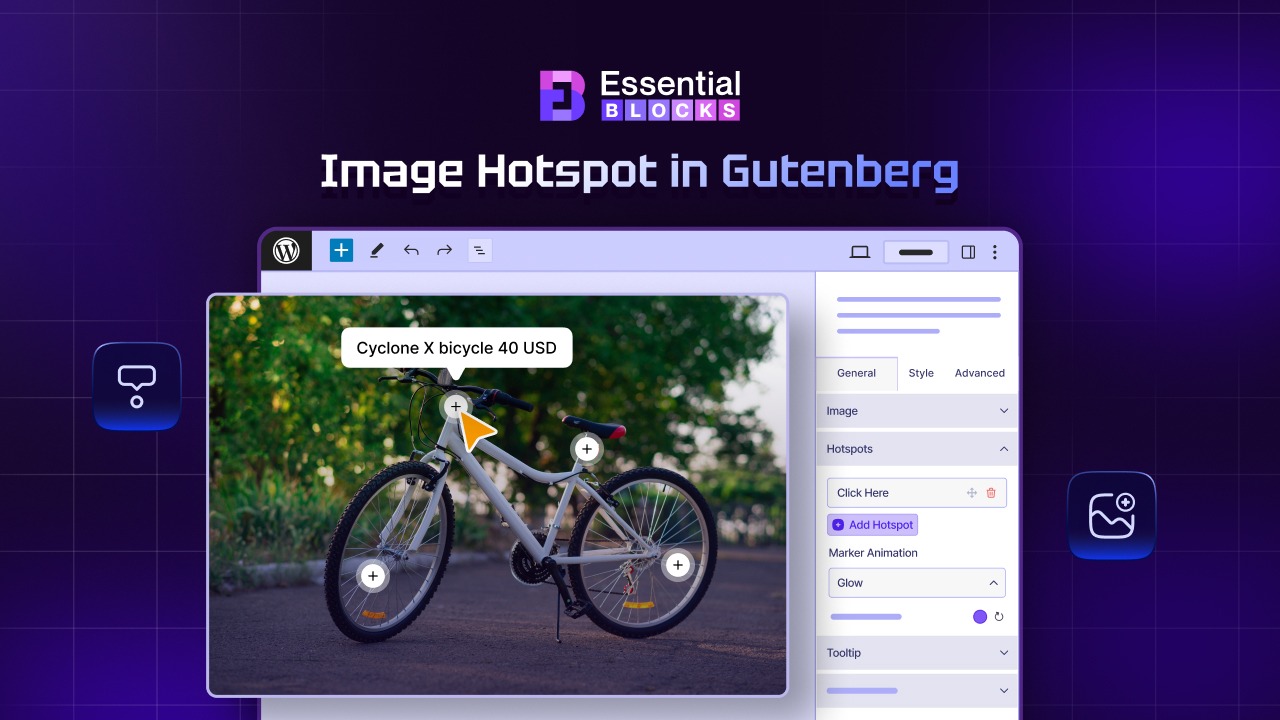
This is where the image hotspot block comes in. By turning static images into interactive elements, you can present information clearly, enhance visual appeal and improve user experience without creating clutter. In this blog, you will explore why using image hotspots on a Gutenberg website is effective and how they help create more engaging, informative, and user-friendly content.
Quick Summary/ TL;DR
Too long? Didn’t read. Let us know more about what you will find inside the blog post.
| Section | Key points (Quick Summary) |
| Topic | How to add an Image Hotspot block on a WordPress Gutenberg site to make images interactive |
| What is an image hotspot | An interactive point on an image that users hover or click to reveal text/visual info (e.g., names, features, tips) |
| Why it matters (overall) | Helps communicate lots of information without clutter, making pages feel more modern, clear, and engaging |
| Tool/plugin introduced | Essential Blocks “Image Hotspot” block for Gutenberg |
| Notable features of the block | Effects (stylish hotspot animations), Customization (colors + typography), Styling controls (hotspot button height/width + image sizing) |
| Closing takeaway | Image hotspots turn static visuals into interactive, informative experiences and help modernize Gutenberg page design |
| Next suggested action | Check the documentation for deeper configuration options and explore more Essential Blocks for added features |
What Is an Image Hotspot And Why Is It Important?
Image Hotspot is the feature where visitors can hover over an image and get text or visual format information. This feature is mainly beneficial for websites that require product information or pinpoint a specific area, or showcase information of particular individuals in an interactive way. For example, to make your website’s team page more interactive and minimal, on every image of your team members, you can add a hotspot button from where visitors will click and know the name and designation of the particular individual.
But is only making a website interactive and minimal the key reason behind using Image Hotspot? Not really. Here are some reasons why you should use image hotspot on your WordPress Gutenberg website.
Enhances User Engagement
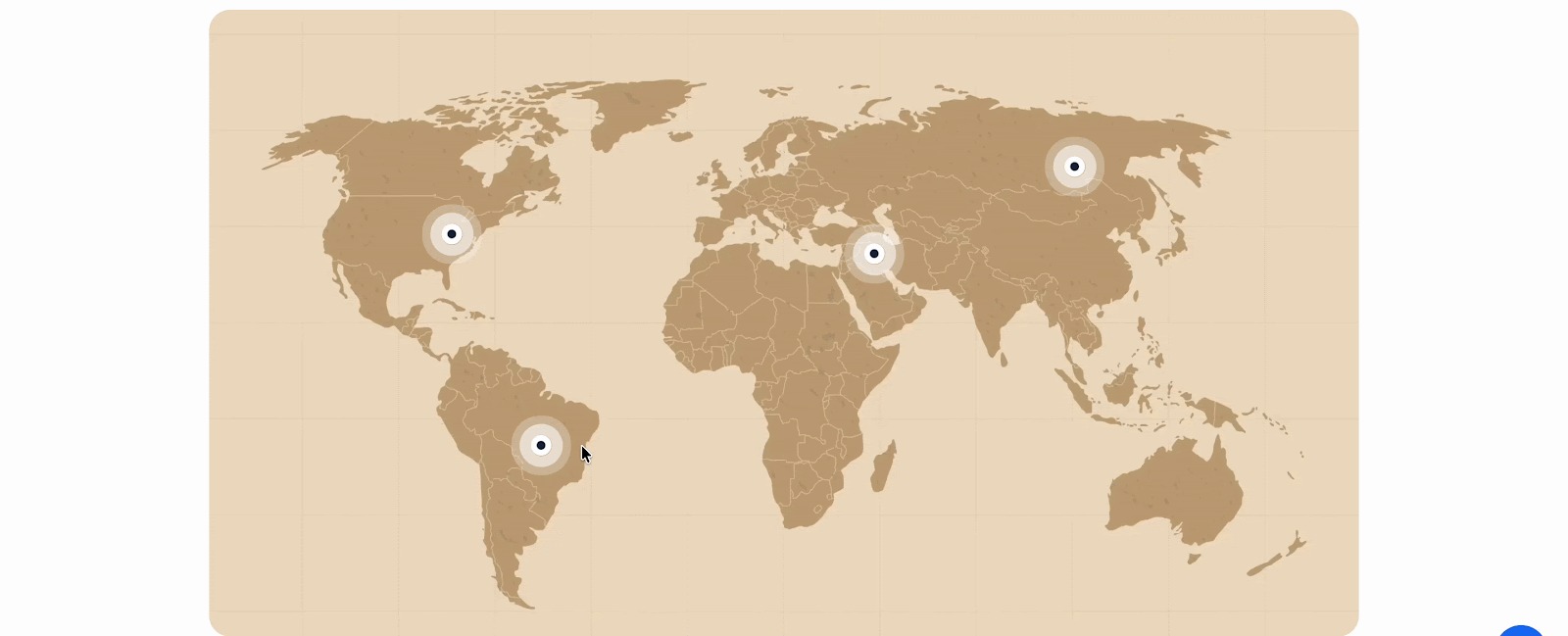
Image hotspot helps website visitors engage more with the website. This feature makes images more interactive and allows visitors to hover or click on the images, encouraging them to explore more content on your site. For instance, a travel blog featuring a scenic image of Paris. With image hotspots, you can place interactive points on the Eiffel Tower, Louvre, and Seine River. When users hover or click on each hotspot, a small pop-up appears with fun facts, tips, or links to related articles.
Presents Information Clearly
One of the key reasons you should use Image Hotspot on your website is to present the information clearly on your website. Clarity is important while you have a website that presents a lot of individual information. Suppose you have an eCommerce site selling a multi-functional smartwatch. Instead of listing all features in a long paragraph, you can use an image of the watch and add hotspots on the screen, buttons and strap.
Boosts Visual Appeal
To make your website look more stylish and minimal, an image hotspot can be a better solution. It helps to make the website less texty and cluttered. For instance, a cooking blog featuring a beautifully plated dish. Instead of just showing a static photo, you add hotspots on key ingredients or garnishes. When users hover over them, elegant popups appear with ingredient names or short tips.
Improves User Experience
Hotspot improves the overall website experience of how visitors navigate through it. For example, a furniture store website showcases a sectional sofa. Instead of overwhelming users with a long list of features, you place hotspots on different parts of the sofa, like the recliner, storage compartment, and fabric texture. When visitors hover or click, a small pop-up explains each feature clearly.
Supports Product Showcases
For product showcasing, this feature is too helpful. Imagine an online store selling DSLR cameras. You use an image of the camera and add hotspots on the lens, buttons, screen and ports. Each hotspot can display a short description, specifications and pricing.

Introducing the Essential Blocks Image Hotspot Block for Making Interactive Images
If you have a WordPress website and are currently using the default Gutenberg editor, then you are in luck. Essential Blocks introduced its new block, Image Hotspot. With this block, you can make your WordPress website interactive and engaging. This is not just inserting another block on a WordPress website; it comes up with something more. Such as –
✅ Effects: You can add stunning effects to your hotspot. This makes your website look more stylish.
✅ Customization: Add different colors and typography to the image hotspot and make it more customizable as you want.
✅ Styling: Select the height and width of each button on your image hotspot. You can also adjust the image size accordingly on your website.
In the next section, we will see how you can add an image hotspot to your WordPress website.
How to Add an Image Hotspot on a Gutenberg Website
Now, let us have a look at how to add an image hotspot to your website. This is a free feature. So make sure you have installed and activated Essential Blocks on your website.
Step 1: Activate Image Hotspot
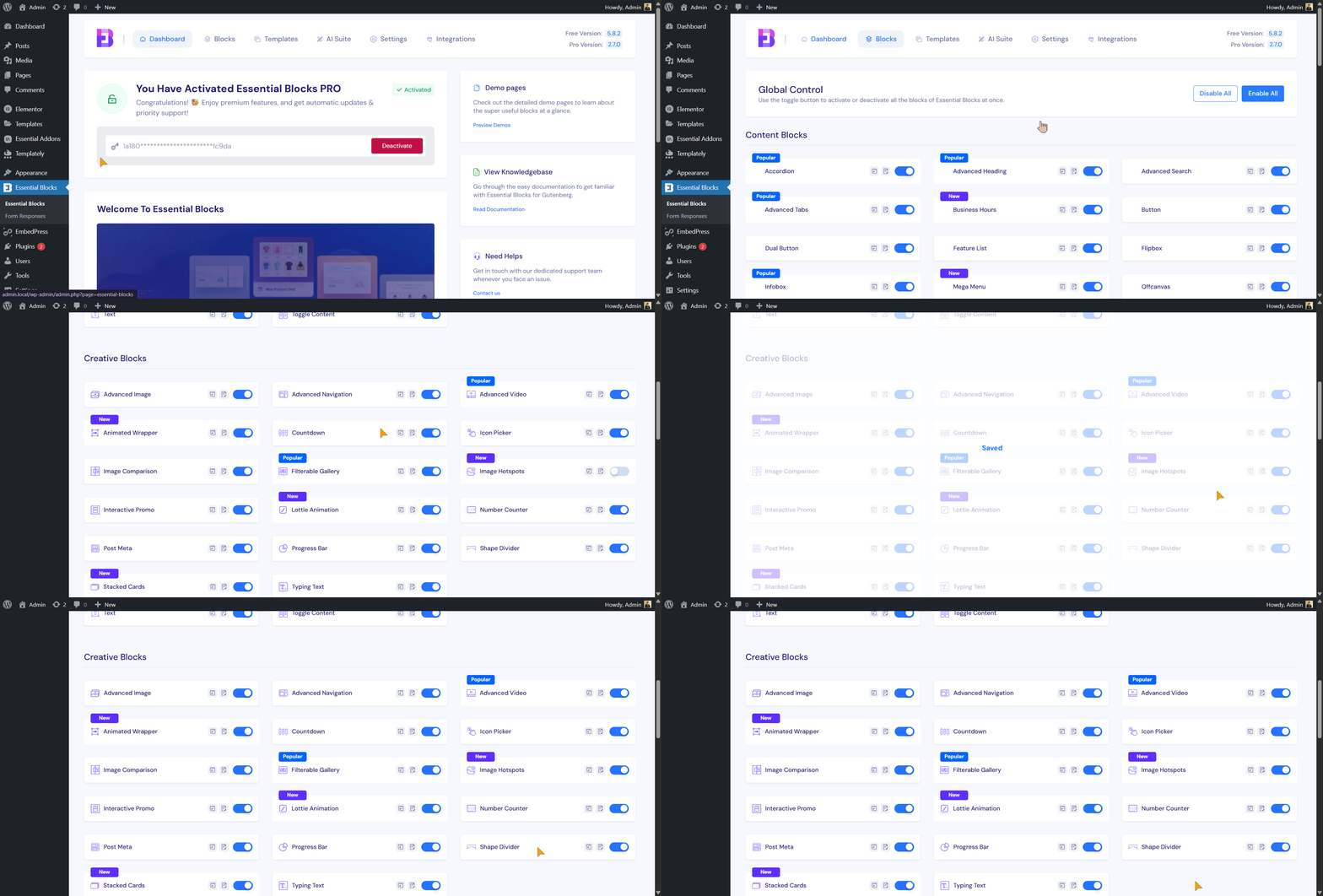
First, go to the Essential Blocks dashboard and from there go to the block tab. Look at the ‘Image Hotspot’ block. Then toggle the button to enable it.
Step 2: Insert Image Hotspot on Your Page
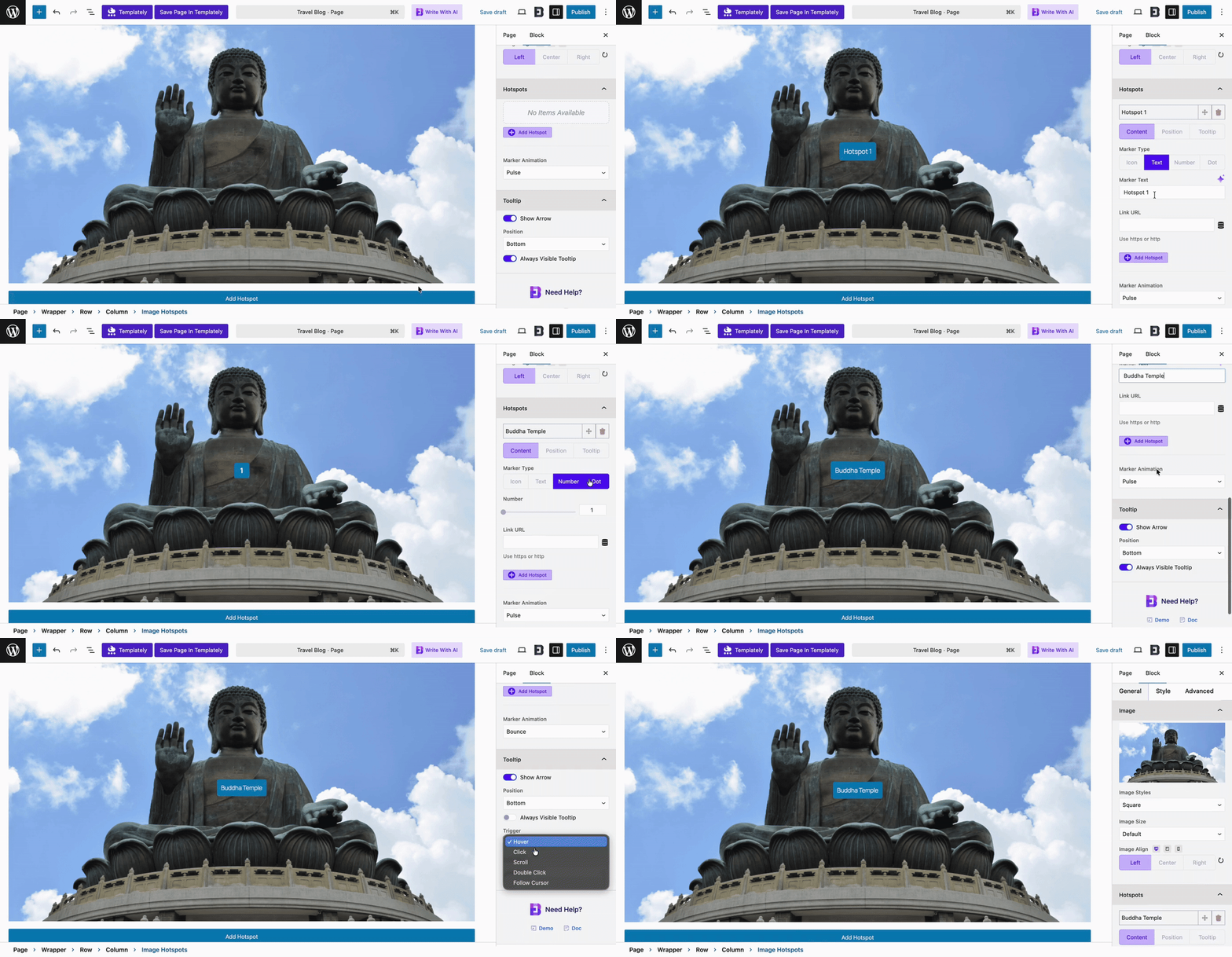
Next, go to the page or post where you want to add the block on your website. Select the Image Hotspot block and drag and drop it into the page. Then, from there, select the areas where you want to showcase information on the image.
Step 3: Customize the Hotspot
Then, you can customize the hotspot from the ‘Style’ tab. There, you can adjust the height, width, or even the background color option for the tooltip. You can also add different typography to the tooltip to make it more brand-friendly.
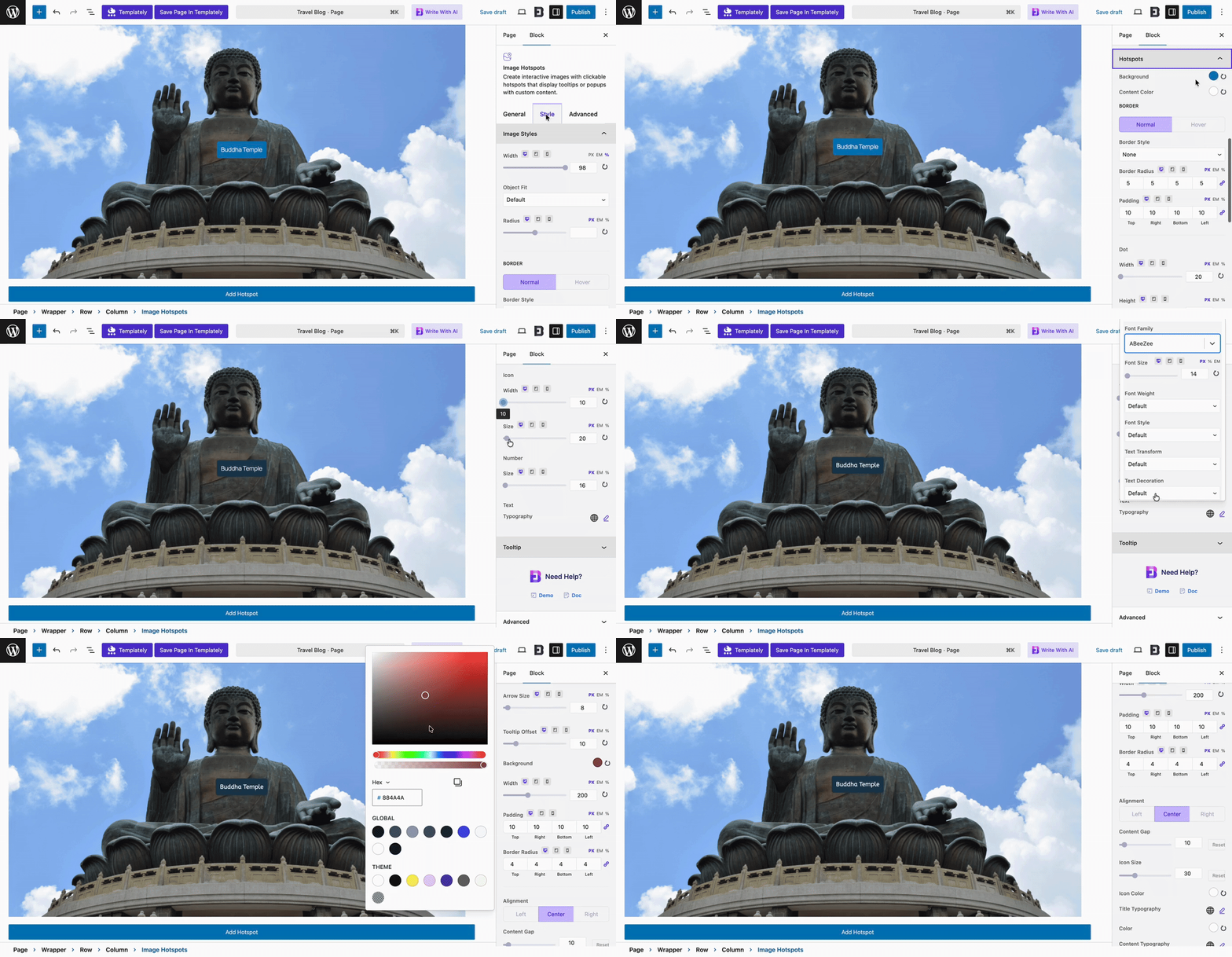
This is how you can easily add an image hotspot to your website. To know more about this block in detail, check the documentation.
Turn Static Images into Interactive Experiences with Image Hotspots
Modern website design is shifting to massive changes. Now, by bringing new interactive experiences, websites have become more creative and interactive. With the Essential Blocks Image Hotspot adds a creative layer to website design and makes a static image into an interactive one.
Curious for more blocks? Explore our blogs for expert insights and join our thriving Facebook community of WordPress enthusiasts just like you!