
Have a business location that you want to display on your WordPress site so your visitors know exactly where to find you? We got you. One of over 70 Gutenberg blocks is the dynamic Google Maps block, which lets you pinpoint your business or store’s location visually, interactively and with flair.

This blog is your one-stop guide for everything you need to know to integrate and design interactive maps on your Gutenberg-built WordPress website. From the importance of Google Maps for websites and use cases for location display, to a detailed guide walking you through how to design interactive maps within Gutenberg, this blog is comprehensive. So, buckle up.
Why Modern Brands Treat Google Maps for Websites With Importance
Many modern brands choose to add Google Maps to websites because maps boost visitor engagement and interactivity. But that is not the end of the story. The following are prominent reasons to design interactive maps.
Visual Appeal & Engagement
Interactive maps instantly capture attention and add visual balance to text-heavy pages. The dynamic elements of zooming, panning, or switching between views (like street or satellite) encourage visitors to spend more time exploring. This engagement can reduce bounce rates and enhance overall user experience, making your page feel more modern and intuitive.
Trust & Professionalism
Featuring a well-integrated map (especially one linked with Google Maps) adds a layer of credibility. It reassures users that your business has a physical presence and values transparency. For local businesses in particular, this visual cue of legitimacy builds trust, often influencing whether a visitor decides to make contact or visit in person.
Problem Solving
Maps directly answer key visitor questions without needing extra clicks or long explanations. They clarify your location, nearby landmarks, travel routes and even parking availability. This immediate access to essential information saves users time and removes friction from their decision-making process. And that is something users expect from professional websites.
Decision Aid
For brands or organizations with multiple branches, event venues, or stores, maps serve as a built-in decision-making tool. By clearly pinpointing each location, users can quickly choose the most convenient option based on geography, accessibility and personal proximity. When combined with directions and contact info, they streamline the journey from browsing to visiting.
Storytelling
In niches like travel blogging, real estate, or event marketing, maps become storytelling devices. They allow you to curate experiences, such as showing routes taken, destinations explored through a visually engaging lens.
This transforms static information into an interactive story that connects emotionally with the audience and encourages exploration. Knowing the benefits, let us then look at how to actually go about integrating Google Maps in Gutenberg.
A Guide: Design Interactive Maps on Your Gutenberg Website Using Essential Blocks
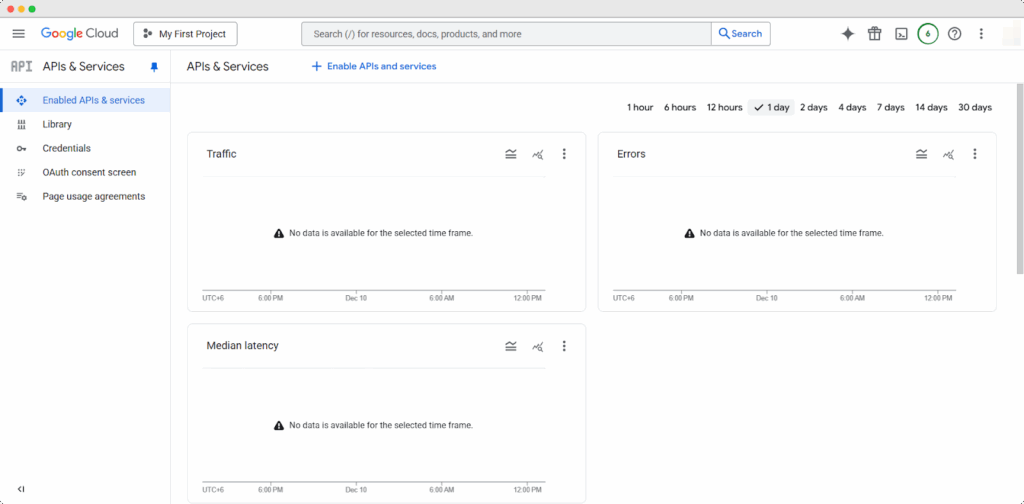
First things first, you need API keys to integrate Google Maps into WordPress, and this is how you do it:
To retrieve your Google Maps API key, spin up a new project in the Google Maps Platform. Ensure that you have set up your billing. Then enable the required APIs (usually “Places”), and head to APIs & Services → Credentials. The system will generate an API key for that project. Click “Show Key” and copy it. This API key is now ready to use to design interactive maps for your website. For a more detailed guide on retrieving Google Maps API keys, visit this documentation.
Now that you have your Google Maps API key, you are set to use WordPress Google Maps plugins to design interactive maps. We will be using Essential Blocks for this guide.
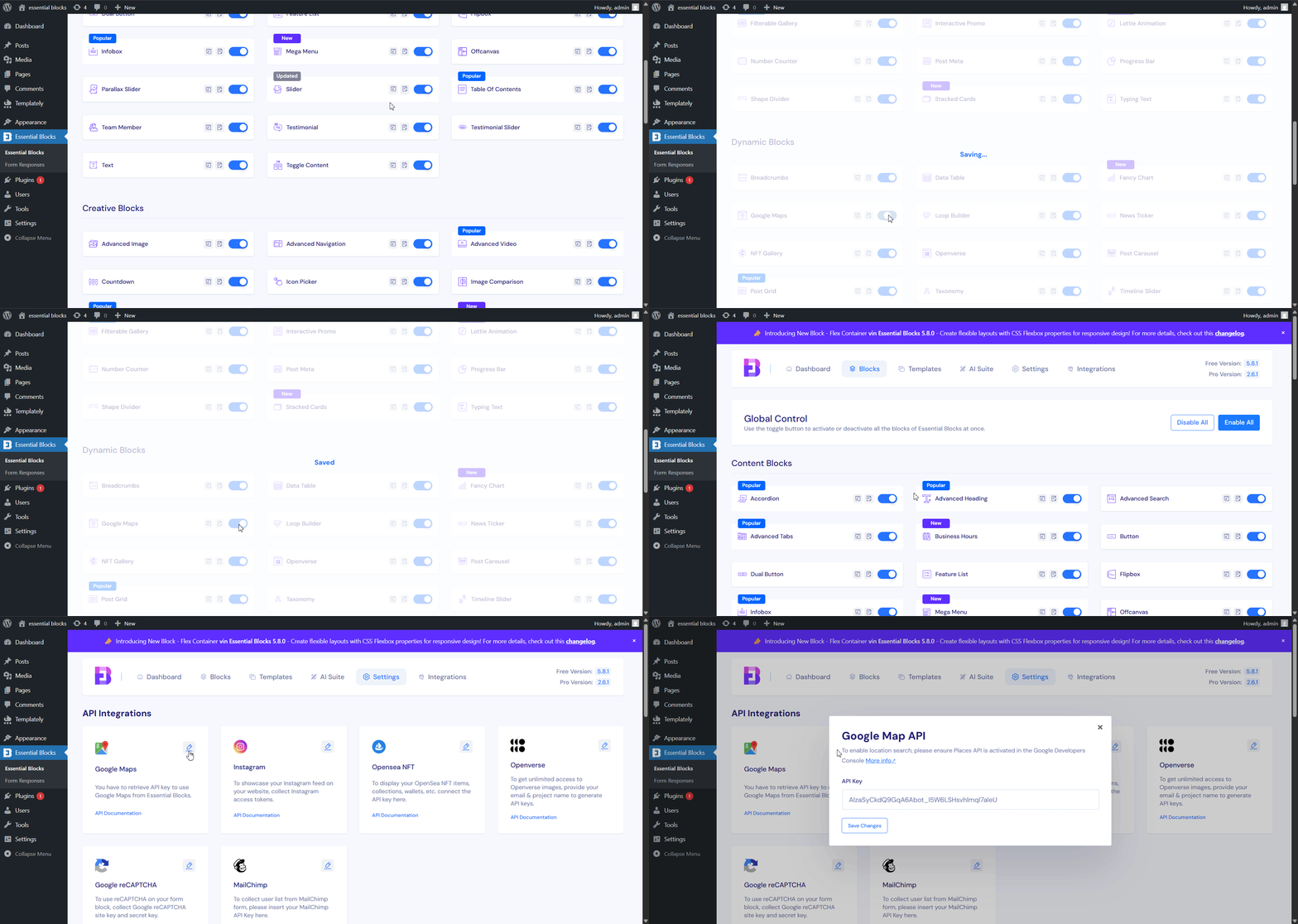
To create a map in Gutenberg with Essential Blocks, enable the EB Google Maps block from the plugin dashboard. Then, add the API key you collected earlier from the Google Maps Platform to the Google Maps API Integration within Essential Blocks Settings.
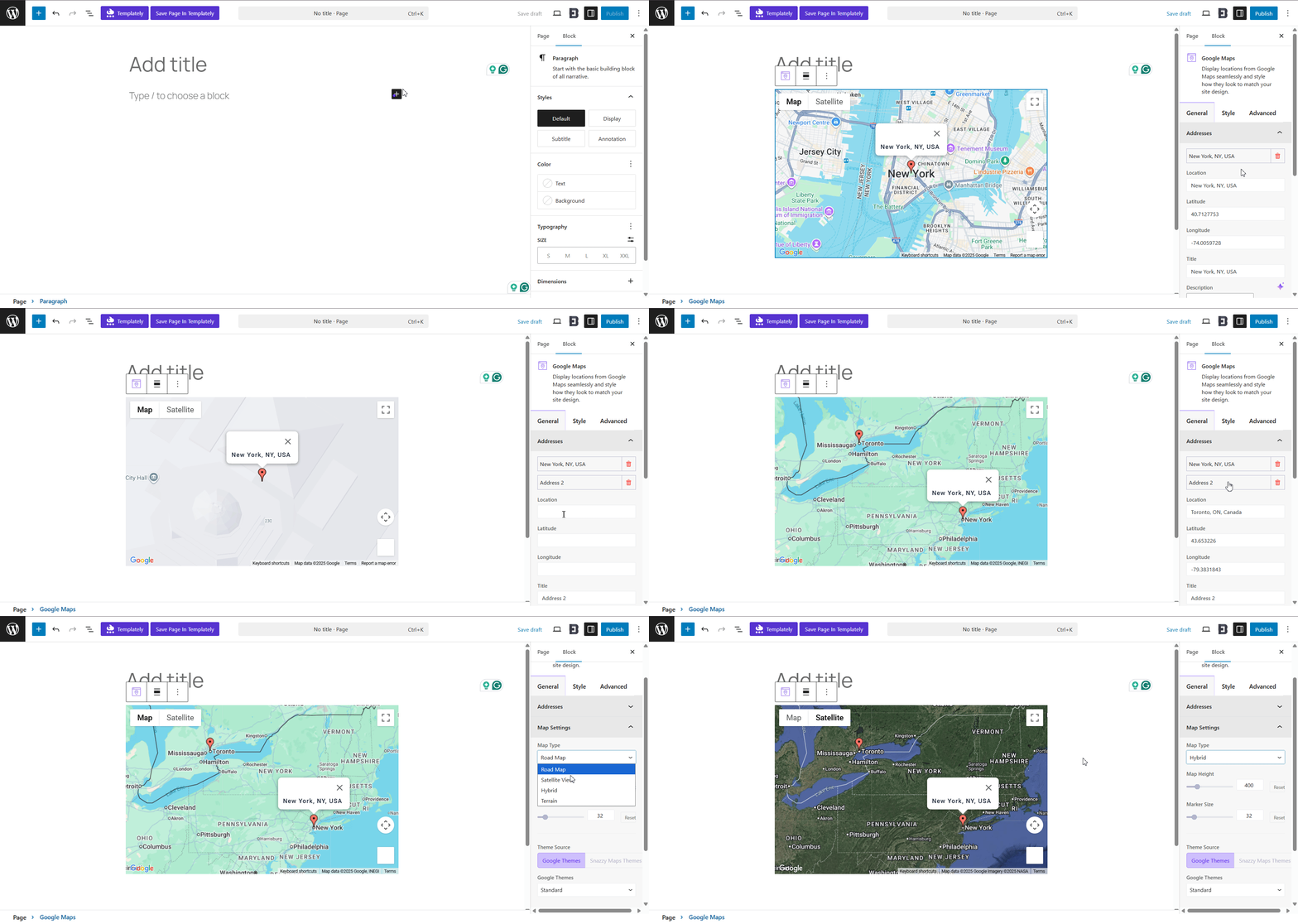
Then open any page in Gutenberg and insert the block. Add your address (or latitude/longitude), adjust the map type, zoom, height, and marker style, then customize visuals under Style and Advanced. Publish the page and the map goes live.
Now, since you are directly integrating Google Maps into your website, you get most of the functionality of Google Maps. As such, you and your site visitors can have a bit of fun with it, too.
We personally love exploring random places in 3D; as you can see, we dropped our little human at a random spot and were teleported to a completely unplanned location. While the goal is to visually display your location, think of this as interactive collateral that actually adds fun value to your site.

But what is an actual benefit of this? Say you are displaying the location of your physical store, or maybe you have a bakery. Besides adding pictures of the location, you are also allowing your visitors to get a real sense of where you are.
So, when you design interactive maps using WordPress map plugins, you are also offering much of Google Maps’ interactive functionality, just by collecting and adding API keys. For a greater detail and customization guide, visit this documentation.
Showcase: Interactive Map Website Design Examples that Inspire
Want some inspiration to design interactive Google Maps for your WordPress site? Look at a couple of appealing and interactive map designs and get your gears turning.
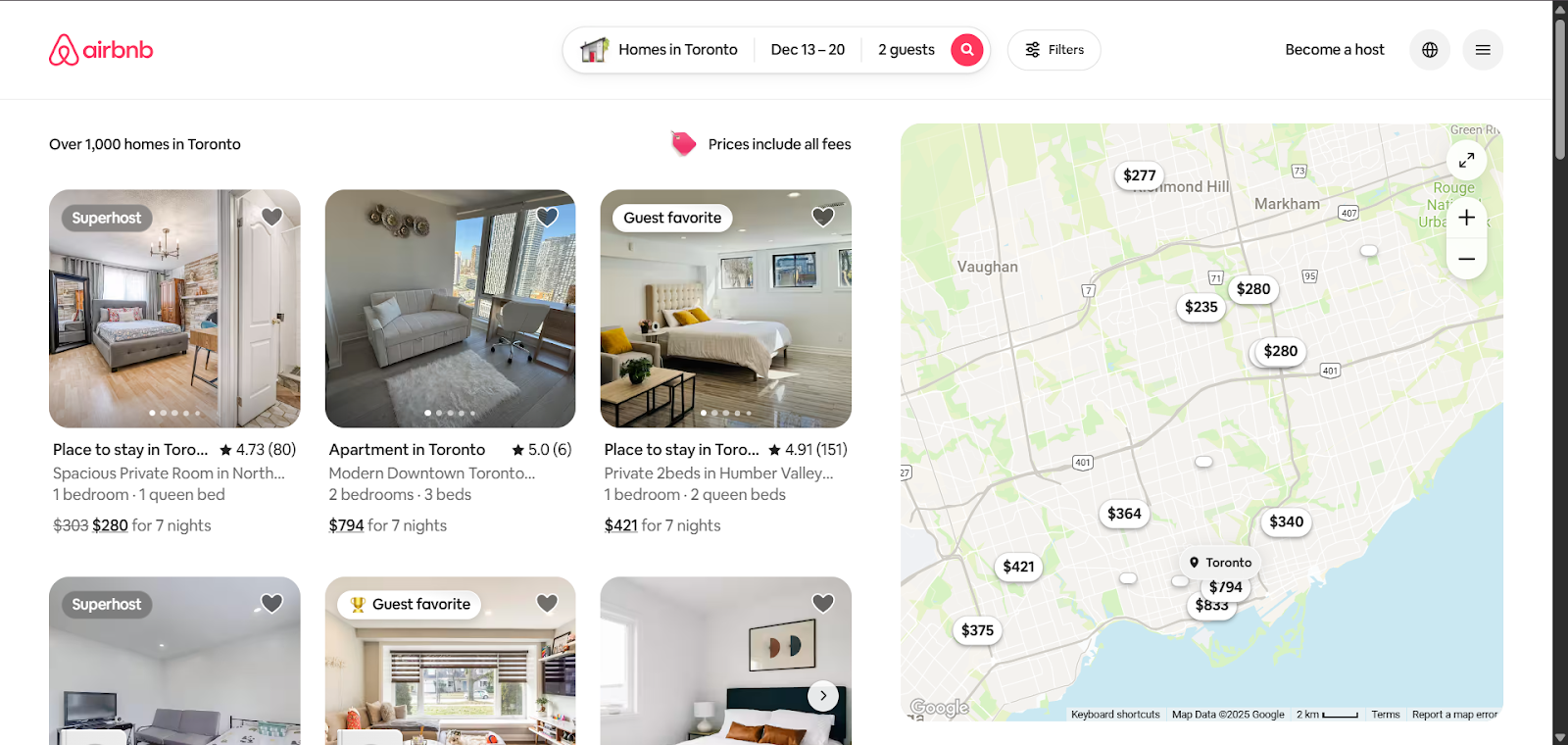
Airbnb
Airbnb uses live, interactive maps to help users visually explore available vacation rentals by location. Users can filter by price, type and amenities while seeing real-time availability updates, making the search experience highly intuitive and spatially engaging.
Zillow
Zillow uses interactive maps to let users browse properties for sale or rent with dynamic markers, neighborhood overlays and heatmaps. The maps update in real time as filters are applied, giving users a clear, data-driven view of the housing market at a glance.
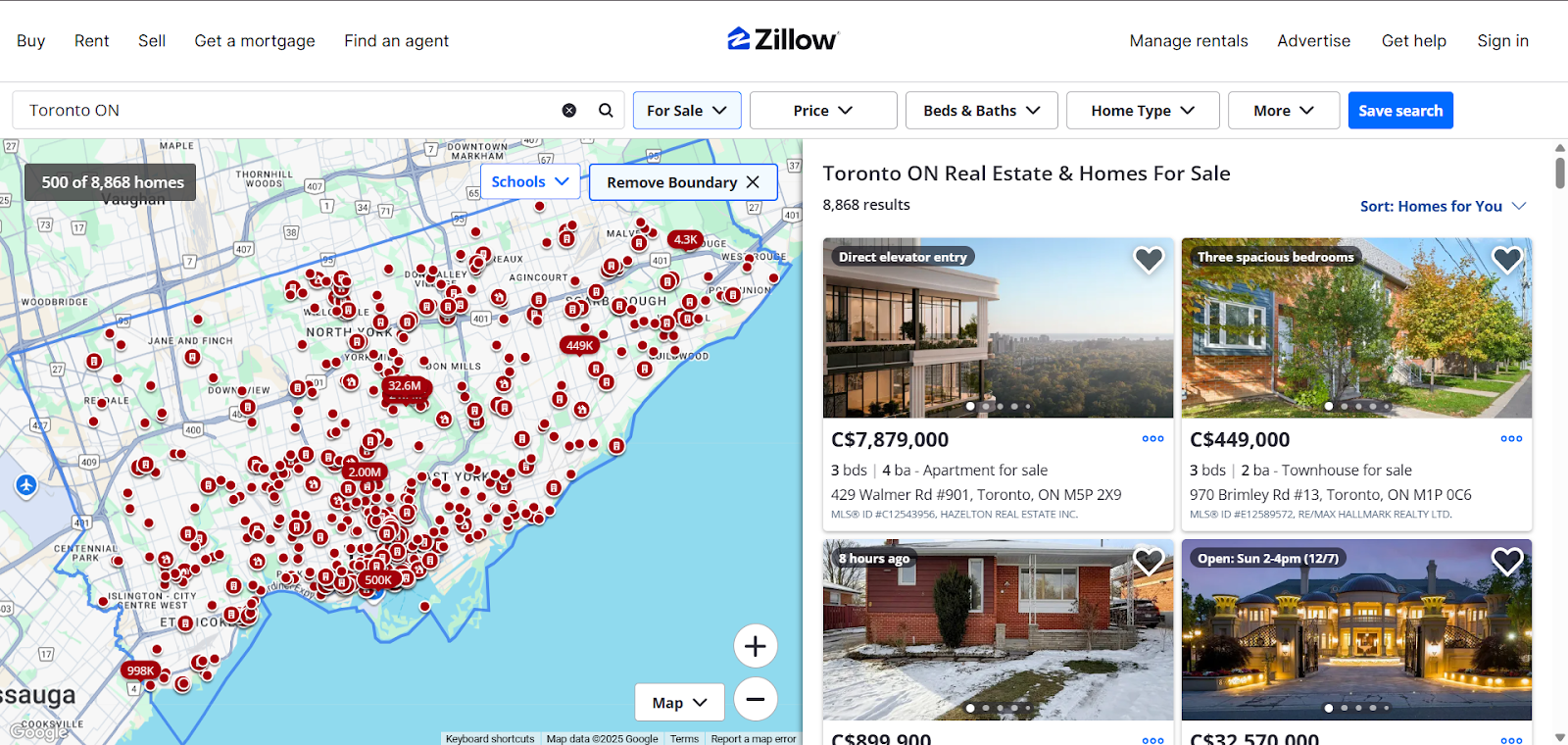
These are only two, but extremely robust examples of how maps can be used on websites, enhancing user experience.
Extra Tips for Designing Your Map Section for Impact & Conversions
To make the map section of your website more impactful, frame your integrated Google Map with elements that drive action. Below, we list some suggestions and tips for interactive map website designs.
- Frame the Map Visually
Use whitespace, borders, soft shadows or even glassmorphism effects to make the map feel like a central visual element rather than just an embed. Treat it as a hero component in the layout.
- Highlight Key Locations
In your map section, highlight your locations using different layouts and elements, like clickable buttons or images in cards to elaborate on your location pins. Additional information such as images of your location or specific addresses and ZIPs, helps your visitors better understand.
- Add CTA Zones
Add CTA zones in your map section. A good idea is to redirect your visitor to desired destinations from your map section using action-driven elements. For example, a
‘Book Now’ button can lead to a form, or a ‘Visit This Location’ button can lead to your Google Business Profile, and such.
- Responsive & Breathable Layout
Ensure your maps are mobile-friendly and designed in breathable layouts. From the ‘Advanced’ in your Gutenberg editor, adjust your map’s margin and padding so they translate across devices.
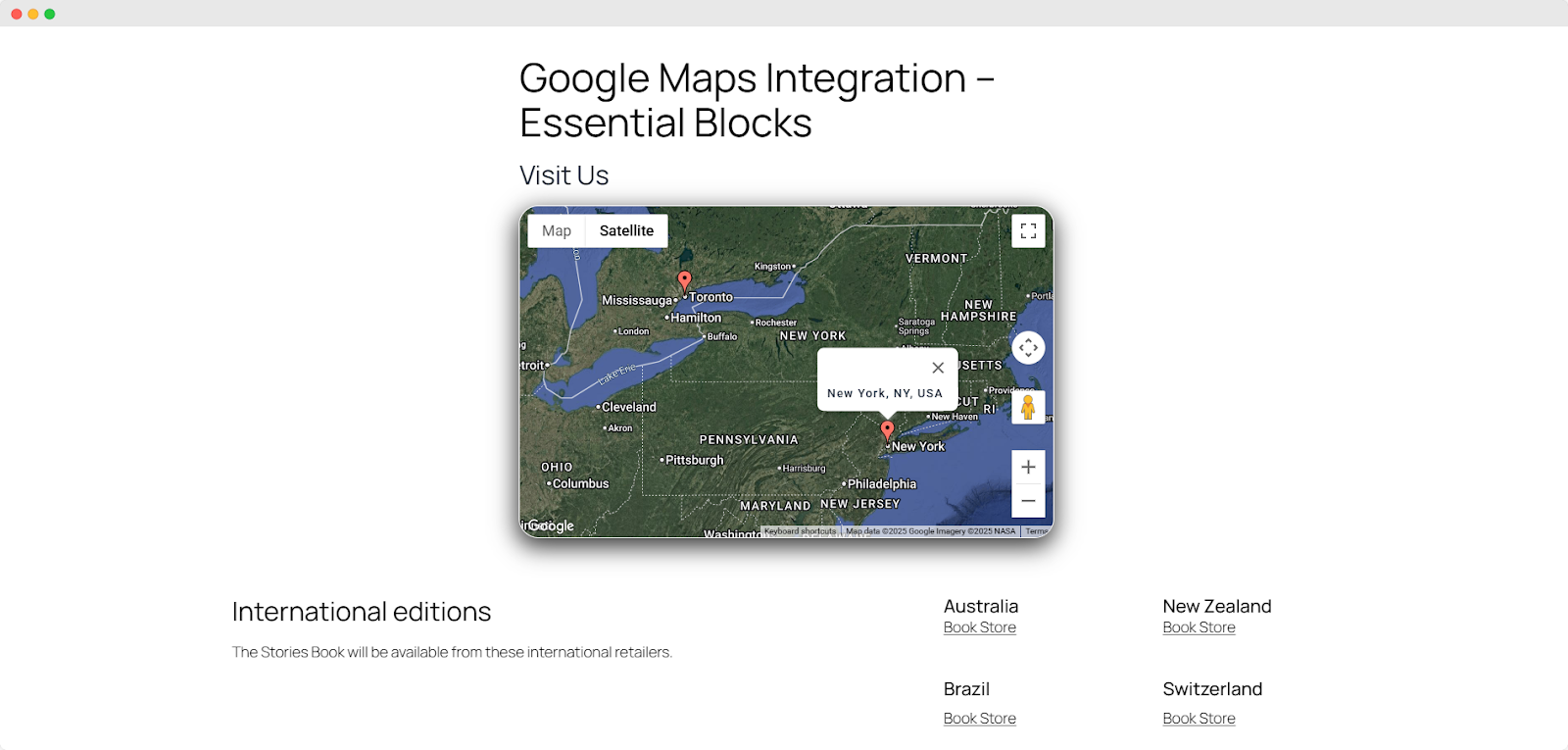
And once you’ve designed your map section with adequate, relevant information and elements, you might see something like this:
Best Practices for When You Design Interactive Maps for Websites
When integrating Google Maps, set yourself up for success by adhering to some smart practices. Plan and prepare well before you start executing. Adding a map is fairly straightforward but know your goals and have the right materials in place to save time and ensure the final integration feels purposeful and professional.
- Define Your Goal
Start by clarifying why you are adding a map in the first place. Is it to give visitors clear driving directions? Highlight multiple office or store locations? Or tell a visual story, such as a travel route or event trail?
Your goal will determine which mapping tools, customization options and level of interactivity you need. A simple “find us” map might use a basic embed, while an interactive experience may require custom styling or even code integration through the Google Maps API.
- Gather Your Data
Having all your location data organized before you start will make the setup smooth and efficient. Collect addresses, GPS coordinates (latitude and longitude) and short descriptions for each point to add as possible tooltips.
Prepare any custom map icons or branding elements if you plan to customize to match your site’s style. The more complete your data is, the easier it will be to maintain consistency and accuracy once the map is live.
Interactive Map Website Design: Common Issues, FAQs & Tips
Before we wrap up this blog, let us go over some of the common issues users face when integrating Google Maps into their websites to design interactive maps.
- Can I style the map to match my brand?
Yes. Essential Blocks lets you customize typography and colors for a more branded interactive map website design. For more advanced styles, you can apply custom CSS around the map container.
- Can I show multiple locations?
Absolutely. Using WordPress map plugin features like the EB Google Maps block, you can add multiple pins while keeping your interactive map website design clean and readable, even for many locations.
- Is it free, and how much will it cost?
Google Maps for websites uses a pay-as-you-go model with a free trial credit. Monitor API usage and only enable what you need in your WordPress Google Maps plugin. For more info on pricing, visit here.
- Why is my map in Essential Blocks just a grey box?
This usually happens when your Google Maps API key is missing, incorrect, restricted, or when billing is not enabled. With your WordPress Google Maps plugin, check your API key in the plugin settings and ensure your Google Cloud project has billing and the Maps API activated.
- Why are my markers in the wrong place?
Incorrect or swapped latitude/longitude values are the main cause. When using Essential Blocks to design interactive maps, double-check each pin’s coordinates in the block settings to ensure accurate placement on your Google Maps for website display.
Design Interactive Maps Using Gutenberg And Make Navigation Easy
Now you know how to display your business location on your Gutenberg-built WordPress site so your visitors know exactly where to find you. With WordPress Google Maps plugins, you can bring fully interactive and impactful maps straight into your website. Once your API keys are in place, you can easily integrate Google Maps into your site and add visual flair to an instrumental solution. Try inserting a map on your site today and your visitors will love you for the virtual experience.
Curious for more ideas and design inspiration? Explore our blogs, for detailed setup guidance. Also, be sure to join our thriving Facebook community of WordPress enthusiasts just like you!