
You build your website with great care. You place your CTA button right where you think people will notice it. You design the homepage to guide visitors smoothly toward your goal. Then you check your analytics and find that people are dropping off, not converting and clicking in places you never expected. This is a frustrating gap that most website owners face.
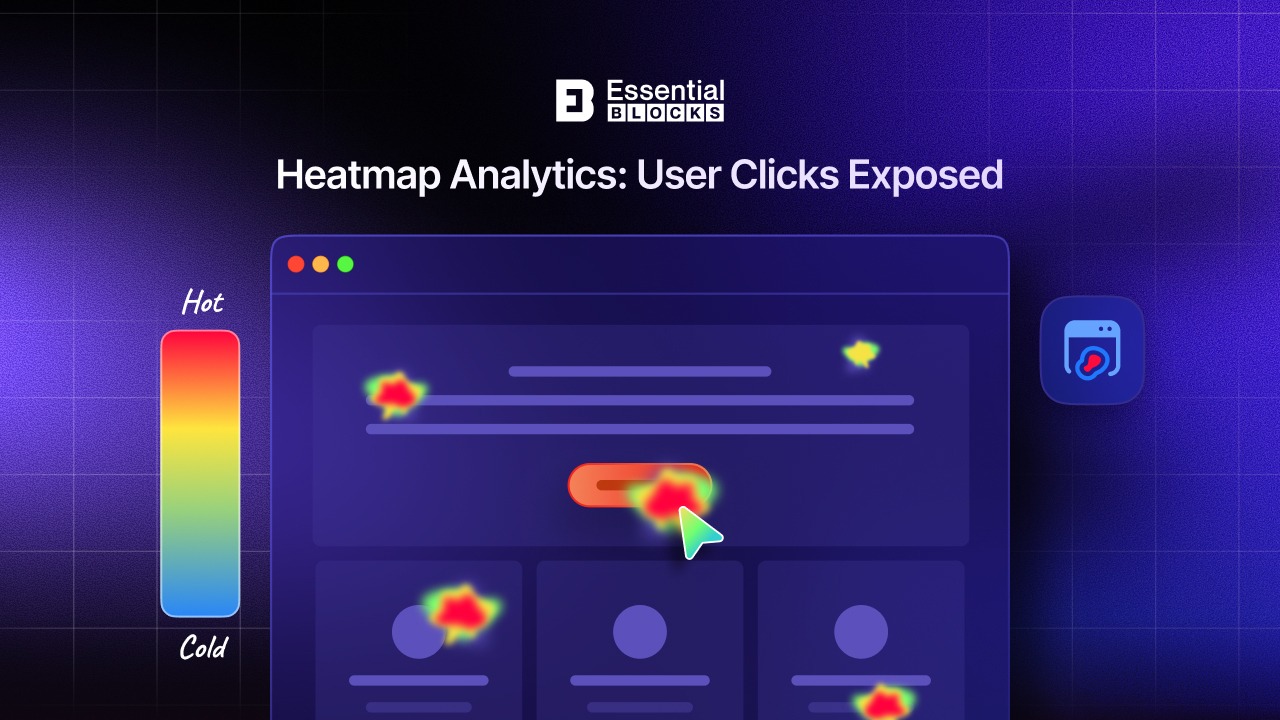
Traditional analytics tools give you numbers. They tell you how many people visited, how long they stayed and when they left. But they do not show you where users click, how far they scroll or which parts of your page they completely ignore. This is exactly where heatmap analytics steps in and changes the game.
This guide walks you through what heatmap analytics is, how the different types work, what real user behavior looks like across key page types and how you can turn those insights into smarter UX and better conversions.
TL;DR (Too Long, Didn’t Read)
Heatmap analytics shows you visually where users actually click, scroll and move on your website. Instead of just numbers, you get color-coded maps of real on-page behavior. This helps you fix broken CTAs, remove confusing elements, improve page layouts and increase conversions.
Quick Overview Table
| Topic | What You’ll Learn |
| What is heatmap analytics? | A visual way to track user click and scroll behavior |
| Types of heatmaps | Click maps, scroll maps and movement maps |
| Key insights from click heatmaps | CTA performance, dead clicks, ignored sections |
| Page-level use cases | Home, blog, pricing, product and checkout pages |
| How to act on heatmap data | Move CTAs, simplify layouts, run A/B tests |
| Tools and review frequency | What to track and how often to check heatmap data |
What Is Heatmap Analytics And Why Does It Matter?
Heatmap analytics is a method of tracking and visualizing how users interact with a webpage. It uses color coding, typically from red (most activity) to blue (least activity), to show which parts of the page get the most attention, clicks and engagement.
Unlike standard website analytics that tell you bounce rates and session durations, website heatmap analytics gives you a visual picture of on-page behavior. You can see exactly where visitors are clicking, where they stop scrolling and where their cursor tends to hover. This kind of user behavior analytics is far more actionable because it shows you why people behave a certain way, not just that they do.
Types of Heatmap Analytics You Should Know
Not all heatmaps show user behavior in the same way. Each type focuses on a different interaction signal, helping you understand how users engage with your pages and where friction appears.
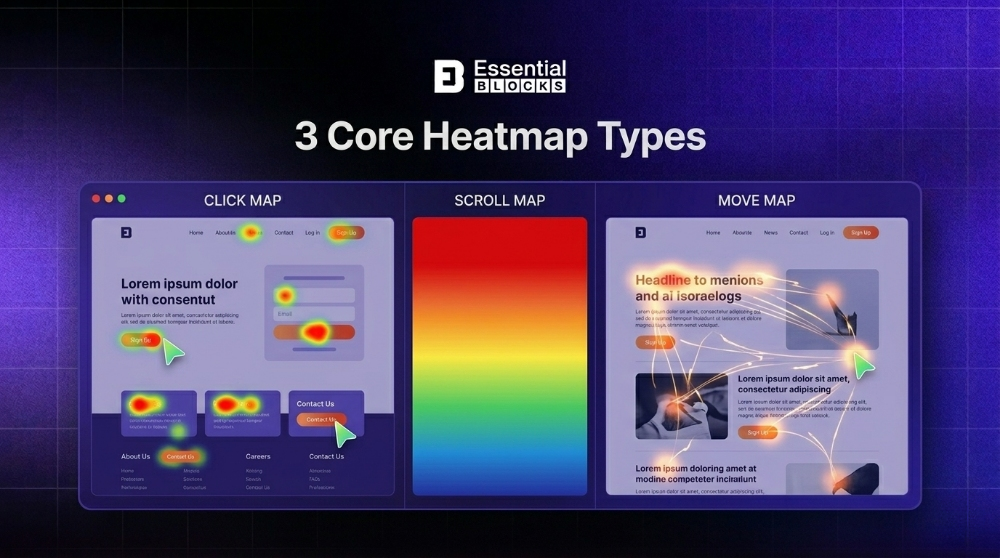
Below are the three most relevant heatmap types used in modern website analysis:
1. Click Map Analytics
A click map tracks every place users click on a webpage and displays those interactions visually. The result is a clear view of which elements receive attention and which ones are ignored.
This type of heatmap helps you understand interaction behavior on both interactive and non-interactive elements. It shows whether users follow your intended design flow or get distracted by secondary elements.
You can use click map data to answer questions like:
- Are users clicking the main CTA button or missing it?
- Do visitors click on images or icons that are not linked?
- Which navigation items get the most interaction?
- Are multiple elements competing for attention on the same section?
Example
An eCommerce product page shows a high number of clicks on product images, but very few clicks on the ‘Add to Cart’ button. This signals that users are interested in exploring visuals but are not moving toward purchase. The team then tests a more prominent CTA placement near the image section to improve conversions.
2. Scroll Map Analytics
Scroll map analytics measures how far users scroll down a page before they stop or leave. It uses color gradients to show engagement depth, with higher visibility at the top and decreasing visibility as users move down.
This helps identify whether users actually reach important sections such as offers, pricing, or sign-up forms. It also highlights content drop-off points where engagement decreases sharply.
Key questions scroll maps help answer:
- Do users reach key sections like pricing or features?
- Where do most users stop scrolling?
- Is important content placed too far down the page?
- Do long pages reduce engagement?
Example
A SaaS landing page places its pricing section near the bottom. Scroll data shows that most users never reach it. After moving pricing higher and adding a short benefits section above it, the page sees improved engagement and more sign-ups.
3. Move Map Or Hover Map Analytics
Move maps track mouse movement across a webpage. On desktop devices, cursor movement often aligns closely with where users are visually focusing, making it useful for understanding attention patterns.
This type of heatmap helps identify what users notice first and how they visually scan a page before clicking or scrolling.
It helps answer questions like:
- Which headlines attract initial attention?
- Do users focus on images, text blocks or buttons first?
- How do users visually scan the page layout?
- Are key messages being seen or skipped?
Example
A blog homepage shows strong cursor activity around featured images but low movement toward headline text. This suggests users are visually drawn to images first. The team then tests a layout where headlines are placed closer to images, improving click-through rates to blog posts.
What Click Heatmaps Actually Reveal on Modern Websites
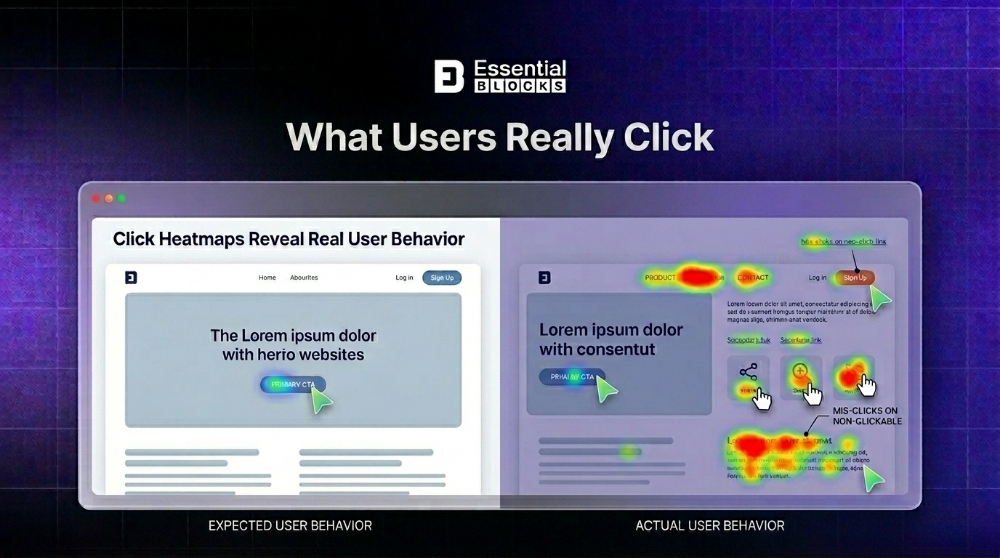
Once you start analyzing click behavior, patterns appear that are often very different from what you expect. Click heatmaps turn raw interaction data into clear signals about how users think, where they focus and what they ignore.
Where Real Attention Goes for CTAs And Links?
The first insight click heatmaps reveal is the gap between intended actions and actual user behavior. You may design a page with a primary CTA in the hero section, but users often interact somewhere else entirely.
In many cases, secondary links, navigation items, or even in-text hyperlinks receive more engagement than the main button. This shows that users are not always following the designed flow. Instead, they act based on what feels most relevant to their intent at that moment.
💥 It exposes where user interest truly sits and whether your CTA placement matches that intent. If attention is drifting elsewhere, it signals a need to rethink layout priority and visual hierarchy.
What Users Completely Ignore on the Page?
The next layer of insight comes from cold zones, areas with little to no interaction. These sections often contain content that teams assume is important but users consistently skip.
Click heatmaps make these ignored zones visible and measurable. You can quickly see which parts of a page fail to earn attention.
Data shows specific website elements often get ignored by users. Heatmaps and eye-tracking studies confirm these patterns across sites 👉🏻
Stock Images
Users skip generic stock photos that lack context or real faces. Eye-tracking from Nielsen Norman Group reveals viewers spend 10% more time on authentic portraits than bios taking 316% more space.
Stock images trigger photobank recognition leading to zero engagement.
Long Intros
Lengthy paragraphs high on the page see low attention. Eye-tracking heatmaps show a sharp drop in fixations below the fold with fold fixation where top content dominates before scroll. Users scan rather than read blocks placed too early.
Vague Navigation
Labels like Services without clear destinations confuse users and cut clicks. Heatmaps expose dead zones on ambiguous menu items versus descriptive ones boosting navigation success. Poor labels raise bounce rates on linked pages.
Footer Links
Footer navigation links like privacy policy or contact get far fewer clicks than main nav. Click heatmaps quantify this low interaction often under 1% of total page clicks. They suit secondary access not primary engagement.
💥 It highlights wasted space and unnecessary content. Removing or reworking these areas often improves clarity and helps users focus on what actually matters.
Where Users Expect Interaction But Find None?
Another important insight comes from mis-click patterns, often called dead clicks. These occur when users click on elements that look interactive but are not.
This usually happens with design elements such as styled text that resembles a link, decorative icons that look like buttons, or visual blocks that suggest click ability without actual behavior.
When multiple users repeatedly click on these non-interactive elements, it signals a gap between design expectations and actual functionality.
💥 It reveals friction in user experience. Users are trying to interact with something that does not respond, which creates confusion and interrupts their flow. Fixing these mismatches often leads to smoother navigation and better engagement across the page.
Real-World Heatmap Insights Across Key Page Types
Heatmap findings only become credible when they are grounded in real observation methods and consistent patterns across multiple sites. The insights below come from aggregated UX research and behavioral analytics studies conducted using tools like Microsoft Clarity heatmaps, Hotjar reports and published CRO case studies from platforms such as CXL, Nielsen Norman Group and industry-wide A/B testing datasets.

These sources repeatedly analyze thousands of anonymized user sessions across different industries. While exact behavior varies by audience and product, the patterns below remain consistent enough to guide UX decisions with confidence.
Instead of isolated assumptions, these insights reflect repeated behavioral trends seen across multiple websites and testing environments.
Let us break down how user interaction differs across key page types:
Homepage Behavior Patterns
Research from large-scale heatmap studies consistently shows that homepage attention is split between hero content and navigation. Users rarely follow a single linear path.
In many tracked sessions, users do interact with hero CTAs, but a significant portion first engages with navigation elements such as product categories, pricing links, or blog sections. This is especially common in users who already have intent and are looking for specific information instead of browsing.
At the same time, heatmaps from multiple SaaS and eCommerce studies show that a noticeable percentage of users skip hero sections entirely when they immediately recognize a navigation option that matches their intent.
Homepage interaction is highly intent driven, not design driven. Users decide within seconds whether to explore or bypass hero content.
Expert Tips: Structure navigation to support fast intent matching. Keep hero messaging focused on value clarity instead of forcing immediate action. ‘See how it works’ style CTAs often perform better in early-stage sessions because they reduce commitment pressure.
Blog Page Behavior Patterns
Scroll map research across content-heavy websites shows a consistent drop-off pattern. Studies published by platforms like CXL and supported by scroll tracking tools such as Microsoft Clarity indicate that a large share of readers stop scrolling between the 40% to 60% mark on average long-form articles.
This behavior is not random. It reflects how users scan for relevance. Most readers either find value early or exit before reaching deep content sections.
Click heatmaps also show that engagement often concentrates in related post sections or inline links rather than end-of-article CTAs.
Relying on footer-based conversions significantly reduces visibility for a large portion of readers.
Expert Tips: Place lead magnets, newsletter prompts, or contextual CTAs within the first 30% to 40% of the content. Inline placements and sticky elements perform better because they align with natural drop-off behavior.
Pricing Page Behavior Patterns
Pricing page heatmaps from SaaS studies consistently show that users do not evaluate plans linearly. Instead, they scan feature lists, compare tiers side by side, and frequently revisit specific sections multiple times before deciding.
Research also shows that FAQ sections often receive unexpectedly high interaction rates because users seek clarity on hidden costs, limitations or usage rules before committing.
Click patterns around tooltips and expandable feature descriptions indicate hesitation points rather than simple browsing behavior.
Pricing decisions are driven by clarity, not just price presentation.
Expert Tips: Place FAQs close to pricing tables instead of at the bottom of the page. Use tooltips for complex features and reduce ambiguous terminology in plan comparisons. Clear structure reduces hesitation cycles and improves decision speed.
Product Page Behavior Patterns
eCommerce heatmap studies consistently show that users do not move directly from product view to purchase. Instead, they follow a comparison-driven path that includes repeated image clicks, review scanning and feature checking.
Behavioral data from multiple product analytics studies shows that product images often receive repeated clicks, indicating interest in visual confirmation. Reviews also act as a key trust checkpoint before any purchase action.
In many cases, users scroll down before returning to the ‘Add to Cart’ section, suggesting that trust-building elements influence conversion more than placement alone.
Purchase decisions depend heavily on early trust signals, not just CTA visibility.
Expert Tips: Place review summaries, ratings, and key trust indicators near the top of the page. Add zoom or gallery interactions for product images above the fold to reduce uncertainty early in the journey.
Checkout Page Behavior Patterns
Checkout flow research from UX studies and cart abandonment analysis consistently shows that friction often appears at the form level rather than the payment step itself.
Heatmaps frequently reveal repeated clicks on labels, mis-clicks between fields, and hesitation around optional inputs. These signals often correlate with drop-off points in checkout funnels.
Studies from Baymard Institute, which aggregates large-scale checkout usability research, show that unnecessary form complexity is one of the leading causes of abandonment across ecommerce sites.
Small interaction issues in forms can create major conversion loss.
Expert Tips: Reduce form fields to only essential inputs. Use inline validation to reduce confusion and clearly separate required and optional fields. Remove unnecessary steps to keep momentum stable through checkout completion.
How to Turn Heatmap Data into Real UX and CRO Improvements
Collecting heatmap data is only useful when it leads to clear action. The real impact comes from turning behavioral signals into design changes that improve clarity, reduce friction and guide users toward meaningful actions.

Below is a practical way to apply what heatmaps reveal:
Move CTAs to Where Attention Already Exists
Heatmaps often show strong attention clusters in places that were not originally designed for conversion, such as headings, images, or mid-page content blocks. Instead of forcing users to search for your CTA, place it where attention naturally forms.
When a section already receives high interaction or visual focus, adding a CTA reduces effort for the user and shortens the decision path. This aligns design with actual behavior instead of assumptions.
💡 Look for hot zones that do not currently contain any action elements. These are high potential placement areas for buttons, signup links, or product actions.
Simplify Layouts Based on Cold Zones
Cold zones reveal what users consistently ignore. These are areas that may look important from a design or business perspective but do not contribute to user engagement.
Instead of filling every section with content, reduce or restructure areas with near-zero interaction. A cleaner layout helps users process information faster and reduces cognitive load.
💡 If a section shows no meaningful engagement, test removing it or merging it with a nearby section. Small reductions in visual density often improve focus on key elements.
Fix False Affordances As Soon As They Appear
Dead clicks highlight confusion in your interface. When users repeatedly click on elements that are not interactive, it means the design is sending the wrong signal.
This issue often appears in text styled like links, decorative icons, or image blocks that look actionable but are not.
Fixing this is not only about design clarity. It also removes frustration from the user journey and improves trust in the interface.
💡 If something is clicked often but does nothing, decide quickly whether to make it interactive or visually neutral. Do not leave it ambiguous.
Adjust Above-The-Fold Content Using Scroll Behavior
Scroll maps show how far users actually go, which is often less than expected. If a large portion of users never scroll beyond the first screen, then anything placed below that point loses visibility.
Your most important message and CTA should exist within this initial view. Scroll data helps you define that boundary based on real behavior, not assumptions.
💡 Test different versions of your above-the-fold section. Move key content higher and reduce unnecessary elements that push CTAs down.
Run A/B Tests on Every Meaningful Change
Heatmap insights create hypotheses, not final answers. Every adjustment should be validated with real performance data.
Once you move a CTA, remove clutter, or fix a misleading element, test the change against the original version. This ensures that improvements are not just visual but also measurable in terms of clicks, sign-ups, or conversions.
💡Test one major change at a time. This makes it easier to understand what actually influenced user behavior and avoids mixed signals in your results.
How to Get Started with Heatmap Analytics Tools
Getting started with heatmap tools for websites is simpler than most people think. You do not need to be a data scientist. Here is a light framework to guide your first steps.
Step 1: Pick a Reliable Heatmap Tool
The best heatmap analytics tools available today include Hotjar, Microsoft Clarity, Crazy Egg and Mouseflow. Microsoft Clarity is free and integrates well with Google Analytics, making it a great entry point.
Step 2: Install the Tracking Script on Your Key Pages
Start with your homepage, primary landing page, pricing page and one blog post. These give you the most useful starting data.
Step 3: Let It Run for a Minimum Data Window
You need enough traffic over a consistent time window to see reliable behavior patterns. A heatmap built on very low activity can easily mislead you, since early interactions are often random and not representative of typical user behavior.
As a rule of thumb, avoid drawing conclusions until you have at least 7 to 14 days of collected data. This ensures you capture different user types, traffic sources and browsing behaviors across multiple visits.
Step 4: Know What Metrics to Track.
Focus on these when reviewing your heatmap data:
- Click concentration: which areas receive the most interaction
- Scroll depth: how far users reach before exiting
- Dead click rate: how often users click on non-interactive elements
- Drop-off zones: where users stop engaging entirely
Step 5: Review Heatmaps Regularly
After any major design change, new page launch or seasonal campaign, revisit your heatmaps. Monthly reviews are a healthy cadence for most websites. For high-traffic ecommerce or SaaS pages, a bi-weekly review makes more sense.
Interactive heatmaps in modern tools also let you filter by device type, traffic source and new versus returning users. This segmentation makes your user navigation behavior insights even more precise.
Final Thoughts on Heatmap Analytics for Modern Websites
Heatmap analytics is one of the most underused yet powerful tools available for anyone who wants to improve how users experience a website. It replaces guesswork with visual proof. Instead of debating where to place a button or whether a section is useful, you look at real user behavior analytics and let the data guide your decisions.
The gap between what you think users click and what they actually click is real for nearly every website. Whether you are a UX designer trying to fix a confusing layout, a marketer trying to increase website conversions with heatmaps or an eCommerce founder trying to reduce cart abandonment, heatmap data gives you a clear starting point.
Start small. Pick two or three key pages. Install a free heatmap tool. Run it for two weeks. Then let the data show you what your users are actually doing on your site. The insights will likely surprise you and almost certainly help you improve website UX with heatmaps in ways that matter for your bottom line.
If you liked our blog, then subscribe to our blog for all the latest updates and join our Facebook community to stay connected with new features, tips and announcements.