How to Configure Timeline Block in Gutenberg (Step-by-Step Guide)

Storytelling is a powerful tool for any website owner. You want to share your journey or project roadmap in a way that captures attention immediately. Text paragraphs often fail to keep users engaged for long periods. This is where a visual timeline becomes essential for your content strategy.
How to Configure Timeline Block in Gutenberg (Step-by-Step Guide)
How to Configure Timeline Block in Gutenberg (Step-by-Step Guide) 12

Essential Blocks’ Timeline block allows you to create a clean and customizable WordPress timeline without writing code. This guide explains how to configure the Timeline Block in Gutenberg step-by-step. 

What Is Gutenberg Timeline Block?

A timeline block is a specific block used in the WordPress block editor to display history or steps. It arranges content in a vertical or horizontal line based on time or sequence. This is perfect for showing a company history or a product roadmap. The default WordPress installation does not come with a dedicated timeline block. You need a plugin to add this functionality to your site. Timeline Block from Essential Blocks is a top choice for many developers and beginners.

The brain understands images in about 13 milliseconds, faster than it reads words. A WordPress timeline block creates a better user experience by breaking down complex information. It turns a boring list of dates into an interactive journey for your visitors. This keeps people on your page longer and reduces bounce rates.

Why You Should Use a Timeline Block

There are many reasons to incorporate this element into your site design. It is not just about making things look pretty. It serves a functional purpose for your audience.

  • Organization helps users process information logically and quickly without confusion.
  • Engagement increases when users can scroll through a visually appealing story or process.
  • Clarity is achieved by separating different milestones into distinct sections or cards.
  • Professionalism is conveyed when you use structured layouts instead of long bullet points.

Essential Blocks’ Timeline block is designed to be lightweight and fast. It will not slow down your website like some heavy page builders might.

How to Create a Stunning WordPress Timeline with Gutenberg?

Timeline Block helps WordPress users present events, milestones and step-by-step progress in a clear visual format. Many website owners struggle to display chronological information in a structured way. One powerful solution is the Gutenberg Timeline Block provided by Essential Blocks.

Let us learn how to use this block to build a dynamic and visually engaging timeline on your Gutenberg website. Make sure Essential Blocks is installed and activated on your website dashboard.

How to Enable the Essential Blocks Timeline Block?

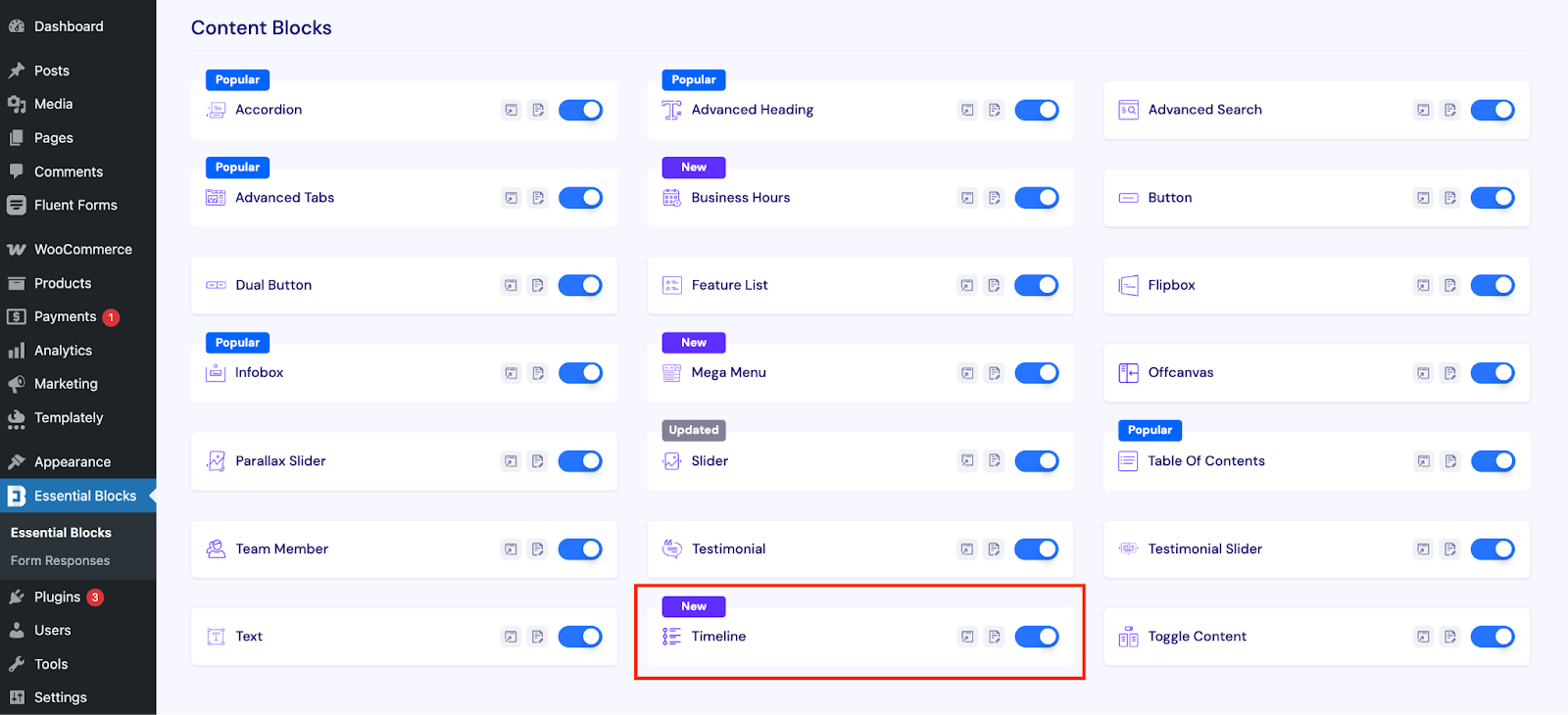
Open your WordPress dashboard to enable the Timeline block. Now, go to the Essential Blocks settings page. From there, click on the Blocks tab and scroll to the Content Blocks section. Locate the Timeline block in the list and turn on the toggle to activate it. Once enabled, the block will be available inside the Gutenberg editor.
How to Enable the Essential Blocks Timeline Block?
How to Configure Timeline Block in Gutenberg (Step-by-Step Guide) 13

How to Configure the Timeline in Gutenberg?

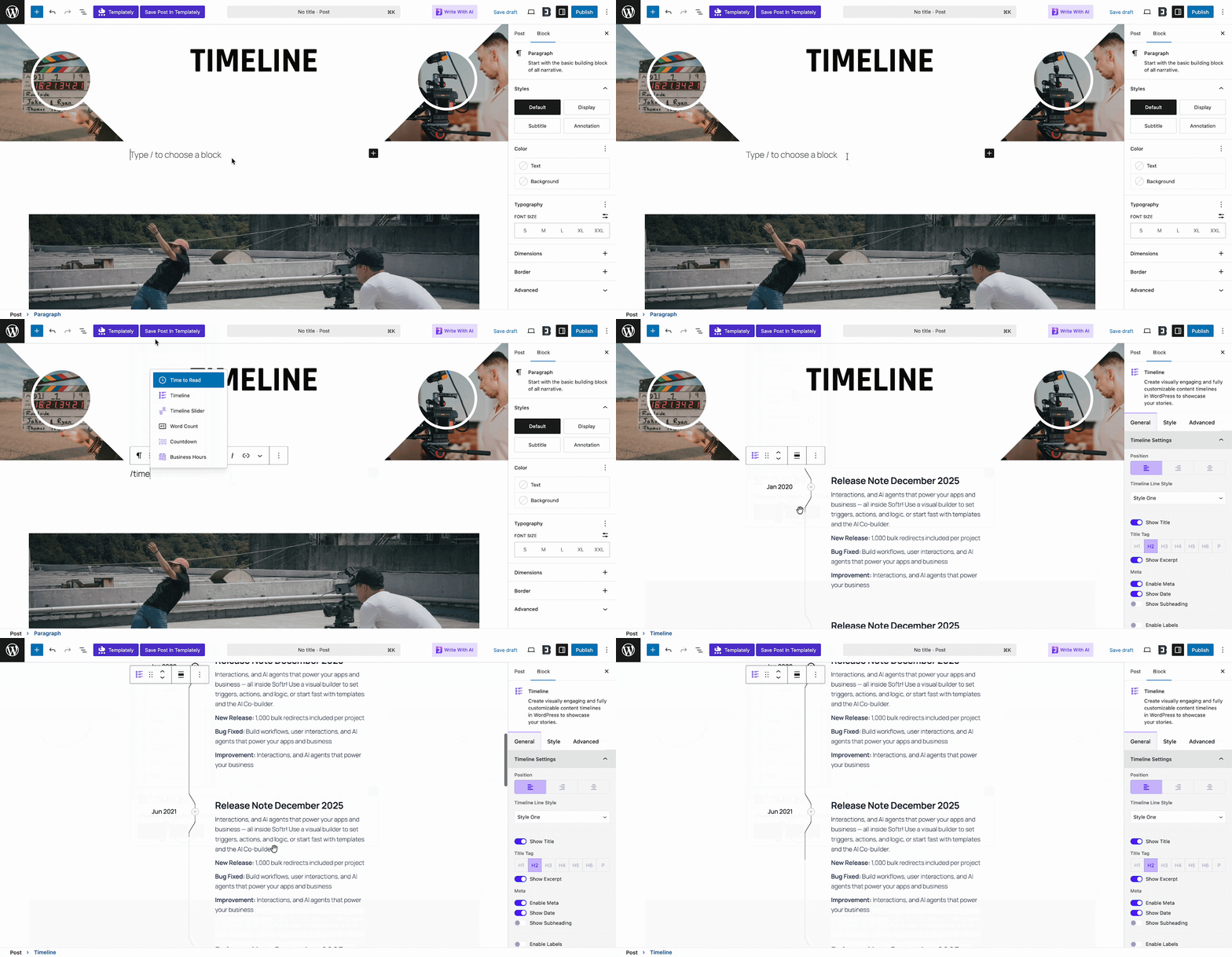
Open the page or post where you want to add the timeline. Inside the Gutenberg editor, click the ‘add block’ button, search for ‘Timeline’ and insert the Timeline block into your desired section.

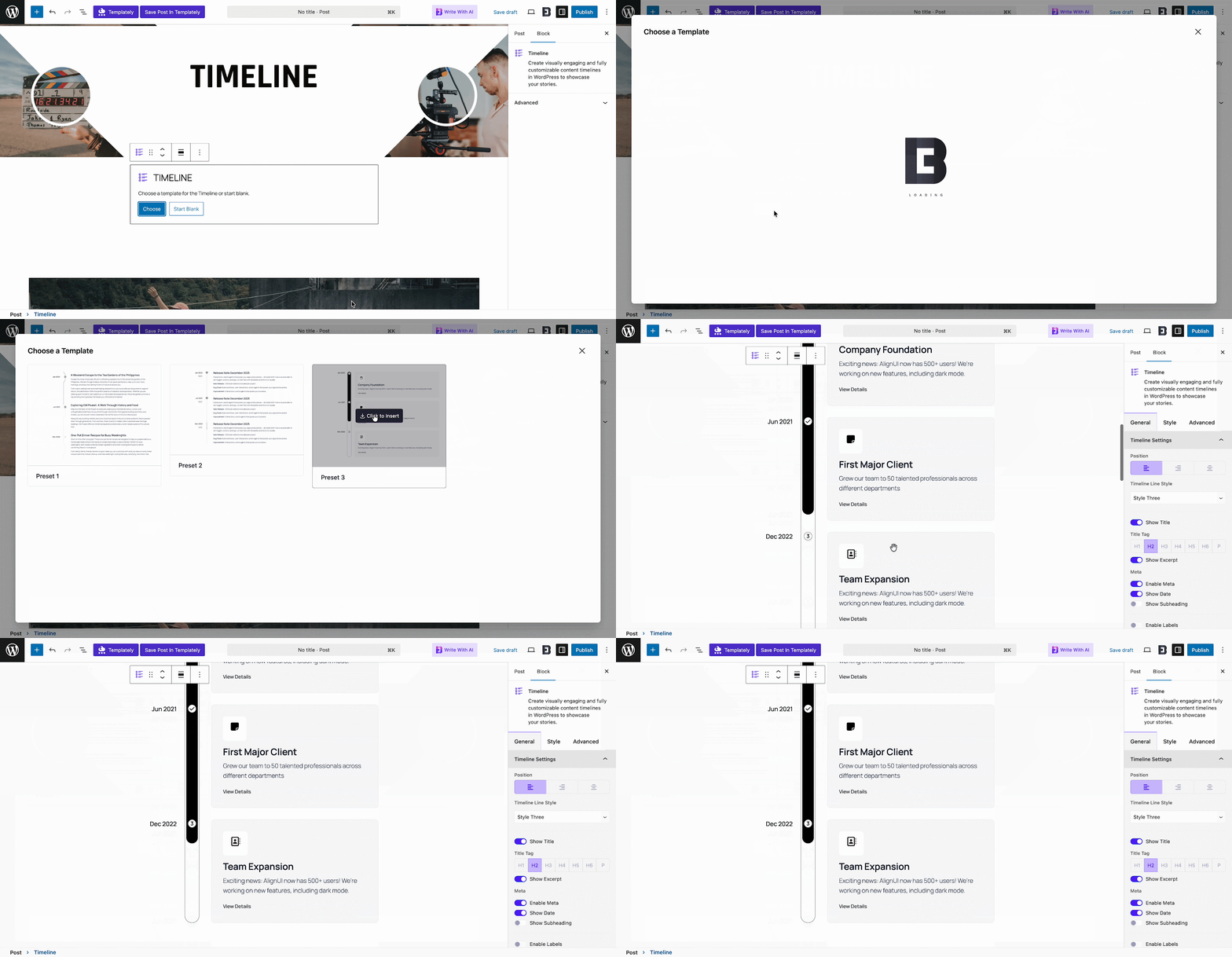
After adding the block, you will see two options: Choose or Start Blank. Select Start Blank if you prefer to build the timeline from scratch and customize everything based on your needs.

If you select Choose, you can pick from ready-made timeline templates. You will find three preset layouts available, including Preset 1, Preset 2 and Preset 3. Simply select the one that fits your design and start editing.
How to Configure Timeline Block in Gutenberg (Step-by-Step Guide)

Preset 1: A modern, minimalist timeline with single-line dates and detailed descriptions, creatively aligned with each scroll.

Preset 2: A simple straight-line layout, perfect for SaaS changelogs or showcasing product versions with clear explanations.

Preset 3: A modern, highlighted design with customizable icons, headings and links, ideal for milestones, achievements or key events.
How to Configure Timeline Block in Gutenberg (Step-by-Step Guide)

Timeline block offers flexible global features including tags, images, icons, and tickers. Start with a blank canvas or use the built-in text editor to design your timeline exactly how you want.

For finer control over layout and design, you can adjust each section’s structure using the options below.

General

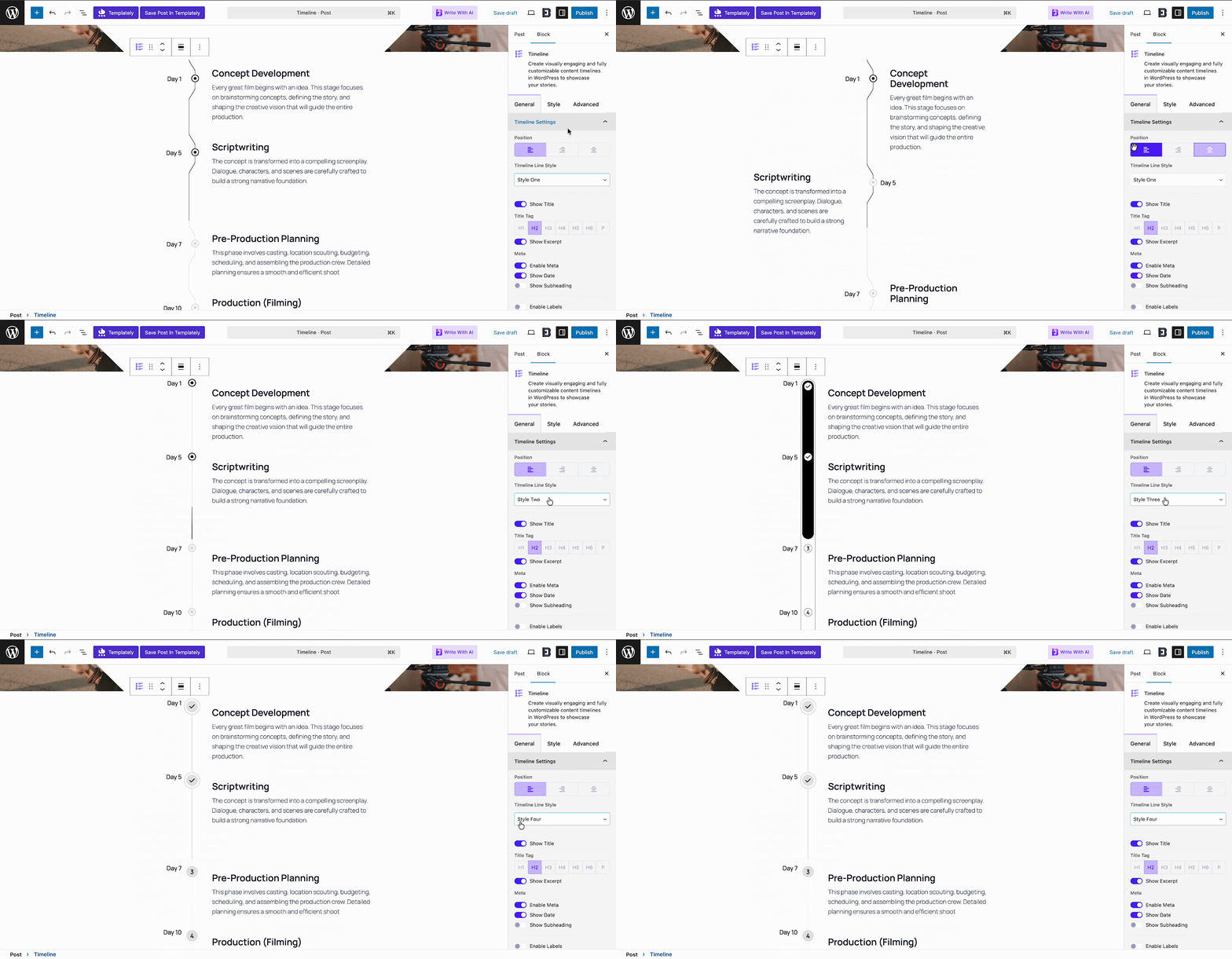
In the Gutenberg right sidebar, open the ‘Block’ tab from the right sidebar. Under the General tab, you will see options like Timeline Settings, Timeline Line Style, Title, Meta, Timeline Icon and Custom Content. Each section lets you customize styling and configuration.

Timeline Settings: Set the timeline’s position and select from four distinct styles for your chosen preset.
How to Configure Timeline Block in Gutenberg (Step-by-Step Guide)

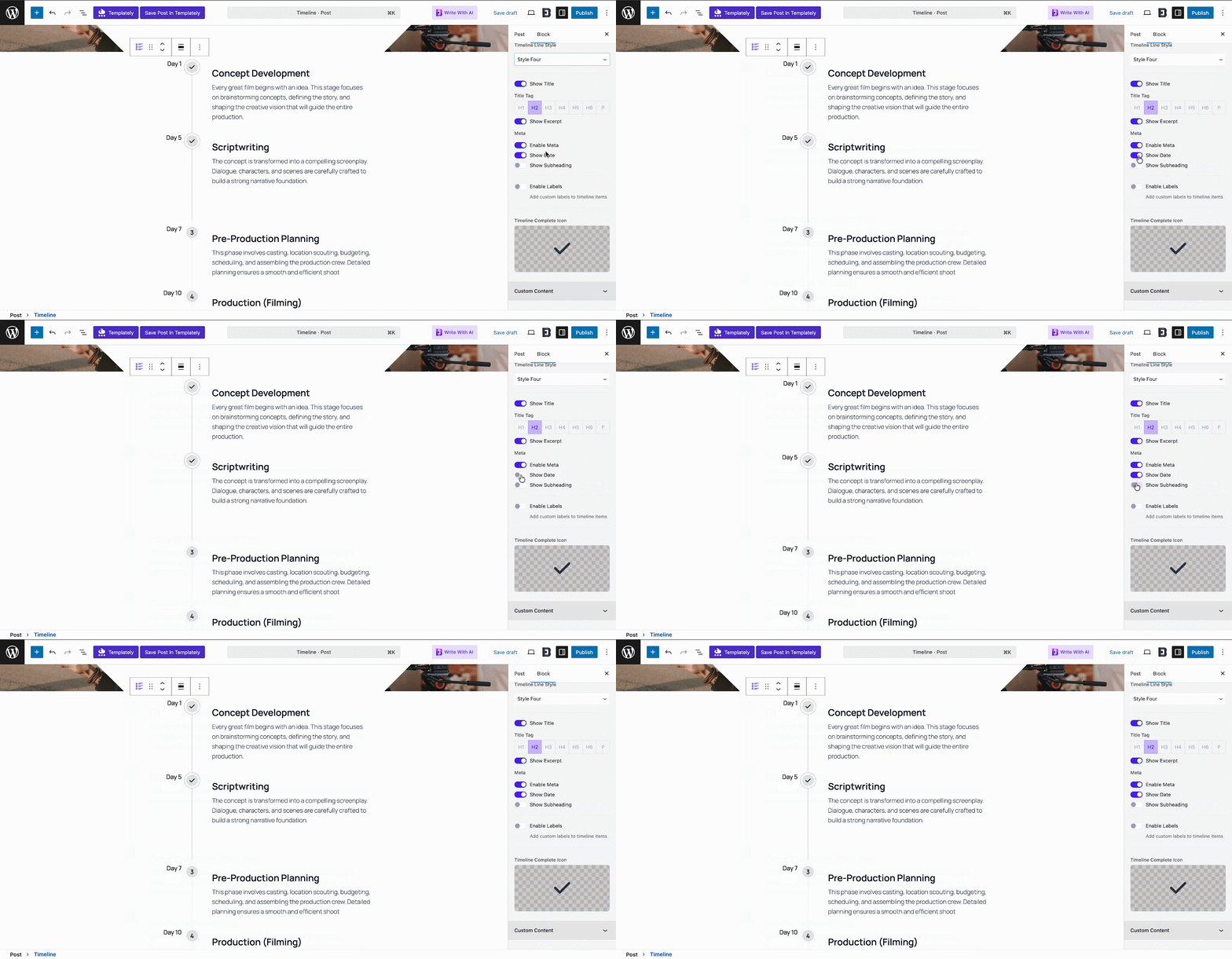
Meta: Toggle the meta option to show or hide the date. Even when enabled, you can choose to hide the date. You can also display subheadings and labels within the timeline.
How to Configure Timeline Block in Gutenberg (Step-by-Step Guide)

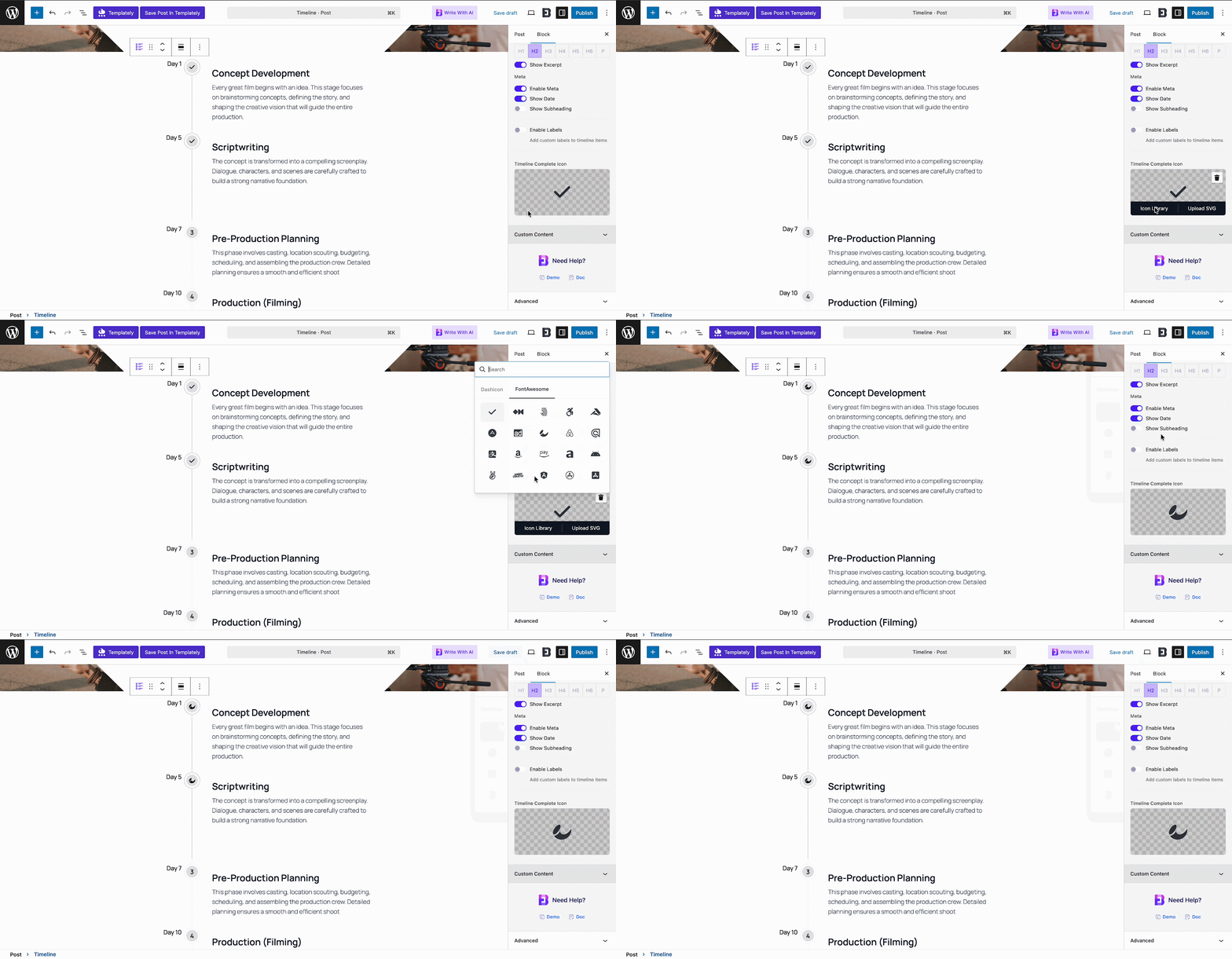
Timeline Icon: Customize your timeline by adding images that match your brand style.
How to Configure Timeline Block in Gutenberg (Step-by-Step Guide)

Content Editor: Select and customize the content for your timeline, including headings and text. You can also enable a Read More button for longer content.
How to Configure Timeline Block in Gutenberg (Step-by-Step Guide)

Style

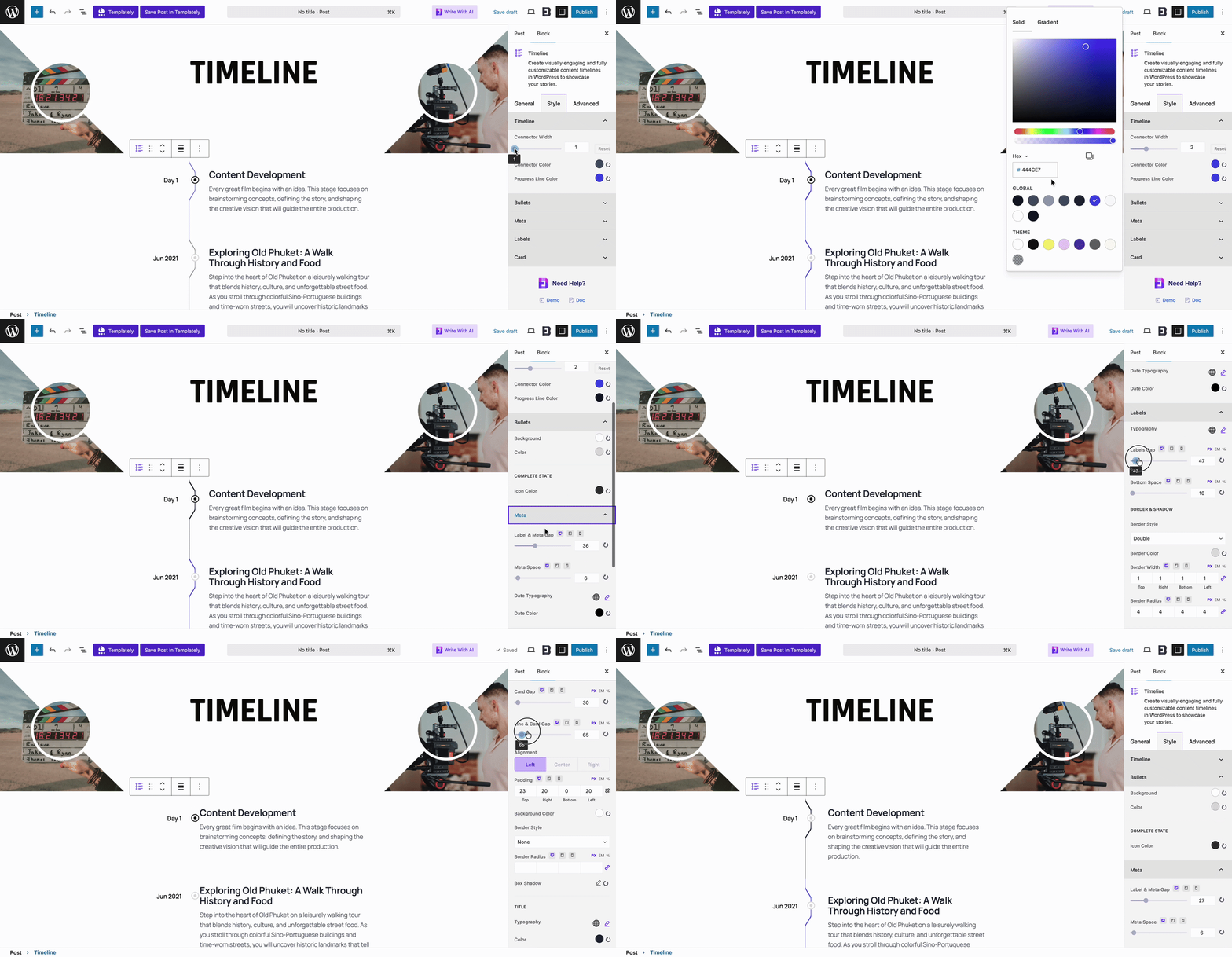
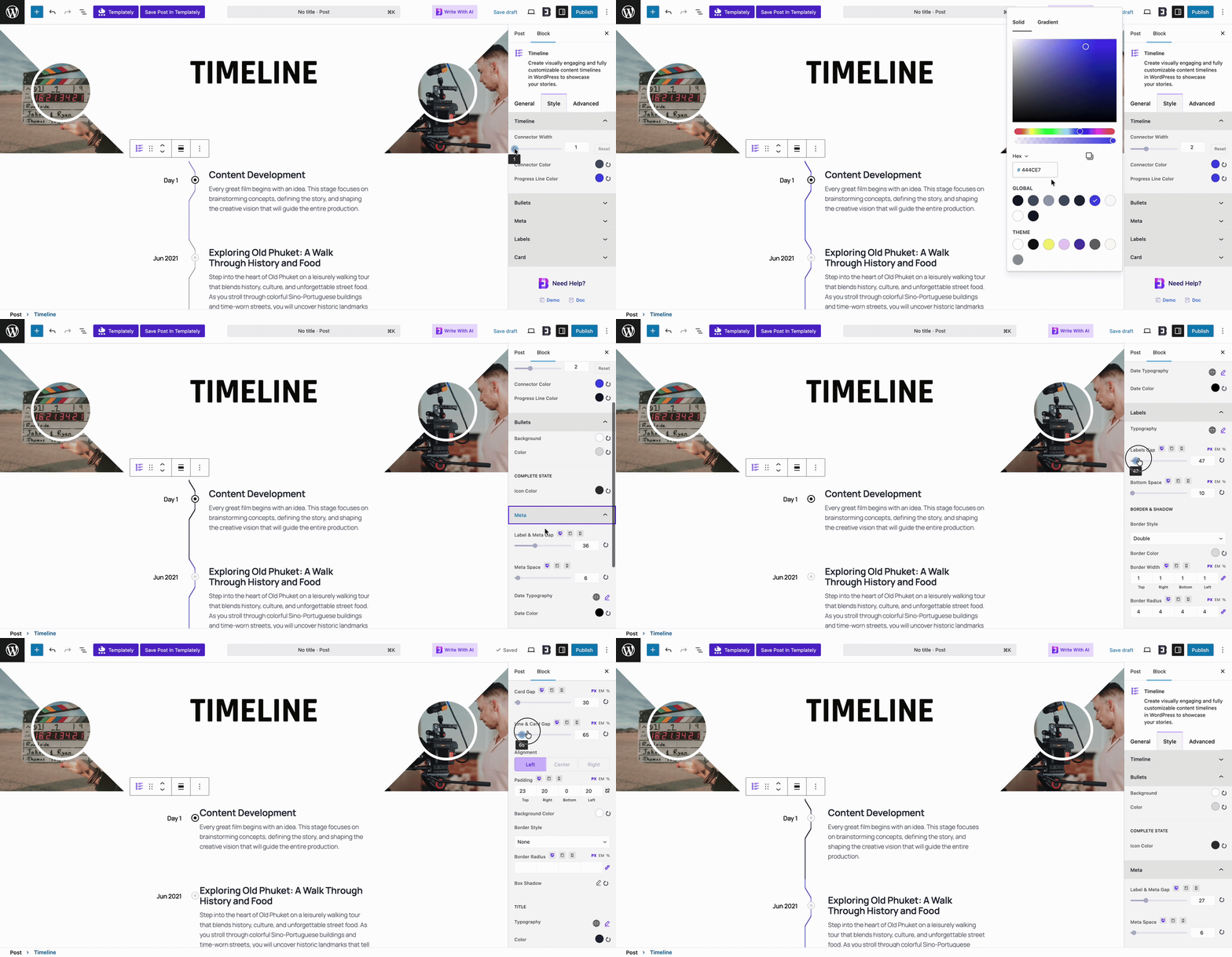
In the Style tab, customize the look of your timeline. Adjust options like connector width, line color, bullets, meta, labels and the typography and colors of cards.

Next, from the Style tab, you can create different styles for the timeline. You can style each option on the timeline, such as Connector width, color and progress line color, Bullet, Meta, Label and Card’s typography and color within this style option.  
How to Configure Timeline Block in Gutenberg (Step-by-Step Guide)

Advanced

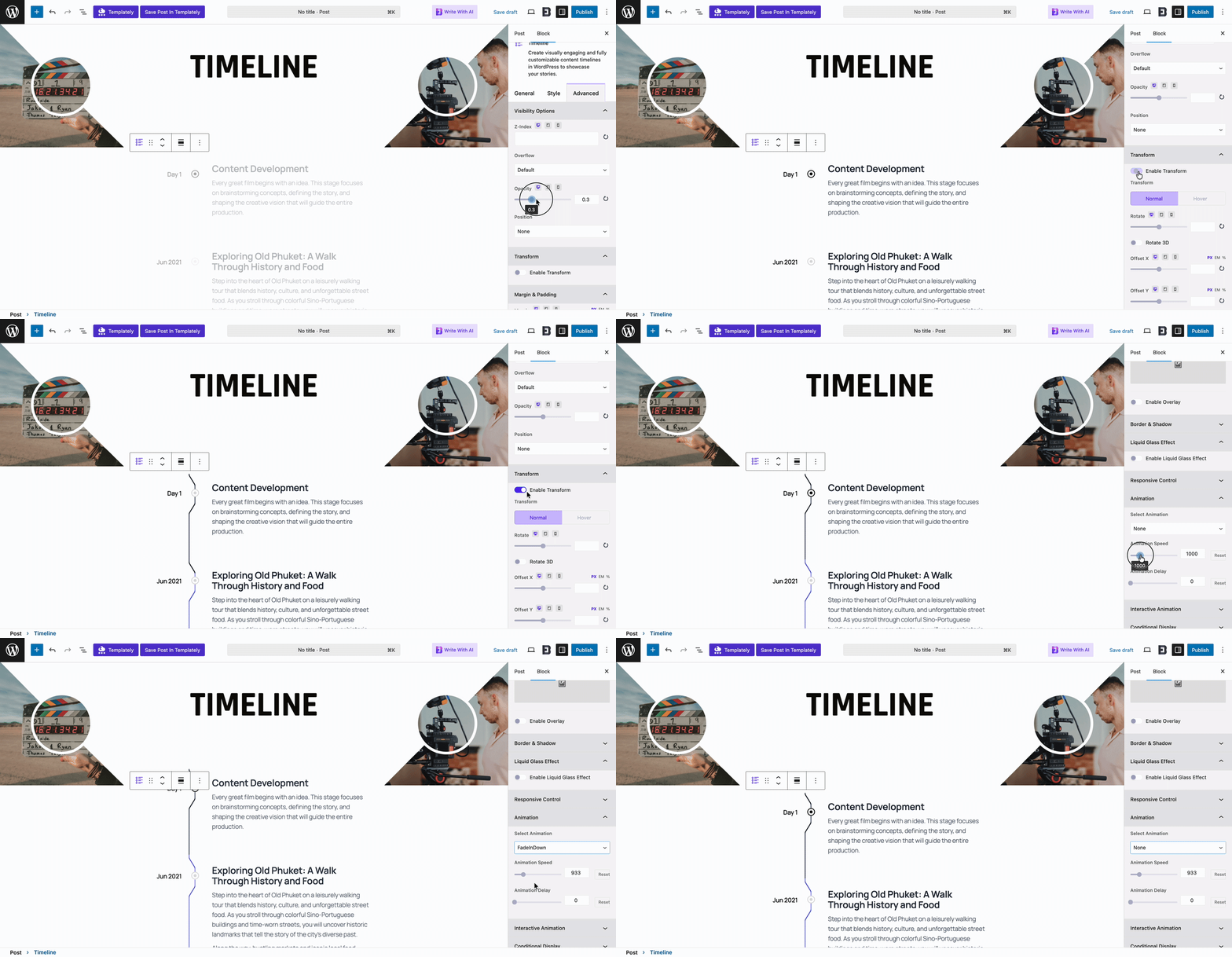
‘Advanced’ tab provides full control to fine-tune your timeline’s appearance and behavior, ensuring it fits seamlessly with your website’s design and user experience.

Options include Visibility, Margin & Padding, Background, Border & Shadow, Liquid Glass Effect, Responsive Control, Animation, Interactive Animation, Conditional Display and Custom CSS, letting you customize every detail with precision.
How to Configure Timeline Block in Gutenberg (Step-by-Step Guide)

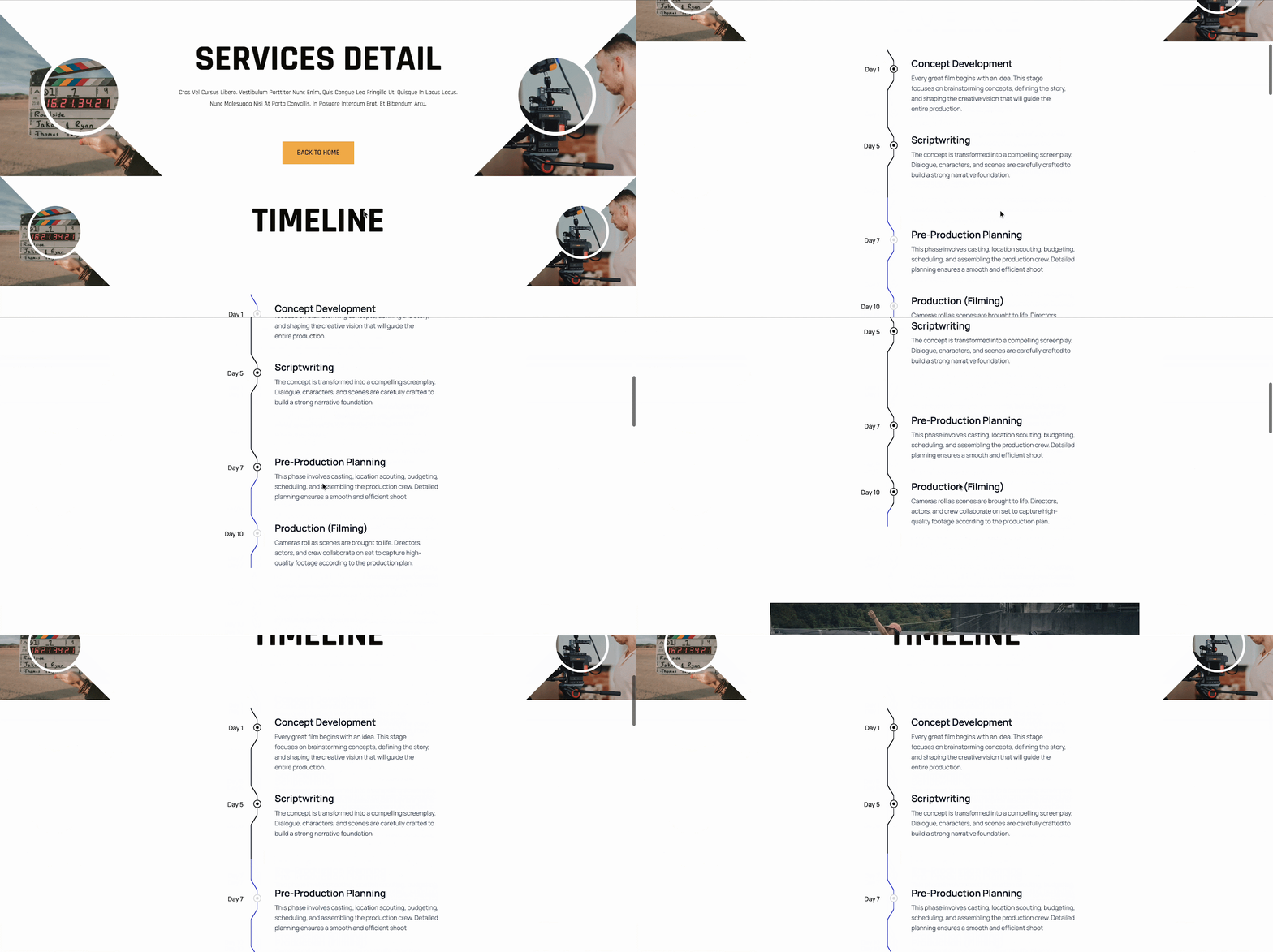
After customizing, click Save or Publish at the top to preview your changes.

With the Essential Blocks plugin, This is how you can easily insert a Timeline block on your website that looks professional and polished.
How to Configure Timeline Block in Gutenberg (Step-by-Step Guide)

Where to Use Timeline Block on Your Website? 

A timeline is one of the best ways to present information in a clear and structured order. Instead of listing events randomly, you can show progress step by step so visitors quickly understand the full story.

Here are some practical ways to use the Timeline block:

🟢 Company History Page: Show how your company started, key milestones, achievements, and growth over the years.

🟢 Product Roadmap: Display upcoming features, release phases and plans in a clear visual format.

🟢 SaaS Changelog: Highlight updates, improvements and version releases so users can track what has changed.

🟢 Event Schedule: Present event agendas, session timings and speaker details in chronological order.

🟢 Personal Portfolio: Share your career journey, experience, education and major projects in a structured timeline.

🟢 Case Studies: Break down project stages from planning to results to show your workflow and impact.

Whether you are telling a story, sharing progress or outlining future plans, the Timeline block helps organize information in a way that is easy to follow and visually engaging.

Best Practices for Timeline Content

Creating a timeline is not just about the technical setup. The quality of your content matters just as much. You need to plan what you put into your timeline. A cluttered timeline can be just as bad as a wall of text.

You should follow some basic rules to keep your timeline effective. This applies whether you are building a company history or a product roadmap.

Keep It Concise

Less is often more when it comes to timelines.

  • Use short and punchy titles that describe the event quickly.
  • Limit the description text to two or three sentences per item.
  • Use bold dates to anchor the user in the chronological flow.

Visual Consistency

Consistency builds trust and makes your Timeline block settings and styling tutorial implementation look professional. Your design choices should be uniform throughout the timeline.

  • Use the same color palette for all timeline cards.
  • Keep the icon style consistent across all milestones.
  • Ensure the gap between events is equal for a balanced look.

Troubleshooting Common Issues

Sometimes things might not look right immediately. You might face small issues when you configure a timeline block for WordPress. Most of these are easy to fix with a few checks.

Understanding common drawbacks saves you time. It helps you get your Gutenberg timeline block live faster.

Alignment Issues

If your timeline appears misaligned like crooked or off-center, review these settings: 

  • Verify that you have selected the correct alignment in the General settings.
  • Check if your theme has conflicting CSS that might override block styles.

Mobile Display Problems

If the timeline looks squashed on a phone try these steps: 

  • Reduce the font size for the mobile view in the typography settings.
  • Switch to a vertical layout if the horizontal one is too wide for screens.

Fixing these ensures your WordPress timeline block performs well for all users.

Bring Your Story to Life with Timeline Block

Configuring a timeline block does not have to be difficult. With the right plugin like Essential Blocks, it becomes a creative process. 

A well-crafted timeline tells a story that text alone cannot. It brings your history or plans to life. By following this guide you can create a professional WordPress timeline in minutes. Remember to keep your design consistent and your content concise. Use the timeline settings to match your brand identity. Now it is your turn to build something amazing. Go ahead and transform your static content into an engaging visual experience today.

Ready to build your first timeline? Install Essential Blocks today and create stunning visual stories without writing a single line of code. If you liked our blog, then  subscribe to our blog for all the latest updates and join our Facebook community to stay connected with new features, tips and announcements.

Frequently Asked Questions (FAQs) About the WordPress Timeline Block in Gutenberg

Below are some of the most common questions users have when adding a Timeline block to their website: 

1. Does WordPress have a built-in Timeline block?

No, WordPress does not include a default Timeline block inside the Gutenberg editor. To create timelines, you need a third-party block plugin such as Essential Blocks that provides a dedicated Timeline block.

2. Is the Timeline Block free in Essential Blocks?

Yes, the Timeline block is available in the free version of Essential Blocks. You can create and style timelines without upgrading. The Pro version offers extra features and advanced design controls for more flexibility.

3. Can I create both vertical and horizontal timelines?

Yes. Most timeline plugins, including Essential Blocks, allow you to choose between vertical and horizontal layouts. You can switch the layout from the block settings panel based on your design needs.

4. How do I make the Timeline block mobile responsive?

Timeline block is built to adapt to different screen sizes. You can adjust spacing, alignment, typography and layout settings to ensure it looks clean on mobile and tablet devices. Always preview your page on multiple devices before publishing.

5. Can I customize the design of each timeline item?

Yes. You can customize colors, typography, icons, spacing and content for each timeline entry. With plugins like Essential Blocks, you get full control over the appearance directly inside the editor.

6. Can I use the Timeline block for dynamic content like updates or changelogs?

Absolutely. The Timeline block is perfect for product updates, SaaS changelogs, event schedules and project milestones. You can easily add new timeline items whenever there is an update and keep your content organized in chronological order.

Fatin Avatar
Share This Story