

Rotate By Degree
Craft subtle spins with angle accuracy that elevate your visual style.
Rotate In 3D
Add depth, dimension and motion with 3D rotation
Rotate On Hover
Add playful rotation activities that initiate user hover interaction instantly.
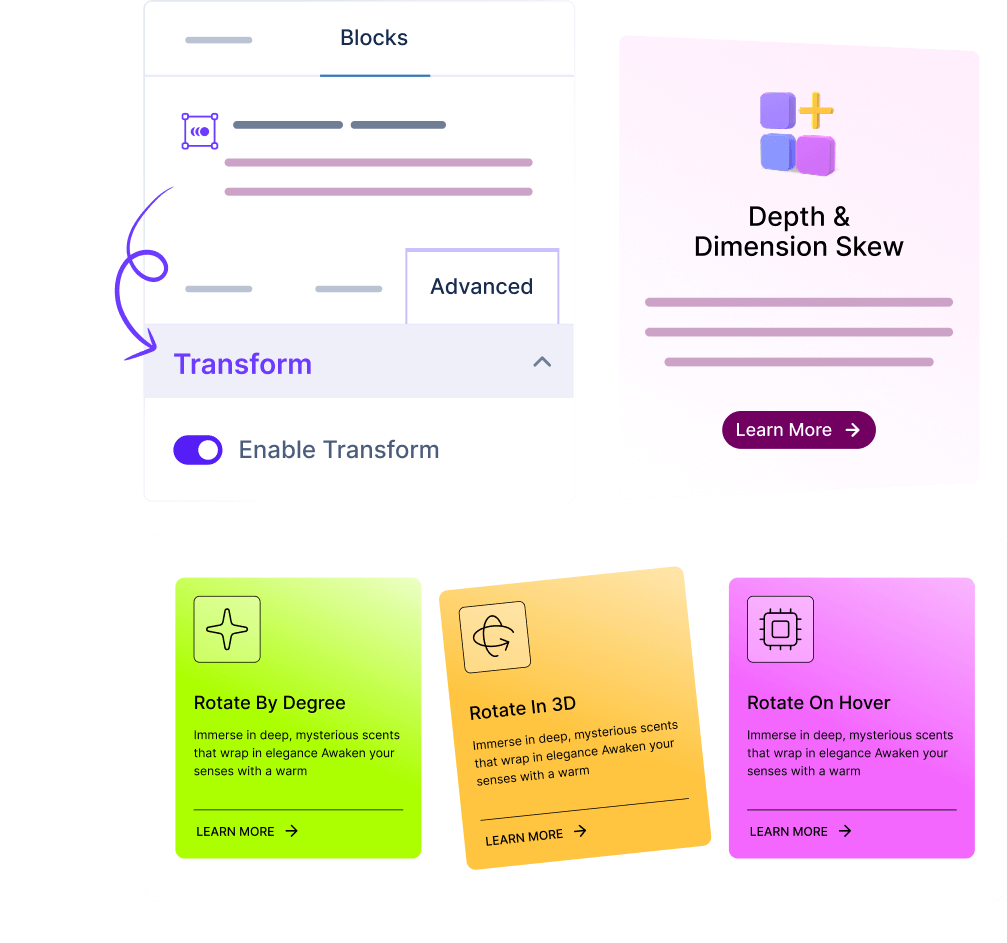
Depth and
Dimension Skew
Bend and tilt the content exactly how you want for a polished, dynamic look.

Layered Transform Skew Effects
Create a layered, multidimensional 3D skew that brings motion to design.

Interactive Slant on Hover
Make your elements respond with interactive curves that engage users.
“The expertise and hands-on support provided by this agency exceeded our expectations. Their guidance on organic farming techniques has been invaluable.”

Sarah L.
Sr. Content Writer
“They helped us revamp our irrigation planning and crop management strategies. The results were noticeable within weeks, and our yields have improved significantly.”

Jerome Bell
Product Manager
“We appreciate their dedication and insight into modern farming practices. Their recommendations have increased productivity while keeping sustainability in focus.”

Wade Warren
Director, AgroVista Farms
“Working with this agency has been a pleasure. Their team understands modern farming challenges and delivers solutions that truly boost efficiency and sustainability.”

Darrell Steward
Manager, GreenHarvest Co.
“From soil analysis to crop rotation planning, their team is knowledgeable, approachable, and professional. We’ve seen tangible improvements in our farm operations.”

Jenny Wilson
CEO of BrightLeaf Solutions
“The agency helped streamline our supply chain and farm logistics. Their solutions are practical, innovative, and tailored to our specific needs.”

Leslie Alexander
CEO, HarvestPro Farms
What themes does Essential Blocks for Gutenberg work with?
Essential Blocks for Gutenberg supports almost all themes that are compatible with Gutenberg.
What are the requirements to use Essential Blocks for Gutenberg?
To use Essential Blocks you need to have a WordPress website that uses the default Gutenberg editor.
Will Essential Blocks slow down my website?
No, Essential Blocks will not slow down your website. It brings you the outstanding facility of complete modular control over the activation of each individual block. We have also used optimized codes for this plugin which helps to load only the resources that are currently using. These advanced facilities will boost your site speed even further.
Can I use Essential Blocks PRO on multiple websites?
Yes! Once you upgrade your plan accordingly, you can use Essential Blocks PRO on multiple websites.
Do you have a refund option?
Absolutely! We take pride in customer satisfaction. Thus, we are offering you a risk-free 14-day money-back guarantee. If you are not happy with Essential Blocks PRO within this period, we will happily refund your money.
What will happen after my license expires?
You can still use all of our premium features once the license expires, except you will just not get new premium updates and support. Don’t worry, we will notify you to renew your license.